

Break rules
Add or extend a paid or unpaid break automatically when a worker passes a number of hours.
A break rule makes sure a timesheet has the break your award requires once a worker passes a number of hours: it adds a break when there is none and extends one that is too short. An unpaid break comes off the hours paid; a paid break is paid like the work around it.
Break rules belong to a rule group: open the pay rate document, select the Rule Groups tab, and find Break Rules.
Add a break rule
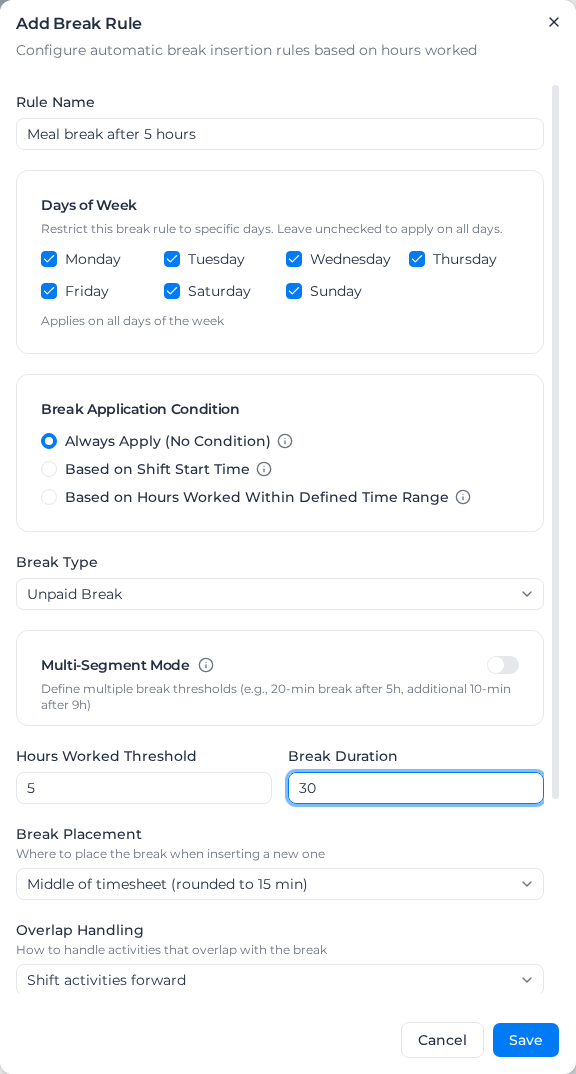
- Under Break Rules, select Add Rule.
- Enter a Rule Name, such as "Meal break after 5 hours".
- Under Days of Week, untick any day the rule shouldn't apply to.
- Choose a Break Application Condition: Always Apply (No Condition), Based on Shift Start Time (only shifts starting inside a window), or Based on Hours Worked Within Defined Time Range (only shifts with hours inside a window). The last two ask for Window Start (HH:MM) and Window End (HH:MM).
- Choose the Break Type: Unpaid Break or Paid Break.
- Enter the Hours Worked Threshold (hours before the rule applies) and the Break Duration in minutes.
- Under Assess hours worked, choose Per timesheet: each timesheet on its own (the default) or Per day: all of the worker's timesheets on the same day (see Count hours across the worker's day).
- Choose the Break Placement for a new break: Middle of timesheet (rounded to 15 min), After specific time from shift start, which asks how many minutes after the start, or End of timesheet (break ends where paid time ends) (see Put the break at the end).
- Choose the Overlap Handling (see below).
- For a paid break, choose the Replacement Activity (paid breaks) and the Pay category for break time (see Paid breaks).
- Select Save.
To change or remove a rule, open its menu and select Edit or Delete.
What happens to a timesheet
When you apply pay rates, each timesheet that reaches the Hours Worked Threshold on a ticked day (and meets the condition) is checked:
- no break: a break of the full duration is added where Break Placement says;
- breaks shorter than the duration in total: the last break is extended to make up the difference;
- breaks already long enough: nothing changes.
A timesheet below the threshold keeps its breaks as they are.
Overlap Handling decides what happens to the work the break lands on:
- Shift activities forward: later activities move back by the break, keeping their length. A 30-minute break ending at 11:30 moves an activity from 11:00–17:00 to 11:30–17:30.
- Deduct from overlapping activities: activities keep their times, and the break comes off their length. The timesheet's start and finish don't move, but an activity that ends during the break is cut off where the break starts.
If part of an unpaid break falls between activities or on an unpaid activity, only the paid time it covers is deducted, and the timesheet's pay details say so.
Put the break at the end
End of timesheet (break ends where paid time ends) ends the break where the last paid activity ends. That is the finish time, unless the day ends with an unpaid activity such as travel, in which case the break comes out of the paid time before it. Use it when shift lengths vary, because the break follows the finish rather than a fixed time after the start.
- The break is always deducted from the activities it overlaps, including when an existing break is extended, so the finish time doesn't change. Shift activities forward can't be used with it.
- For an unpaid break, a time-of-day shift rule that covers the end of the shift, such as a night loading, applies to up to the break's length fewer minutes.
- Shift rules that match on when a shift finishes still use the finish time: a shift that ends at 18:15 still counts as finishing at 18:15.
For example, a 30-minute unpaid break after 5 hours, placed at the end, on a 06:00–14:00 shift with no break runs from 13:30 to 14:00. The last activity now ends at 13:30, the timesheet still finishes at 14:00, and 30 minutes fewer are paid.
Count hours across the worker's day
By default each timesheet is judged on its own hours and can get its own break. Choose Per day: all of the worker's timesheets on the same day when your award counts hours worked in a day, such as split shifts or a worker moving between jobs. The worker then gets at most one break from the rule that day, and the rule shows a Per day badge. Per day can't be used with Multi-Segment Mode.
- Hours from every timesheet that day count toward the threshold, including timesheets under other rule groups or pay rate documents. Two 4-hour timesheets reach a 5-hour threshold.
- Breaks already recorded on any of the day's timesheets count toward the duration, so only the rest is added. For a paid break, an unpaid break only counts on a timesheet that uses this rule group and isn't manually coded or under review.
- Count gaps between timesheets as the break (unpaid breaks only, on by default): a gap between two timesheets at least as long as the break counts as the break, and nothing is deducted. A worker on 06:00–12:00 and 12:30–18:30 with a 30-minute rule has already had their break. Shorter gaps, such as travel between jobs, don't count, and a gap never counts as a paid break.
- One timesheet carries the break, always one that uses this rule group. A manually coded timesheet or one under review keeps its pay and never receives the break.
- Several per-day rules in one rule group, such as a 10-minute rest after 4 hours and a 30-minute meal after 5, are tried in order: the first rule that adds or converts a break applies, and a rule the day's breaks already meet lets the next one try.
Break Placement reads the whole day: Middle is half-way through the day's worked hours; End of timesheet is the end of the last timesheet of the day that uses this rule group; After specific time is measured from the start of the first timesheet, and if that falls between timesheets the break starts when work starts again. With Shift activities forward, a break that would push into the worker's next timesheet is deducted instead.
When you apply pay rates to one timesheet from its pay details, the worker's other timesheets that day are recalculated too, because the break can move between them. Saving manual pay coding for one timesheet changes only that timesheet: if the day still needs a break, it goes on the timesheet you're saving.
For example, with a 30-minute unpaid break after 5 hours, Per day and placed in the middle, a worker on 07:00–11:00 for one job and 11:00–15:00 for another has 8 hours, so the rule applies even though neither timesheet reaches 5 hours. The break goes at 11:00–11:30 on the second timesheet.
When a per-day break can't be added
If any of the day's timesheets can't be totalled, no per-day break is added that day. The timesheet shows a warning, and its pay details say which timesheet and why. This happens when a timesheet:
- has activity times that can't be read, or hours with no activity times;
- already carries an automatic break from an earlier save;
- is manually coded or under review, was priced before per-day breaks existed, and its saved pay includes an automatic break of unknown length;
- has activity times but no dates, so it can't be told whether early-morning hours belong to this day or to a shift that ran past midnight.
Fix that timesheet (or save its manual coding again, or take it out of review), then apply pay rates. Days that already have results keep them until you apply pay rates again after switching a rule to Per day.
Paid breaks
A paid break follows the same rules, then pays the break time as the Replacement Activity (paid breaks), such as "Work On Site". It is paid at the rate of the time it falls in (ordinary, overtime or second overtime) and takes that time's cost code, so a break taken during overtime is coded as overtime.
Pay category for break time only changes how the break is grouped in pay calculations and exports, not its amount or cost code:
- Show as a separate "Paid Break" line (the default) shows it as its own category;
- Code as the worked rate type (regular / overtime / second overtime) puts it with the worked time around it.
Several breaks in one rule
Turn on Multi-Segment Mode for awards with more than one break, such as 20 minutes after 5 hours and another 10 minutes after 9. Each segment has its own Break Type, Pay category for break time, Hours Worked Threshold and Break Duration, and each threshold must be higher than the one before. Breaks are added as soon as each threshold is reached, so Break Placement isn't offered.
Example
A 30-minute unpaid break after 5 hours, placed in the middle, with Shift activities forward. An 8-hour shift from 7:00 to 15:00 with no break gets a break from 11:00 to 11:30, the activities after 11:00 move back 30 minutes, and 30 minutes fewer are paid.
A 15-minute paid rest break after 4 hours on a 6-hour shift with a 10-minute break: the break is extended to 15 minutes and all 15 minutes are paid at the rate of the time around it.