

RDO rules
Set aside part of a worker's hours as rostered day off (RDO) entitlement, by the day or by the week.
An RDO rule sets aside part of the hours a worker works as rostered day off (RDO) entitlement, coded to an RDO cost code. For example, a shift of 7.6 hours or more sets aside 0.4 hours, or a week of 36 hours sets aside 0.8.
RDO rules belong to a rule group: open the pay rate document, select the Rule Groups tab, and find RDO Rules.
This page is about accruing RDO from hours worked. To mark dates as RDO days on a calendar, and have RDO leave timesheets created for workers who have the day off, see Set up public holidays.
Add an RDO rule
- Under RDO Rules, select Add RDO Rule.
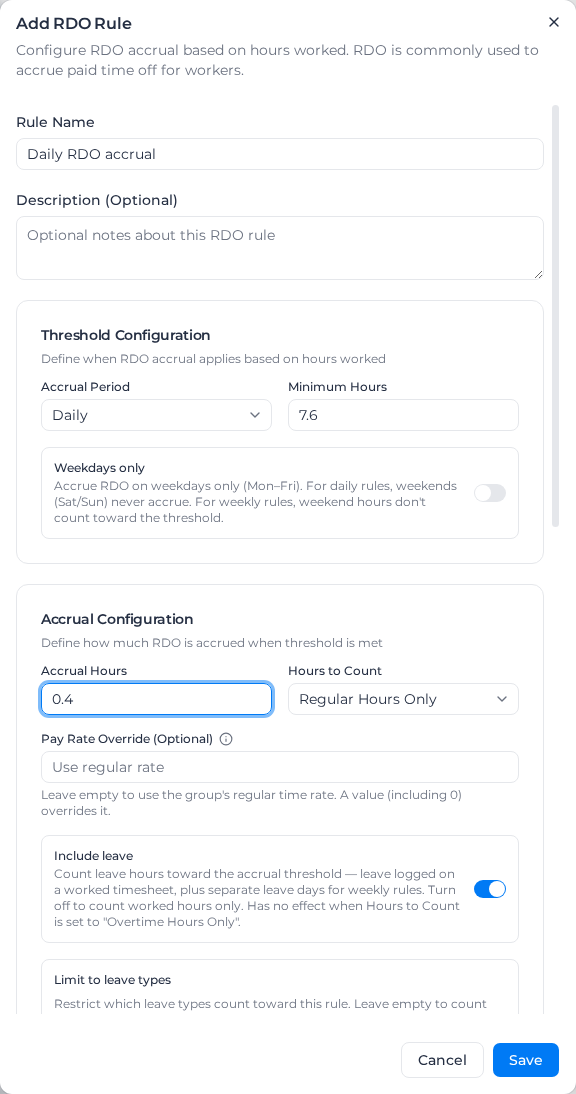
- Enter a Rule Name and optionally a Description (Optional).
- Choose the Accrual Period: Daily (each timesheet) or Weekly (the payroll week).
- Enter the Minimum Hours that must be worked before RDO accrues, such as 7.6 a day or 36 a week.
- Optionally turn on Weekdays only.
- Enter the Accrual Hours: how much RDO accrues once the minimum is reached, such as 0.4.
- Choose the Hours to Count: Regular Hours Only, All Hours or Overtime Hours Only.
- Optionally enter a Pay Rate Override (Optional).
- Set Include leave, and optionally Limit to leave types and Apply on leave days (see Count leave).
- Choose the Application Method: Split Time or Deduction Line (see below).
- Choose the Code Source: Specific Cost Code, then Select Cost Code; or Reference Shift Tree.
- Optionally pick employment types under Employment Type Linking (Optional). With none, the rule applies to everyone.
- Optionally pick shift rules under Exclude shift rules (Optional) (see Leave some shifts out).
- Select Save.
The rule then shows in the list with its period, threshold, accrual, hours counted and method. To change or remove it, open its menu and select Edit or Delete.
Which hours count
Hours to Count decides which hours count toward the minimum and the accrual:
- Regular Hours Only: ordinary time, plus leave when Include leave is on. This fits most awards.
- All Hours: every hour, overtime included, plus leave when Include leave is on.
- Overtime Hours Only: overtime only, never leave.
Weekdays only is off by default. Turned on, a daily rule never accrues on a Saturday or Sunday, and a weekly rule leaves weekend hours out of the week's total.
A weekly rule's RDO is applied to the worker's first timesheet of the week.
Split time or a deduction line
- Split Time: the RDO hours are split out of ordinary time and coded to RDO, at the start of the shift. A 2-hour RDO on a 7:00 to 17:00 shift becomes an RDO line from 7:00 to 9:00 and ordinary time from 9:00 to 17:00. Total pay doesn't change unless you set a pay rate override.
- Deduction Line: the ordinary time stays as it is, and a separate RDO line is added at the start of the shift with the RDO hours and a negative dollar amount. It shows in the table view and as an "RDO Deduction" card in the calendar.
With Split Time, where a time-of-day loading covers the first ordinary hours, the RDO hours come out of that loading's hours, so its premium isn't paid on them. On a timesheet without activities, Pay knows which hours a loading covers only when the shift's start and finish times were recorded. Even then it doesn't when:
- the shift has an unpaid break
- the rule group has fortnightly overtime or pays overtime as a loading
- the worker has a pay item on the loading's cost code
- the day is a public holiday or a weekend day with its own rate
- the shift runs into a different kind of day
The exception is two loadings whose windows overlap, which Pay places at their clock times in most of these cases. Shift Rules lists when it can't. Where Pay doesn't know, the RDO hours come out of ordinary time first, then out of the loadings' hours in the order the loadings are set up.
A time-of-day loading in a rule group with an RDO rule is paid only on the hours inside its window, as in any other rule group. For example, a 25% loading from 14:00 to midnight on a 12:00 to 22:00 shift is paid from 14:00, not from 12:00. Pay already calculated keeps its old lines until you apply pay rates again, and can then go down.
By default the RDO line is paid at the rule group's regular rate. A Pay Rate Override (Optional) pays it at that hourly rate instead; 0 is a valid value.
Choose the cost code
- Specific Cost Code: every RDO line from the rule uses the code you choose.
- Reference Shift Tree: each line uses the RDO cost code of the classification it matched, so each role can have its own RDO code. Once a rule uses it, each classification on the Rate Tree tab gets an RDO cost code field. A classification with no RDO code uses its normal cost code.
Count leave
Include leave is on by default: leave counts toward the minimum, both leave entered on a worked timesheet and, for weekly rules, separate leave days. So a worker who takes a day of leave can still reach 36 hours in the week. Turn it off to count worked hours only. It has no effect with Overtime Hours Only.
Limit to leave types counts only the leave types you pick: Annual, Sick, Personal, RDO, Unpaid or Other. Left at All leave types, every type counts. Your leave labels are matched by keyword, checked in this order: RDO, Unpaid, Sick, Personal, Annual. The first match wins, so "Sick/Personal Leave" counts as Sick and "Unpaid Personal Leave" as Unpaid; if your labels combine two types, pick both. A label containing "public holiday" is never Annual. A label that is exactly a type's name is always that type. Anything that matches no keyword is Other, and so is leave entered on a worked timesheet without a leave type, whatever its label. Select Other to count it.
Apply on leave days (daily rules only, off by default) also applies the split or deduction on paid leave days whose leave hours reach the minimum. It needs Include leave on. With it on, Limit to leave types also decides which leave days it applies to. A rule limited to particular roles or activities never applies on leave days, because a leave day has no worked role or activity to match; the form tells you when that is the case.
Leave some shifts out
Some agreements give RDO on one kind of shift but not another in the same role, such as a travel day shift but not a travel night shift. A role filter can't tell those apart, but the shift rule that priced the shift can.
Exclude shift rules (Optional) lists the rule group's shift rules. For a shift priced under one you pick:
- no RDO split or deduction line is added, so its hours stay on their normal lines;
- its hours don't count toward the minimum, so the worker's other shifts that day (daily rules) or week (weekly rules) have to reach it on their own;
- if any part of the timesheet was priced under the excluded shift rule, the whole timesheet is left out.
A weekly rule's RDO line goes on the first shift of the week that isn't excluded (with Split Time, the first one with ordinary time to split). If every shift in the rule group's week is excluded but the week still reaches the minimum, that rule adds no RDO line, and the timesheet shows a warning saying so.
Shifts priced under other shift rules, or under none, are unaffected. A timesheet without activity times is never priced by a shift rule, so it is never excluded. Leave the field at No shift rules excluded to accrue on every shift. The rule list shows No RDO on: and the shift rule names.
If you delete a shift rule that an RDO rule excludes, those shifts start accruing RDO again. The save message names the RDO rules affected, the list shows Excludes 1 deleted shift rule, and the RDO rule form has a Remove deleted button. To keep the shifts excluded, pick the replacement shift rule.
Examples
Daily accrual. Daily, Minimum Hours 7.2, Accrual Hours 0.4, Regular Hours Only, Split Time. A shift with more than 7.2 ordinary hours sets aside 0.4 hours as RDO at its start.
Weekly accrual with leave. Weekly, Minimum Hours 36, Accrual Hours 0.8, Include leave on. A worker who works four days and takes a day of leave still reaches 36 hours, and 0.8 hours of RDO goes on their first timesheet of the week.
Annual leave only. As above with Minimum Hours 38 and Limit to leave types set to Annual. A week of 30 worked hours and an 8-hour annual leave day reaches 38 and accrues. The same week with a sick day instead stops at 30 and doesn't.
No RDO on travel night shifts. Daily, Minimum Hours 7.2, Accrual Hours 0.8, Split Time, Exclude shift rules set to Travel Night. An 8-hour Travel Day shift sets aside 0.8 hours from its start. An 8-hour Travel Night shift sets aside nothing and keeps all its hours on their normal lines.
Timesheets already processed keep their RDO lines until you apply pay rates again. After you change a rule, apply pay rates again and check that the RDO lines sit at the start of each shift.