

Worked hours loading
Pay a loading, such as a 25% casual loading, on every hour worked, as its own coded line.
Worked hours loading adds a loading line beside every ordinary hour worked, such as a 25% casual loading, coded to its own cost code. The worked line isn't changed. With a $50 base, 38 ordinary hours export as "38h @ $50.00" plus "Casual Loading 38h @ $12.50", instead of one line at $62.50.
Worked hours loading is set per rule group and is off by default.
Turn on worked hours loading
- Open the pay rate document, select the Rule Groups tab, and find Worked Hours Loading.
- Select Configure Loading.
- Turn on Enable worked hours loading.
- Optionally change the Loading name. The line is named after it with the rate, such as "Casual Loading (25%)".
- Enter the Loading rate (% of base), such as 25.
- Turn on Apply loading on overtime hours only if your agreement loads overtime too.
- Turn on Apply loading on day-rule hours if Saturday and Sunday hours paid under a day rule should get the loading too.
- Choose the Loading cost code.
- Select Save.
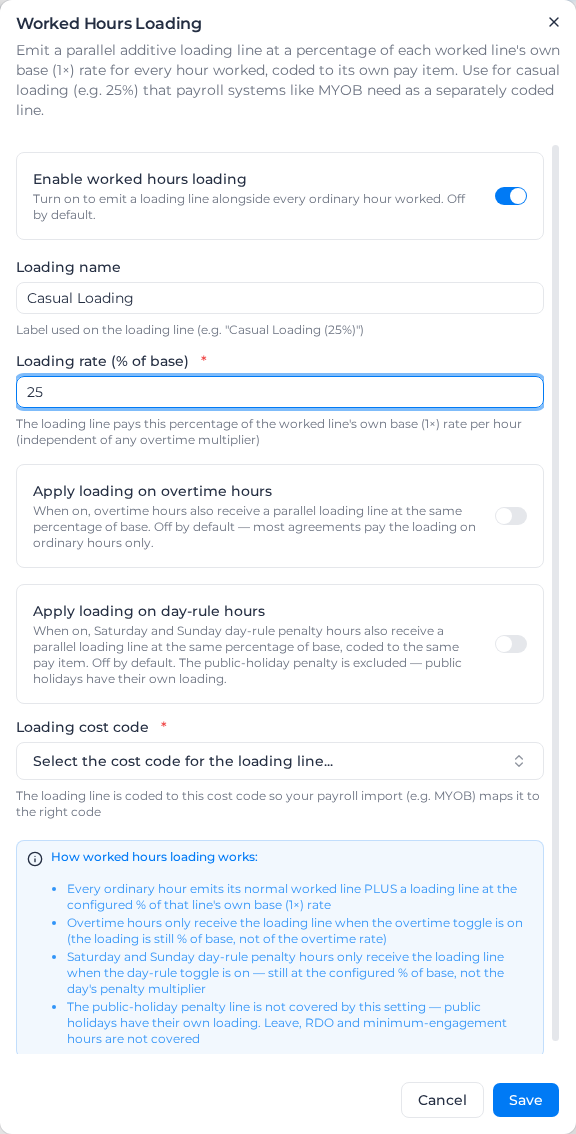
The section then shows the loading's rate, name and cost code, and whether it covers overtime and day-rule hours. To pause the loading, turn Enable worked hours loading off and save: the rate and cost code are kept.
How the loading is worked out
The loading is always a percentage of the line's own base rate, never of an overtime or weekend multiplier:
- an ordinary hour gets a loading of base rate × loading rate;
- an overtime hour at 1.5x, with Apply loading on overtime hours on, gets the same loading as an ordinary hour, not a larger one;
- a Saturday hour at 1.5x, with Apply loading on day-rule hours on, gets the same loading too;
- an hour paid from a shift or activity rate is loaded off that rate's base.
The loading is worked out after overtime, shift rules and RDOs, so it covers the ordinary hours actually paid after an RDO is taken out.
Which hours get the loading
| Hours | Loaded |
|---|---|
| Ordinary hours | Yes |
| Daily and weekly overtime | Only with Apply loading on overtime hours on |
| Saturday and Sunday day-rule hours | Only with Apply loading on day-rule hours on |
| The public holiday penalty | No; use Public holiday loading |
| Leave | No; use Leave loading |
| RDO lines, minimum engagement top-ups | No |
| Consecutive shift and shift spacing premiums | No |
| Other loading lines | No; loadings never load each other |
Apply loading on day-rule hours only covers Saturday and Sunday day rules; Monday to Friday day rules don't produce a penalty line, so it has no effect on them. Hours a custom activity rule codes to a weekend rate aren't day-rule hours and don't get it. On a public holiday, the hours paid at the base rate are ordinary hours and get the ordinary loading; only the public holiday penalty is left out.
A shift rule that pays its premium as a loading line and worked hours loading can be used together. Both are worked out from the base rate, and neither loads the other.
Example
A casual agreement with a $50 base and a 25% casual loading, Apply loading on overtime hours off. A worker records 38 ordinary hours and 7 hours of weekly overtime at 1.5x:
- 38 ordinary hours at $50.00
- Casual Loading (25%), 38 hours at $12.50: $475.00
- 7 overtime hours at $75.00, with no loading
With Apply loading on overtime hours on, the 7 overtime hours also get a loading line at $12.50 an hour: 25% of the $50 base, not of the $75 overtime rate.
Choose a loading cost code with a description: exports take the line's cost code name from it. A change applies the next time pay rates are applied; apply pay rates again for timesheets already processed.