

How to Use SMS
Send SMS broadcasts and two-way messages to your crew, manage templates and groups, track credits, and stay compliant with consent rules
SMS puts a message on your crew's phones — shift assignments, schedule changes, weather call-offs, gate codes — and brings their replies back into a shared inbox your office can answer from.
Open it from Messaging → SMS in the sidebar. Inside, a second menu splits into Conversations (Inbox, Outbox, Compose), Library (Templates, Groups), and Account (Usage).
Two things must be true before your first message goes out. Assignar has to provision a sender number for your account — until then you'll see SMS not configured on Compose. And every person you text has to have opted in themselves.
Consent: read this first
Carriers and regulators require that everyone you text has expressly agreed to receive messages from your company. Pay enforces this, so a broadcast simply skips anyone who hasn't opted in.
Having someone's mobile number is not consent. The two are recorded separately. You cannot opt in on another person's behalf, and you shouldn't try — consent has to be a voluntary act by the individual, or carriers reject it.
How each person opts in
Everyone does this for themselves, in their own account settings:
- Open your account menu and choose Settings. (Field users have Settings → Profile in their own sidebar.)
- In Mobile number, enter your mobile in international format — the field is labelled Mobile (E.164), e.g.
+61412345678. - Tick both consent boxes. The first agrees to receive operational text messages from your company through Assignar Pay; the second accepts the Terms of Service and Privacy Policy.
- Click Save mobile.
Tick both and the page confirms SMS will be enabled when you save — you'll receive operational messages from your company. Save with only one box ticked, and the number is kept but no messages will ever arrive: Your number will be saved, but you won't receive SMS messages. Tick both boxes above to opt in.
Saving is deliberately not blocked on the tick boxes, so nobody can be cornered into consenting.
How someone opts out
A recipient can reply STOP — or STOPALL, UNSUBSCRIBE, CANCEL, END, or QUIT — from their phone, and their opt-in is cleared immediately with nothing for you to do. Replying to opt back in does not work; they have to return to Mobile number and tick both boxes again.
Clicking Clear on their mobile number has the same effect: the number goes, and so does the consent.
Consent covers operational messages — assignments, schedules, site updates. Keep SMS to that. Message history is kept for 12 months by default and then purged.
Send a broadcast
- Open SMS → Compose and click Open compose dialog. (From the Inbox, New message gets you to the same place.)
- Optionally pick a Template (optional) to fill the message body.
- Write your Message. Use Insert variable to add
{first_name},{last_name},{full_name},{account_name},{sender_name}, or{today}— each recipient gets their own values at send time. - Under Recipients, pick Groups, Individuals, or both. The summary counts unique recipients, so someone in two groups is only counted (and charged) once.
- Check the counter: characters, segments, credits per recipient, and total credits.
- Click Send now. To send later, switch on Schedule for later, pick a time between 15 minutes and 7 days from now, then click Schedule send.
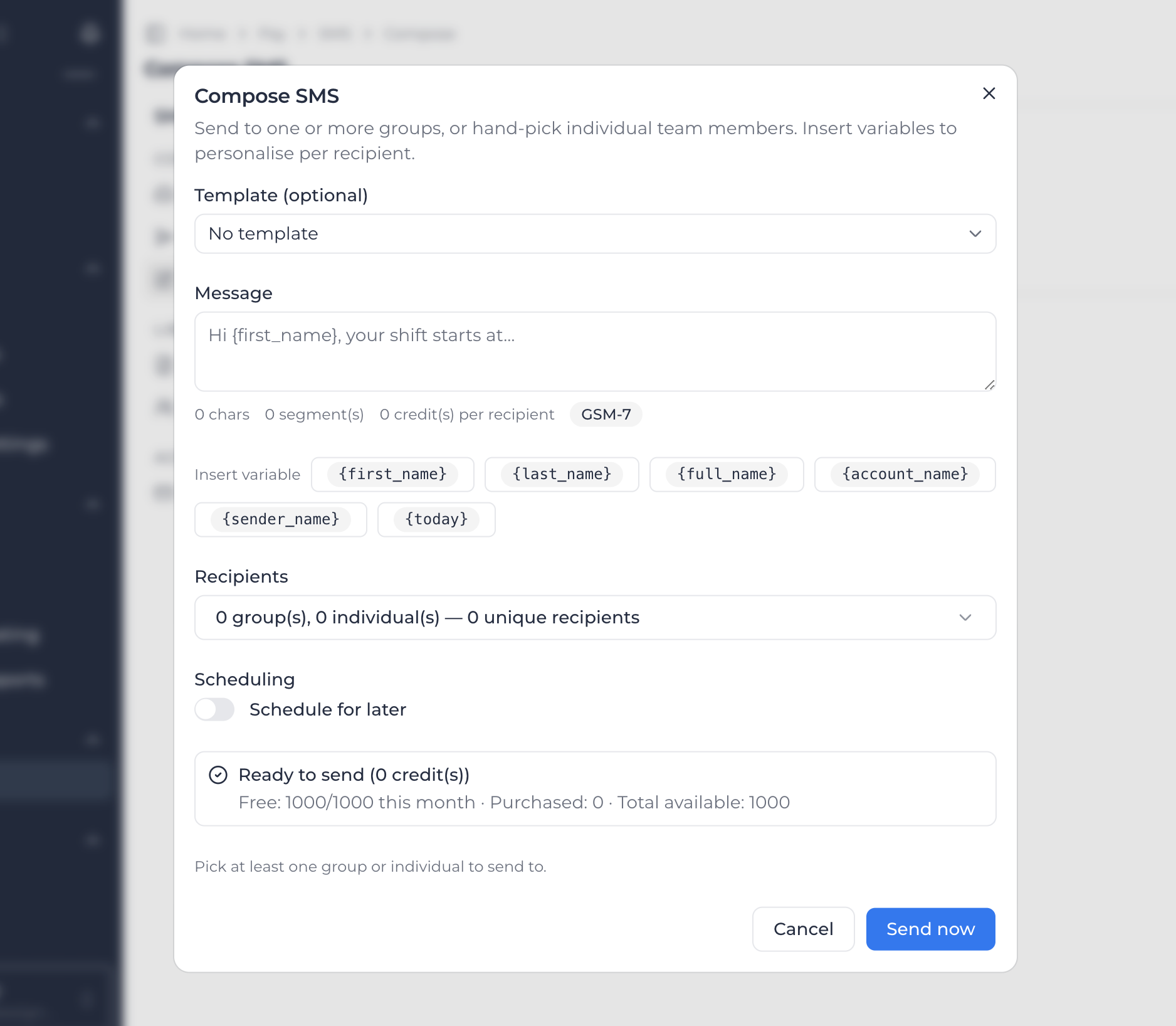
You'll see Broadcast sent to X recipient(s). or Broadcast scheduled — X recipient(s) queued.
The live count is an estimate. Each recipient's message is measured properly at send time, because their name may be longer or shorter than the preview.
Reply to a conversation
Replies land in SMS → Inbox. Pick a conversation to read the history, type in the reply box, and press Enter to send — Shift+Enter starts a new line. The cost of your reply in characters, segments, and credits is shown as you type.
If the person on the other end is a team member who hasn't opted in, a banner appears above the thread: This recipient has not opted in to SMS broadcasts. Replies in this thread will be refused until they enable SMS in their profile. You can still type, but the send is refused with Recipient has not opted in to SMS — reply was not sent.
Check what you sent
SMS → Outbox lists every broadcast with a Status: Scheduled, Queued, Sending, Sent, Delivered, Undelivered, Failed, or Canceled. Open one to see per-recipient delivery status, timestamps, and credits.
To stop a broadcast that hasn't gone out yet, click Cancel, then Cancel broadcast. Anything already sent can't be recalled, so a partly-sent broadcast reports both numbers.
Save messages and recipient lists
Only Owners and Admins can create or edit templates and groups. Anyone who can send SMS can use them.
For a message you send often, go to SMS → Templates and click Create template. Give it a Template name, write the Body, and insert variables as you would in a real message — the dialog lists the variables it detected and counts characters as you type. Click Save template. It shows up in the Compose template picker straight away. Editing or deleting a template never changes broadcasts that already used it.
For a crew or a site you message repeatedly, go to SMS → Groups and click Create group. Name it, pick Members, and click Save group. Only people with a mobile on file can be added, and a group holds at most 500 members — split a bigger list across several groups and target them all in one compose.
Watch your credits
One credit is roughly one message segment. Long messages, and any message containing emoji or unusual characters, take more segments and so cost more per recipient. The Compose counter always shows the cost before you commit.
Usage in the SMS menu opens the Billing page on the SMS tab. There you'll find:
- Free remaining — resets on the 1st of each calendar month, up to your account's monthly cap
- Purchased remaining — never expires and rolls over
- Available now — what you can actually spend
- Monthly usage, By sender, and History for auditing who sent what
To buy more, click Purchase credits, choose a 500, 1,000, or 5,000 credit pack (or enter a custom amount up to 10,000), then Continue to checkout. Checkout runs on Stripe. Only Owners and Admins can buy credits.
When a message doesn't go out
SMS not configured on Compose, or SMS not provisioned on the Billing card — Ask your Account Manager to provision a sender number for this account. Your account doesn't have a sender number yet, and only Assignar can add one.
No eligible recipients — everyone was skipped. Nobody you picked can be texted. The usual reasons are no mobile on file, a mobile that isn't valid international format, or no recorded opt-in. Ask them to add their number and tick both consent boxes.
Not enough credits to send. Top up to continue. Open Usage and click Purchase credits. Free credits reset monthly; purchased credits roll over.
Recipient has not opted in to SMS — reply was not sent. They need to opt in before you can reply in that thread.
Carrier rejected the message. The carrier refused delivery — check the number is correct and reachable.
You do not have permission to send SMS on this account. Your role can view SMS but not send. Ask an Owner or Admin.
If someone quietly stopped receiving messages, they most likely replied STOP or cleared their mobile number. Ask them to re-enter it and tick both consent boxes again.
If a message costs more than you expected, look for emoji or special characters — they switch the message to a character set that fits far fewer characters per segment. Plain text is cheaper.