

Set up workers
Add worker profiles, give them an employment type, assign them a pay rate document, and set rates for an individual worker.
Every timesheet you pay belongs to a worker profile. The profile holds what Assignar Pay needs to pay them: their employment type, their roles and tags, and, where they differ from the award, their own rates.
Worker profiles are under Resources, then Users, on the Worker Profiles tab. Owners and Admins can add and change them by default. A worker profile is a payroll record, not a login: to let a worker sign in, see Manage your team.
Add a worker
If you use Assignar Operations, import your workers from there instead: see Connect Assignar Operations.
- On the Worker Profiles tab, select Add Worker.
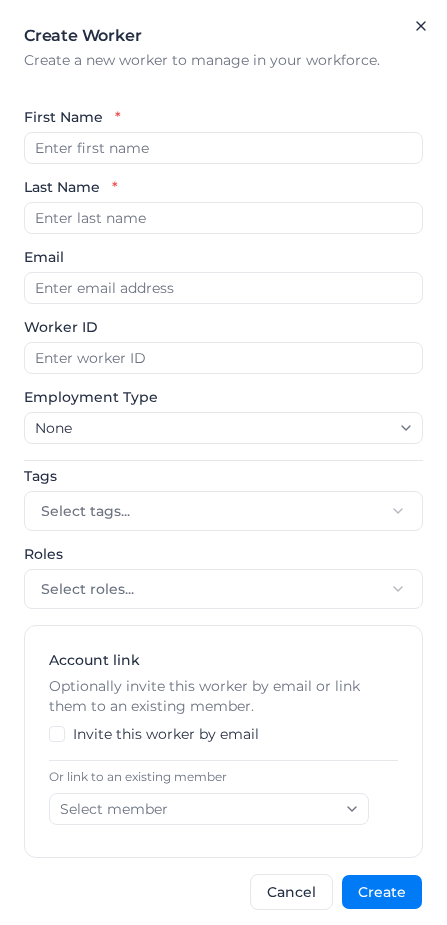
- Enter the First Name and Last Name. Everything else is optional:
- Photo (see Add a photo).
- Email and Worker ID.
- Based at, the location the worker works from. It only shows when your account has more than one location; see Set where records belong.
- Employment Type, used to pick the worker's rates (see below).
- Supplier, for a consultant or agency worker paid through a supplier's invoice (see Pay a worker through a supplier).
- Tags, used by tag-scoped pay rate documents and public holiday calendars.
- Roles, the jobs they do, such as Labourer or Crane Operator.
- Address and date of birth, if you have See sensitive worker data (see Record a worker's address and date of birth).
- Account link, to invite the worker to sign in or link them to an existing member.
- Select Create.
To change a worker later, open the … menu beside their name and select Edit.
For a worker who came from Assignar Operations (their Source is Assignar), change their name, email, worker ID, phone, employment type and whether they're active in Assignar Operations instead. Assignar Pay lets you edit these, but they're overwritten the next time the worker comes across: at the next sync after they change in Assignar Operations, or when someone imports workers. Their roles, tags, rates and supplier, and a photo you set in Assignar Pay, are kept.
Use the search box to find workers by name, email or worker ID, and the filter button beside it to filter by Source (Assignar, Manual or Bulk Import) or Status (Active, Inactive or Archived). With more than one location, you can also show one location's workers, or only those whose location is not confirmed. To see who works for a supplier, use the All workers box: pick Any supplier, No supplier (employees) or one supplier. Pick the same option again to go back to All workers.
Tick several workers to act on them together: set or confirm their location, set their Leave classification, Manage Roles, Bulk invite, Archive or Restore.
Give many workers their roles from a list
When you already have a list of workers and the roles each one does, for example from the system you're moving from, Milo can add those roles for you. You need the Manage members permission.
- Open Milo with Ask Milo. See Open Milo.
- Paste the list and say what to do, for example: "Add these roles: jane@example.com: Labourer, Traffic Controller. Sam Worker: Crane Operator." Name each worker by their email, worker ID or full name, and each role by its name. Capital letters and extra spaces don't matter.
- Milo shows a Role assignment preview: how many workers it matched, how many changes it will make, and any names to check.
- Select Add N role assignments, where N is the number of changes.
Nothing changes until you select the button. When it's done, the preview is replaced by Updated N role assignments. and the number of workers it covered.
Adding leaves every role a worker already has. To take roles away instead, ask Milo to remove them; the button then reads Remove N role assignments, and only the roles you listed are removed. One preview takes up to 1,000 rows, so split a longer list.
The preview lists any Workers not found, Workers matching more than one record (with each match's email or worker ID), Roles not found and Roles matching more than one role. Those names are skipped. Tell Milo which worker you mean, by email or worker ID, and it shows a new preview, or select the button to apply only the names that matched.
A role must already exist before Milo can add it: see Import data with Milo to create roles from a list.
If every matched worker already has the result you asked for, the preview says Nothing to change. Every matched worker already has this result. and shows no button.
If something goes wrong:
- Couldn't preview role changes with Assigning roles to workers requires the Manage Members permission.: ask an Owner or Admin to give you Manage members, or to assign the roles.
- Could not update roles. Ask Milo for a new preview and try again., or N role assignments were changed before an error. Ask Milo for a new preview to see what is left.: ask Milo for the same list again. The new preview counts only the changes still to make.
Add a photo
Photo is the first field when you add or edit a worker. Select it and choose a JPEG, PNG, GIF or WebP image smaller than 5MB, then select Create or Update. To remove it, select the × on the photo and save.
The photo shows for the worker on the scheduler and on Members. With no photo here, the picture from the person's own profile is used; with neither, their initials show. A photo stored for the worker in Assignar Operations is copied in when they sync, but a photo you add or remove here stays as you left it on later syncs.
If the photo won't upload, the message says why: Invalid file type (use JPEG, PNG, GIF or WebP), File too large (under 5MB), or Upload failed (choose the photo again).
Record a worker's address and date of birth
The Address and date of birth group on the worker form holds a worker's home address and date of birth. Only people with See sensitive worker data see the group: Owners and Admins by default, never the worker themself. Changing it also needs Manage members.
- Open the … menu beside the worker's name and select Edit, or select Add Worker.
- Fill in the Address and date of birth group.
- Select Update or Create.
For a worker from Assignar Operations, the group starts with the address and date of birth from their Assignar Operations profile and says Copied from Assignar Operations. Each Ops sync updates them until you change them here. A sync or worker import that brings a change from Assignar Operations updates them; once you change them here, syncs leave them as you set them.
A date of birth before 1 January 1900 or after today shows Enter a date between 1 January 1900 and today., and nothing is saved until you correct it. If you see Worker saved, but the address and date of birth couldn't be saved. Please try again., select Update again. If you see Worker created, but the address and date of birth couldn't be saved. Edit the worker to enter them., open the worker with Edit and enter them.
Set the class a worker is hired at for leave
A worker's Leave classification is the class they are hired at, such as CW2. Their leave is coded and paid at the classification with that name, instead of the role they worked that week. See Pay leave at the class a worker is hired at.
- Open the … menu beside the worker's name and select Edit.
- In Leave classification, pick a classification. The list shows the classification names in your active pay rate documents.
- Select Update.
Pick None (leave matches as before) to clear it. A worker whose classification is no longer in any active document shows it as (not in an active pay rate document): pick one that is, or clear it. You need permission to manage members to change it.
To set it on several workers at once, tick them and select Leave classification. Pick a classification, or None (leave matches as before), and select Set classification or Clear classification. A worker that can't be updated is listed with the reason, and the others are still updated.
The leave classification is set in Assignar Pay, including for workers from Assignar Operations, and syncs don't change it.
Pay a worker through a supplier
Consultants and agency workers submit time like your employees, but their supplier invoices you for it. Link each one to their supplier so their time stays out of payroll.
- Open the … menu beside the worker's name and select Edit.
- In Supplier, search for the supplier and pick it.
- Select Update.
From then on, the worker's timesheets are left out of Payroll → Pay Rates, its exports, and the Pay Rates report data source. They still show under Timesheets. The Supplier column on the Worker Profiles tab shows who each worker works for, and the supplier's own page lists its workers (see Manage suppliers).
To pay the worker through payroll again, pick No supplier (employee) and select Update. You need permission to manage members to change a worker's supplier.
Set up employment types
Employment types, such as Full Time, Part Time and Casual, are how a pay rate document with an Employment Type level tells workers apart. Some rules also apply to chosen employment types only, for example minimum engagement.
- On the Worker Profiles tab, select Manage employment types.
- Select Add Employment Type, enter the Employment Type Name and select Create.
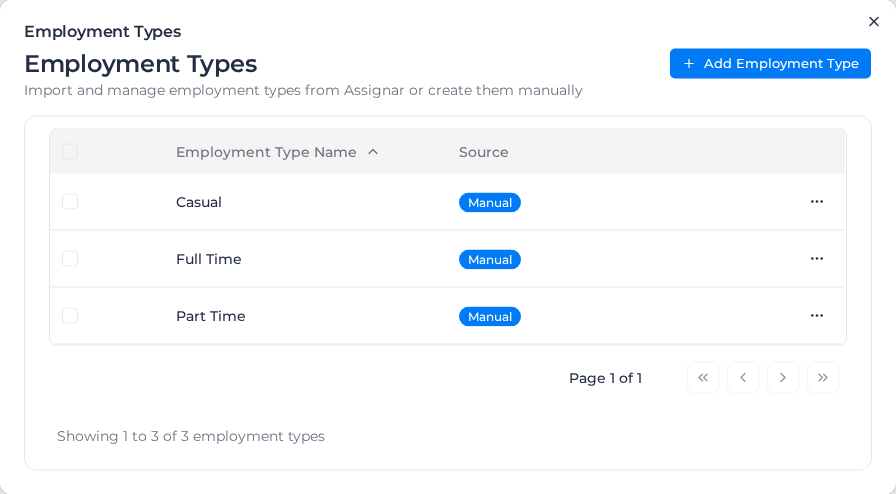
When Assignar Operations is connected, Import from Assignar in the same dialog brings its employment types across. Change an imported type's name in Assignar Operations. In Assignar Pay you can only change its Exclude from payroll setting (see below).
To rename a type you added, open its … menu and select Edit. To remove a type, open its … menu and select Delete, or tick several and delete them together. Workers who had that type are left with none, so give them another before you next apply pay rates.
Then give each worker their type in the Employment Type field of their profile.
Leave an employment type out of payroll
Some workers have their time recorded in Assignar Pay but are paid somewhere else, such as subcontractors or salaried staff. Give them an employment type of their own and exclude it from payroll, so their hours are still costed to the job but Assignar Pay doesn't pay them.
- On the Worker Profiles tab, select Manage employment types.
- Open the type's … menu and select Edit, or select Add Employment Type for a new one.
- Turn on Exclude from payroll.
- Select Update, or Create for a new type.
The Payroll column of the list shows Not paid through Pay for an excluded type and Paid through Pay for the rest. You need the Create payroll permission to add a type, and Update payroll to edit one, including turning this setting on or off.
For workers of an excluded type, timesheets that don't have pay worked out yet:
- Still come across from Assignar Operations and show under Timesheets, marked Not paid through Pay.
- Are skipped by Apply Pay Rates and automatic pay rates. These workers also get no new public holiday or RDO timesheets.
- Are left out of the Summary View and Table View, the payroll exports, the Pay Rates report data source and the pay rates API. Include supplier workers doesn't bring them back.
- Can't have their pay edited by hand. Trying shows This worker isn't paid through Pay. Their employment type is excluded from payroll, so their pay can't be edited here.
- Are costed in Job Costing at the cost code's Default Direct Cost Rate (see See where a cost came from).
Timesheets that already have pay worked out were paid through Assignar Pay, so they aren't affected. They keep their pay, keep showing in the pay rates views, exports, reports and API, and are still costed from pay rates.
Apply Pay Rates still updates them when the run succeeds, and leaves the existing pay in place when it fails. If you reset a timesheet's pay items, it loses its pay and is then left out like the others.
Turning the setting on recalculates nothing. Costs already in Job Costing stay as they are until the timesheet is costed again.
You can't delete an excluded employment type while workers or timesheets still use it. Turn off Exclude from payroll first, or move those workers to another type.
Workers linked to a supplier are different: their pay is still worked out, and Include supplier workers shows it.
Assign a pay rate document to a worker
Most workers get their pay rate document automatically, from the client, project or tags on their timesheets (see Choose which timesheets a document pays). Assign a document to a worker when they should be paid under it wherever no client, project or tag document applies, or when you want to fix their classification.
- Open the … menu beside the worker and select Pay Rate Assignments.
- Choose the Pay Rate Document.
- Optionally choose a Classification from that document. Their timesheets are then paid at that classification instead of the one their role would match.
- Set Effective From, the first date the assignment applies. It has to fall within the document's dates, which the hint under the field shows; days outside them can't be picked. The first assignment is the worker's Default.
- Select Add.
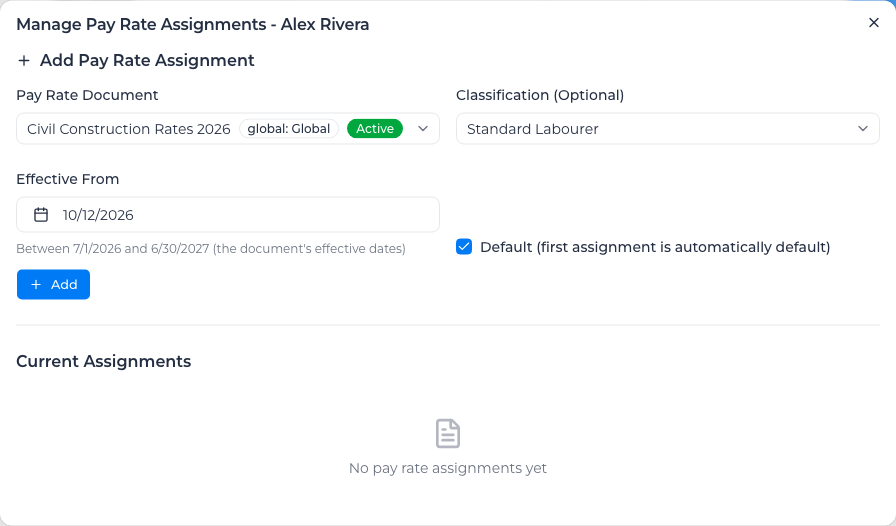
To promote a worker partway through a pay period, add a second assignment with the new classification and its own Effective From date. Each timesheet uses the assignment in effect on its date.
An assignment stays in place after its document's end date, and Assignar Pay doesn't move the worker to another document by itself. Once every document a worker is assigned to has ended, their later timesheets stay uncoded with a reason such as This worker is assigned to "EBA 2025", which ended on 2026-06-30. When a document ends, give each worker assigned to it an assignment to the document now in force, starting the day after it ended.
If a document is given an end date before one of its assignments starts, that assignment shows Effective date cannot be after the document's end date when you edit it. Choose an earlier date, or assign the document that replaces it.
Pay a different level in each role
When a worker moves between roles and holds a different level in each, leave the assignment's Classification empty and give the worker a level per role. Each timesheet is then paid at the worker's level for the role on that timesheet. Levels per role appears under the assignment when the document groups its levels under roles.
- Open the … menu beside the worker and select Pay Rate Assignments.
- Under the assignment, find Levels per role. Each role in the document is listed with the worker's level in it.
- Beside a role, select Set level, search for the level, choose the date it applies from, and select Save.
Changes to levels save as soon as you select Save beside the role. They aren't part of the changes the dialog's Save Changes button saves, so Cancel doesn't undo them.
A role's first level starts on the assignment's first day unless you change it. A level with no end date of its own ends with the assignment, and if you later extend or clear the assignment's end date, the level follows it. The dates you can pick stay inside the assignment's. Once an assignment has any level, a timesheet for a role dated before that role's first level is flagged for review, so starting later leaves the role's earlier timesheets flagged.
Where the document lists roles under each employment type, set the level under the employment type the worker is in. A role with only one level needs nothing set.
To move a worker up in one role, select Promote beside that role, pick the new level and the date it applies from, and select Save. The old level ends the day before, and the worker's other roles don't change. To stop paying a level, select End and choose the Last day at this level. To move an end date later or remove it, select End again and pick the new date, or tick No end date. To remove a level, including an earlier or upcoming one, select the bin icon beside it.
A level can be one with no dollar rates of its own: the worker is then paid from their own rate for that pay item, or coded at $0 if your account codes time without dollar rates.
A timesheet for a role with no level set is flagged for review rather than paid at another role's level: for example, Sam Worker has levels set in "EBA" but none for Role C. Set a Role C level on the worker's pay rate assignment. Set the level, then apply pay rates to the timesheet again.
Two levels for the same role can't cover the same dates. Saving one is refused with a message such as Sam Worker already has Role A = Level 2 from 1 Jul 2026 with no end date. End it on 31 Aug 2026, or use Promote. Do what it says, or use Promote, which ends the old level for you.
An assignment uses either one Classification or levels per role. To switch it to levels per role, edit the assignment and set Classification to None (use tree matching). To switch it back, remove every level first.
A leave timesheet with no role is paid at the document's shared Leave classification. If it would otherwise be paid at a level under one of the roles (for example, the document has no Leave classification, or another classification has leave rules and the Leave one doesn't), the leave is flagged for review instead. Set a role on the leave, or add a Leave classification with leave rules.
If the document is edited and a role the worker had levels in is removed, those levels are listed under Role no longer in this document. They no longer pay anything. While any of them remains, whatever its dates, the assignment stays on levels per role, so remove them before giving it a Classification. Ending them is enough only to shorten the assignment's dates.
Give a worker their own rates
When a worker is paid above the award for some of their work, set their own rate for it:
- Open the … menu beside the worker and select Manage Pay Rates.
- Under Add Pay Rate, choose the pay item and select Add.
- Enter the Base Rate, and the dates it applies from and to if it is not ongoing.
- Select Save Changes.
When pay rates are applied, any pay line coded to that pay item is paid at the worker's rate instead of the document's rate. Rate history shows earlier and scheduled rates. Timesheets that were already processed keep the old rate until you apply pay rates to them again.
Pay items are cost codes of the pay item type (see Set up cost codes).
To see or edit every worker's rates at once, go to the Pay Rate Documents tab under Payroll, Pay Rates, and select Manage Employee Rates. The Employee Rate Matrix shows a row per worker and a column per pay item.
Archive a worker
Open the … menu beside the worker and select Archive. If the worker has a login, you can also tick Also revoke access of the linked account to this organization; otherwise their login keeps its access. To bring a worker back, filter by Archived status, open their … menu and select Restore.