

Set up cost codes
Create, edit, group, deactivate and delete the cost codes your pay rates, orders, quotes and invoices use.
A cost code is one line of your price list: a code, what it covers, its unit and its default rates. Roles, activities, materials, asset classes, pay items and rate items all point at a cost code, so the same code carries through from a pay rate or a quote to the order and the invoice.
Owners, Admins and Managers can view, create, edit and import cost codes. Other roles can't open it.
Open your cost codes
In the sidebar, select Settings, then Cost Codes. The page has two tabs: Cost Codes, the list itself, and Categories, which groups them.
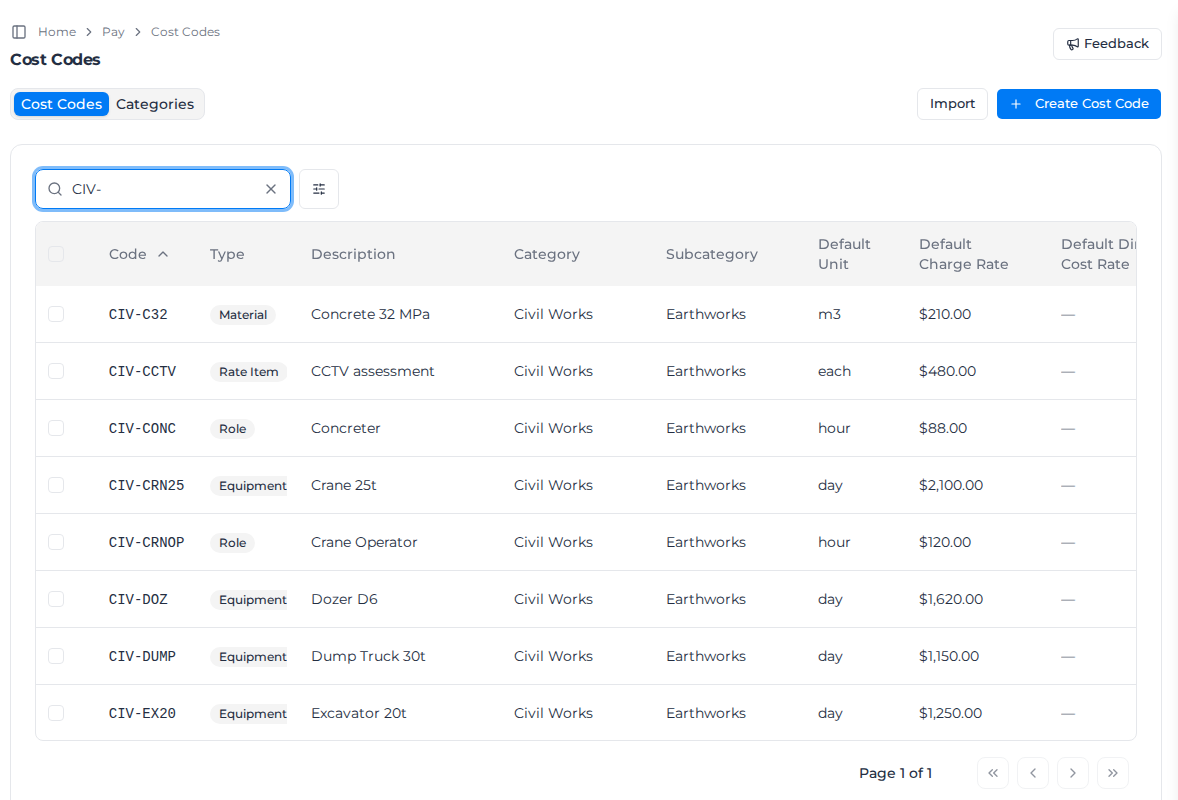
To find a code, type in Search by code or description.... To narrow the list, select the filter button beside the search box and choose a Source (for example Manual, Bulk Import or Assignar), a Status (Active, Inactive or Deleted) or a Type. The list shows 25 codes a page.
Create a cost code
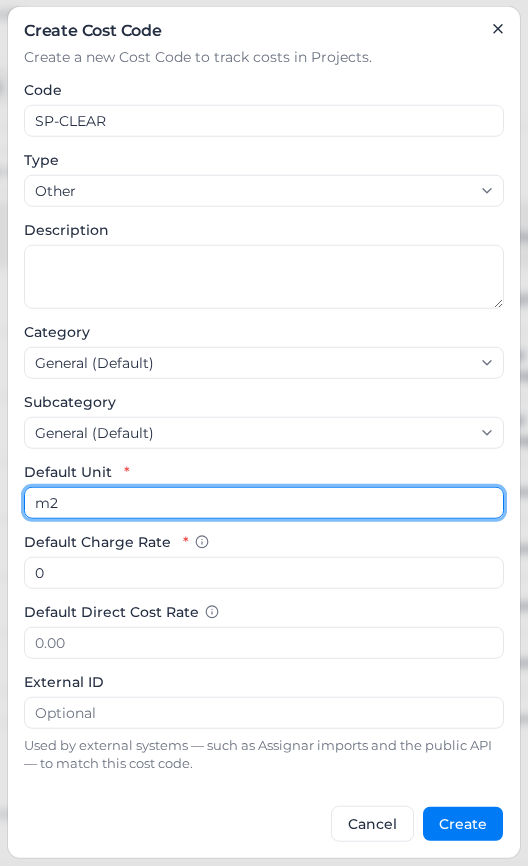
- On the Cost Codes tab, select Create Cost Code.
- Enter a Code, for example
SP-CLEAR. - Choose a Type: Activity, Role, Rate Item, Pay Item, Material, Equipment or Other. You can't change the type once the code is saved.
- Enter a Description that says what the code covers, for example "Site clearing".
- Choose a Category and Subcategory. Both start as General (Default). See Group cost codes into categories.
- Enter the Default Unit. For a Role or Equipment code, choose Hour, Day or Week (see Price labour and equipment by the hour, day or week). For any other type it's free text, for example
m2oreach, up to 20 characters. - Enter the Default Charge Rate, the rate you invoice your client, and optionally the Default Direct Cost Rate, what the item costs your business. The charge rate is required, so enter 0 if you don't charge for this code. If you leave it empty, Create stops with Enter a default charge rate.
- Optionally enter the GL account, the account number in your accounting system. See Add a GL account to a cost code.
- Leave External ID empty unless another system needs to match this code. Assignar imports and the public API fill it in for you.
- Select Create.
Assignar Pay shows Cost code created successfully, and the new code is Active.
Rates can't be negative, except on a Pay Item (for a deduction). Otherwise the form shows Price must be a non-negative number or Rate must be a non-negative number.
The same code can exist once for each type. If you reuse a code with the same type, Assignar Pay shows A cost code with this code and code type already exists. If that code was deleted, the message ends exists but is soft-deleted: restore it instead (see Delete or restore a cost code).
You can also create a cost code while you add a role, activity, material or asset class. The Type is then set for you and Description starts as the record's name.
Add several cost codes at once
You can add cost codes in three ways:
- One at a time with Create Cost Code, as above.
- Up to 100 at a time by pasting rows from a spreadsheet into Import on this page. See Import cost codes.
- Up to 1,000 at a time by uploading a CSV or Excel file to Milo, or pasting the list into the chat. A row with the same code as an existing cost code updates it. Include a Type column (
role,activity,materialand so on); without it each code is imported as Other, and role, activity and material imports won't find it. See Import data with Milo.
Change a cost code
- Find the code and select ... at the end of its row.
- Select Edit, change what you need, and select Update.
Everything except the Type can change. If you change or clear an External ID, Assignar Pay asks Change the External ID? first, because the system that set it may no longer find the code, or may create a duplicate on its next sync. Select Change it anyway only if you know that system has changed too.
For an Activity, Role, Material or Equipment code, the same menu has a link to the records that use it, such as See materials linked to this code.
Add a GL account to a cost code
A cost code's GL account is the account number in your accounting system, such as 4100. It fills the {Account} segment of your GL code template. The cost code is the only place you set it, and Assignar Pay never uses the External ID in its place.
- Select the cost code's Code in the list, or choose Edit from its ... menu.
- Enter the GL account.
- Select Update.
The GL account column in the list shows each code's account, or a dash when it has none. The account is saved as text, so 0420 stays 0420. To remove it, clear the field and select Update.
If the account is refused, you see one of these:
- GL account can't contain spaces. Remove the spaces.
- GL account must be 40 characters or fewer. Shorten it.
- GL account doesn't match the Account width set in the GL template. Your GL code template fixes how many characters every GL account has. Enter an account of that length, or change the width in the template.
To set the account on many codes at once, see Import GL accounts from a CSV file. To see which codes used on recent timesheets still need one, open Cost code GL accounts on the Business Units settings page.
Price labour and equipment by the hour, day or week
Labour and equipment are costed from the hours on timesheets, so a Role or Equipment code is priced per Hour, Day or Week. Any other unit is refused with Labor and equipment use Hour, Day or Week.
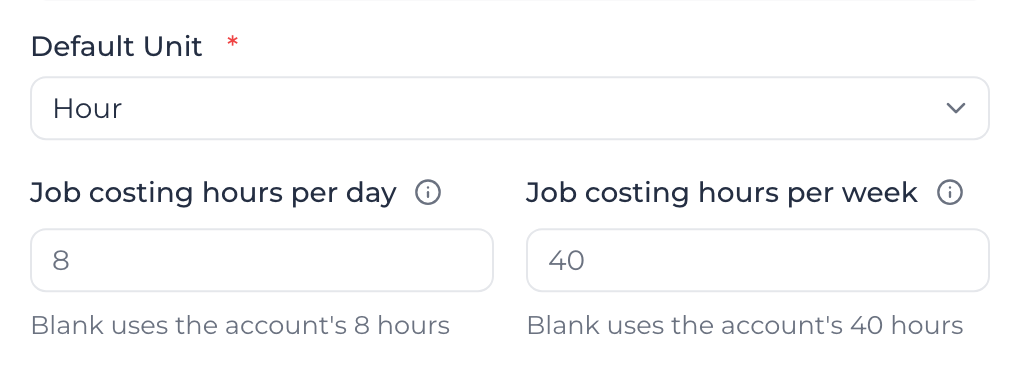
When the code is priced per day or week, Job costing hours per day and Job costing hours per week set how many hours one day or week is in job costing. For example, 27 hours at 10 hours a day is 2.7 days. Leave them blank to use your account's job costing hours, shown under each field. Set them when this code works a different day, such as a site toilet hired by the 24-hour day. Only job costing uses these hours; pay rates, invoicing and scheduling don't.
Changes apply to new quote and order lines. Existing quotes and orders keep the hours they were created with.
Review codes that were moved to Hour
Role and equipment codes whose unit wasn't hour, day or week (each, shift, m² and so on) were moved to Hour, with their rates left as they were. Until you review them, the Cost Codes page shows a notice such as 7 labor or equipment cost codes were moved to Hour.
- Select Review.
- Each code shows the unit it had, for example Was: each. Pick Hour, Day or Week, correct the Charge rate and Cost rate if the rate was for a different unit, and select Save on that row.
- If every remaining code is right as Hour, select Mark all reviewed.
Reviewed codes leave the list, and the notice goes once none are left. You need permission to edit cost codes to save a row.
Deactivate a cost code
Deactivate a code you no longer want offered for new work. It stays on records that already use it and you can switch it back on at any time.
- Tick the box at the start of each row you want to change.
- Select Deactivate Selected. To switch codes back on, select them and choose Activate Selected.
The Status column changes to Inactive or Active.
Delete or restore a cost code
- Select ... on the code's row, then Delete. To delete several, tick them and select Delete Selected.
- Confirm with Delete.
A code linked to a role, activity, material or asset class can't be deleted. Assignar Pay shows Cannot delete: this Cost Code is linked to entities. Unlink from the entity pages first. Open the linked record from the row's See ... linked to this code link and pick another cost code there first.
If orders use the code, the dialog changes to Cost Code In Use and lists them. Select Confirm Delete to delete it anyway.
A deleted code stays in the list with the status Deleted. To bring it back, select ... on its row and then Restore.
Delete Selected needs the Delete cost codes permission, which Owners and Managers hold by default.
Group cost codes into categories
Every cost code sits in a category and a subcategory, for example Site Preparation and Excavation. Each organization has a General (Default) category and subcategory that can't be changed or deleted.
- On the Cost Codes page, open the Categories tab.
- Select Create Category, enter a Category Name and optionally a Description, and select Create.
- Select the category's name in the list. Its subcategories appear on the right.
- Select Create Subcategory, enter a Subcategory Name, and select Create. Repeat for each one.
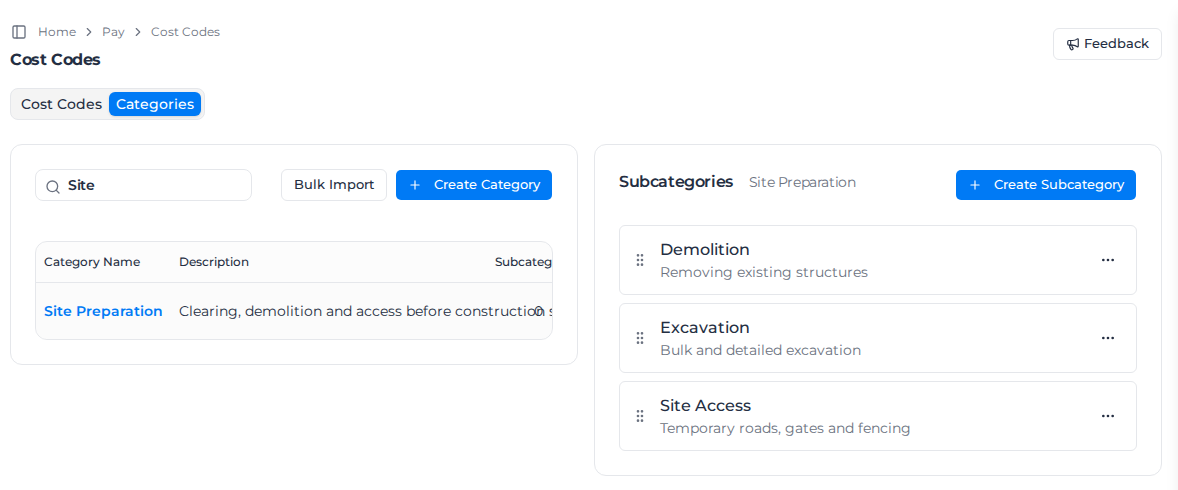
To put the subcategories in a different order, drag them by the handle at the left of each card.
To rename, deactivate or delete a category, select ... on its row and choose Edit, Deactivate or Delete. A subcategory's ... menu has Edit and Delete. Deleting a category also deletes its subcategories; a deleted category stays in the list and can be restored from the same menu. Deleting a category also needs Delete cost codes.
To add many categories at once, select Bulk Import and paste one category per line in the format Category Name | Description | Subcategory1, Subcategory2, .... You can also import cost codes with category and subcategory names that don't exist yet; Assignar Pay creates them.