

Link cost codes
Give every rate, allowance and loading in a pay rate document a cost code, so each pay line is costed and exported to the right place.
Each pay line Assignar Pay calculates is coded to a cost code: regular hours to one, overtime to another, a travel allowance to a third. The cost code is what your job costing reports on and what your payroll export uses. You link cost codes in the pay rate document. A pay line with no code shows No Code, and payroll exports usually reject it.
Your cost codes themselves are under Settings, then Cost Codes; see Set up cost codes.
Link a cost code to a rate
- Open the pay rate document: under Payroll, select Pay Rates, then Pay Rate Documents, and the eye icon in the Rates Data column.
- On the Rate Tree tab, select Expand all.
- Under Rates & Cost Codes, find the rate type (Regular, Overtime, Second Overtime, Saturday, Sunday or Public Holiday). Select the link icon beside Not linked.
- In Match Cost Code, type at least two characters under Search and select Link beside the code. Confirm the link.
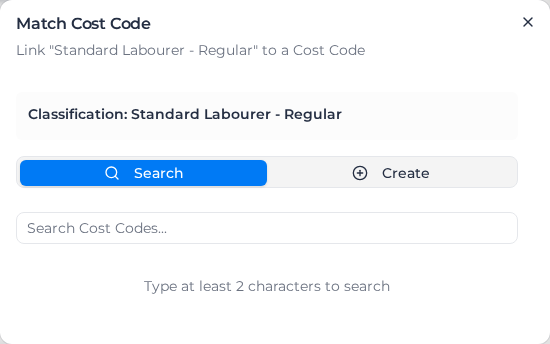
If the code doesn't exist yet, open the Create tab, enter the Code, choose its Category and Subcategory, and select Create Cost Code.
When you confirm a link, you can tick Also link this cost code to all other items with the same name, to link every classification of that name in one go. A time-of-day loading's cost code doesn't offer this, so link it on each classification.
To change a linked code, select the pencil beside it; to remove it, select the cross.
What else needs a cost code
- Weekly and fortnightly overtime: when a rule group has weekly or fortnightly thresholds, each classification shows a cost code for each tier. Left unlinked, those hours use the classification's daily Overtime and Second Overtime codes.
- Allowances and leave rules each have their own cost code; set it when you add the rule. See Allowance rules and Leave rules. A leave rule whose Cost Code Source is Each classification (rate tree) also shows a tile on each classification, so one rule can be coded differently for each class; see Code leave to each classification.
- Shift rules can code each part of a shift separately; see Shift rules.
- Loadings, from a rule's Loading method or from Worked hours loading, are coded to their own pay item, apart from the hours they load.
- Custom activity rules on the Custom tier take a cost code per classification; see Custom activity rules.
Let Assignar Pay suggest cost codes
Select Match Cost Codes at the top of the document to have Assignar Pay suggest a cost code for each classification, allowance and leave rule that has none. The suggestions show in Match Cost Code as AI Suggestion with a confidence percentage; select Accept for one, or Accept All or Reject All at the top of the document. Check each suggestion before you accept it.
Code one client or project differently
When one client needs the same work coded to its own cost codes, don't copy the document. Add a rate override for that client and set only the cost codes that differ; the rest keep the codes linked here.