

Leave rules
Decide how each kind of leave is paid: paid or unpaid, the rate, a daily cap, and whether it counts toward weekly or daily overtime.
A leave rule decides how one kind of leave is paid: whether it is paid at all, at what rate, how many hours a day, and whether it counts toward weekly or daily overtime. Each kind of leave your award recognises, such as annual, personal or unpaid leave, is one leave rule.
Leave rules belong to a rule group: open the pay rate document, select the Rule Groups tab, and find Leave Rules.
Add a leave rule
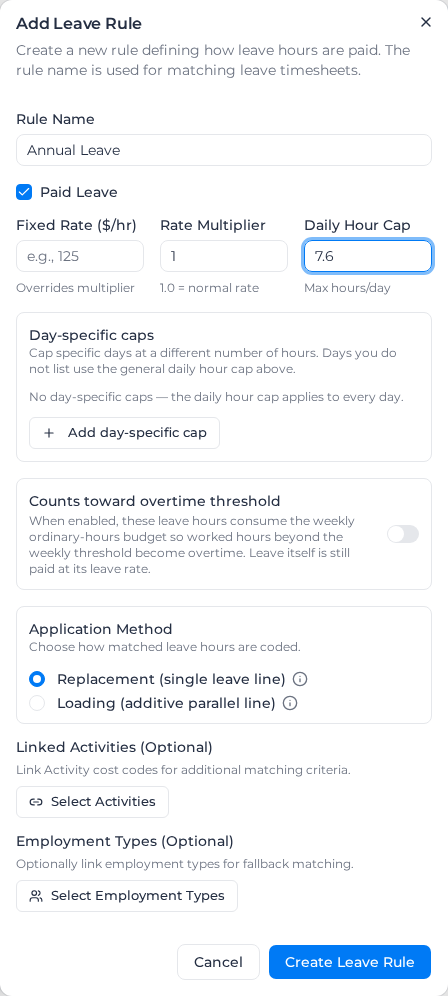
- Under Leave Rules, select Add Leave Rule.
- Enter a Rule Name that matches how your timesheets label the leave, such as "Annual Leave" (see How leave finds its rule).
- Leave Paid Leave ticked for paid leave, or untick it for leave that pays nothing.
- Enter a Rate Multiplier (1 is the normal rate, 0.5 half pay), or a Fixed Rate ($/hr) to pay a set dollar rate instead.
- Optionally enter a Daily Hour Cap, and add Day-specific caps for days that differ (see Cap the hours paid in a day).
- Turn on Counts toward weekly overtime threshold if leave should count toward weekly overtime, and Counts toward daily overtime threshold if it should count toward the same day's daily overtime (see Count leave toward weekly overtime and Count leave toward daily overtime).
- Choose the Application Method: Replacement (single leave line), or Loading (additive parallel line) to pay a leave loading on its own line (see Leave loading).
- Choose the Cost Code Source: This rule codes every classification to the rule's own codes, and Each classification (rate tree) lets each classification carry its own (see Code leave to each classification).
- Optionally select Select Activities or Select Employment Types (see below).
- Select Create Leave Rule.
Each rule then shows in the list with whether it is paid, its multiplier, its daily cap and whether it counts toward weekly overtime. Its Counts toward daily OT switch turns daily overtime counting on or off without opening the rule. Link roles to a rule from the Link button beside Roles in its row; roles aren't set in the dialog. To change or remove a rule, open its menu and select Edit or Delete. When editing, a Rate Type switch chooses between Multiplier and Fixed Rate.
How leave finds its rule
Leave is matched to a rule by name: the rule's name is compared with the leave type or label on the timesheet. The match is close rather than exact, so "Annual Leave" also picks up "Annual Leave — Full Day".
- Linked Activities (Optional): if the name doesn't match, the names of these activities are tried too.
- Roles: a timesheet in a linked role is priced as this leave.
- Employment Types (Optional): this one narrows the rule instead. A rule with employment types only applies to workers of those types, and never to a timesheet with no employment type. Those timesheets are matched against the rules with no employment types instead.
A timesheet is also treated as leave, and priced and capped by a rule, when its task name is close to the rule's name, even with no role linked. A rule named "Study Leave" picks up a timesheet whose task reads "Study Leave Day".
Leave that matches no rule is paid nothing, as unpaid leave. So if you link Part Time to your only Annual Leave rule, a full-time worker's annual leave pays nothing. For different rates by employment type, make one rule per type and keep one rule with no employment type for everyone else.
If leave arrives with no project and your documents are all scoped to clients, projects or tags, it may not be priced at all. See Price leave that has no project: with Project worked most that week, the leave is priced by the leave rules of the role the worker worked most, so give each role that takes the leave its own leave rule.
Pay leave at the class a worker is hired at
A worker can be hired at one class and work another on a given day. Set the worker's Leave classification on their profile (see Set up workers) and their leave is matched to the classification with that name, under their employment type, in every document that has it. When that classification can price the leave, it is paid at that classification's base rate and uses its leave rules and codes.
This applies to leave that comes from an Assignar Operations leave request. Leave recorded as a role on an ordinary timesheet, and priced by a leave rule linked to that role, keeps being matched by that role: the Leave classification is not used for it.
Leave uses the first of these that applies:
- A classification set on the worker's pay rate assignment.
- A role you set by hand on the leave timesheet.
- The worker's Leave classification.
- The role the worker worked most that week, if your account gives leave with no project a project.
- The document's usual leave matching, described above.
A Leave classification must match a classification's whole name. Capitals, hyphens, underscores and extra spaces are ignored, so cw2 matches CW2 and CW-2 matches CW 2, but CW2 never lands on CW2c or CW2 - Forklift. Only the classification's name counts: a classification that only lists CW2 among the names it matches, such as "Construction Worker L2", is not used. If the classification has no leave rule for this type of leave, a classification named Leave prices it instead, if the document has one with a leave rule for it. If the document has no such classification under the worker's employment type, or neither can price the leave, the next item in the list prices it and the rate calculation details say why.
If the classification is in the document but has no rates, the leave is still priced at it, the same way a worked timesheet there would be: at $0 if your account allows rates to be left empty, otherwise at the worker's pay item. With neither, the leave timesheet is flagged and the reason names the classification.
The leave is never priced at another classification's rates. If the worker's Leave classification can't be used and there is no role worked most that week to fall back on, the leave timesheet is flagged as not priced, with the reason, and the rest of the worker's week is still processed. Correct the worker's Leave classification, or add the leave rule to the classification, then apply pay rates again.
Setting a worker's Leave classification can change how much their leave pays, not only its code. Check a few workers' leave after setting it, and apply pay rates again for leave that is already processed.
Set the rate
A fixed rate above zero always wins over the multiplier. To use the multiplier again, clear the fixed rate. Most leave is a multiplier of 1; use a fixed rate only when the agreement names a dollar rate for the leave.
Cap the hours paid in a day
Daily Hour Cap is the most leave hours paid in a day. It covers the whole day, and worked hours use it up first:
- a day with no work: a 10-hour leave entry under an 8-hour cap pays 8 hours;
- a day with 5 hours worked: the same entry pays 3 hours;
- a day whose worked hours already reach the cap: the leave pays nothing.
The cap only applies to leave on its own leave timesheet, not to leave entered as a line on a worked timesheet. Two separate leave timesheets on one day are each capped against the worked hours, so together they can pay more than the cap. When the cap trims hours, the timesheet's rate details say so.
Day-specific caps set a different cap on some days, such as "at most 6 hours on a Friday". Select Add day-specific cap, tick the days, and enter Max hours on these days. Days you don't list use the Daily Hour Cap.
- A day-specific cap replaces the general cap on its days; it can be higher or lower.
- Each day can be in one entry only. A day used in one entry is greyed out in the others.
- Hours must be more than zero. To pay nothing for a kind of leave, untick Paid Leave instead.
- You can use day-specific caps with no Daily Hour Cap: the listed days are capped and the rest aren't.
Count leave toward weekly overtime
Counts toward weekly overtime threshold is off by default and covers weekly overtime only; for daily overtime, see Count leave toward daily overtime. Turned on, the leave hours count toward the weekly threshold, so worked hours past it become weekly overtime sooner. The leave itself is still paid at its leave rate and never becomes overtime.
For example, with weekly overtime after 38 hours, a worker takes a 7.6-hour annual leave day and works 34 hours:
| Off | On | |
|---|---|---|
| Hours counting toward 38 | 34 | 41.6 |
| Worked hours at ordinary time | 34 | 30.4 |
| Worked hours at weekly overtime | none | 3.6 |
Each rule has its own setting, unpaid ones included. Count leave that matches no rule toward overtime threshold, above the list, only covers leave that matches no rule at all.
Count leave toward daily overtime
Counts toward daily overtime threshold is off by default. It is separate from Counts toward weekly overtime threshold: a rule can count toward weekly overtime, daily overtime, both or neither.
Turned on, a day's leave hours fill that day's daily overtime threshold first, so worked hours on the same day past the threshold are paid as daily overtime. The leave itself is still paid at its leave rate and never becomes overtime.
For example, with daily overtime after 7.6 hours, a worker takes 7.6 hours of personal leave from 07:00 to 14:36, then works from 16:00 to 19:00:
| Off | On | |
|---|---|---|
| Leave paid at the leave rate | 7.6 | 7.6 |
| Hours counting toward 7.6 | 3 | 10.6 |
| Worked hours at ordinary time | 3 | none |
| Worked hours at daily overtime | none | 3 |
Where the leave falls in the day doesn't matter. Leave taken after the work counts the same as leave taken before it.
All of the day's leave counts, even past the threshold, just as the same hours of work would. With a second overtime band, such as Overtime Rate B after 9.6 hours, 10 hours of leave uses up the hours paid at Overtime Rate A, so worked hours that day start at Overtime Rate B. To stop leave counting past a standard day, set a Daily Hour Cap.
With a daily hour cap
The Daily Hour Cap is worked out first, and only the leave hours it pays count toward daily overtime. Worked hours use up the cap before the leave does. In the example above, an 8-hour cap leaves 5 hours for the leave once the 3 worked hours are taken out, so 5 hours of leave are paid. Those 5 hours count toward the 7.6, leaving 2.6 hours of ordinary time for the work:
| With the setting on | No cap | 8-hour cap |
|---|---|---|
| Leave paid at the leave rate | 7.6 | 5 |
| Hours counting toward 7.6 | 10.6 | 8 |
| Worked hours at ordinary time | none | 2.6 |
| Worked hours at daily overtime | 3 | 0.4 |
This applies to leave on its own leave timesheet. Leave entered as a line on a worked timesheet isn't trimmed by the cap, but only the hours up to the rule's general Daily Hour Cap count toward daily overtime. Day-specific caps and the day's worked hours aren't taken into account for those lines.
For a rule with Paid Leave unticked, all of the day's leave hours count, because none are paid.
On public holidays and days with a day rule
The leave counts the same as hours worked earlier that day, so worked hours past the threshold get the overtime they would after earlier work, and this can raise pay compared with the setting off:
- Public holidays: daily overtime is paid on top of the holiday rate. In the example above, on a public holiday paid at 2.5 times the base rate, the 3 worked hours go from 2.5 to 3 times.
- Days with a day rule, such as a Saturday rule paying the first 2 hours at time and a half: the result depends on the worked timesheet.
- If it records its activities with start and end times, the first 2 worked hours are still paid at time and a half, because the leave doesn't use up those first hours. Those hours are still reported as daily overtime, so an allowance that depends on overtime hours can still apply.
- If it records only a total of hours, daily overtime is paid on top of the day rule's rate, as it would be after earlier work.
When leave doesn't count
- Leave that matches no rule never counts toward daily overtime. Count leave that matches no rule toward overtime threshold, above the list, covers weekly overtime only.
- Leave and work priced by different documents don't combine. The leave counts only toward daily overtime on worked hours priced by the same pay rate document as the leave. If the day's work is priced by another document, for example a project with its own document, the leave doesn't make that work overtime.
A change applies the next time pay rates are applied. The overtime lands on the worked timesheets, not the leave, so to change pay already calculated, apply pay rates again for the whole pay period, including the worked timesheets, not only the leave.
Example: at most 6 hours on a Friday
Rule Name Annual Leave, Paid Leave ticked, Rate Multiplier 1, Daily Hour Cap 7.6, and a day-specific cap of 6 on Friday. A worker on leave all week is paid 7.6 hours Monday to Thursday and 6 on Friday, 36.4 in all. If they also work 2 hours on the Friday, Friday's leave pays 4 hours.
Code leave to each classification
Some agreements code the same leave differently for each classification: an RDO for a CW2 is one code, for a CW3 another. You don't need a leave rule per classification for that. Keep one rule per leave type and let each classification carry its own code.
- On the leave rule, set Cost Code Source to Each classification (rate tree). The rule's card shows Coded per classification.
- Open the Rate Tree tab and select a classification. It shows a tile for the rule, and a second tile for its loading line if the rule uses Loading.
- Link each tile to that classification's code.
A classification with no code on a tile uses the rule's own code, which the tile shows as Default:. The leave and loading lines fall back separately. The rule still sets the rate, with one exception: a worker's pay item applies to the line coded to its pay item. If a worker has a pay item on the rule's own code, their leave stops using it once a classification gives the line its own code, and a pay item on the classification's code starts applying. Check the workers who have pay items before you switch a rule to Each classification (rate tree).
Switching the rule back to This rule removes the codes set on each classification for it, and so does deleting the rule. You're asked to confirm first.
A change applies the next time pay rates are applied. Apply pay rates again to re-price leave already processed.