

Weekly overtime rules
Pay overtime once a worker passes a number of hours in the payroll week, such as time and a half after 38 hours.
A weekly overtime rule pays overtime once a worker's hours in the payroll week pass a threshold, for example time and a half after 38 hours. It only changes hours that are still ordinary time: hours already paid as daily overtime, at a weekend or public holiday rate, by a shift rule, as an RDO or as a minimum engagement top-up keep their pay. No hour is paid a premium twice.
Weekly overtime rules belong to a rule group: open the pay rate document, select the Rule Groups tab, and find Weekly Thresholds. The payroll week comes from your payroll cycle.
Add a weekly overtime rule
- Under Weekly Thresholds, select Add Rule.
- Enter a Name, such as "Weekly overtime after 38 hours". The name is only a label.
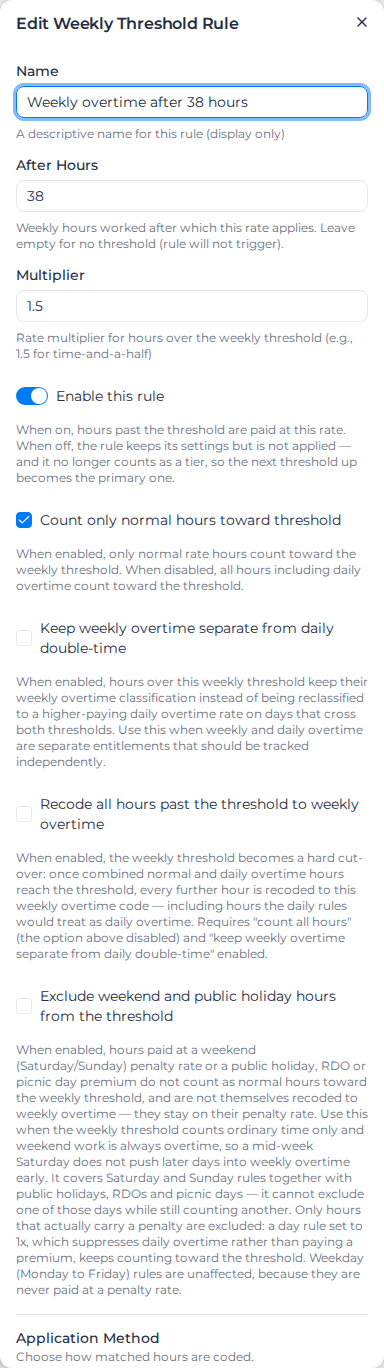
- Enter After Hours: the hours in the week after which the rule pays. Left empty, the rule never pays, and the list shows No threshold and a Not configured badge; that is a way to park a rule without deleting it.
- Enter the Multiplier, such as 1.5 for time and a half.
- Leave Count only normal hours toward threshold on, or turn it off to count every worked hour (see Choose which hours count).
- Choose the Application Method (see Pay overtime as a separate loading line).
- Select Save.
A new rule is switched on. The rule then shows in the list, for example "Weekly overtime after 38 hours: After 38h/week" and "1.5x", with a switch to turn it off and a pencil to edit it.
Some settings are only offered when you edit the rule, not when you add it: Keep weekly overtime separate from daily double-time, Recode all hours past the threshold to weekly overtime, Exclude weekend and public holiday hours from the threshold and Split weekly overtime by activity. To set them, select the pencil beside the rule.
Two tiers
A rule group can hold two weekly rules, for example time and a half after 38 hours and double time after 48. The rule with the lower After Hours is always the first tier, whatever order you add them in. Once a group has two rules, Add Rule no longer shows, even when one of them is switched off.
Adding a rule at a threshold another rule already uses, even one that is switched off, is refused: "A weekly threshold rule already exists at 38h … Use a different threshold, or edit/delete the existing rule." Editing a rule onto its sibling's threshold is not checked, so keep the two thresholds different yourself.
On a weekend day with its own rate
On a Saturday or Sunday with its own weekend rate, the second tier pays an hour past its threshold only where its rate is at least the weekend rate. On a timesheet with activities, the hours of that day before the second threshold are the day's first hours. They keep the weekend rate, or a time-of-day loading that beats it, and the second tier starts at the hour the threshold is crossed.
Pay already calculated keeps its old lines until you apply pay rates again. That can move it either way on a day whose rate changes during the day, such as a weekend rate that pays the first hours differently, or a time-of-day loading, because the hours kept out of the second tier used to be the day's last ones.
The primary tier
The lowest threshold that is switched on is the primary tier. Recode all hours past the threshold to weekly overtime and Exclude weekend and public holiday hours from the threshold are only read from it, and the edit dialog only shows the extra settings on it.
Turning a rule off with its switch keeps its settings but takes it out of the tiers, so the next threshold up becomes primary, and that rule's own settings apply from then on. Turning a rule off doesn't change Count only normal hours toward threshold, which is always the same on both rules. Before you turn the lower tier off, edit the higher one and check those two settings. Deleting a rule has the same effect and can't be undone, so turn a rule off if you may want it back.
Choose which hours count
Count only normal hours toward threshold decides what counts toward the threshold. It is on by default.
- On: only ordinary-rate hours count. Daily overtime doesn't, and neither do hours a shift rule pays as its own overtime or holds out of overtime thresholds. Weekend, public holiday and time-of-day hours still count, and keep their own rate.
- Off: every worked hour counts, daily overtime included. Use this when your agreement caps total hours worked in the week.
Either way, only hours that are still ordinary time are paid as weekly overtime. The setting changes when the threshold is reached, not which hours can change.
Saving this setting writes it to both weekly rules in the group, so both tiers always count the same way.
The whole pay rate document uses one counting mode: the one on the lowest enabled weekly rule of the document's first rule group. "First" means the first created, which isn't necessarily the first on screen. If that group has no enabled weekly rule, every group counts only normal hours, whatever the other groups have saved. On a document with several rule groups, set the same counting mode in every group. If a threshold seems to start at the wrong point for one classification only, check this first.
The shift that crosses the threshold
On a timesheet with activities, weekly overtime starts at the hour the threshold is crossed and runs to the end of the shift's ordinary hours; daily overtime after that keeps its own rate, unless the weekly overtime rate is higher. The hours worked before the threshold keep the rates they were worked at, in clock order. For example, with a 38-hour threshold and 32 hours already worked, a 15:30 to 03:30 shift under a shift rule that pays a night rate from 18:00 is paid 15:30 to 18:00 at the ordinary rate, 18:00 to 21:30 at the night rate, and weekly overtime from 21:30.
Some shifts still share the hours before the threshold out in proportion between their rates, so those rates may not follow the clock:
- a shift rule whose segments can't be placed at their clock times;
- a shift rule that doesn't count toward overtime;
- a shift rule overtime segment paid separately from weekly overtime.
The total hours are the same either way, and the timesheet's Rate Calculation Details say when this happened and why.
Pay already calculated keeps its old lines until you apply pay rates again. That can move it either way: a shift whose higher rate comes late in the day can go down, and one whose higher rate comes early can go up, because the hours before the threshold used to be shared out between the rates in proportion.
Keep weekly overtime separate from daily double-time
On a day that crosses both a weekly and a daily threshold, the hours normally go to whichever pays more, usually the daily tier. Turn on Keep weekly overtime separate from daily double-time to keep them as weekly overtime instead, where your agreement tracks the two separately.
This setting is read from each rule for its own hours, but it is only shown on the primary tier. If a rule stops being primary, its saved value keeps applying and you can't see it until the rule is primary again.
Recode all hours past the threshold
Recode all hours past the threshold to weekly overtime makes the threshold a hard cut-over: once ordinary and daily overtime hours together reach it, every later hour in the week is paid as weekly overtime, including hours the daily rules would have paid as daily overtime.
It only works when all of these are true:
- Count only normal hours toward threshold is off (and, since that setting is read for the whole document, off on the first rule group too);
- Keep weekly overtime separate from daily double-time is on;
- the rule group has only one weekly rule with an After Hours value;
- the timesheets record activities, not just a total number of hours.
Keep weekend hours out of the count
Turn on Exclude weekend and public holiday hours from the threshold when weekend work is always paid at a penalty rate and shouldn't bring weekly overtime forward. Hours paid at a Saturday or Sunday rate, or on a public holiday, RDO or picnic day, then neither count toward the threshold nor become weekly overtime.
- It is only available with Count only normal hours toward threshold on; otherwise it is greyed out.
- It covers Saturday, Sunday, public holidays, RDOs and picnic days together. You can't exclude one and count another.
- Hours under a day rule set to 1x still count, because they carry no penalty. To leave them out, use the day rule's own switch (below).
Leave one day out of the count
Each Saturday and Sunday day rule has a Counts toward weekly overtime threshold switch, on by default. Turn it off when that day must not count toward the weekly threshold whatever it pays, for example a Saturday and Sunday paid at 1x where only Monday to Friday counts toward the 40. Open the Day Rules section of the rule group and edit the day.
With it off, that day's hours:
- don't count toward either weekly tier, 1x hours included;
- never become weekly overtime, even in a week already past the threshold. They keep the day rule's rate and cost code.
It is set per day, so you can leave Saturday out and still count Sunday. On an overnight shift, the hours after midnight are left out only when the next day is the excluded one. A timesheet's Rate Calculation Details show the hours left out each day. An hour excluded by both this switch and Exclude weekend and public holiday hours from the threshold is only left out once.
- It only has an effect with Count only normal hours toward threshold on, and only in a rule group that has a weekly threshold. The Edit Day Rule dialog tells you when either is missing.
- Monday to Friday day rules aren't applied by the pay calculation yet, so on them the switch stays on.
- A Saturday or Sunday that is a public holiday, RDO or picnic day is paid by that day's own rule, so the switch doesn't apply. Use Exclude weekend and public holiday hours from the threshold for those days.
- It only affects weekly thresholds. Fortnightly thresholds still count the day.
Pay overtime as a separate loading line
Application Method decides how the overtime is paid:
- Replacement (single combined line), the default: the hours are paid at the base rate times the Multiplier on one weekly overtime line.
- Loading (additive parallel line): the hours stay at the base rate, and a second line pays the premium. Enter the Loading Rate (% of base) (50 for time and a half) and choose a Loading Cost Code. Both are required.
In the rule list, a Loading rule shows its loading rate and cost code, such as "Loading: 50% → OT-LOAD". Its multiplier is dimmed because it doesn't set what the hours pay; hover over it to see why.
Pay overtime on some activities at a different rate
Use Split weekly overtime by activity when the hours past the threshold are paid differently depending on the work, for example night site work at Overtime Rate B while travel stays at the rule's own rate. Hours before the threshold never change.
- Select the pencil beside the rule.
- Under Split weekly overtime by activity, select Add activity split.
- Enter a Name, choose the Activities, and enter the Multiplier.
- Choose a Cost code, or leave it empty to keep the rule's own weekly overtime code.
- To change only the hours worked at certain times, enter a start and end under Only between, such as 18:00 and 06:00. Windows can run overnight, and an end of 23:59 means until midnight. Leave both empty to change every matched hour.
- Select Save.
The rule then shows a badge such as "1 activity split" in the list.
- Weekly overtime on an activity you haven't listed keeps the rule's rate and code.
- Each hour goes to the first split it matches, so put the one that should win first. An hour outside a split's window can still match a later split.
- A split on the rule with the lower threshold changes the first tier only; a split on the rule with the higher threshold changes the second tier only.
- Weekly overtime that runs across the window edge is split there, and each part is paid at its own rate.
- If Pay can't tell exactly when weekly overtime hours were worked (for example, when they come from separate parts of a shift), a split with an Only between window isn't applied to them. They go to the next matching split, or keep the rule's rate, and the pay calculation notes them.
- Daily overtime is not changed. To split it, use Split overtime by activity on the daily tier (see Custom activity rules).
- On a day that has daily overtime and also goes past the weekly threshold, the daily overtime hours stay at the daily rate unless the weekly rule's own rate is higher. The split's rate isn't part of that comparison, so a split that pays more doesn't move them. The pay calculation notes these hours. To pay them at the higher rate, add a matching split to the daily tier.
- Splits don't change weekly overtime that a time-of-day rule or a custom activity rule prices. Those hours keep that rule's rate, and the pay calculation notes them.
- Splits need activities to match, so they don't apply to timesheets without activities. Those hours keep the rule's rate, and the pay calculation notes them.
- The section isn't offered when the rule uses the Loading method. Switching a rule that has splits to Loading removes the splits when you save, and the dialog warns you first.
Save is greyed out while a split has no activity, or only one of the two Only between times. The row says what is missing.
Examples
Overtime after 38 hours. One rule: After Hours 38, Multiplier 1.5, counting only normal hours, and no daily overtime. A worker does five 8.4-hour days, 42 hours in all. The first 38 are ordinary time and the last 4 are weekly overtime.
Add daily overtime after 8 hours and the result changes. Each day now has 0.4 hours of daily overtime, which doesn't count toward the weekly threshold, leaving 40 ordinary hours: only 2 hours become weekly overtime.
Night work past 38 hours at a higher rate. Weekly overtime after 38 hours at 1.5x, no daily overtime rule, and a split for Work on Job Site at 2x with an Overtime Rate B cost code, only between 18:00 and 06:00. A worker with 32 hours already this week works 15:30 to 03:30 on site. The first 6 hours are ordinary time, and 21:30 to 03:30 is paid at 2x on Overtime Rate B. A daytime shift past 38 hours, or travel at any time, stays at the rule's own 1.5x.
Weekend kept out of the count. A Saturday day rule at 1.5x, and weekly overtime after 40 hours with Exclude weekend and public holiday hours from the threshold on. A worker does 8 hours Monday to Friday and 10 hours on Saturday. Only the 40 weekday hours count, so no weekday hour becomes overtime, and Saturday is paid at 1.5x.
A 1x weekend left out of the count. Saturday and Sunday day rules at 1x with Counts toward weekly overtime threshold off, and weekly overtime after 40 hours counting only normal hours. The payroll week runs Thursday to Wednesday. A worker does 6.7 hours on Saturday. They are paid at 1x and add nothing to the weekly count, so weekly overtime only starts once the worker has 40 weekday hours. With the switch on, the Saturday would bring the following Tuesday's overtime forward by 6.7 hours.
After you change a rule
A change applies the next time pay rates are applied. To re-price a week already processed, apply pay rates to it again.
For overtime over two weeks, see Fortnightly overtime rules. To give the weekly overtime tiers their own cost codes, see Link cost codes.