

Set up a pay rate document
Upload an award, EBA or rate schedule, check the rates Assignar Pay reads from it, and choose which timesheets it pays.
A pay rate document holds everything Assignar Pay needs to pay a group of workers: the rate for each classification, and the rules that change it (overtime, weekends, allowances and so on). You usually create one per award, enterprise agreement or rate schedule.
You find your documents under Payroll, then Pay Rates, on the Pay Rate Documents tab. Owners and Admins can create and change them by default.
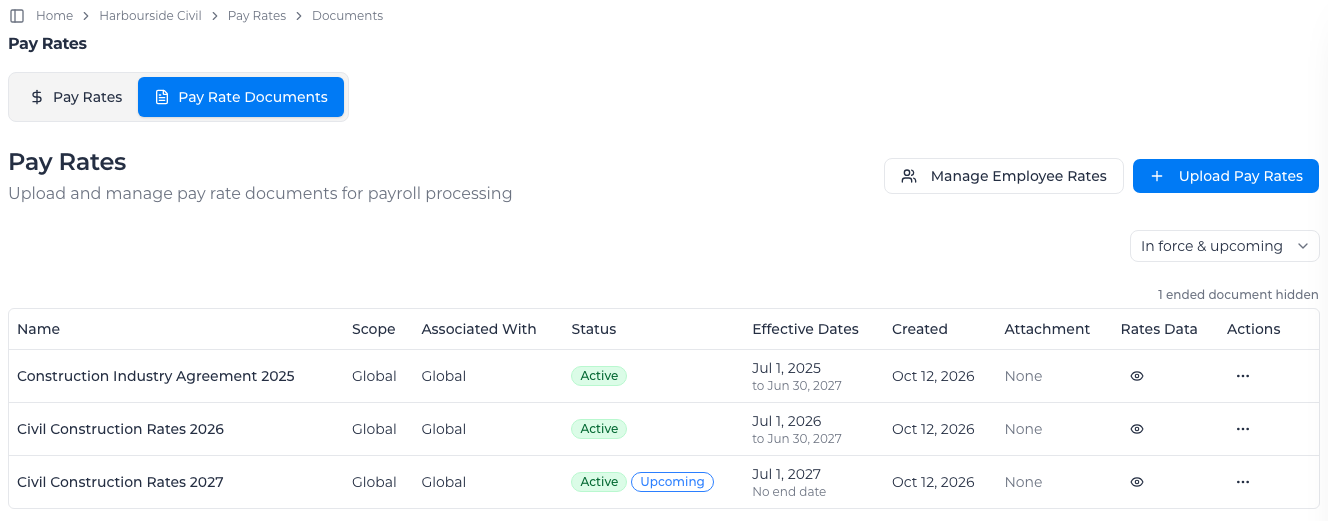
Upload a document
- On the Pay Rate Documents tab, select Upload Pay Rates.
- On the Details step, enter a Name, choose the Scope (see Choose which timesheets a document pays), pick the Effective Date it starts on, and set the Status. If you already know the last day it applies, pick it as the End date (optional); otherwise leave it empty (see Stop using a document from a date).
- Select Next.
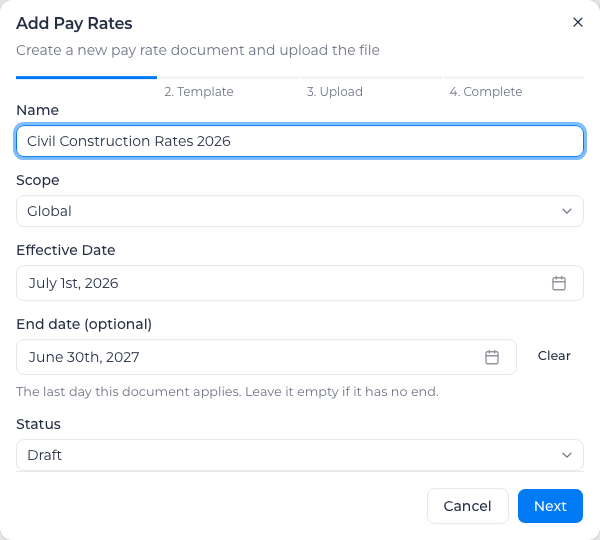
A document is only used to pay timesheets while its status is Active. Leave it as Draft while you check it. When you choose Active, the dialog warns you if another active document already covers some of the same dates (see When another document covers the same dates).
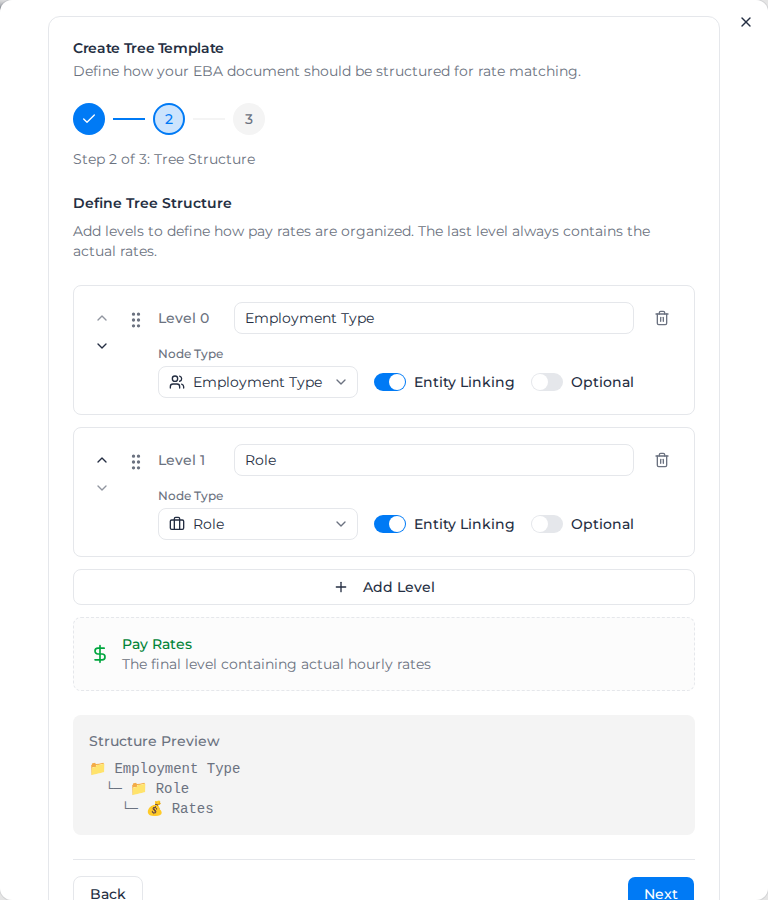
On the Template step, choose how the document's rates are organized. Pick a template you saved earlier and go on to the upload below, or set up a new structure:
- Select Create New Structure.
- On Template Info, enter a Template Name and select Next.
- On Tree Structure, add a level for each way your agreement splits its rates, for example Employment Type then Role. Each level has a Node Type: Employment Type, Role, Level or Custom. Use Level for the grades within a role, such as Level 1 and Level 2: it's the level a worker's level per role picks. Select Add Level for more. The rates themselves always sit at the last level. Select Next.
- On Fallback, choose what happens when a timesheet matches no rate: Use Highest Available Rate, Use Lowest Available Rate, or Flag for Review, which leaves it unpaid until someone classifies it.
- Turn on Save as reusable template to use this structure again, and select Complete.
Then upload the file:
- Select Create and Upload.
- On the Upload step, drag in the file or select the drop area to choose it. PDF works best; Word, Excel, CSV, text and HTML files are also accepted, up to 10 MB.
- Select Upload File.
Upload Complete confirms the document is saved. Assignar Pay then reads the file and fills in the document's classifications, rates and rules for you to check.
If the rates don't appear
Reading a document usually takes a few minutes. A rate structure with many combinations, such as Employment Type, Role, Sub Role and Level together, is read in several parts and can take up to about 20 minutes. Until it finishes, Review & Edit Document shows Document Processing; refresh the page to check.
If reading stops before it finishes, the page shows one of these instead:
- Document processing didn't finish: no rates were saved. Re-upload the document to try again.
- Too many rates to extract from one document: the document has more rates than can be read in one go, and nothing was saved. Uploading the same file again stops at the same point, so split it into smaller documents and upload each one.
Check and edit the rates
Select the eye icon in the Rates Data column to open Review & Edit Document. The document's dates show under its name: Effective with its first and last day, or Effective from its first day when it has no end date. The page has two tabs:
- Rate Tree: every classification, its hourly rate and its cost codes. See below.
- Rule Groups: the overtime, weekend, allowance and other rules. See Configure rule groups.
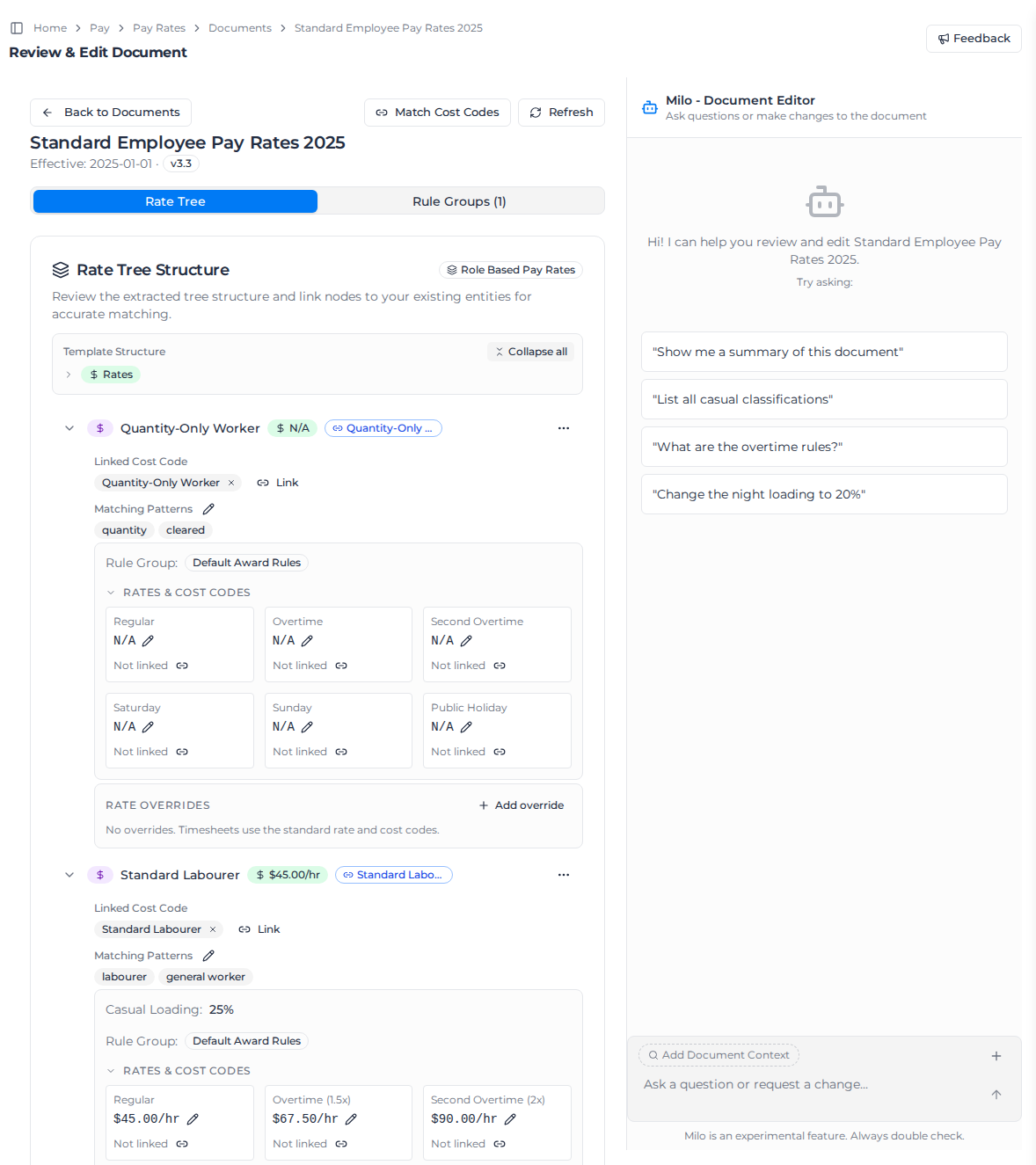
Select Expand all to see each classification in full:
- Matching Patterns are the words Assignar Pay looks for in a timesheet's role or employment type to pick this classification. Select the pencil to change them. A classification linked to a specific role or employment type (shown beside its name) matches that one first.
- Rule Group names the set of rules this classification is paid under.
- Rates & Cost Codes shows each rate type (Regular, Overtime, Second Overtime, Saturday, Sunday, Public Holiday) with its rate and cost code. Select the pencil beside a rate to change it, or the link icon beside Not linked to give it a cost code (see Link cost codes).
- Rate overrides pay one client, project or role differently on this classification. See Override rates.
Change a classification's base rate
- On the Rate Tree tab, expand the classification.
- Select the pencil beside its Regular rate.
- In Edit Regular Rate, enter the new Hourly Rate ($) and select Save.
Rate updated successfully confirms it. These rates on the classification keep their multiple of the new base:
- Its Overtime and Second Overtime rates are recalculated. At a $100 base, $150 overtime becomes $300 when you change the base to $200.
- Shift rates you set on the classification as a dollar amount are scaled the same way, and the message tells you how many moved. A $110 shift rate becomes $220. A shift rate set as a multiplier already follows the base. A Fixed Rate Override on a shift rule belongs to the rule group and does not change.
- Its Saturday, Sunday and Public Holiday rates are multipliers on the rule group, so they follow the new base for this classification only. Other classifications on the rule group keep their pay.
Nothing else changes. Client, project and role overrides, allowances and the night rate keep the amounts you entered.
Asking Milo to change a classification's base rate does the same. Entering the base rate the classification already has changes nothing. A base rate so low that a rate on the classification would round to $0.00 is refused.
When a classification has no base rate yet:
- There is nothing to scale its dollar shift rates from, so they stay as they are, and the message says so. Check them after you enter the first base rate.
- Its Overtime and Second Overtime rates are taken from the rule group's overtime multipliers. If the rule group has none, they are cleared, and the message says so.
If you see This pay rate document was changed by someone else while you were editing it. Reload and try again., someone saved the document after you opened it. Reload the page, check the rate, and enter it again.
Pay an employment type from one classification
To pay every worker of one employment type from a particular classification, link the two. Their timesheets then go straight to that classification, ahead of the tree's levels, the next time pay rates are applied. A worker you've assigned to a specific classification keeps that assignment.
- On the Rate Tree tab, expand the classification.
- Under Linked Cost Code, select Link.
- In Link Employment Type, choose the type under Select Employment Type and select Confirm.
Entity linked successfully confirms it, and the employment type shows beside the classification's rate. Select the × beside it to remove the link. On a classification at a Role level, Link links a role instead; that is shown on the classification but doesn't change which classification a timesheet is paid from.
If you see Failed to link entity:
- This pay rate document was changed by someone else while you were editing it. Reload and try again. The page reloads the document; check the classification and link it again.
- A message ending is not an active employment type in this account. The type was removed after the page loaded. Reload and choose an active one.
To add a classification of your own, select Add Classification at the bottom of the tree. Each new top-level classification gets a new rule group of its own.
The Milo - Document Editor panel on the right answers questions about the document and can make changes for you, for example "What are the overtime rules?". Check what it changes before you use the document.
Choose which timesheets a document pays
Each document has one Scope, set when you upload it or later with Edit:
| Scope | The document pays |
|---|---|
| Global | Every timesheet no more specific document covers. |
| Client | Timesheets for the clients you select. |
| Project | Timesheets for the projects you select. |
| Tag | Timesheets whose client, project or order carries one of the Client Tags, Project Tags or Order Tags you select, or whose worker carries one of the Worker Tags. |
A Client, Project or Tag scope needs at least one selection; otherwise saving shows Client is required, Project is required or Select at least one tag. A document has one scope, so changing it clears what you picked for the old one. A new scope is used the next time pay rates are applied.
If a worker has pay rate documents assigned on their profile, only those documents are considered for that worker's timesheets. Among the documents that are considered, Assignar Pay uses the first of these that fits:
- A document picked by hand for that one timesheet, under Document Override in its Rate Calculation Details. It is used whatever its scope or dates, even after it is archived. Choose No override (use matched document) to undo it.
- A Project document for the timesheet's project.
- A Client document for the timesheet's client.
- A Tag document with a matching tag.
- The document assigned to the worker on their worker profile (see Set up workers).
- A Global document.
Apart from a document picked by hand, a document only pays timesheets dated from its Effective Date to its end date, both days included. If two documents tie, the one with the later effective date wins.
If no active document has started yet on a timesheet's date, Assignar Pay uses the best-fitting active document anyway, so the timesheet is still paid. It never does this with a document that has ended: when every document that fits a timesheet ended before the timesheet's date, the timesheet stays uncoded (see Fix uncoded time).
When one client, project or role only needs a different base rate or different cost codes, add a rate override instead of a second document. Keeping a worker's whole week in one document means one set of weekly rules, such as weekly overtime and RDO accrual, covers all their hours.
Stop using a document from a date
When a document's rates stop applying on a known day, for example because a new award takes over, give it an end date rather than archiving it. An archived document is never picked automatically for any dates, so archiving would also stop it paying the dates it was in force for.
- Open the menu in the Actions column and select Edit.
- Under End date (optional), pick the last day the document pays. Days before its Effective Date can't be picked.
- Select Update Pay Rates.
The document pays timesheets dated up to and including its end date, and applying pay rates to an earlier period again still uses it for those dates. To remove the end date, select Clear beside it and save. If you move the Effective Date past the end date, the field shows The end date can't be before the effective date. Change one of the two dates.
Workers assigned to the document stay assigned to it, so their timesheets after its end date stay uncoded until you assign them the document that takes over. When you pick an end date that some workers are still assigned past, a warning under the field says how many.
Replace a document when an award changes
- Duplicate the current document and update the copy's rates.
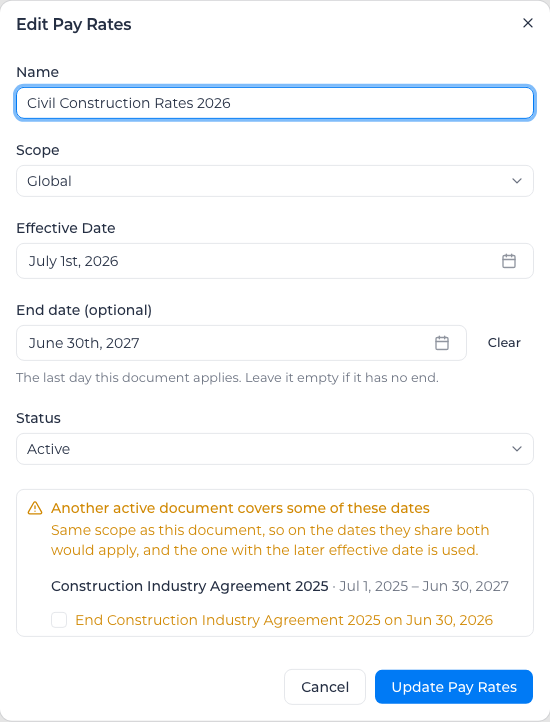
- Select Edit on the copy. Set its Effective Date to the day the new rates start, leave its End date (optional) empty (clear it if it copied one), and set Status to Active.
- The dialog lists the current document as covering the same dates. Tick End document name on date, which ends it the day before the copy starts.
- Select Update Pay Rates.
- Give each worker assigned to the old document an assignment to the copy, starting on the new effective date (see Assign a pay rate document to a worker).
Timesheets dated before the new effective date keep using the old document, including when you apply pay rates to them again.
When another document covers the same dates
When a document is Active, or you set it to Active, the Add Pay Rates and Edit Pay Rates dialogs look for other active documents with the same scope (both Global, or the same clients, projects or tags) whose dates overlap its own, and list each one with its dates. On the dates they share, only the one with the later effective date pays.
- For a document that started earlier, tick End document name on date to end it the day before this document starts. It ends once this document is saved, and a message confirms its new end date.
- For a document that starts later, select End this document on date to give this document an end date the day before that one starts.
- For a document that starts on the same day, change one of the dates so only one applies.
The checkbox to end an earlier document appears only when ending it leaves no gap after this one: this document has no end date, or the earlier one already ends on or before this one's end. Otherwise the dialog says ending it would leave no document after this one ends, so the two simply overlap, and the later start wins while both apply.
Nothing is ended unless you tick it. If you see Couldn't end followed by a document's name, open that document with Edit and give it an end date yourself.
Find ended documents
The Effective Dates column shows each document's first day and, underneath, to its last day or No end date. In the Status column, Ended marks a document whose end date has passed, and Upcoming one whose effective date hasn't come yet. Both follow your organization's day, in the timezone set under Settings → Localization.
The list opens on In force & upcoming, which leaves out ended documents and counts them beside the filter, for example 1 ended document hidden. Select that count, or choose Ended or All in the filter, to see them.
Price leave that has no project
Leave, RDO and public holiday timesheets often arrive with no project. When all of your documents are scoped to clients, projects or tags, none of them applies, and these timesheets stay uncoded. To fix this:
- In the sidebar, select Settings, then General, and under Financial select Payroll.
- Under Project for leave with no project, choose How to choose the project:
- Project worked most that week: the leave goes to the project the worker spent most hours on that payroll week, and is paid by the leave rules of the role they worked most on that project. On a tie, the one worked first in the week wins. If they worked no project that week, the leave goes to the Default project (optional), if you set one.
- Always use a default project: all leave with no project goes to the Default project you choose. No role is applied, so the document's usual leave matching prices it.
- Optionally choose a Fallback cost code (optional) (see below), and select Save.
Changes apply the next time you apply pay rates.
- A timesheet that already has a project keeps it, and one with a document picked by hand is priced as before. A role you set by hand on a leave timesheet is used instead of the role worked most, and so is a worker's Leave classification when it can price the leave (see Pay leave at the class a worker is hired at).
- With Project worked most that week, give each role that takes the leave its own leave rule, such as RDO, in its rule group. A role with no leave rules uses a classification named Leave, if the document has one with leave rules; it never borrows another role's.
- The setting never makes pay worse. If the project or role it picks can't price the leave, the leave is priced without a project, as with the setting off, and the rate details say why.
- The project used, and why, shows in the timesheet's Rate Calculation Details, in the Project Name and Project External ID columns of the pay rates table and its export, and in the Pay Rates API. The Project External ID comes from the project's Assignar Operations reference; if none is found it is blank, and saving warns you about the default project.
- Leave given a project this way isn't added to job costing, because job costing is recorded per order and this leave has none.
Some leave still can't be priced: for example, every document is scoped and the worker had no project to give it, or the project's document doesn't have the role and no other document applies. With a Fallback cost code (optional), these hours are coded to it at $0 with a warning, instead of staying uncoded. Before you export, filter the pay rates table by that cost code and recode them. Applying pay rates again never overwrites a timesheet you coded by hand.
If the page shows This setting couldn't be read, pay rates can't be applied until you choose an option again and save.
Copy, archive or delete a document
Open the menu in the Actions column:
- Edit changes the name, scope, effective date, end date and status. Select Update Pay Rates to save.
- Duplicate copies the document, with all its rates and rules, the same scope and the same dates, under a New Document Name. The copy starts as Draft, so it pays nothing until you make it Active.
- Archive keeps the document for reference, but Assignar Pay never picks it automatically, for any dates, including when you apply pay rates to an earlier period again. A timesheet you pointed at it by hand under Document Override still uses it. Timesheets already calculated on it keep their pay until pay rates are applied to them again, when another active document is matched. Workers assigned to it keep the assignment, but it only applies while the document is active. Unarchive brings it back as Draft; make it Active to use it again. To stop using a document from a date instead, give it an end date.
- Delete removes the document and the files uploaded with it, and can't be undone. You can only delete a document that no timesheet uses and no worker is assigned to; otherwise Pay Rate In Use explains why and offers Archive instead. The check covers every timesheet in the account, including ones you can't see. If some uploaded files couldn't be removed, the confirmation says so.
Next steps
- Configure rule groups for overtime, weekends, allowances and the other rules.
- Link cost codes so every pay line is costed.
- Set up workers and assign documents to them.
- Apply pay rates to a pay period.