

Track job costs
Open an order's job costing to compare what you bid with what has been reported, billed and spent, and set the sell price of each line.
Job costing lives on each order. It sets what you bid for the work against what your crew has reported, what it has cost so far and what you have billed, so you can see early whether the job is heading over budget.
Open an order's job costing
- In the sidebar, select Clients & Projects, open a client's card, and select Job Costing on the order. It opens in a new tab.
- Or in the Table view, choose Order and select Job Costing on the order's row.
- Orders created from a bid are also listed on the bid; see Send and track a bid.
The top of the page sums up the order.
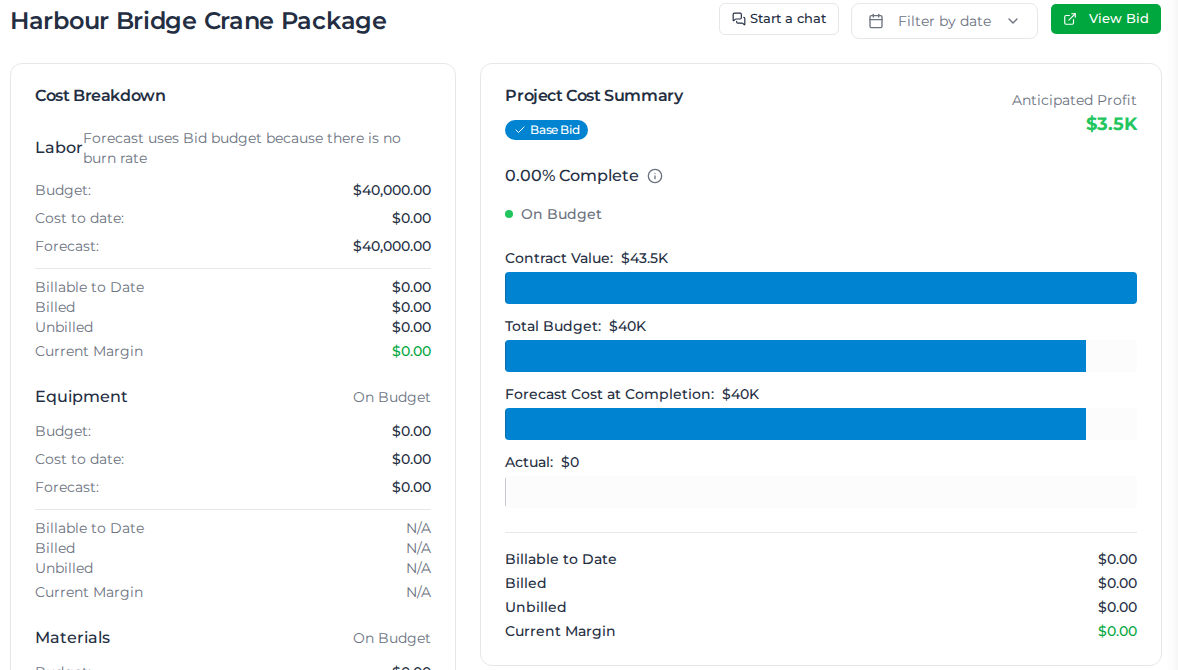
- Cost Breakdown splits the order into Labor, Equipment and Materials. For each it shows the Budget and Cost to date, then what that work is Billable to Date, what is Billed and Unbilled, and the Current Margin. The Forecast comes last.
- Project Cost Summary shows the Contract Value, Total Budget, Forecast Cost at Completion and Actual cost, how far the work is complete, and the Anticipated Profit.
- Filter by date limits the figures to a period. View Bid opens the bid the order came from, and View Bid Document opens the file the bid was imported from, if it had one.
A figure that can't be worked out yet reads N/A. Hover over it to see why. For how each figure is worked out, with examples, see How job costing figures are calculated.
To see every order on a project together, select Job Costing on the project's card instead. Under Project Orders, select an order to include it or leave it out, or use Select All and Deselect All. The cost breakdown, the Project Cost Summary and the line items add up the orders you select. The arrow beside an order's name opens that order's own job costing.
If your account limits access by location, Download PDF on a project's job costing includes only the orders inside your locations, even when the project is yours.
When an order has no bid
An order has no bid when no line has a bid quantity and unit cost, a sell price or time and materials billing, and the order has no contract value. That's common when lines are added as your crew reports work. There is nothing to measure progress, a forecast or a profit against, so job costing shows what has been spent and billed instead.
- Project Cost Summary shows No bid yet and two bars, Billable to date and Cost to date, with the order's billing and Current Margin listed below. Once some of the work is billable, the cost bar splits into Cost of billable work and Not billable yet. Hover over Not billable yet to see why each part of it isn't billable, such as work waiting on the schedule of rates or entered by hand.
- Cost Breakdown shows each type's Cost to date and billing, with no Budget, Forecast or over or under budget.
- The Bid View shows only the columns that have something in them; see Read the Bid View.
To add a bid, select Edit in the Bid View. Every column shows while you edit, so you can enter each line's bid quantity, unit cost and sell price.
An order with a bid can still read N/A in places. When the variations you've selected have no bid quantities and unit costs, Total Budget and its over or under budget read N/A, and there is no percentage complete, forecast or profit to show. When the order has no contract value, Contract Value and Anticipated Profit read N/A. A contract value of $0 counts as none.
Lists and cards of orders, in Job Costing and in Clients & Projects, show each order's figures as its own job costing does, N/A included.
Add up a project's orders
A project's job costing, and its row and card on the Project Costing tab, add up its orders:
- Total Budget, how far over or under budget the project is, and how far its work is complete count only the orders with a budget. An order with no budget adds what it has cost so far to Forecast Cost at Completion, so it never puts the project over budget. When only some orders have a budget, you see how many under the budget status, such as "2 of 5 orders have a budget".
- Anticipated Profit adds up each order's own profit. An order with no budget or no contract value has no profit yet, so it adds nothing. When only some orders have a profit, you see how many under the figure, such as "5 of 10 orders have a profit".
When none of a project's orders has a budget, Total Budget, Forecast Cost at Completion, the over or under budget and the percentage complete read N/A. Contract Value reads N/A when none has a contract value, and Anticipated Profit when no order has both.
Read the Bid View
Below the summary, the Bid View tab lists the order's lines in the same structure as the bid: sections, items, activities and the labour, equipment and materials under them. Each line shows what was bid next to what has been reported and spent.
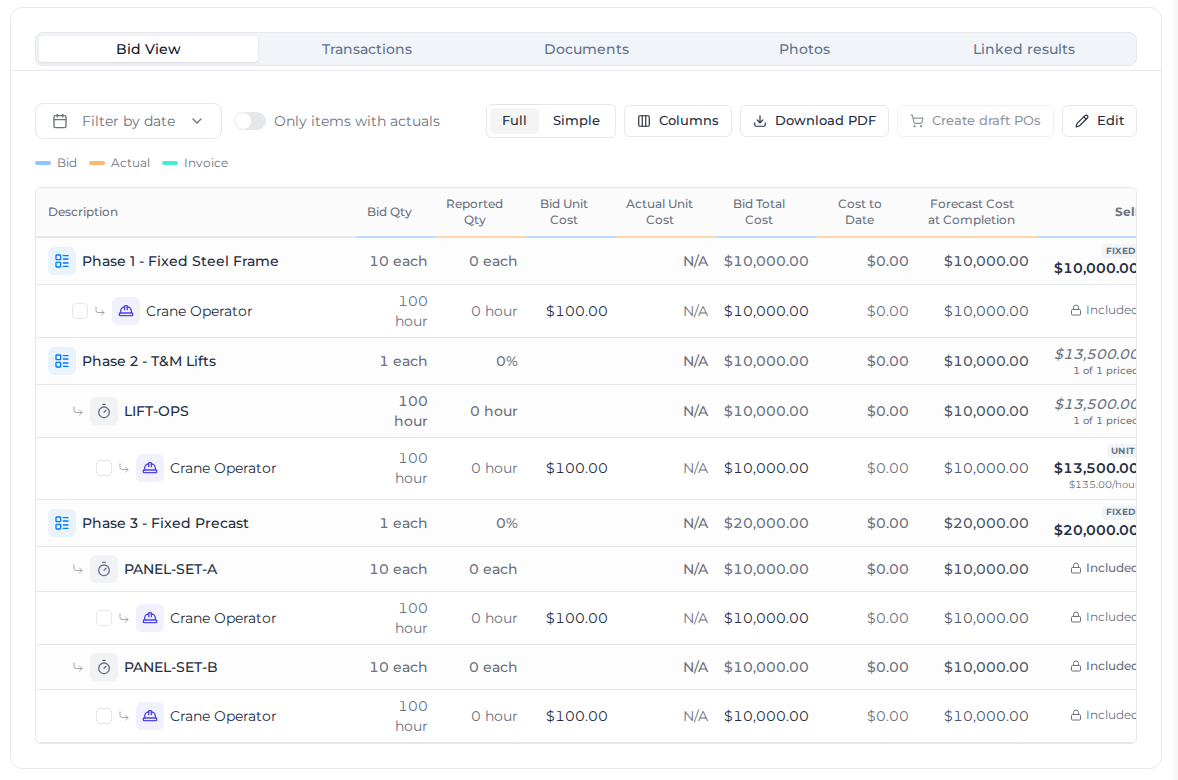
- Only items with actuals hides lines with nothing reported against them.
- Full lists every line in the bid's order. The arrow on a section or activity hides the lines under it.
- Simple keeps the sections and activities at the top, then groups the resources into Materials, Equipment, Labour and Other. The arrow on a section or activity hides the sections and activities under it, and the resources stay in those groups. The arrow on a group hides its lines, and that group stays closed when you come back to this order on this computer.
- Collapse all closes every section and activity arrow, and then reads Expand all. On a line that itself contains lines with lines under them, hold Alt (Option on a Mac) and select its arrow to close or open all of those at once. A line you close stays closed for this order on this computer, in both Full and Simple.
- Columns shows, hides and reorders columns. Reset to default puts them back.
- Download PDF downloads the Bid View as a PDF.
The column headings are coloured by what they measure: Bid (what you quoted), Actual (what has been reported and spent) and Invoice (what is billable, billed and unbilled, and the margin).
A column stays hidden while no line on the order has anything to show in it: Bid Qty until a line has a bid quantity, Bid Unit Cost until one has a unit cost, Bid Total Cost until one has both, Forecast Cost at Completion until one has a bid quantity, and Sell until one has a sell price. Columns lists each of them as "Nothing to show yet"; hover over it to see what it's waiting for. Download PDF leaves them out too.
The other tabs hold the order's Transactions, Documents, Photos and Linked results. Documents has two sections: Shared with workers, the files the crew can open, and Office documents, which are for job costing and are not shown to workers. See Share files with workers.
See the transactions behind a line
Select a line's Reported Qty to list the transactions that make it up, newest first. Each one shows its date, where it came from and the worker, its quantity, its cost and its Status. Total adds up the line.
Status says how the schedule of rates priced the transaction: Priced by SoR, SoR in review, Not processed yet, No SoR match, Priced on a docket or No SoR transaction. Not processed yet and No SoR match are in amber, like the unpriced work under Reported Qty (see What counts as Billable to Date). Above the list, the line says how much of its quantity is priced, for example 4 of 6 hour priced.
- A Hard bid line, or a line Included in the fixed-price line above it, says billed through the bid instead, and so does each of its transactions. It is billed on progress against the bid, not transaction by transaction.
- With Filter by date set, you see only the transactions in that period.
- A transaction moved to another line is listed on the line it sits on now.
- A line with more than 100 transactions lists the latest 100. Total still covers all of them.
How lines are priced
The Sell column shows how each line earns revenue:
- FIXED is a lump sum for the line, whatever quantity is reported.
- UNIT is a rate per unit, multiplied by the quantity reported. With no bid quantity, the cell shows the rate itself, such as $150.00/hour, and the line sells what has been reported at it.
- Included means the line's revenue sits on the fixed-price line above it. It is billed and forecast there, so its own billing columns are empty.
A line you add on the order has Set in its Sell cell. Select it, then in Set sell price choose Fixed or Unit rate and enter the amount.
A line is billed either as Hard bid, a fixed price, or as Time and materials. You choose that per line; there is no margin for the whole order. A unit-rate line from a bid keeps the bid's rate, including a line with no quantity.
What counts as Billable to Date
Billable to Date is what the schedule of rates priced your crew's work at, including a price it flagged for review. Work it hasn't priced yet, or found no price for, isn't counted. A material's own cost isn't a sell price, so a material the schedule of rates hasn't priced isn't billable either.
On a UNIT line, work the schedule of rates hasn't priced is billed at the line's own rate, so all of the line's work counts. An amount counted at a line's rate has a dotted underline. Hover over it to see what it counts, such as 3 hours entered by hand at the line's $150.00/hour sell rate.
Current Margin is Billable to Date less what the priced work cost. Work that isn't priced yet is left out of both, so it never shows as a loss. A line with work but nothing priced reads N/A in Billable to Date, Unbilled and Current Margin, and a line with nothing reported reads $0.00.
Under Reported Qty, a line whose work isn't all priced by the schedule of rates says how much isn't, in the line's own unit. A line whose work is all priced shows nothing there.
- 8 unpriced, in amber, is work waiting on the schedule of rates, or that it found no price for.
- 3 by hand and 2 on docket, in grey, are work entered by hand or priced on a docket. The schedule of rates never prices these.
Hover over the note to see each part, and whether Billable to Date counts it.
On the Transactions tab, each transaction follows the same rules. It shows a Billable to Date when the schedule of rates priced it, or when its line has a unit rate, and N/A otherwise. A transaction on a fixed-price line shows a lock instead, because the line is billed as one price.
A fixed-price line from a bid counts as Billed once a progress claim or an invoice in full bills it, drafts included. When you have billed ahead of the work, as after invoicing a bid in full, its Unbilled shows a negative amount.
See where a cost came from
On the Transactions tab, a note under a transaction's Unit Cost says where the cost came from when it didn't come from pay rates:
- Cost Code default: the cost code's Default Direct Cost Rate.
- Order line price: the rate set on the order's line.
- Cost Code charge rate: the cost code's Default Charge Rate, used when there is no other rate.
- No rate: none of these gave a rate, so it is costed at $0.
- Supplier invoice: the cost came from a supplier's invoice.
Workers whose employment type is excluded from payroll aren't paid through Assignar Pay, so their timesheets without pay aren't costed from pay rates. A timesheet that already had pay before the type was excluded is still costed from its pay rates. It is costed at the cost code's Default Direct Cost Rate first, ahead of the order line's price. If the cost code has no direct cost rate, the order line's price, then the charge rate, applies. Their transactions also show Not paid through Pay; point at it to see why.
See what a worker's time cost
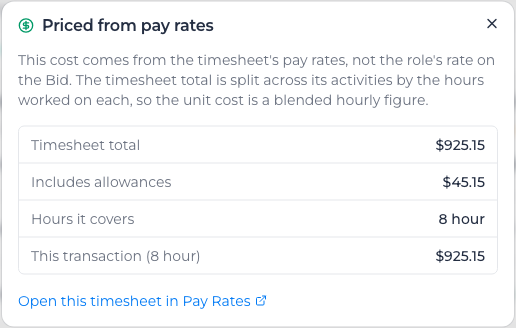
Once a timesheet has been through pay rates, its labor cost on the order is what the worker was paid for it: their rates, their allowances, and the labor burden on both. The timesheet's total is split across its activities by the hours worked on each. An allowance stays on the timesheet that earned it, so a meal allowance earned on the second of two timesheets costs that timesheet's order.
In the Transactions tab, select the icon beside a labor row's Unit Cost. Priced from pay rates shows the Timesheet total, how much of it Includes allowances, the Hours it covers, and what This transaction cost.
Labor and equipment priced by the day or week
Timesheets report labor and equipment in hours. A Labor or Equipment line is priced per Hour, Day or Week, and on a day or week line the Bid View converts the hours into the line's unit and shows both. For example, 27 hours on a line with a 10 hour day reads 2.7 DY (27 h) under Reported Qty. Week lines use WK.
The line's cost to date is that quantity times its rate: 2.7 days at $2,149.00 a day is $5,802.30. The rate itself never changes, and actuals priced from pay rates keep the cost the pay rates gave them.
When you change a line's unit while editing, its bid quantity converts so its hours and budget stay the same: 130 hours at 8 hours a day becomes 16.25 days, and the cost and sell rates change from per hour to per day to match.
Each line keeps the hours per day and per week it was created with, until you change them on the line or pick a different resource for it. They come from the line's cost code, or from your organization's job costing hours (below) when the cost code sets none. Changing either one later affects new lines only.
Dry hire machines
When you bill a dry hire, each charge adds the machine's cost to the order under Equipment: its time on hire, and any mobilisation, de-mobilisation and stand-down. Each charge sits under the activity it carries. If the bid already has a line for the machine, the charge lands on it; otherwise a new line is added. See Bill a dry hire.
A dry hire is costed on the time the machine is out, so a day is 24 hours and a week is 168, whatever job costing hours the line uses. A stand-down still costs the machine, even when you don't charge the client for it. Once a charge is priced, its amount shows in Billable to Date.
A line fed by a dry hire has no Add Equipment Hours. Its hours come from billing the hire, so adding them by hand would count the machine twice.
Time not billed yet
A machine keeps running between charges. That time shows under the line's Reported Qty as an estimate, for example +2.0 d running. Hover over it to see each machine and how long it has run since its last charge. It isn't part of Reported Qty, Cost to date or any total until you bill it.
A machine on hire that has never been billed has no line yet. It appears at the end of the Bid View marked Not billed yet, and becomes a real line once you bill it.
Change the job costing hours on one line
You can change the hours on a labor or equipment line in a bid, a bid template, an assembly, or an order's Bid View.
- On a bid, template or assembly, open it for editing. On an order, select Edit in the Bid View.
- Select the clock icon beside the line's unit.
- In Job costing hours on this line, enter Hours per day and Hours per week. A day can be up to 24 hours and a week up to 168.
- Select Save to change this line only. To copy the same hours to other lines, select Save and apply to all labor lines, Save and apply to all equipment lines or Save and apply to every resource line, check how many lines will change, and select Apply.
- Save the bid, template, assembly or order.
Copying the hours is a one-off: the lines don't stay linked, so changing one later leaves the others as they are. An order line that came from a bid takes the bid's hours again the next time the bid is saved.
If the new hours change actuals already recorded on an order, saving first shows Re-quantify actuals?. It lists each line's reported quantity and cost to date before and after: 27 hours at a 10 hour day is 2.7 DY, and at an 8 hour day 3.38 DY. Select Save and re-quantify. The rate never changes, actuals priced from pay rates keep their cost, and actuals with a manual override are kept as they are.
Set how many hours make a day or a week
These are the hours every labor and equipment line uses unless its cost code sets its own. You need permission to manage settings to change them.
- In the sidebar, select Settings, then General, and open Job costing hours under Financial.
- In Default job costing hours, enter Job costing hours per day and Job costing hours per week. The defaults are 8 and 40. A day can be up to 24 hours and a week up to 168.
- Select Save. You see "Job costing hours updated".
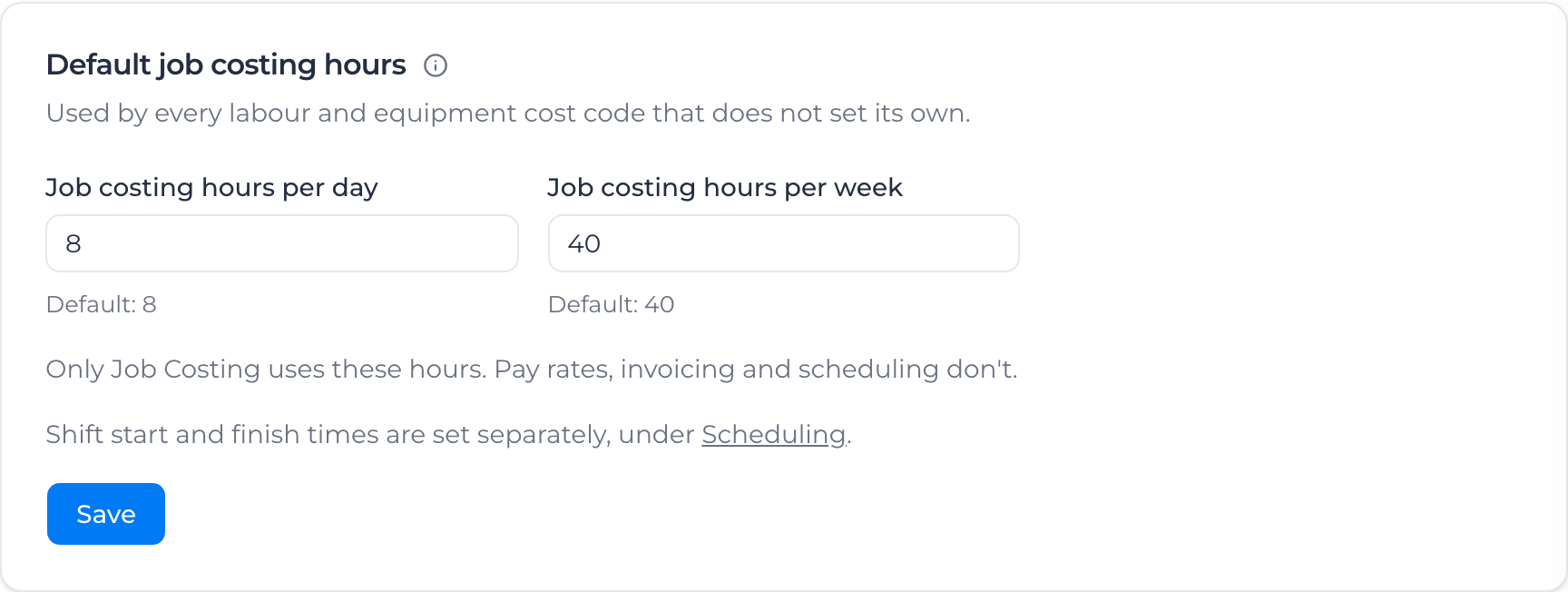
Only job costing uses these hours. Pay rates, invoicing and scheduling don't, and shift start and finish times stay under Scheduling. New lines take the hours when they are created, so existing bids and orders keep theirs. A cost code that works a different day, such as a site toilet hired by the 24 hour day, can set its own hours on the cost code.
Correct older actuals costed at a full day or week rate
Older timesheets on a day or week line were counted as whole days or weeks, so every hour was costed at the full day or week rate. When an order still has actuals like this, the Bid View shows Some labor and equipment on this order reported quantities that don't match their unit of measure.
- Select Review and re-quantify.
- Hours costed at a day or week rate lists each affected line: the quantity reported before and after (27 h at 10 h a day becomes 2.7 DY), the rate, and the cost to date before and after.
- Select Re-quantify actuals. You see how many timesheets were re-quantified, and the banner goes away.
Only the reported quantities are recounted from the hours. Rates, hours and the bid don't change, and actuals priced from pay rates or carrying a manual override keep their cost. New timesheets on these lines are already costed this way.
You need permission to edit orders to re-quantify. If you see "Could not re-quantify the actuals", or a message that some failed, select Review and re-quantify again to retry the rest.
Add allowances to labor costed before they counted
Labor costed before allowances were included leaves them out of the order's cost. When an order has timesheets like this, its job costing shows Labor costs now include allowances.

- Select Update costs.
- You see how many timesheets were updated, and the banner goes away.
Each timesheet is costed again from its pay, allowances and their burden included, so the labor cost to date goes up by the allowances those timesheets earned. If you see "Could not update costs. Please try again.", or a message that some could not be updated, select Update costs again; those timesheets keep their previous cost until then.
Lines that aren't on the bid
A line with no bid quantity isn't on the bid. Its Bid Total Cost reads N/A, and its forecast is what it has cost so far. That cost counts toward the order's Forecast Cost at Completion, but not toward the budget or how far over or under budget the order is.
A line with a bid quantity but no unit cost has no budget either, so it counts the same way. Its forecast prices the rest of the bid quantity at what the reported work has cost: with 10 hours bid and 8 reported at $60.00 an hour, that's $480.00 so far and $120.00 for the 2 hours still to come, $600.00 in all. Hover over the forecast to see the sum.
Once the reported quantity reaches the bid quantity, the forecast is what the line has cost so far. With nothing reported yet, there's no rate to go on, so it reads N/A.
A Time and materials line with nothing bid on it is billed on what it costs, so its budget and forecast both follow its actual spend. Hover over a budget or forecast figure to see where it comes from.
Add lines to the order
- Select Edit.
- Select Add line. A blank row appears at the top; select Choose a type on it to say what it is. Or select the arrow beside Add line to open Add to Bid and pick Labor, Equipment, Material, Other (a cost code line) or a structure line such as an Item.
- Enter the line's bid quantity and unit cost, and set its sell price.
- Select Save, or Cancel to drop your changes.
On a long order, once you scroll past Add line, a copy of it stays at the top right of the lines.
Every new line needs a type. Until it has one, you can't save, and the page says "Choose a type for every new line before saving".
Order what the job needs
You can raise draft purchase orders straight from the lines:
- In the Bid View, tick the labour, equipment and material lines you want to buy.
- Select Create draft POs.
- Choose a supplier for every line at once with Assign supplier to all selected lines, then change any single line that needs a different supplier.
- Select Create N draft POs.
You get one draft purchase order per supplier, linked back to the lines it came from. Each line's unit cost becomes its Unit Price, rounded to the cent. Lines with no supplier, no cost or no quantity are skipped and don't stop the others, and a cost under half a cent counts as no cost.
If a line already has a purchase order, the dialog lists the existing numbers, and you must select Create another draft from these lines to raise a second one. To approve and send them, see Raise purchase orders.
To bill the work, see Create and send invoices, or Invoice a bid to claim a bid in stages.