

Apply pay rates
Work out what each worker is paid for a pay period, check the results, fix uncoded time and export the pay lines.
Applying pay rates turns a pay period's timesheets into pay lines: hours, rate, amount and cost code for every part of every worker's day. You do it from Payroll, then Pay Rates, on the Pay Rates tab. Owners and Admins can apply pay rates by default.
Before you start
- At least one pay rate document is Active and in force on the period's dates, with its rule groups and cost codes set up.
- Your workers have profiles, with employment types if your documents use them.
- Your payroll cycle and public holidays are set.
- The period's timesheets are in Assignar Pay. They arrive from Assignar Operations, from a CSV import, or from My Shifts; see Review timesheets.
Apply pay rates to a pay period
- On the Pay Rates tab, select Summary View.
- Next to Pay Period, use the arrows or the date to pick the period. Periods follow your payroll cycle.
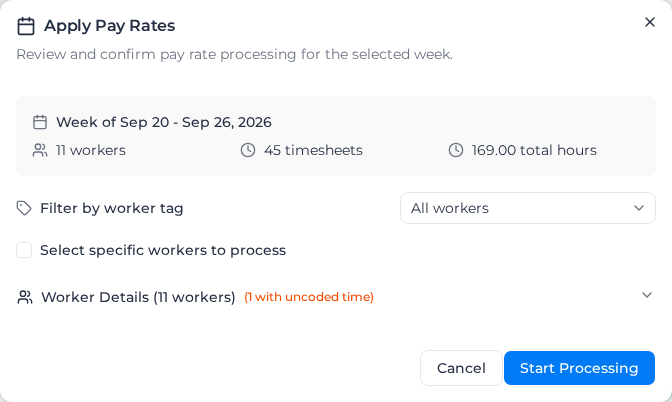
- Select Apply Pay Rates. The dialog shows the period and how many workers, timesheets and hours it covers.
- To process only some workers, choose a tag under Filter by worker tag, or tick Select specific workers to process and pick them. Expand Worker Details to see each worker's timesheets and which have uncoded time.
- Select Start Processing.
Processing runs in the background. The Summary View and Table View update by themselves when it finishes, so you can keep working.
If your account limits access by location, the run checks your access again when it starts. A worker who is no longer inside your access, because their home location or Business Unit changed or your access did, is skipped, and the notification when it finishes says so, for example "2 worker(s) were skipped because they are no longer inside your payroll access." When none of the workers is inside your access any more, nothing is processed and you see Pay Rates Processing Failed with "None of the 2 selected worker(s) are inside your payroll access (home location and Business Unit) any more, so no pay rates were processed".
What is and isn't recalculated
Applying pay rates replaces the pay lines already calculated for the timesheets it covers, with two exceptions: timesheets marked as reviewed and timesheets whose pay lines were edited by hand are left exactly as they are. When the run fails for a timesheet that already has pay lines, that pay stays as it is.
To recalculate them, use Reset Pay Items: in the … menu next to Apply Pay Rates it resets every timesheet in the period, and in the … menu on a worker's row it resets that worker's. Resetting removes the calculated pay lines and the reviewed mark, and the next run calculates the timesheets again.
Applying pay rates to an earlier period again uses the documents that were in force on those dates, including ones that have ended since. Archived documents are never picked automatically.
When a public holiday or RDO date on a worker's calendar has no timesheet, processing can add one for it. See Timesheets for days not worked.
Check the results
The Summary View lists every worker with a timesheet in the period, or with a shift that has no timesheet, with their hours and pay by Regular Time, Overtime, Second Overtime, Paid Breaks, Leave and Allowances, and a total.
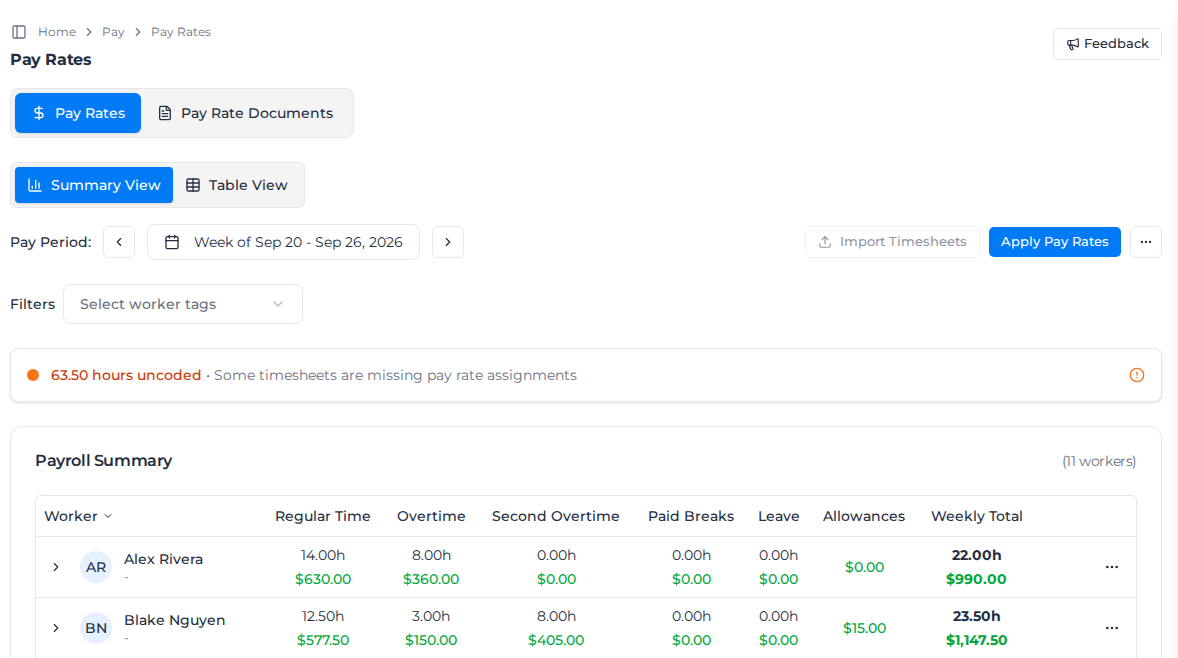
- Use Filters to narrow the list by worker tag, or by employment type when your workers have one.
- On fortnightly and four weekly cycles, move between the weeks of the period. A worker with no timesheets in one of the weeks shows No timesheets this week for it.
- Select the arrow beside a worker to see their week day by day, and select a timesheet to open its Rate Calculation Details: the document and classification it matched, each pay line, and the steps behind them.
Saturday and Sunday hours paid by a day rule are under Overtime, or under Second Overtime when the day rule pays 2x or more. The day rule decides, not a time-of-day loading on the same hours: a Sunday at 2x is Second Overtime and a Saturday at 1.5x is Overtime, with or without a night loading. A worked hours loading on those hours is in the same column as the hours.
When the cost code on those hours is in the Regular Time, Overtime or Second Overtime category, that category decides the column instead. On hours where a time-of-day loading applies, that is the loading's cost code.
On a timesheet without activities, the hours are under Regular Time, or under Overtime or Second Overtime past a daily or weekly threshold. The weekend penalty pay and any time-of-day loaded hours are in the day rule's column.
Pay that was already calculated shows 2x weekend pay under Overtime until you apply pay rates again. Applying again moves it to Second Overtime in the Summary View and in exports. The move itself doesn't change any amount.
The Table View lists every pay line in the period, one row each, with columns you can choose under Column Views. Add the AI Confidence column to find pay lines matched with low confidence, which are worth checking by hand. Display Mode switches between a row per pay line and a row per timesheet.
Workers linked to a supplier, such as consultants and agency workers, are paid through their supplier's invoice, so their timesheets are left out of both views and the exports. To see them on purpose, turn on Include supplier workers in either view; the exports then include them too. Either way, Apply Pay Rates still works out their pay, so turning the switch on later shows it ready; deleting or resetting timesheets only touches the ones on screen. If you filter Table View to a worker who is linked to a supplier, a note names them and offers the same switch. See Pay a worker through a supplier.
Workers whose employment type is excluded from payroll aren't paid through Assignar Pay. Their timesheets that don't have pay yet are left out of both views and the exports, even with Include supplier workers on, and Apply Pay Rates doesn't work out their pay. Timesheets that already had pay before the type was excluded keep it and still show. See Leave an employment type out of payroll.
If your account limits access by location, both views and the exports show pay only for workers whose home location and Business Unit are in your access, whichever project the time was worked on. A worker from another location who worked on one of your projects doesn't appear here, and Apply Pay Rates skips them. You can still change pay on a timesheet for one of your projects if you can edit that timesheet, for example when you approve it. Pay rate documents are shared by the whole account and stay visible to everyone who can see pay rates.
Once your account has started coding, Column Views also offers Working Location, Home Location, Business Unit, Entity Code and GL Code, and they export with the other columns you choose. They are hidden until you add them, including in saved views. Each pay line shows the coding its timesheet was given when it was created, with the Business Unit as its code; timesheets created before coding started show —. Leave and public holidays are coded too, with your Leave GL account as their GL account.
In a CSV export or Copy for Excel, the Business Unit code is under the header Business Unit Code. A value the timesheet doesn't have is left blank, so your payroll or ERP import never reads — as a code. In a JSON export the same value is null.
Column Views also offers PO: the purchase order line the timesheet is booked to, for example PO010241 · 2. Labourer, or - when it isn't booked. It is hidden until you add it, including in saved views. It exports as two columns, PO Number and PO Line, so your import can match on the purchase order number alone. A timesheet that isn't booked leaves both blank in a CSV export or Copy for Excel, and null in a JSON export. Most booked time belongs to supplier workers, so turn on Include supplier workers to see it. See Book time to a purchase order line.
Select a GL Code to see Why this value?: where each part of the code came from, which source gave the Business Unit, and, if your setup has changed since, what it would give today. A timesheet that was coded but has no GL code shows —, which you can select too.
Under Filters, the Coding section narrows the table by working location, home location or Business Unit. A location includes every location under it, and timesheets created before coding started never match these filters.
Recode a row
If a timesheet was coded wrongly, select its GL Code and click Recode in Why this value?. Owners and admins can recode. If you don't see Recode, ask one of them.
Choose a new Business Unit, Location or GL account, or any of them; anything you leave as Keep current stays as saved. As on cost codes, a GL account can't contain spaces, is at most 40 characters, and must match the Width set on the {Account} row of your GL code template. The Preview shows the GL code and Business Unit before and after. Type a Reason (it's required), then click Recode.
Only the coding changes. Hours, rates and amounts stay exactly as they were. The row then shows Set manually for the parts you changed, and Why this value? shows who changed it, when and why.
To undo a manual change, click Reset to setup. It removes the values set manually and codes the row again from your current setup. It also needs a reason, and only shows on a row with values set manually.
Check the banner above the summary
The banner tells you whether the period is ready to pay. A green All hours are coded means every timesheet has pay rates applied, every timesheet could be read, and none has uncoded time. It doesn't show while any of these is true:
- hours uncoded: see Fix uncoded time.
- timesheets have not had pay rates applied: pay was never calculated for them, so their pay isn't in the totals. Apply pay rates to include them.
- timesheets couldn't be read and aren't in these totals: the pay saved on them can't be read, so their hours and pay are missing from every figure on the page. The banner names the first three by worker and date (the timesheet ID where the worker is unknown), and counts the rest. Don't export the period until they are fixed.
A worker filter narrows the uncoded and not-applied counts. The unreadable count ignores filters and covers the whole pay period, so on a fortnightly or four-weekly period it includes the other weeks.
Fix uncoded time
The banner shows how many hours in the period are uncoded: timesheets that could not be matched to a pay rate document or classification, so they have no rate. Expand the worker to find the timesheet; its Uncoded Time Error Details give the reason.
Common fixes:
- Give the worker an employment type, or the role the document expects.
- Add a matching pattern to the classification on the document's Rate Tree tab (see Set up a pay rate document).
- Widen a document's scope, or assign a document to the worker.
- If the Error in those details begins No active pay rate document is in force, no document that fits the timesheet covers its date. On the Pay Rate Documents tab, check the Effective Dates of the document that should pay it, then change them with Edit or add a document for those dates.
- If the Error begins This worker is assigned to, every pay rate document the worker is assigned to has ended by the timesheet's date. Give them an assignment to the document now in force (see Assign a pay rate document to a worker).
- For one timesheet only, pick a document under Document Override in its Rate Calculation Details.
Then apply pay rates again.
Chase shifts with no timesheet
If you allocate workers in Scheduling, the Summary View checks the week's shifts for missing timesheets. A shift counts as covered when a timesheet has been submitted for it, or when the worker has submitted a labour or leave timesheet for that day that isn't for another of their shifts. A public holiday or RDO timesheet counts too. Equipment timesheets don't, cancelled shifts are skipped, and shifts from today onwards aren't checked yet. Workers linked to a supplier aren't checked, because their time isn't paid through payroll, unless Include supplier workers is on. Workers whose employment type is excluded from payroll are never checked.
The result shows in a panel above the list of workers:
- 3 shifts with no timesheet: select it to show only the workers with a shift to chase, and select it again to show everyone. The Has missing timesheets button beside Filters does the same.
- "Every allocated shift so far this week has a timesheet." There is nothing to chase.
- "No shifts are allocated in Pay so far this week, so missing timesheets can't be checked." This is not an all-clear: without allocated shifts, the panel can't find workers who submitted nothing.
- "Nothing to check yet: shifts are checked for missing timesheets once their day has passed." The week hasn't started, or today is its first day, so no shift has been checked.
- "Couldn't fully check allocated shifts for missing timesheets, so some may not be shown." The shifts listed are real, but there may be more. Select Retry.
- "We couldn't check allocated shifts for missing timesheets." Select Retry.
The last two messages appear when the check of which shifts have no timesheet fails or only partly finishes. You still see each shift that was found when its order, project, role, or the people to message could not be loaded.
A red calendar icon on a worker's row means they have shifts to chase; point at it to see how many. A worker with allocated shifts but no timesheets that week still gets a row, with zero hours and the label Allocated only — no timesheets. Applying pay rates skips that row, because there is nothing to pay yet.
If that worker's name could not be loaded, the row says Unknown Worker. A worker who already has a timesheet keeps the name from that timesheet.
When Filters is set to a worker tag or an employment type, shifts whose worker could not be loaded stay in the list. Pay cannot tell whether that worker matches the filter.
Expand a worker's row to see a card on each day for every shift to chase, with its order, project, times and role. (+1 day) marks a shift that ends the next day. The card's heading tells you what is missing:
- No Timesheet Submitted in red: nothing has been filed for the shift.
- No Timesheet Submitted in amber, marked Pending allocation: the shift was never confirmed, so it may not have been worked.
- Timesheet started, not submitted in blue: the worker started a timesheet for the shift but hasn't submitted it.
If the order and project could not be loaded, the card says "Couldn't load the order or project for this shift." The times stay, and the order, project and role are blank. Convert to leave still works.
Each card has three buttons: Convert to leave, Message worker and Message supervisor. Point at a button to see its name, or why it's unavailable.
Convert a shift to leave
When the worker was on leave instead of working the shift:
- On the shift's card, select Convert to leave.
- Choose the Leave type: Annual leave, Sick leave, Personal leave, RDO, Unpaid leave or Other leave.
- Hours starts at the length of the shift. Lower it for part of a day; the most is 24.
- Select Convert to leave.
Assignar Pay adds a submitted leave timesheet for that worker and day, and the card goes. The timesheet is reviewed and approved like any other; see Review timesheets.
You need the Create timesheets permission to convert a shift. A Timesheet started, not submitted card can't be converted: the worker has to submit or delete their timesheet first.
Message the worker or their supervisor
Message worker sends the worker a direct message in Messages with the shift's date, times and order. It asks them to submit their timesheet, or to let payroll know if they didn't work the shift. Message supervisor asks each supervisor allocated to the same order that day to make sure the timesheet is submitted.
The card then shows Chased and when you sent it. Selecting the same button again doesn't send a second message.
A message button is unavailable when:
- "This worker has no Pay login, so they can't be messaged."
- "No supervisor with a Pay login is set for this shift."
- "Couldn't load this worker, so they can't be messaged right now."
- "Couldn't load the supervisor for this shift, so they can't be messaged right now." Message supervisor shows this when the worker could not be loaded too.
- "Messaging is off for this account, or you do not have permission to send messages." You need the Send messages permission.
When converting or messaging fails
- "This shift already has a timesheet. Refresh to see the latest." A timesheet arrived after the page loaded. Refresh the page; the card is gone.
- "This shift has been cancelled, so no timesheet is owed for it." Refresh the page.
- "You do not have permission to add a timesheet for this worker." Ask an Owner or Admin for the Create timesheets permission.
- "You are sending messages too quickly. Wait a moment and try again."
Ask Milo about the pay period
With the Summary View open, select Ask Milo to ask about the pay period on screen. Milo reads every worker you can see in the period, so you can ask questions such as:
- "Who didn't reach their minimum engagement this week?" Milo lists the workers whose pay includes a minimum engagement top-up.
- "Which workers are missing timesheets this week?" Milo uses the same check as Chase shifts with no timesheet: the days a worker was allocated a shift and has no submitted timesheet, including workers with no timesheets at all.
- "How many workers submitted timesheets this week?"
Milo can only find missing timesheets if you allocate shifts in Scheduling. Without allocated shifts for the period, Milo tells you it can't tell who submitted nothing, instead of saying everyone did. Shifts from today onwards aren't checked yet, and Milo says the last day it checked.
When the check of allocated shifts doesn't finish, Milo tells you its list of missing timesheets may be incomplete. Ask again, or use the panel above the list of workers. When a listed shift's order, project or the people to message could not be loaded, Milo still includes that shift.
Mark timesheets reviewed and export
In the Table View, tick the rows you want. The bar above the table then offers:
- Mark Timesheets as Reviewed: locks their pay lines, so later runs leave them unchanged.
- Set Public Holiday: treats the timesheets as a public holiday or not, whatever the calendar says (see Set up public holidays).
- Delete Timesheets: removes them from Assignar Pay everywhere, including job costing and invoicing. They are not imported again from Assignar Operations.
To export, open the ⋮ menu on the right of the table, select Export all (or Export with the number selected), then Export as CSV, Export as JSON or Copy for Excel.
Apply pay rates automatically
Instead of selecting Apply Pay Rates each period, you can have Assignar Pay recalculate as timesheets arrive. Turn on Auto-apply pay rates under Settings, General, then Payroll (see Set your payroll cycle). Organizations created since it became the default start with it on; for older organizations it's off until you turn it on.
Each automatic run replaces the calculated pay lines for that worker's pay period, and you can't undo it. Only timesheets marked as reviewed or edited by hand are left alone.
With it on, Assignar Pay recalculates one worker's timesheets for one pay period, the period the timesheet falls in, whenever one of their timesheets is:
- imported from Assignar Operations or from a CSV file
- created or updated from a form response, such as one sent from My Shifts
- edited: its activity times, role, leave hours or document override
A large import for the same worker and period runs once, not once per timesheet. A message tells you when a background run starts, and the views update when it finishes.
While it is on, the Auto-run Pay Rates for Imported Timesheets option in the timesheet import dialog is hidden, and a timesheet's Rate Calculation Details no longer asks you to apply pay rates again after you edit it.
Apply Pay Rates stays available, for example to recalculate a reviewed timesheet after resetting it, or if a background run fails.