

Manage suppliers
Add the suppliers you buy from, mark the ones you prefer, and invite them to the supplier portal.
Every purchase order and supplier invoice is for one of your suppliers. Keep them in your supplier list, then invite each one to the supplier portal so they can see their purchase orders and invoice you online.
Owners, Admins and Managers can add, change and invite suppliers.
Find a supplier
In the sidebar, select Procurement, then Suppliers.
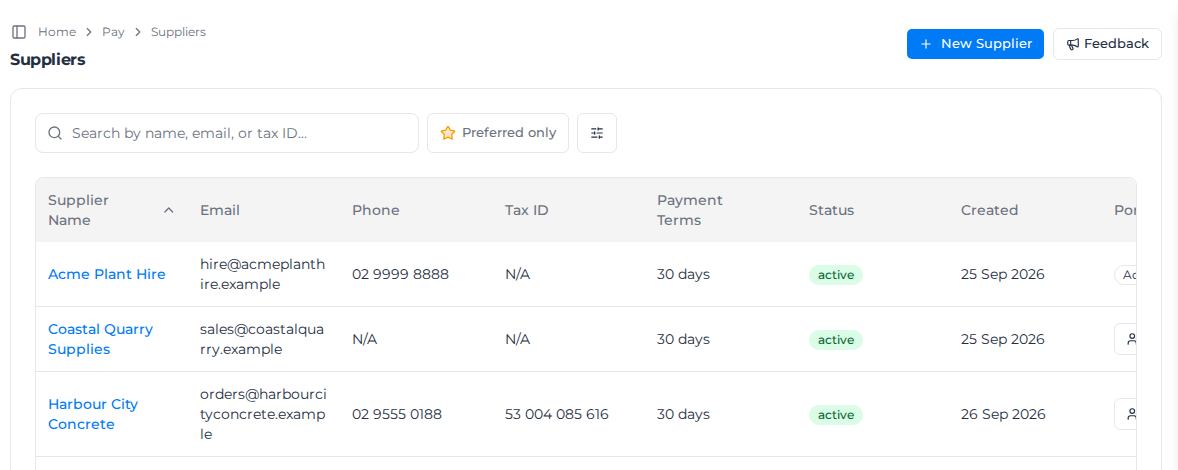
- Search by name, email, tax ID, or tag... finds a supplier, including by the label of a tag it carries.
- Preferred only shows only your preferred suppliers.
- The filter button beside it narrows the list by Status (Active or Inactive) and by Tags (Any tag until you choose some), and has Show archived to include archived suppliers. A supplier shows when it carries any of the tags you choose.
The Portal Access column shows whether each supplier can sign in: Accepted once they have, Pending invite while an invitation is waiting, or Invite when they have none. Scroll the table sideways to see it. The Tags column shows each supplier's tags.
Add a supplier
- Select New Supplier.
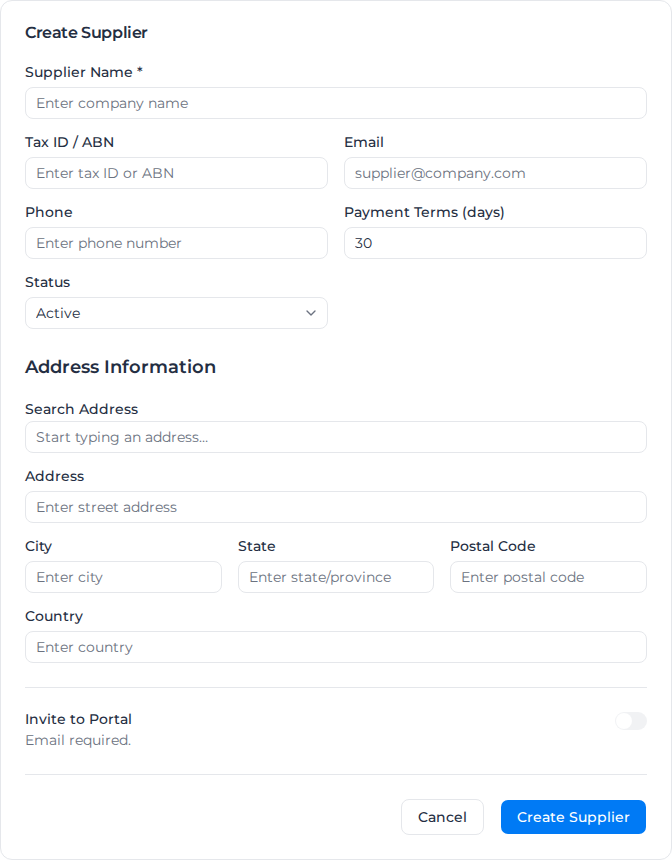
- Enter the Supplier Name. Add their Tax ID / ABN, Email and Phone if you have them.
- Check Payment Terms (days). It starts at 30.
- Leave Status on Active. Use Inactive for a supplier you no longer buy from.
- Under Tags, choose the services the supplier provides. See Tag your suppliers.
- Under Address Information, start typing in Search Address to fill in the address, or type it into the fields below.
- To invite them to the supplier portal straight away, turn on Invite to Portal. This needs an email address.
- Select Create Supplier.
Tag your suppliers
Tags describe the services a supplier provides, such as fuel or traffic control. They let you find the right supplier from a long list.
- In the sidebar, select Settings, then Tags.
- Select Add Tag and enter a Label.
- Set Entity Type to Supplier, then select Save.
Then open New Supplier, or select a supplier's name to edit it, and choose tags in the Tags field. Tags you choose show in the Tags column of the list, and you can filter and search by them there. They also show beside each supplier when you choose a Supplier on a purchase order, and the search there finds a supplier by its tags too.
Bring suppliers across from Assignar Operations
When your organization is connected to Assignar Operations, the supplier list has an Import from Assignar Ops button. Select it, tick the suppliers you want, and select Import Selected (N). The import runs in the background, so you can leave the page. To connect, see Connect with Operations.
Add several suppliers at once
You can add suppliers in three ways:
- One at a time with New Supplier, as above.
- From Assignar Operations, with Import from Assignar Ops, as above.
- Up to 1,000 at a time by uploading a CSV or Excel file to Milo, or pasting the list into the chat. A row with the same name as an existing supplier updates it. Suppliers added this way aren't invited to the portal; invite them afterwards. See Import data with Milo.
Change a supplier
Select the supplier's name to open Edit Supplier. Change their details and select Update Supplier.
The same screen has two more settings:
- Manage preference marks the supplier as preferred, either for All categories or, with Category-specific preference, for the trades you tick, such as Earthmoving or Concrete & Cement.
- Under AI import, Combine receipt lines merges the lines of this supplier's imported receipts into one line, charged to the Default cost code for combined lines. The original lines stay with the import so you can check them. See Import an invoice document.
Below the details, Workers lists the consultants and agency workers who work for this supplier, with Inactive beside anyone inactive. Their supplier invoices you for their time, so it is left out of payroll. You link a worker to a supplier from the worker's profile; see Pay a worker through a supplier. Open in Workers opens the worker list showing only this supplier's workers. The same list is in the supplier's edit panel under Resources → Users → Supplier Profiles.
Invite a supplier to the portal
- In the supplier list, select Invite in the supplier's Portal Access column.
- Check the email address and select Send invite.
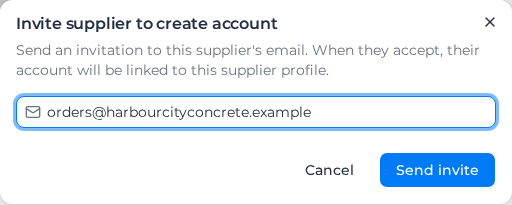
The supplier gets an email to create their account. Once they accept, the column shows Accepted, and they see the purchase orders you issue to them. A supplier without an email address can't be invited: add one first.
What your supplier sees is in Use the supplier portal.
Archive a supplier
Select ⋮ at the end of the supplier's row, then Archive, and confirm. Archived suppliers leave the list and can't be edited. To bring one back, turn on Show archived in the filters, then select ⋮ and Restore.