

Configure rule groups
Find the overtime, weekend, leave, allowance and other rules that change a classification's pay, and where each one is explained.
A rule group is the set of pay rules a classification is paid under: when overtime starts, what weekends and public holidays pay, how leave and allowances are paid, and so on. Each classification in a pay rate document names its rule group on the Rate Tree tab, and several classifications can share one.
Open a document's rule groups
- Under Payroll, select Pay Rates, then the Pay Rate Documents tab.
- Select the eye icon in the Rates Data column of the document.
- Select the Rule Groups tab. The number beside it is how many rule groups the document has.
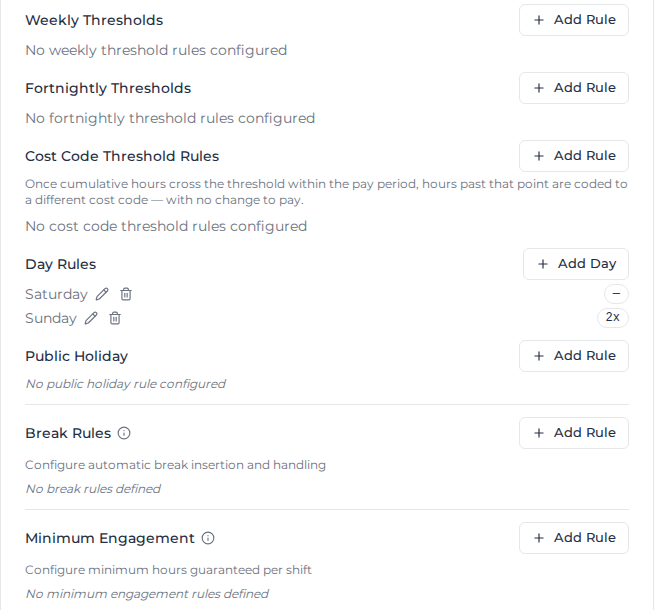
Each rule group lists its rules in sections, with Add Rule (or a similar button) to add one and a pencil or menu on each rule to change or remove it.
To rename a rule group or set its Employment Category (Full Time, Part Time or Casual), open the menu beside its name and select Edit. Each rule group needs its own name: a name another rule group in the document already has is refused, even with different capitals. Delete in the same menu also deletes every classification that uses the rule group.
A new rule group is created each time you select Add Classification on the Rate Tree tab. It is named after the classification, for example Full Time Rules. If another rule group already has that name, a number is added, for example Full Time Rules 2. The same applies when renaming a classification renames its rule group. A duplicated classification's rule group is named after the copy, for example Full Time (Copy) Rules.
What each section does
| Section | What it controls | Details |
|---|---|---|
| Daily Overtime | Overtime tiers after a number of hours in a day | Below |
| Weekly Thresholds | Overtime after a number of hours in the payroll week | Weekly overtime rules |
| Fortnightly Thresholds | Overtime after a number of hours in a fortnight | Fortnightly overtime rules |
| Cost Code Threshold Rules | A different cost code, with no change to pay, once hours in the pay period pass a threshold | Cost code threshold rules |
| Day Rules | The multiplier for Saturday, Sunday or any other day of the week | Below |
| Public Holiday | What a public holiday pays | Public holiday loading |
| Break Rules | Breaks added or extended automatically after a number of hours | Break rules |
| Minimum Engagement | The minimum hours paid per shift | Minimum engagement rules |
| Leave Rules | How each kind of leave is paid | Leave rules and Leave loading |
| RDO Rules | Rostered days off accrued from hours worked | RDO rules |
| Worked Hours Loading | A separate loading line, such as a 25% casual loading, on every hour worked | Worked hours loading |
| Higher Duty Settings | A whole day paid at a higher role's rate once that role is worked long enough | Higher duty settings |
| Custom Rules | A different rate or cost code for particular activities, such as travel | Custom activity rules |
| Allowance Rules | Allowances paid per hour, day, timesheet, week or fortnight | Allowance rules |
| Shift Rules | Rates that depend on when a shift starts, such as night shift | Shift rules |
| Consecutive Shift Rules | Different rates after a number of days worked in a row | Consecutive shift rules |
| Shift Spacing Rules | Penalty rates when the break between shifts is too short | Shift spacing rules |
Higher Duty Settings only appears when the document's rate tree has a Role level.
Daily overtime
Daily Overtime holds the tiers that turn a day's hours into overtime, for example time and a half after 8 hours and double time after 10. Select the pencil beside a tier to open Edit Daily Overtime Rule:
- After Hours: the hours in a day after which the tier starts.
- Up To Hours (optional): how many hours the tier covers. Leave it empty for no limit.
- Unpaid break offset limit (minutes): adds the worker's recorded unpaid break minutes to After Hours, up to this limit.
- Multiplier: the rate for those hours, as a multiple of the base rate (1.5 for time and a half).
- Application Method: Replacement (single combined line) pays the hours as one overtime line; Loading (additive parallel line) pays them as ordinary hours plus a separate loading line.
- Split overtime by activity: pays the overtime part of the day differently depending on the activity worked. See Custom activity rules. Weekly thresholds have the same option, with an optional time window: see Pay overtime on some activities at a different rate.
A tier paid as a loading line shows its loading rate and cost code beside its name, such as "Loading: 50% → OT-LOAD". Its multiplier is dimmed because it doesn't set what the hours pay.
More than one timesheet on a day. Daily overtime counts all of the worker's timesheets on the same date, whole timesheet by whole timesheet in the order they start. When the timesheets follow one another, the overtime falls on the hours worked after the threshold.
When one timesheet fills a gap in another, the overtime goes on the hours worked after the threshold, in clock order. For example, with daily overtime after 8 hours, a worker records 07:00 to 08:00 and 13:00 to 16:00 on one timesheet and 08:00 to 13:00 on another. They reach 8 hours at 15:00, so 15:00 to 16:00 is overtime, on the first timesheet and with its cost code. Each timesheet's Rate Calculation Details then say "Daily overtime placed by time worked across 2 interleaved same-day timesheets", in place of how many hours were already worked that day.
The day's hours and pay are the same either way. On some days the timesheets are still counted one after another in the order they start, so the overtime can sit on the timesheet that starts later:
- when moving it would change pay or coding anywhere else that day, such as weekly overtime reached that day, an allowance that depends on overtime, a loading, an RDO, or an hour that would be left without a cost code
- on days with leave, an overnight shift, or timesheets that overlap
- when the day is paid under a shift rule with Prevent Daily Overtime Calculation on, a fortnightly overtime rule or a cost code threshold rule
Timesheets already worked out keep their overtime where it is until you apply pay rates to them again.
Day rules
Day Rules set the multiplier for hours worked on a given day. To add one, select Add Day, choose the Day of Week and enter a Multiplier, or turn on Use tiered rates to pay the first hours and the remaining hours at different rates.
A Saturday or Sunday day rule also has Counts toward weekly overtime threshold, to leave that day's hours out of weekly overtime. See Leave one day out of the count.
A Saturday or Sunday rule can be limited to certain activities, such as crane work. Only activities whose name contains one of the rule's activity names get the day's rate. Every other activity that day, leave included, is paid as if the day had no rule: ordinary time, with daily and weekly overtime as usual. A timesheet on that day with no activities gets none of the day's rate.
Day Rules doesn't show this limit. To set, change or remove it, ask Milo in the document's Milo - Document Editor panel (see Check and edit the rates), for example "Pay the Saturday rule in Standard only for activities named Crane" or "Pay the Saturday rule in Standard for all work". Use the distinctive part of the activity's name, such as "Crane". A name like "Saturday Work" matches no activity, so the day's rate is never paid.
When a timesheet's weekend hours are paid at ordinary time, the rate details name the activities the rule left out, and say so when nothing on the timesheet matched. Ask Milo to add the missing activity name to the rule.
How the rules are applied
When you apply pay rates, Assignar Pay works through each worker's week:
- It chooses the pay rate document for each timesheet (see Choose which timesheets a document pays).
- If Higher Duty Settings are on and a higher duty role reached its threshold that day, it moves the day's timesheets to that role first.
- It matches each timesheet to a classification and pays it under that classification's rule group, applying each rule that fits. Weekly thresholds are applied within each timesheet's own calculation, before minimum engagement and allowances, so those two see the hours as weekly overtime where they already are.
- Once the whole week is done, it applies fortnightly thresholds.
Each rule page says where the order matters for that rule.