

Manage your team
Invite people to your organization, choose their roles, give workers a login, change or remove access, and limit someone to specific projects.
Everyone who signs in to your organization is a member, with a role that decides what they can see and do. You manage members in the sidebar under Resources, then Users, on the Members tab.
Owners and Admins can invite people by default. Managers can change the role of, or remove, people below them (Field and Visitor), and can give a worker a login from their worker profile. Nobody can change or remove someone at their own level or above, or the primary owner.
Members are not the same as the other tabs on Users. Worker Profiles, Supplier Profiles and Client Profiles (Contacts) are payroll and contact records, and a worker profile on its own does not let anyone sign in. Worker roles such as Labourer or Crane Operator live under Resources, then Roles, and have nothing to do with a member's role.
Invite someone
- In the sidebar, select Resources, then Users. The Members tab opens.
- Select Invite Members.
- Leave New member selected and enter the person's email address.
- Choose their role from the list beside the email. See Choose a role.
- To invite more people at once, select Add another one and repeat. One invite takes up to five people.
- Select Send Invites.
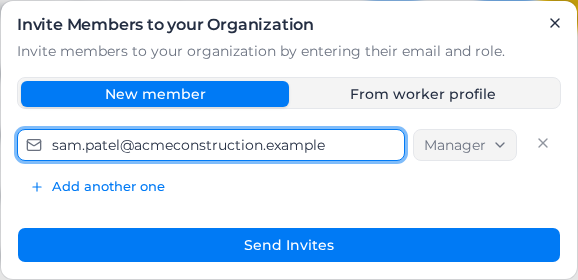
Assignar Pay shows Members invited successfully, and each person appears in the list as Pending invite. They get an email titled "You have been invited to join a team" with a link to join. The invitation lasts 7 days. Their Status changes to Active once they accept.
If the invite is refused:
- "You do not have permission to invite members": your role can't send invitations. Ask an Owner or Admin.
- "You cannot invite members with the "owner" role" (with the role you picked): the role is above your own. Choose a lower role, or ask someone with a higher role to send the invite.
Give a worker a login
If the person already has a worker profile, invite them from it, so their login and their payroll record are linked.
- On the Worker Profiles tab, find the worker and select Invite / Link in the Member Account column. The worker needs an email address on their profile; without one the button is greyed out.
- In Give this worker access to Assignar Pay, stay on Invite. The role starts as Field.
- Select Send invite.
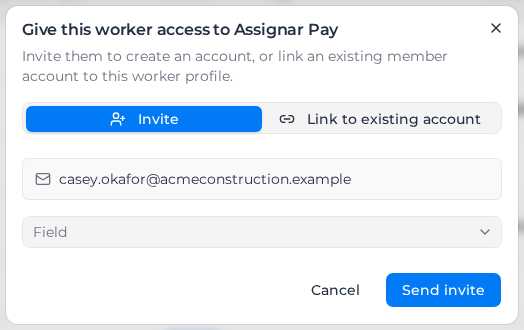
If the worker already has a login, choose Link to existing account instead, pick them under Select member, and select Link to member.
You can do the same from the Members tab: in Invite Members, choose From worker profile, pick the profile and select Invite from worker profile. For a member who is already active, select Link worker in their Linked Profile column.
Once linked, the Linked Profile column on Members shows the worker's name and opens their profile.
Show worker names on Members
Members are listed under the name on their own profile. Owners and Admins can turn on Show linked worker names on the Members tab so a member is shown as their linked worker's first and last name instead. A member with no linked worker keeps their profile name.
It changes this organization only: the Members list, the places you choose a person, message authors, and live submitted-by and approved-by names. A name already saved on a record stays as it was.
If the switch does not save, you see Could not update member names. Try again. Turn it again. If it still fails, ask an Owner.
Until the worker accepts, Account link on their profile shows Pending invite. If they can't find the email, select Resend invite there. They get the invitation again, and it lasts another 7 days.
A login is also what lets a worker opt in to text messages. If your organization uses SMS, the SMS column on Worker Profiles and Members shows who can be texted, with No login for a worker who still needs one. Text your crew explains each status.
Choose a role
A role decides what a person can see and do. The list only offers roles at or below your own, so an Admin cannot invite an Owner.
| Role | Who it is for |
|---|---|
| Owner | Full control of the organization, including billing. See Owner role. |
| Admin | Running the organization day to day, including settings and members. See Admin role. |
| Manager | Project managers and team leaders. See Manager role. |
| Field | Crew members on site, who see their own shifts, timesheets and assigned work. See Field role. |
| Visitor | People who only fill in forms, such as a site induction. They see only Field in the sidebar. See Visitor role. |
Customers and suppliers are not invited from here. You give them access from Client Profiles (Contacts) and Supplier Profiles.
For what each role can do in detail, see Roles and permissions.
Change someone's role
- On the Members tab, select the ⋯ button at the end of the person's row.
- Select Update Role.
- Choose the new Role and select Update Role.
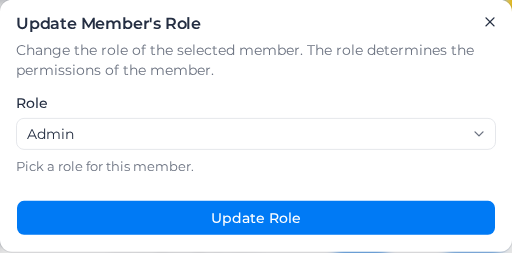
If you pick the role they already have, you see "Role is the same as the current one". If the change does not save, you see "Sorry, we couldn't update the role of the selected member." Try again, and check the person is still below your own role.
The primary owner also sees Transfer Ownership in this menu, to hand the organization to another member.
Change or cancel an invitation
For someone still shown as Pending invite, select ⋯ at the end of their row:
- Update Invitation changes the role they will join with. To fix a wrong email address, remove the invitation and send a new one.
- Remove Invitation cancels the invitation, so the link in their email no longer works.
- Resend Invitation emails the invitation to them again, whether it is still live or has expired. Confirm with Resend Invitation. The invitation then lasts another 7 days, and the link in their earlier email keeps working.
- Renew Invitation appears once the Status reads Expired. Select it to give them another 7 days without sending an email.
Someone who opens an expired or cancelled link sees "Invite not found or expired". Resend their invitation or send a new one.
If you see "The invitation was renewed, but the email could not be sent. Please try again.", the invitation now lasts another 7 days but no email went out. Select Resend Invitation again.
An invitation can't be sent again within 5 minutes of the last email. If you try, you see "This invitation was sent in the last 5 minutes. Wait a few minutes before resending it."
Remove someone
Select ⋯ at the end of their row, then Remove from Account, and confirm with Remove User from Organization. They lose access to your organization straight away. Memberships have no end date, so remove people yourself when they leave.
If the removal fails, you see "Sorry, we couldn't remove the selected member."
Limit someone to specific projects
If your organization has the Subcontractor Hub, the Members table has a Projects column:
- All projects means the person sees every project. This is the default.
- A count, such as 3 projects, means they are limited to those projects.
- All (admin) marks Owners and Admins, who are never limited.
To change it:
- Select ⋯ at the end of the person's row, then Project access.
- Tick the projects they should see, or choose All projects to remove the limit.
- Select Save.
You cannot limit yourself, the primary owner, an Owner or an Admin. Changes take effect straight away.
You can also manage who is limited to a project from that project's Subcontractors tab, with Project access. That list shows only the people limited to this project. Everyone who isn't limited at all can already open it, so an empty list means nobody is restricted to the project, not that nobody can see it.
Project access limits the Projects list, the project selector at the top of the sidebar, and the Subcontractor Hub screens. It does not restrict timesheets, orders, forms or reports.
If every project someone was limited to is deleted, they see no projects at all. Their Projects list shows "Your projects are no longer available". Open Project access for them, where the deleted projects are listed under Unavailable projects, and tick a current project or choose All projects.
Narrow your own view to one project
With the Subcontractor Hub, Owners, Admins and Managers who can open more than one project see a project selector at the top of the sidebar, set to All projects. Choose a project to narrow the Projects list to that project's client; the project's name shows in the page header. Your choice is remembered for each organization. If you can open only one project, there is no selector.
The selector only changes what you are shown. It never changes what anyone is allowed to open.
If someone cannot open a feature
Check their row on the Members tab. Status must be Active, not Pending invite, and Access Level must be the role you meant to give them.