

Connect with Operations
Link the Assignar Operations account your business already uses to Assignar Pay, keep your records syncing, import records and form templates yourself, and fix a connection that has stopped.
If your business already uses Assignar Operations, linking that account brings the clients, projects, orders, timesheets, workers and reference data you keep there into Assignar Pay, so you don't enter them twice. You connect once. After that, auto-sync keeps your records up to date every 6 hours, and you can import records yourself whenever you need to.
This page is about your Assignar Operations account. To build automated workflows between Assignar Pay and your other apps, see Assignar Connect instead.
Owners and Admins can connect and manage the integration by default. Anyone else sees "Contact your account administrator to set up this integration" instead of the buttons, or, once the connection is made, "Contact your account owner to manage this integration".
Connect Assignar Operations
Before you start, get your Client ID and Client Secret from the Settings area of Assignar Operations. If you can't find them there, ask your Assignar account manager.
In the sidebar, select Settings, then General, and go to Integrations.
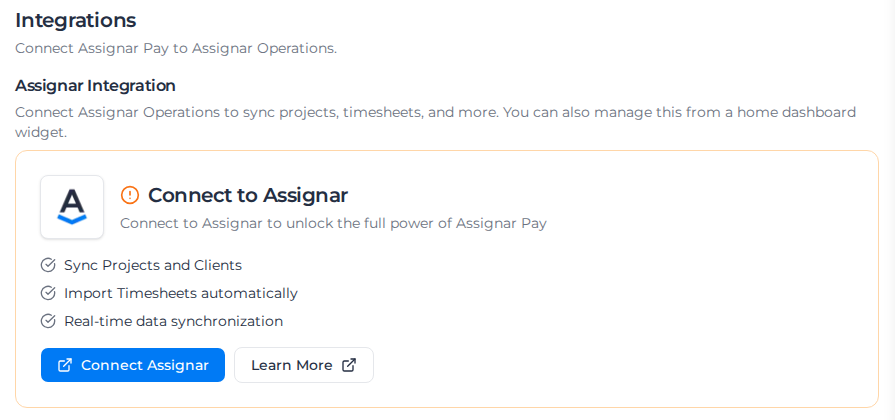
Under Assignar Integration, select Connect Assignar.
Choose the Region your Assignar Operations account is hosted in: North America or Australia / NZ.
Paste your Client ID and Client Secret.
Under Import Options, choose what to bring across now:
- Import last 4 weeks of Timesheets imports recent timesheets, along with the clients, projects and cost codes they use.
- Import last 4 weeks of confirmed Orders imports recent confirmed orders. It shows only if your organization uses job costing.
- Auto-sync from Assignar keeps pulling in changes every 6 hours. Under Timesheet statuses to sync, tick the statuses you want brought across. See Keep your records syncing.
Select Connect.
When the connection works, the dialog closes and Assignar Pay shows Successfully connected to Assignar. If you chose an import, it also tells you the import has started. Imports carry on in the background, so you can keep working while they run.
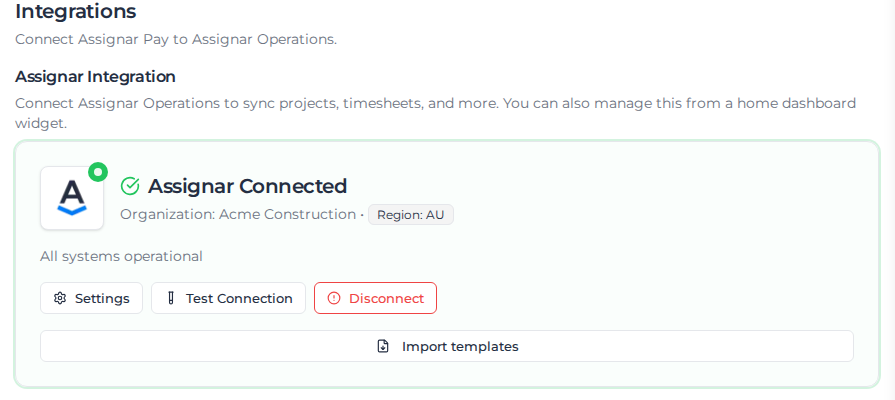
The section now reads Assignar Connected, with your organization and region.
If Assignar Pay can't sign in to Assignar Operations with your details, it shows an error from Assignar Operations and the dialog stays open. Copy your Client ID and Client Secret again, check you chose the right Region, and select Connect again.
Your Client Secret is hidden once saved. To change your credentials, select Disconnect, confirm, and connect again. Disconnecting removes the stored credentials and your auto-sync settings, so you choose them again under Import Options when you reconnect.
You can also add an Assignar integration card to your home dashboard and manage the connection from there.
Keep your records syncing
With Auto-sync from Assignar on, Assignar Pay pulls changes from Assignar Operations every 6 hours. Each sync covers:
- clients, projects and orders;
- workers and their employment types;
- roles, activities and materials;
- assets and asset classes;
- Dockets and timesheets.
The first sync brings in the last 30 days; after that, each sync brings only what changed since the one before.
Assignar Operations stays the source of truth for the workers it syncs. When a worker changes there, the next sync overwrites the changes made to that worker's details in Assignar Pay. A worker's address and date of birth also come across from Assignar Operations, and once you change them in Assignar Pay, syncs leave them as you set them; see Record a worker's address and date of birth.
- In Settings, go to Integrations and select Settings on the Assignar card.
- In Integration Settings, turn Auto-sync from Assignar on or off.
- Under Order statuses to sync and Timesheet statuses to sync, tick the statuses you want. Records in any other status are never synced.
- Select Save. Assignar Pay confirms Auto-sync enabled or Auto-sync disabled.
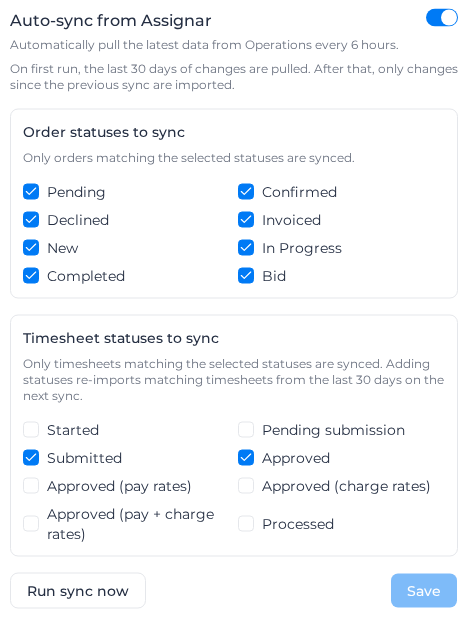
Ticking an extra timesheet status re-imports matching timesheets from the last 30 days on the next sync, so you can widen the filter without losing history.
To sync now instead of waiting, select Run sync now in the same dialog. It shows once auto-sync is saved as on. Assignar Pay confirms Auto-sync started. Progress will appear in your notifications.
Import other records
You can also bring records across yourself from the page that holds them, for example before you turn auto-sync on, or to import records now instead of waiting for the next sync. Suppliers are never synced automatically, so you always import them here:
| Records | Where | Button |
|---|---|---|
| Clients, projects and orders | Clients & Projects | Create, then Import |
| Workers | Resources, then Users, Worker Profiles tab | Import from Assignar |
| Assets, roles, materials and activities | Each page under Resources | Import from Assignar |
| Suppliers | Procurement, then Suppliers | Import from Assignar Ops |
Each opens its own dialog, where you filter and pick the records to bring across. If the Import option on Clients & Projects can't check your connection, the menu shows "Couldn't verify the Assignar integration. Refresh the page to retry." Reload the page and try again. The import runs in the background and reports its progress in your notifications. If one of the same kind is already running, you see "Import already in progress. Please wait for the current import to complete before starting a new one"; wait for the notification that it finished.
Import form and docket templates
- In Settings, go to Integrations and select Import templates on the Assignar card.
- In Import Assignar templates, search by title, and narrow the list by Forms or Dockets and by Imported or Not imported.
- Tick the templates you want and select Import templates.
Import results then lists each template you selected, with its outcome, such as Created, Updated, Unchanged or Failed. Every template arrives unpublished, so review it in Forms before your crews see it.
If an Operations form is linked to a client, project, worker, asset, or supplier, the imported form asks for each of those at the top, and each question is required. Linking it to a project also asks for the client. A docket that requires a client or a project does the same, and a question the template already has is not added again.
A repeating group arrives as a Table field, and a docket's built-in workers group as its Worker Time field. A show or hide rule on the group itself comes across, so the whole field shows or hides on it. A field group inside a repeating group becomes ordinary columns of the table, each headed with the group's name and the field's, such as Downtime: Cause, and the group's rule applies to each of those columns.
You need permission to manage both integrations and forms to see Import templates. Owners and Admins have both by default.
If Assignar Operations does not return the list, you see "Form templates did not load." or "Docket templates did not load." Select Try again. A template that can't be read is skipped and reported in Import results, and the rest still import.
When the connection stops working
Test Connection on the Assignar card checks the stored credentials against Assignar Operations. It shows Connection test successful, or Connection test failed with the reason.
If Assignar Operations starts refusing your credentials, for example because someone regenerated them, the card shows Assignar sync has stopped with the date it failed. Get the current Client ID and Client Secret from Assignar Operations, then Disconnect and connect again.
If data arrives but some records are missing, check the statuses ticked in Integration Settings first. An order or timesheet whose status is not ticked never syncs, and each import dialog has its own filters on top.
Related
- Set up your organization: the order to do setup in, including this connection.
- Timesheets: process the timesheets that come across.
- Import cost codes: find and sort the cost codes created from imported records.