

Override rates
Pay one client, project or role a different base rate, or code its hours to different cost codes, without copying the pay rate document.
A rate override changes one classification's pay for one client, project or role: a higher site rate for one client, say, or a client that wants its hours coded to its own cost codes. Everything else about the classification, including every rule in its rule group, stays as it is.
Use an override instead of a second pay rate document when only the rate or the coding differs. The worker's week then stays in one document, so weekly overtime, RDO and other weekly rules count all their hours together. Copy the document only when the rules themselves differ.
Add an override
- Open the pay rate document: under Payroll, select Pay Rates, then Pay Rate Documents, and the eye icon in the Rates Data column.
- On the Rate Tree tab, expand the classification.
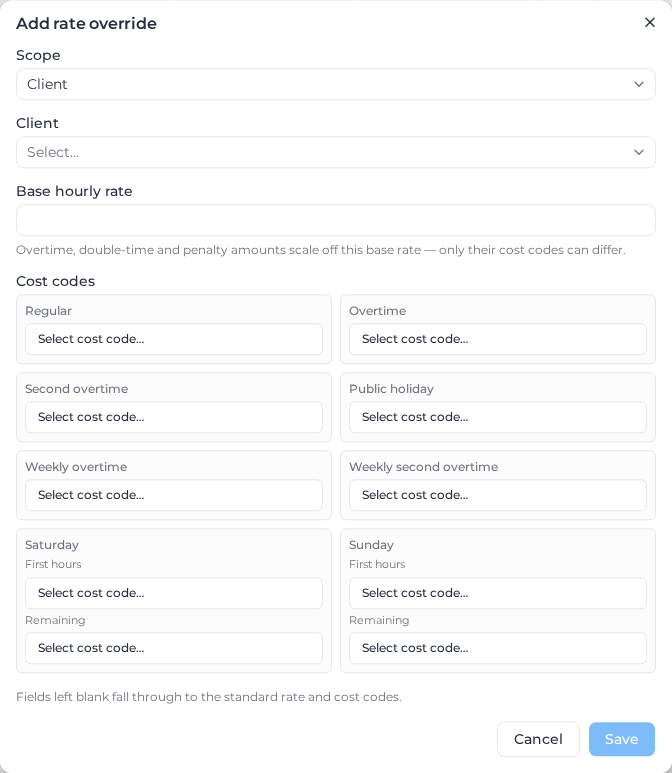
- Under Rate overrides, select Add override.
- Choose the Scope (Client, Project or Role) and then the client, project or role.
- Enter a Base hourly rate, choose the Cost codes that should differ, or both. Leave a field blank to keep the classification's own value.
- Select Save.
An override must set a rate or at least one cost code. One that sets neither is not saved, and the dialog shows Set a rate or cost code for this override.
Role is only offered when the document's rate tree has no Role level. When the tree already splits rates by role, give the role its own classification instead.
What an override can change
You can override the Base hourly rate and the cost codes for Regular, Overtime, Second overtime, Public holiday, Weekly overtime, Weekly second overtime, and the first and remaining hours of Saturday and Sunday.
Overtime, double time and weekend or public holiday amounts are not entered separately. They are the base rate times the rule group's multipliers, so they follow the overridden base rate automatically. Allowances, thresholds and every other rule always come from the rule group.
Shift rates, and the cost codes of RDO, time-of-day, custom activity and Monday to Friday day rules, can't be overridden.
Hours paid by a shift rule take their dollar rate from the shift rule itself, not from the base rate times a multiplier. Overriding the base rate of a classification paid by shift rules doesn't change what those hours pay.
An override applies to leave the same way it applies to worked time: leave for an overridden client or role is paid from the overridden rate.
When several overrides apply
A timesheet can match more than one override, for example one for its role and one for its client. Assignar Pay starts from the classification's own rates and cost codes, then applies the Role override, then the Client override, then the Project override. Each one only changes the fields it sets, and a later one wins on any field both set.
For example, a classification pays $45/hr and codes regular hours to LAB-100:
| Overrides | A timesheet for Client AGL on Project Site X pays | Coded to |
|---|---|---|
| None | $45/hr | LAB-100 |
| Client AGL: $65/hr | $65/hr | LAB-100 |
| Client AGL: $65/hr, and Project Site X: code AGL-SITEX | $65/hr | AGL-SITEX |
| Project Site X: $70/hr | $70/hr | LAB-100 |
Overtime on the second row is $65 times the overtime multiplier.
Change or remove an override
Each override shows as a row under Rate overrides. Select the pencil to edit it; clearing a field returns it to the classification's value. Select the bin to remove it.
Adding a Role level to a document's tree removes its role overrides, and the confirmation names the ones it removed. Client and project overrides stay. A role override that is still on a tree with a Role level shows Inactive — tree has a Role level. It no longer changes pay; remove it and give the role its own classification.
Overrides and higher duty
When higher duty moves a worker's day to a higher duty role, each timesheet keeps its own client or project override, on the higher duty role's classification.
A role override works the other way. The day is paid at the higher duty role's rate, so it takes that role's override, not the override of the role each timesheet was worked in. A role override on a higher duty role therefore pays the worker's whole day at the overridden rate on any day the role meets its threshold, not only the hours worked in that role. The override dialog warns you when you pick a role that higher duty is set up for.
Things to know
- No start date. An override applies to every timesheet you apply pay rates to, including an earlier period you process again. For a rate change from a set date, use a new document effective date instead.
- One per client, project or role. Each can be overridden once on a classification. To vary one project within a client, add a project override: it applies on top of the client's.
- Classifications without dollar rates. When you remove the dollar rates from a classification to code time as quantities only, its overrides lose their base rates too, and an override that only set a rate is removed. Cost code overrides stay. Such a classification can't take an override base rate until its own rates are back.
- Coding pay lines by hand. When you enter a timesheet's pay lines yourself, the rate and cost codes offered are the ones its client, project and role overrides give, not the classification's standard ones.
- Checking the result. A timesheet's Rate Calculation Details name any override it used and the base rate that resulted.
In the document's Milo - Document Editor panel you can also ask Milo to add or remove an override, for example "Set a client rate override of $65/hr for AGL on the Standard Labourer classification".