

Manage Business Units
Keep one list of your Business Units, each with a code, so you can add, rename, archive and restore them
Business Units are one flat list for your whole account. Each has a Code and a Name, and can carry an Entity code if your accounting needs one.
The list is something you maintain, not a permission. Adding, archiving or restoring a Business Unit does not change who can see anything.
Turn on GL coding
Business Units, entity codes, the GL code template and GL accounts on cost codes are part of GL coding, which is off until you turn it on. With it off, you only see your locations.
- Open Settings and go to Locations.
- At the top, turn on Use GL coding.
GL coding turned on confirms it. Business Units then appears in Settings, and Business Unit, entity code and GL account fields appear on locations, cost codes, workers, assets, projects, orders and clients.
Turning it off hides those screens and fields again. What you entered is kept and comes back when you turn it on. Once coding has started, GL coding stays on.
Open the list
You need permission to manage account settings, and GL coding must be on. Otherwise Business Units is not on your Settings page at all.
- Open Settings.
- In the index on the side, open Operations and click Business Units. Or type "business units" into Filter settings.
Until you add one, the list shows No Business Units yet. Add the first one to get started.
To find one, type part of its code or name into Search by code or name…. If nothing matches, the list says so, for example No Business Unit code or name contains “scaf”. The list shows 50 Business Units at a time; with more, use Previous and Next below it, beside a count such as Showing 1–50 of 230.
Add a Business Unit
- Click Add Business Unit.
- Enter a Code, for example
007, and a Name, for exampleScaffold. - If your accounting system books this Business Unit to a legal entity, enter that entity's code in Entity code. Leave it blank otherwise.
- Click Add Business Unit.
Business Unit added confirms it, and the new row appears in the list.
Three rules apply to the code:
- It is saved as text.
007stays007, with its leading zeros. Spaces at the start and end are removed when you save. - It must be different from every other code, ignoring capital letters.
BU1andbu1count as the same code. - Archived Business Units keep their code. You cannot reuse an archived unit's code until you restore that unit and change its code (see "Archive and restore" below).
Change a Business Unit
- Click the pencil icon at the end of the row.
- Change the Code, Name or Entity code.
- Click Save changes.
Business Unit updated confirms it. To remove an entity code, clear the field and save.
Set a default entity code
Use the Default entity code card on the same page to save a fallback code for your account. The GL code template and the coding preview use it for {Entity} only when there is nothing nearer: a location's entity code (or that of a location above it) comes first, then the Business Unit's, then this default.
- Enter a code, such as
0010orCORP. - Click Save.
Default entity code updated confirms the save.
The code is text, with a limit of 40 characters. Leading zeros are preserved, and spaces at the start and end are removed. Click Clear, or empty the field and click Save, to remove the default. Default entity code cleared confirms it.
An entity code is an ERP company code, not another legal-company record or permission boundary. Use separate Assignar Pay accounts for separate legal companies. Setting or clearing a default does not change who can see records.
If you see Failed to update default entity code, your changes have not been saved. Click Save to try again.
Set a Business Unit on a record
You can set one Business Unit on a client, project, order, worker or asset. You need permission to edit that record; you do not need permission to manage account settings.
- Open the record's create or edit form.
- Click Business Unit, type part of a code or name into Search by code or name, and choose one. The list shows the first 50 matches; keep typing to narrow it.
- Save the record.
The form shows your choice as This record's Business Unit. Choose None to remove it. To assign Business Units from another system, use their codes through the API; see Assign a Business Unit by code. To assign many at once from a file, see Import Business Units from a CSV.
The record's own Business Unit is not always the one its lines get. Under Business Unit used on lines, the form works through your saved Which Business Unit wins order for each kind of line the record takes part in, for example Timesheets: 20 — Scaffold, from this record. A step that depends on each line, such as the worker on a project's timesheet, is named instead: Timesheets: taken from each line: the worker's Business Unit, then the worker's home location default; otherwise none.
A location default that wins is shown as from the default of followed by the location. None of this fills the selector or is saved onto the record. If no step in your order reads this kind of record, for example an asset when no order includes Asset's Business Unit or Asset's home location default, only the record's own Business Unit is shown.
Click the ⓘ beside Business Unit to see the order of steps for each kind of line, and Change the order in Settings > Business Units > Which Business Unit wins to go there.
Saving other fields without changing Business Unit leaves its assignment alone, including on imported records.
If you see Failed to save roles. Please try again. when editing a worker, the worker's Business Unit change has already saved. You can change it again or choose None, then retry the save.
An existing order or asset with no confirmed location follows the account's default location. Project and asset-class location suggestions apply when creating records; they do not replace an existing record's unconfirmed location.
Recode a row
Coding is saved when a timesheet or hire charge is created, and setup changes don't alter it afterwards. Coding shows where it's exported: on the Pay Rates tab and in reports. Owners and admins can also see and correct the coding of invoice, supplier invoice and purchase order lines (see Change a document line's Business Unit below). Coding never appears in a document's own exports, PDFs or print templates; export it to your ERP from reports. To correct a timesheet's coding, recode it on the Pay Rates tab. Owners and admins can recode.
On the Pay Rates tab, select the row's GL Code and click Recode in Why this value?. A hire charge isn't on the Pay Rates tab: in Schedule of Rates, open the dry hire charge's details from Transactions (View), and click Why this value? next to its coding. You can change the Business Unit, Location and GL account. As on cost codes, a GL account can't contain spaces, is at most 40 characters, and must match the Width set on the {Account} row of your GL code template. See Recode a row.
The dialog previews the GL code and Business Unit before and after, and you must type a reason. Only the coding changes; hours and amounts stay as they were. Why this value? then shows who set the coding manually, when and why.
Reset to setup removes the values set manually and codes the row again from your current setup. It shows only on a row with values set manually, and also needs a reason.
Change a document line's Business Unit
Document coding is for the people who manage coding: owners and admins (users with permission to recode), once your account has started coding. To change a line's coding you also need permission to edit the document. Everyone else, managers included, sees invoices, supplier invoices and purchase orders without any coding.
A line shows a small warning icon only when its coding is incomplete (no GL account on its cost code, a missing GL segment, or a location that isn't confirmed). Hover over it to see the problem. Lines with complete coding show nothing.
To see or change coding, click Coding in the line items header. A side panel lists each line's GL code, Business Unit and where the Business Unit came from, for example Project's Business Unit.
On a draft invoice, or a supplier invoice or purchase order that isn't approved yet, pick a different Business Unit under a line in the panel. The line then shows Line override. Choose Default from header to go back to the document's Business Unit.
Once an invoice is issued, or a supplier invoice or purchase order is approved, its lines' Business Unit can only be changed by recoding. In the panel, click Recode under a line: pick the Business Unit, check the preview and type a reason. The dialog reminds you that the document may already be in your ERP, for example This invoice was issued on Oct 14, 2026. If it already reached your ERP, update it there too. The line then shows who set the coding manually, when and why. Reset to setup codes the line again from your current setup.
When you issue an invoice or approve a purchase order or supplier invoice that has a line with incomplete coding, you're warned first, for example 1 line has incomplete coding. Click Fix coding to open the Coding panel, or Issue anyway (Approve anyway) to carry on. The warning never stops you. Some warnings have no Fix coding:
- When you issue several invoices at once with Change Status, the warning lists the invoices with incomplete coding. Open each one to fix its coding first.
- If you can't edit invoices, the warning when you issue one (or several) asks you to get someone who can edit invoices to fix the coding.
- When you approve while creating a supplier invoice or purchase order, save it as a draft and fix the coding on the saved document.
Set a default for a location
Use a location default when several records share the same Business Unit, rather than setting it individually on each record.
- In Settings, open Locations.
- Open the location's add or edit sheet.
- Choose its Default Business Unit and save.
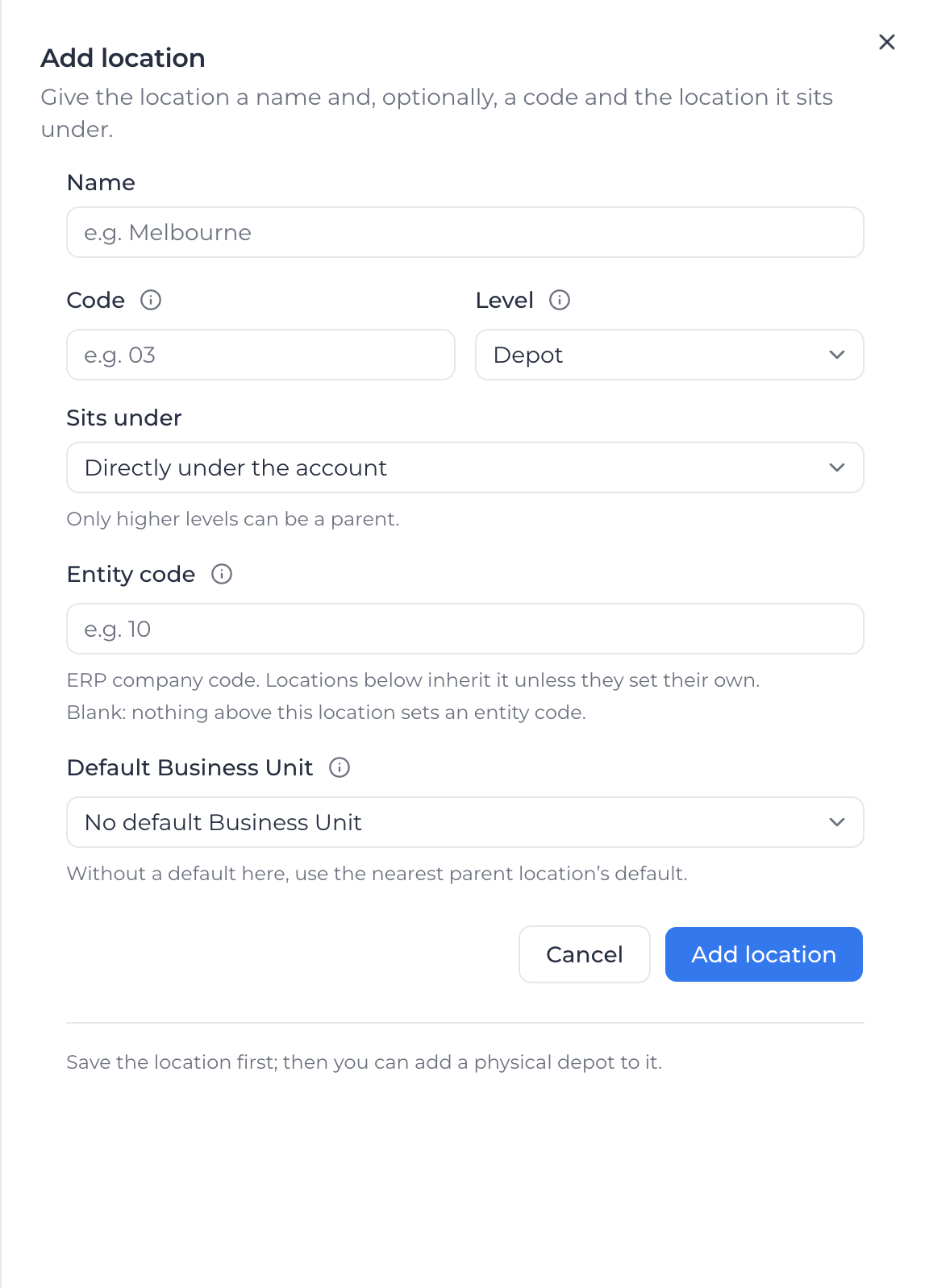
A default applies to the location and its descendants. A nearer location's default takes precedence over a parent's. Choose No default Business Unit to remove the location's own default; its descendants can still inherit one from a parent.
Changing a location default changes the default shown on records. It does not replace their explicit Business Unit assignments.
Choose which Business Unit wins
Below the list, Which Business Unit wins decides which Business Unit Assignar Pay gives a timesheet, docket or invoice line. Each kind of record has its own tab: Timesheets, Leave, Dockets, Hire, Supplier invoices, Purchase orders, Invoices and Other (everything else). Assignar Pay takes the Business Unit from the first step that has one.
Each step reads one place:
- Order's Business Unit, Project's Business Unit, Client's Business Unit, Worker's Business Unit and Asset's Business Unit read only the Business Unit set on that record. A record with no Business Unit of its own contributes nothing, even if its location has a default.
- Worker's home location default and Asset's home location default use the default Business Unit of the worker's or asset's home location, or of the nearest parent location that has one.
- Leave has no order and no asset, so the Leave tab offers only the project, client, worker and worker's home location steps.
- Job location default (order's, else project's), on financial lines only, uses the default of the order's location, or the project's location if the order's has none.
The setup starts as follows, and you can change it for your account:
| Record | Order of steps |
|---|---|
| Timesheets | Project's Business Unit, Worker's Business Unit, Worker's home location default |
| Leave | Worker's Business Unit, Worker's home location default |
| Dockets and Hire | Order's Business Unit, Project's Business Unit, Client's Business Unit |
| Supplier invoices, purchase orders and invoices | Order's, Project's and Client's Business Unit, then Job location default |
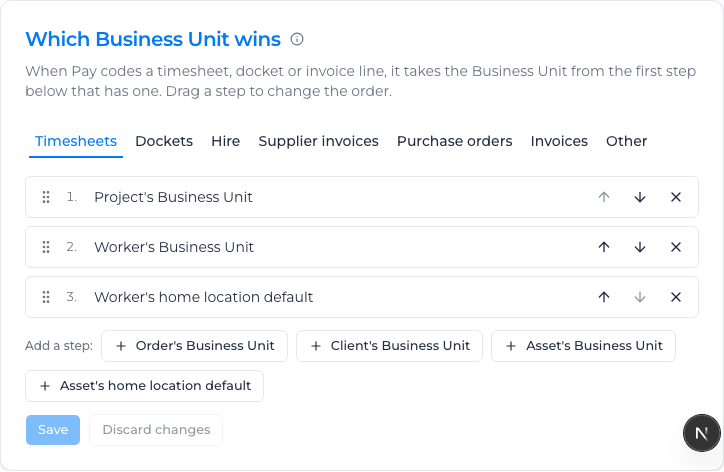
To change a chain, open its tab, then drag a step to reorder it (on a computer you can also use its arrows), click the × on a step to remove it, or click a step under Add a step:. Click the ⓘ beside Which Business Unit wins for a worked example of the open tab: it follows your edits, saved or not, and names the source of every step. Click Save on that tab; each tab saves on its own, and switching tabs keeps unsaved changes. A dot on a tab marks changes you have not saved. Discard changes puts back the saved order.
The Leave tab is for leave and public holiday timesheets, and is used instead of the Timesheets tab for them. Out of the box it uses only the worker's steps. Add a project step if you want leave on a project to follow the project.
For example, if the project has no Business Unit but its location's default is 02 Hire, and the worker's own Business Unit is 20 Scaffold, a timesheet gets 20 Scaffold: a location default is not a project's own value.
If nothing in the chain has a Business Unit, the result is blank. A record in a multi-location account with no confirmed location also yields blank. Assignar Pay never fills the gap with an unrelated value.
Build the GL code template
The GL code template sets how Assignar Pay builds a GL code out of your codes, in the order and format your accounting system expects. For example, 30-40-30-21-0420 is Entity code 30, Business Unit 40, Branch 30, Depot 21 and GL account 0420.
Use the GL code template card under Which Business Unit wins. Saving a template doesn't change any existing record. To see the codes it would give real timesheets, run the preview in the org structure setup.
Choose the segments
Each segment is one part of the code:
- {Entity} is the entity code, picked from the nearest location that has one, then the Business Unit, then your default entity code.
- {BusinessUnit} is the code of the Business Unit that wins for the timesheet.
- The location segments, named after your own terms for your location levels, are the code of that level of the worker's home location. A level you don't use isn't offered.
- {Account} is the GL account of the timesheet's cost code. Leave and public holiday timesheets have no cost code, so they use your Leave GL account. It is always in the template and always required.
To change the template:
- Click Add segment and choose a segment. A segment already in the template isn't offered again.
- Drag a segment to reorder it, or use the arrows on its row.
- Click the × on a segment to remove it. {Account} has a lock instead, because it can't be removed.
- Choose a Separator: Hyphen (-), None or Dot (.).
- Click Save template.
A message confirms the save. An account that has never saved a template starts from a suggested one, marked This is a suggested template. Nothing is stored until you save it.
A template with only {Account} is valid.
To make every GL account the same length, enter a number in Width on the {Account} row. Leave it at Any for no fixed length. Cost codes are then checked against it: an account of a different length is refused when you enter or import it.
Choose which segments are required
Turn on Required for a segment that every code must have. A segment that isn't required is left out of the code, together with its separator, when it has no value. With no Branch, the code is 30-20-21-0420, not 30-20--21-0420. A required segment with no value shows as ?? in the pay-period preview.
All codes are text, so 01 stays 01. Segment codes come from the Business Unit, the locations and the cost code, so there is nothing to type in the template itself.
If saving fails with Failed to save the GL template, your changes have not been saved. Click Save template to try again.
Set a Leave GL account
Leave and public holiday timesheets have no cost code, so the {Account} part of their GL code comes from the Leave GL account card, under the GL code template. The rest of their code comes from the worker, the same way as their other timesheets, and the Leave tab of Which Business Unit wins decides their Business Unit.
You need permission to manage account settings.
- Enter the GL account, such as
0420. - Click Save.
Leave GL account updated confirms the save. The account is text, with a limit of 40 characters. Leading zeros are kept, and spaces at the start and end are removed. Click Clear to remove it; Leave GL account cleared confirms it.
Leave and public holidays created before coding started stay uncoded; setting the account later does not code them.
If you see Failed to update the Leave GL account, your change has not been saved. Click Save to try again.
Find cost codes with no GL account
The Cost code GL accounts card, below the template, lists the cost codes used on timesheets in the last 90 days that have no GL account. It tells you whether the {Account} segment can be filled. It's a summary, not a place to edit.
The chip shows how many are ready, for example 34 of 37 ready. Each row shows the cost code, its name, how many timesheets used it in the last 90 days, and a Missing marker in the GL account column.
- Click Edit GL account on a row. The Cost Codes page opens with that cost code ready to edit.
- Enter the GL account and click Update.
- Come back to this card. The cost code is no longer listed.
Click Open Cost Codes to go to the list instead. When every cost code used in the last 90 days has a GL account, the card says so.
GL accounts are set only on Cost Codes, one at a time or from a CSV file. There is no fallback to a cost code's external ID.
If you see Could not load GL account readiness., click Retry.
Get ready for coding
The org structure setup walks you through everything Assignar Pay needs before it can add GL codes to your timesheets. You fix each thing in place, many records at a time, and you can stop and come back later. Nothing is coded yet, and your payroll export stays as it is.
You need to be the account owner or have permission to manage account settings.
Open the org structure setup
- Open Settings and click Setup at the top of the list of sections, or go to Locations.
- Click Set up org structure at the top of the section. If you saved your place last time, the button reads Resume setup and opens the step you left. Once every step is done, it reads Review setup and Setup in the list shows Done.
- Work through the steps with Continue and Back. Your browser's back button takes you to the step you were on before, not out of the setup. The list of steps on the side shows each one as Done, In progress, Not started or Not needed, and you can click any step to go straight to it.
- To stop part way, click Save & exit. You return to Locations in Settings, and Resume setup brings you back to the same step.
With GL coding off, the setup covers your locations only and its last step ends with Done. With GL coding on, the Coding setup card at the top of Business Units shows how many required items are done, for example 2 of 7 required done. Click an item that is still to do to open the setup step that fixes it.
Find the setup from Pay Rates
Until coding has started, the account owner and anyone who can manage account settings see a Set up accounting export card at the top of Pay Rates. It says Add GL codes, Business Units and locations to your payroll exports.
Click Set up to open the setup. With GL coding on it opens at Business Units; with GL coding off it opens the setup, which first offers to turn GL coding on. Click Dismiss to hide the card. That hides it for you only; everyone else who sees it still does. It goes away for everyone once coding has started.
Set up your locations
Levels: choose how your locations are organised: depots only, or depots under divisions, branches or both, for example Division → Depot. Click Apply structure. With depots only and GL coding off, click Finish setup to finish here.
If you choose a structure and try to move on without applying it, you stay on the step and see, for example, Branch → Depot isn't applied yet. Apply structure to use it, or discard the change, before you move on. Click Apply structure, or Discard change to keep your current levels.
Locations: add your locations, set the default location and give each one a code. With GL coding on, you can also give a location an entity code.
Assign locations: each worker, asset, project and order needs its own location rather than the account default. Choose the Workers, Assets, Projects or Orders tab, tick the records, then click Confirm current location or Set location… to change them all at once. Confirm current location names the default it saves onto records with none, for example Confirm current location (Melbourne where empty), and with more than 5 records selected it asks you to confirm first. Used in the last 90 days is chosen to begin with, because older records don't hold up coding; All without a location shows the rest. The choice applies to every tab, and the heading counts the same records, for example 68 records used in the last 90 days need a location. Search by name to find records. For projects with a site address, the setup suggests the nearest depot; nothing changes until you click Apply suggestions. Click Open in list to see the same records in their usual list. An account with one location doesn't need this step.
If your GL code template needs a Division, Branch or Depot, a worker, project or order based at a higher level leaves that segment blank. For example, a worker based at a Division has no Branch or Depot on their timesheets. That's often right, for example a manager who works for a whole branch. A warning above the list says how many records this affects and offers three ways to code them:
- Base them at that level: the step opens on Based above the Depot level (or whichever level your template needs). Tick the records, then click Set location…. Assets never fill a location segment, so the Assets tab has none to show there.
- Add a location at that level for staff based higher up, for example a Head office depot with its own code, and base them there. Go to Locations takes you there.
- Make that level optional in the GL code template, so their codes leave it out. Go to GL code template takes you there.
The step isn't done until none are left.
Coding steps
GL code template: comes first, because it decides whether timesheets need a Business Unit or an entity code at all. Build the GL code template; Continue saves it for you, including a suggested template you haven't changed. Back, the list of steps and Save & exit don't save it: if you've changed the template, the setup asks you to save it (Continue or Save template) or discard the change first. Then type the missing location codes straight into the list below it. If your template has an Entity segment, set the default entity code here too. If your account has leave or public holidays in the last 90 days, set the Leave GL account here as well; until it is set, Leave GL account stays to do.
Business Units: add or import your Business Units, or archive the ones you no longer use. If your GL code template makes {BusinessUnit} required, the step says so under Required by your GL code template: every row then needs a Business Unit before you can start coding.
Assign Business Units: any record can have a Business Unit (a worker, asset, project, order, client, or a location's default), and none has to. Which Business Unit wins decides which record a timesheet or hire row takes its Business Unit from: the first step with one wins. A record only needs one if a row would otherwise have no Business Unit.
- The top of the step says your rules in words, for example Timesheets take their Business Unit from: Project's Business Unit → Worker's Business Unit → Worker's home location default., with a line each for leave and hire, and how many rows would have none, for example Timesheets on 21 projects would have no Business Unit. with what fixes it; click a fix to open that tab. To change the rules, open Change which Business Unit wins below the records.
- The first tabs are the record types your rules use, in the order your rules read them. Location defaults covers the home location steps. Needs a Business Unit lists only the records that would leave a recent row blank, such as projects with timesheets in the last 90 days that no step covers and the workers on them; switch to All records to change any record.
- The tabs under Not used by your rules are optional: your rules don't read them, so set one only if you want it on the record. They open on No Business Unit; All records lists every record. Each tab shows how many records its list has.
- Search by name, tick the records (or tick the box in the header to select them all), then click Set Business Unit for… to give them all the same one. The Business Unit column shows each record's own Business Unit, and Default Business Unit each location's default.
GL accounts: add the GL account for each cost code used on timesheets in the last 90 days that still has none, right in the list, or import them from a CSV file.
Timesheets with no cost code lists timesheets from the last 90 days that have no cost code, so no GL account can fill their {Account} segment. It shows why: the timesheet has no role, its role's or asset class's cost code was deleted, or an equipment row has no asset or asset class. Click the date to open the timesheet, or the fix to go to the timesheet, Roles or Asset Classes. These timesheets don't stop you from starting coding, but the preview shows them blank until they have a cost code.
Preview: choose a recent completed pay period and click Run preview. You see how many timesheets would be complete, why the rest are blocked, and sample GL codes. Nothing was written. Each reason names its cause, for example Branch missing on 30 rows: their worker is based at a Division. Click Fix to go to the place that fixes that cause, with the affected records already shown. Each sample GL code shows in Rows how many rows of the period it stands for.
The preview also lists rows whose Business Unit is archived, for example Business Unit 20 is archived: 12 rows would still be coded to it. Those rows are not blocked, because an archived Business Unit still wins. If they should move, Fix opens Assign Business Units to give the records another one.
The preview counts as done until you change your setup: the GL code template, which Business Unit wins, a Business Unit, a location, an entity code or a cost code's GL account. After a change, run the preview again.
The last step lists anything still in the way, each with a Go to button to the step that fixes it, or, when nothing is left, a summary of what coding will use. While steps remain, it names them, for example Still to do: GL accounts, Preview, and Start coding. You can pick up where you left off from Locations in Settings. Click Finish to return to Locations in Settings.
Start coding
Start coding when you're ready for timesheets to get GL codes. It can't be undone, so check the preview first.
- Open the last step of the setup. While anything is still in the way, Start coding is greyed out and the step says, for example, Sort out the 2 items above to start coding.
- Click Start coding.
- Read the confirmation, which says Coding starts now for timesheets created from now on. Earlier timesheets stay uncoded. This can't be turned off. Click Start coding again.
Coding started. appears, and the step then shows Coding started with the date and the name of whoever started it. From then on, new timesheets are coded. You can still change your Business Units, locations and GL accounts in Settings.
If something you finished has since been undone, you see Some required items are no longer done. Their status has been refreshed. The step lists what is in the way again; fix it, then click Start coding. If your permission to manage account settings was removed while you were on the page, you see Only people who can manage settings can see the coding setup. Any other failure shows Could not start coding. and closes the confirmation, so click Start coding to try again.
Archive and restore
There is no delete. When a Business Unit is no longer in use, you archive it, and you can bring it back at any time.
To archive one:
- Click the archive icon at the end of its row.
- Read what the dialog says still uses it. Under Still in use it counts the clients, projects, orders, workers and assets that have it, and the locations that have it as their default, for example 1 project. If nothing does, it says Nothing uses it: no client, project, order, worker or asset has it, and no location has it as its default.
- Click Archive.
Business Unit archived confirms it, and the row leaves the list. The records counted in the dialog keep that Business Unit, and coding still uses it for them; give them another Business Unit if they should move. You cannot assign an archived Business Unit to another record or set it as a new location default until you restore it.
If the dialog shows Could not check what uses this Business Unit. You can still archive it., the counts did not load. Close the dialog and open it again to see them, or click Archive without them.
If someone else archived or restored it while you had the page open, you see This Business Unit was already archived. The list now shows it as it is. or This Business Unit was already restored. The list now shows it as it is., and the list catches up.
To see archived units, turn on Show archived at the bottom of the card. It shows how many there are, for example Show archived (2), and it only appears once you have archived at least one.
An archived row is greyed out, carries an Archived badge, and has only a Restore button. You cannot edit it until you click Restore. Business Unit restored confirms it.
If every Business Unit is archived, the list says Every Business Unit is archived. Turn on Show archived to restore one, or add a new one.
Import Business Units from a CSV
Use a CSV import to create, rename, archive or restore many Business Units at once, or to assign Business Units to many records.
You need to be the account owner or have permission to manage account settings. Without it, there is no Import CSV button. For assignments you also need permission to change each kind of record you import: rows for a kind you can't change come back as errors.
Choose a template
Click Import CSV on the Business Units card, then choose a Template. Click Download template for a CSV with the right column headers and one example row.
Business Units has one row per Business Unit:
| Column | What to put in it |
|---|---|
code | The Business Unit's code. Required on every row. A code that already exists, ignoring capital letters, updates that Business Unit. A new code creates one. |
name | The name. Required for a new code. Leave it blank to keep an existing Business Unit's current name. |
entity_code | Optional. The legal-entity code the Business Unit belongs to, up to 40 characters. A new code is created with it; an existing Business Unit's entity code changes to it. Leave it blank to keep the current entity code. |
archived | yes to archive, no to keep it in use or restore it. true/false, y/n and 1/0 also work. Leave it blank to keep the current state; a new code is then created in use. |
You cannot rename an archived Business Unit or change its entity code unless the same row sets archived to no, which restores it first.
Assignments has one row per record:
| Column | What to put in it |
|---|---|
entity_type | worker, asset, project, client or location. |
record_key | Which record. Workers: their ID, employee ID, external ID or email. Assets, projects and clients: their ID, external ID or exact name. Locations: their ID, code or name. |
business_unit_code | The code of the Business Unit to assign. It must exist and not be archived. |
Each key is tried in the order listed, and the first one that matches decides. Keys are matched ignoring capital letters and spaces at the start and end. Deleted records are never matched, and a row naming an archived location comes back as an error saying the location is archived. If a key matches more than one record, for example two clients with the same name, the row comes back as an error; use the record's ID instead. A location row sets that location's Default Business Unit; every other row sets the record's own Business Unit.
A file can have up to 5,000 rows, and its first row must be the column headers.
Map the columns
Drop your CSV onto the dialog, or click to choose it. Assignar Pay matches each template column to a column of your file:
- Columns named like the template, such as
CodeorBusiness Unit Code, are matched automatically. - When some columns don't match, Assignar Pay uses AI to suggest the rest and shows an AI-assisted badge. An
Activecolumn is never matched toarchived, because yes there means the opposite.
Check every match and change any that are wrong. A column you don't need can stay — Not mapped —. Columns marked Required must be mapped before you continue. Columns of your file that you leave unmapped are listed after Ignored columns (not imported): and nothing in them is imported.
Run a dry run
Click Run dry run. Nothing is saved. Assignar Pay shows what each row would do, with a count for each outcome:
- Create: a new Business Unit. Create (archived) means it is created already archived.
- Update: a Business Unit is renamed or restored, or a record gets a different Business Unit.
- Archive: a Business Unit is archived.
- Unchanged: nothing to change.
- Error: the row will be skipped. Details says why.
On an Assignments row, Details says which key found the record, for example Matched by employee ID.
Rows with errors are skipped; every other row is imported. Row numbers are the line numbers in your spreadsheet, where the header row is line 1. If no row would change because of errors, fix the file and choose it again. If every row already matches your data, you see Every row already matches your data, so there is nothing to import.
Start the import
Click Start import. Assignar Pay first checks the file against your data again. If anything changed since the dry run, for example someone added or archived a Business Unit in the meantime, the import does not start. You see Your data changed since this dry run above the updated dry run, with the changed rows highlighted; review them and click Start import again. If a Business Unit with a code you are creating is added by someone else after that, the row comes back as an error and that Business Unit is not changed.
The import runs in the background, so you can close the dialog or leave the page while it works; if you stay on the page, the Business Unit list refreshes when it finishes. Only one import can run in your account at a time, of either template. If one is already running, you see An import is already running. You can start another once it finishes.
To stop a running import, click the notifications bell, find Import Business Units under Background Jobs and click Cancel. Rows already imported stay imported; the rows it did not reach are listed in the error report.
Imports can't be undone. To reverse a change, import a corrected file.
Download the error report
If any rows had errors, click Download error report in the dry run or when the import finishes. The report has your file's original columns, then row_number, error_codes and error_messages for each row that was not imported. Fix those rows and import the report again.
A finished import shows Completed, or Completed with N errors when some rows were not imported. When you open Import CSV again, your last finished import is shown at the top; click View result for its counts and error report. From there, Import another file starts a new import.
When something is rejected
The message appears under the field it is about.
| You see | What to do |
|---|---|
| Code is required or Name is required | Fill in the field. A field with only spaces counts as empty. |
| A Business Unit with this code already exists | Choose a different code. If the existing unit is archived, turn on Show archived and restore it instead of adding a new one. |
| Code must be 40 characters or fewer | Shorten the code. Entity code has the same limit and shows Entity code must be 40 characters or fewer. |
| Name must be 120 characters or fewer | Shorten the name. |
If the list or a Business Unit picker cannot load, you see Failed to load Business Units. Click Try again. The picker keeps your selection while the list is unavailable; a failed load does not clear the assignment.