

Review timesheets
Find your crew's timesheets, check the details, move them through review and approval, import them from a CSV file, and export them.
Timesheets arrive in Assignar Pay from Assignar Operations, from your crew's field forms, from CSV files, and from people who enter them in Pay. You review all of them in one list, in the sidebar under Work, then Timesheets.
Owners, Admins and Managers can view, edit, review and approve timesheets.
Find a timesheet
The list opens on This Pay Period, newest day first, with one row per timesheet. When a worker has more than one timesheet on a day, Daily Total adds them up and says how many, for example From 2 timesheets. A row marked Overlap has times that clash with another of that worker's timesheets on the same day. A row marked Not paid through Pay belongs to a worker whose time is left out of payroll: they work for a supplier, or their employment type is excluded from payroll and the timesheet has no pay worked out yet. In Timesheet Details, its Pay Status is Excluded.
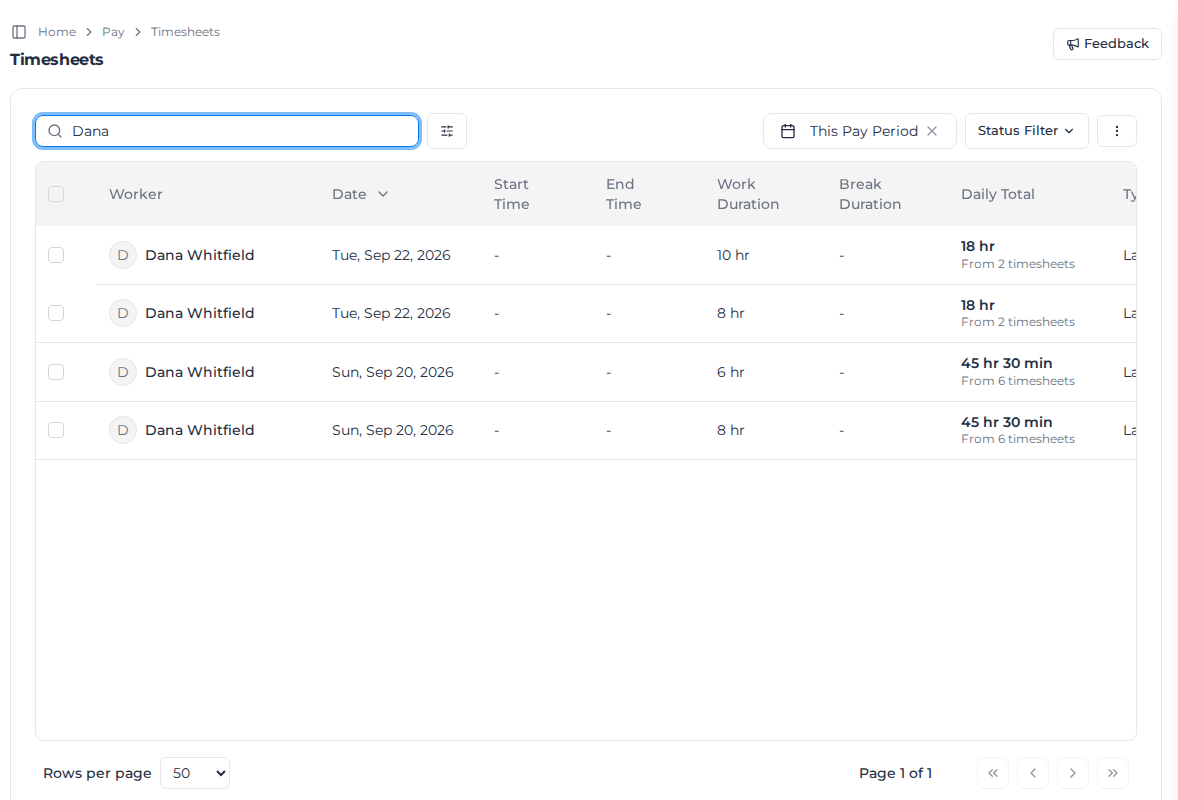
- Search Timesheets... finds a worker, client or project by name.
- The date button changes the period. Quick Select has Last Pay Period, This Pay Period, Today and the last 7, 14, 30 or 60 days, or you can pick dates on the calendar and select Apply.
- Status Filter shows only the statuses you tick: Draft, Submitted, Reviewed or Approved. A timesheet that matches any ticked option is shown.
- Still running, below the statuses in Status Filter, finds check-in days that are still on the clock, for example a day a worker left running on a phone that went flat. A paused day isn't included. Ticked on its own, it shows running days from any date, whatever period is selected, and says Any date.
- The filter button beside the search box opens Filters & Options: client, project, order, role, worker, the worker's employment type, the source (Assignar (Ops), Field, Manual or CSV) and the type (Labor or Leave).
Check a timesheet's details
Select a row to open Timesheet Details. It shows the day's times, work and break duration and daily total, then the timesheet's client, project, order, role and activities.
Use the arrows at the top of the panel to step to the previous or next timesheet in the list. A timesheet that was filled in on a field form also has Edit Timesheet, which opens that form.
See where the work happened
When a worker checks in and out, in Assignar Pay Mobile or on My Shifts, Assignar Pay captures where they were each time they start an activity, take a break, and check out. A Geolocation section at the bottom of Timesheet Details shows those points on a map, so you can check a worker checked out at the site rather than somewhere else.
Each activity is a numbered point where the worker started it. If no location was captured when it started, the point is where they finished it instead, and its details say so. Breaks are small grey dots. A separate point marks where the worker checked out at the end of the day, even if they paused first and checked out somewhere else later. If they are still checked in, or their device didn't share its location at check-out, there is no check-out point and a note under the map says so. A day that is still in progress shows the locations captured so far. When the order has a pinned address, it appears on the map too. An order address without a pin is listed under the map instead.
The check-out and order points always sit exactly where they were recorded. Activity and break points that would sit on top of each other at the current zoom are lined up in a short overlapping row, starting at the first one's location, so you can select each one. Zoom in to see points that are close together in their true positions.
Select a point to see what it is, its Check-in and Check-out times, how long it took, and how accurate the location was. The order point shows the order number and address.
Under the map, every activity and break of the day is listed in order, with its check-in and check-out times and how long it took. The numbers match the points on the map, and Activity 1 is normally where the worker checked in. The check-out is listed last. Select an activity, break or the check-out in the list to open its details on the map. One with no location captured is still listed, marked No location captured, but has no point to show.
To see the map bigger, select the full screen button in its corner. In full screen you can also zoom with the scroll wheel. Press Esc to go back.
The section only appears when the timesheet has location data. Timesheets from Assignar Operations, from a CSV file, or entered by hand don't have it, and neither does a day where the worker's device didn't share its location.
Book time to a purchase order line
When you hire workers through a supplier, their labor timesheets can be booked to a line on that supplier's purchase order. The list shows the booking in the Purchase Order Line column, for example PO010241 · 2. Labourer, and Timesheet Details shows it under Purchase Order line.
Assignar Pay books the time for you when the worker's supplier has exactly one open line that takes time for the timesheet's order. If there is no such line for the order, it looks for one for the project instead. Otherwise the timesheet is left unbooked.
To change the line, you need permission to edit timesheets:
- Select the row to open Timesheet Details.
- Under Purchase Order line, choose a line. Suggested marks the line Assignar Pay would choose. Not booked removes the booking.
A line marked Reference only is paid from the supplier's invoice, so time booked to it is a note and doesn't count against the line.
Once a timesheet is approved, changing its line also needs permission to approve timesheets. If a line can't be used, for example because its purchase order is no longer open, it belongs to a different supplier, or it has already been received by hand, a message says why and the booking stays as it was. Moving approved time to a line consumed by value gives the old line its receipt back at once; the new line is used up once the time's supplier cost has been worked out, usually within a few minutes.
Workers don't choose the line for their own time unless an admin turns on Workers choose the purchase order line for their time under Timesheet rules in Settings. It is off by default, and even when it is on, a worker can only pick a line that takes time.
Exports include the booking in two columns, PO Number and PO Line.
Approving time uses up the purchase order
Approving booked time records the goods receipt on the purchase order for you: each approved timesheet receives its hours or days against its line, or its supplier cost on a line consumed by value. Nobody needs to receive the line by hand. Editing approved time adjusts that receipt, and moving the timesheet back from Approved or deleting it reverses it. Time on a Reference only line receives nothing; the supplier's invoice does. See Raise purchase orders.
An approval is refused, with a message saying why, when:
- the purchase order is on hold, or was marked Completed before everything was received;
- the line has already been received by hand on the purchase order. A line is received one way only, so book the time to another line.
When you approve several days at once, only the refused days stay as they were, and a message lists them.
Time that goes over its purchase order
When approving time would take its purchase order line past what was ordered (its hours or days, or its value on a line consumed by value), Assignar Pay asks first. This time goes over its purchase order lists each purchase order line your selection would go over, with what the selected time would use on it, what is left and how much it goes over, for example Would use 10 h · 6 h left · 4 h over, and how many entries are on it. Amounts are hidden from people who can't see costs.
- Approve up to the limit, hold the rest approves what fits. An entry that only partly fits is split at the minute: the approved part keeps the original timesheet and the first hours worked, and the rest becomes a new timesheet that stays Submitted. Breaks and activities go with the part they fall in, and allowances stay with the approved part. Both parts need their pay worked out again; if pay rates are applied automatically, that happens straight away. An entry with no room left is held whole.
- An entry is also held whole, rather than split, when it comes from Assignar Ops (Ops sends it again), its pay was set by hand, it has already been invoiced, or the split would fall after midnight.
- Hold all holds the entries that go over, whole, and approves the rest of your selection.
- Raise a variation, under a line, opens Raise variation on its purchase order with the line and the quantity it needs filled in. You need permission to edit purchase orders. The time is released once the variation is approved.
Closing the dialog approves nothing. After the approval, a message says how many timesheets were held.
Held time shows Held: over purchase order limit in the list and in Timesheet Details, and stays out of payroll and invoicing until it is released. To find it, tick Held, at the bottom of Status Filter. Time on a line consumed by value that has no supplier cost yet is held until it is priced, then approved by itself if it fits and no earlier held time on the line is waiting.
Approving a variation on the purchase order releases held time in the order it was held, approved under the person who first approved it. Time that still doesn't fit stays held exactly as it was. If the line gains room some other way, for example when approved time on it is moved back, approve the held time again yourself. Booking it to another line also ends the hold.
If your organization blocks approvals that go over, there is no dialog: the approval is refused and the message says how much is left. Raise a variation on the purchase order for more, or book the time to another line. Time on a line consumed by value is refused until its supplier cost has been worked out. See Choose what happens when time goes over a line.
Check activities against the bid
A form's Worker Time field can be set to offer only the activities on the order's bid (see Tie activities to the bid). When a timesheet from that field still has an activity or break that isn't on its order's bid, its row in the list is marked Not on bid. An order with no activities on its bid marks every activity on the timesheet.
Select the row. Timesheet Details lists those activities under Activities not on the order's bid, and says "This question allows only the order's activities. Correct the activity, or add it to the bid, before approving." The mark doesn't stop you approving. Correct the activity with Edit Timesheet, or add the activity to the order's bid, and the mark goes.
If the check can't run, the panel says "Could not check this timesheet's activities against the bid."
The words order, activity and bid on these labels follow the names set under Terminology in Settings.
Complete a day a worker left running
When a worker checks in and never checks out, for example because they forgot or their phone went flat, you can finish the day for them. You need permission to change timesheet status.
- Find the day. Still running in Status Filter lists every day whose clock is still on.
- Select the row, then Complete day in Timesheet Details.
- Set the End time. Assignar Pay suggests one when it can: the end of the scheduled shift, or the moment a paused day stopped. Check it against what you know. The time is shown in the organization's time zone.
- If the worker is still clocked in, tick the box to confirm you are checking them out.
- Select Check out and review. The day opens for review. Make any corrections, then save to submit it.
The worker stays the author of the day. Its history records that the office checked it out and submitted it on their behalf. Once a day is checked out, the worker's app can't reopen it.
On a day the worker checked in for, the order is the one they checked in against. It is shown but can't be changed, by the worker or by the office.
If the worker already checked out but never submitted, use Edit Timesheet instead and save the day to submit it.
Discard a blank draft
A worker who opens a timesheet form and never enters any hours leaves a blank draft in the list. You can remove it once nobody has saved it for 24 hours. You need permission to delete timesheets.
- Select the row, then Discard blank draft in Timesheet Details.
- Check the last time the worker saved it, then select Discard draft.
The draft leaves the list and the worker's form is archived. Nothing is permanently deleted, and the day's history records who discarded it.
Within the 24 hours the button is unavailable and shows when it will be. If the worker saves the draft again, the 24 hours start over, so a draft someone is still filling in can't be discarded. A draft with hours, or a day recorded with check in/out, can't be discarded this way.
Review and approve timesheets
A timesheet starts as Draft while the worker is filling it in and becomes Submitted when they file it. From there you move it to Reviewed, then Approved.
A supplier's consultant or agency worker shows No supplier rate under the status when their supplier's rate card has no rate for that time. Hover over it to see why. That time can't be counted against a value-based purchase order until it's priced: add the rate to the supplier's rate card, or activate it, and the time is costed again within a few minutes. See Set up a supplier rate card.
If a worker edits a day they have already filed, the day goes back to Draft so you can see it changed. That includes the equipment timesheets the worker entered for that day, so the whole day shows one status. When you edit the worker's day yourself, it stays Submitted.
To change one timesheet, open its details and choose the new status. To change several:
- Tick the boxes at the start of their rows.
- Select Set status and choose Submitted, Reviewed or Approved.
Assignar Pay confirms how many it updated, for example 3 timesheets updated. It skips timesheets it can't change and says so, for example 1 timesheet has no hours entered yet and was skipped. A status is greyed out when you can't set it for every timesheet you ticked.
When some days can't be changed, the others are still updated. A message such as 2 days could not be updated lists each of those days by worker and date, with the reason. It stays on screen until you close it. Fix what it names, then set the status on those days again.
Approve a crew's day together
A crew's day is approved together. While another worker on the same shift still has a draft timesheet, Approved is greyed out on the crew's other timesheets, and hovering over it explains why. To approve that day, either:
- wait until every worker on the shift has finished their timesheet, then approve as usual, or
- tick every timesheet of the crew, including the drafts, and choose Set status, then Approved. The whole crew is approved together.
If you leave one of the crew's drafts out of the selection, Approved stays greyed out with Another worker on a selected shift has not finished their timesheet yet. Select the whole crew, or approve once everyone is done. A draft for a worker who is still on shift can't be approved until they finish.
Setting Reviewed needs permission to review timesheets, and Approved (or moving a timesheet off Approved) needs permission to approve them. A timesheet can't be moved back to Draft. If a change isn't allowed, the message says why:
| Message | What to do |
|---|---|
| This day has not been filed yet. Move it to submitted first, or wait for the worker to submit it. | Set the timesheet to Submitted first. |
| This worker has not finished their shift yet. Wait for them to check out, or ask them to discard the day. | Wait until the shift ends. |
| This worker has not entered any hours yet. Wait until they do, or ask them to discard the day. | Wait for the worker to add their hours. |
| Another worker on this shift has not finished their timesheet yet. Approve the day once everyone is done. | Approve once the whole crew has filed. |
Import timesheets from a CSV file
Select the ⋮ button at the top right of the list, then Import CSV.
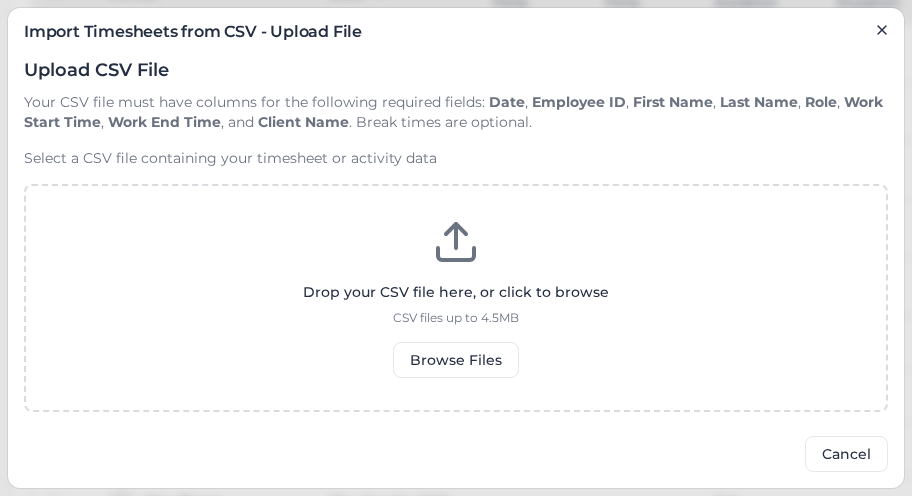
Choose your CSV file (up to 4.5MB). It needs columns for Date, Employee ID, First Name, Last Name, Role, Work Start Time, Work End Time and Client Name. Break times are optional. You can also include Activity, Cost Code, Project Name, Order Name, Asset (several in one cell, separated by
;), and Asset Start Time / Asset End Time.Under Data Type, choose Each row is a timesheet, or Each row is an activity if each row is one activity that should be grouped into a timesheet. Select Continue.
Assignar Pay matches your columns to its fields. Activity, Task and Cost Code stay separate from Role. Check the matches under Automatic Header Matches, and change any that are wrong. Fix the rows it lists as invalid. If a role, activity, cost code or asset is not already in Pay, it is listed before the import. Nothing is created for you. Tick Continue without creating missing roles, activities, cost codes, or assets to import the rest, leaving those unmatched.
Select Import.
A matched activity is stored on the timesheet, and its cost code is stored when the rows agree. A matched asset also creates a linked equipment timesheet for that asset. With Each row is an activity, each row stays its own activity, with its name and times, on the grouped timesheet.
Order Name is optional. Put the order's name or its number in that column. Assignar Pay links the timesheet when the text matches exactly one order on the row's project. Spaces at the start or end of the text, and of the order's name or number, are ignored, and capitals have to match. When the row has no project, it matches an order on the row's client instead. An order on another project of the same client does not match. A row that names a project which can't be matched is not imported when it also names an order. Job Number does not link the timesheet.
The row is not imported when the text matches no order, or more than one. With Each row is an activity, a timesheet whose rows name different orders is not imported either. Leave Order Name blank to import the timesheet without an order. A blank order on a later import of the same timesheet does not remove an order already on it.
The message uses your account's names for an order, a project and a client. When the row has no project, it says client instead of project. Under Error Details:
| Message | What to do |
|---|---|
| No order in this project matches "…". | Use that order's name or number on the row's project, or on its client when the row has no project. |
| More than one order in this project matches "…". | More than one order there shares the name or number. Use the name or number of one order. |
| This row names more than one order ("North Yard", "South Yard"). | Give every activity row of that timesheet the same order. |
| Could not look up the order. The row was not imported. | Import that row again. |
| The project on this row could not be matched, so the order was not linked. The row was not imported. | Check the project name on that row, then import it again. |
When the timesheet is linked, and its role and activity match ones already in Pay, those hours are included on the order's job costing, the same as a timesheet from Assignar Operations or a form. A timesheet already imported from a CSV is not on an order, even when that file named one. Import the file again with Order Name filled in to link it.
The import carries on in the background. Assignar Pay shows CSV import started, then Import completed with how many timesheets it created. When some rows were not imported, it shows Import completed with errors, and Error Details lists each one.
If your account limits access by location, the import adds only timesheets you could have entered yourself. Each row it refuses is listed under Error Details with the reason, and the rest are imported:
| Message | What to do |
|---|---|
| You don't have access to this project's location. | Ask someone with access to that project's location to import the row. |
| You don't have access to this order's location. | Ask someone with access to that order's location to import the row. |
| You don't have access to records without a project. They belong to your account's default location. | Add the project to the row, or ask someone with access to your account's default location to import it. |
| You don't have access to create this project. New projects are created at your account's default location, which is outside your access. | Create the project yourself first, at one of your locations, or ask someone with access to your account's default location. |
If the import can't check your access, nothing is imported and it fails with We couldn't check your location access, so nothing was imported. Please try again. Import the file again.
If you use Assignar Operations, the same menu has Import Transactions, which brings timesheets across on demand. It's greyed out until Assignar Operations is connected; see Connect with Operations.
Export timesheets
Select the ⋮ button, then Export all, and choose Export as CSV, Export as JSON or Copy for Excel. The export has every timesheet that matches your filters, not only the page you're looking at. If you tick rows first, the menu says Export N selected and exports only those.
To choose which columns the list shows, select Column Configurator in the same menu.
Delete or restore a timesheet
You delete timesheets from the pay rates screen, not from this list. In the sidebar, select Payroll, then Pay Rates. A deleted timesheet is removed from Job Costing and Invoicing too, and is not imported again from Assignar Operations. To bring one back, turn on Show Deleted Timesheets in the filters there, select it and restore it.
Owners and Admins can open Pay Rates.
To price timesheets against your client's rates, see Set up a schedule of rates.