

Allocate workers & assets
Put workers and plant on an order's days, pair an operator with a machine, share a machine between operators, and move, replace or remove a shift. What the warnings on the board mean.
An allocation, or shift, puts one worker or one machine on one order for one day, with start and end times. You make them on the Orders view of the board. Each day is its own shift: putting someone on Tuesday says nothing about Wednesday.
Put someone on a role
Either:
- Drag a worker or asset from the Resources panel onto a role's card. The shift takes the role's times.
- Or select add on the card, then pick from the list. It shows who is already Assigned, a Recommended list for the role, then All workers, each marked with whether they're free and hold the role's competencies. Select Close when you're done.
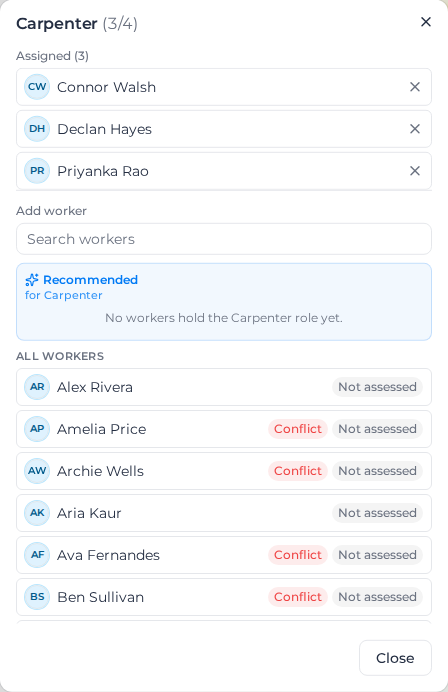
Once someone is on the card, their initials appear on it and the count goes up, such as 4/4. They see the shift in My Shifts.
To place several people, tick them in the Resources panel and drag one of them. To cover several days, select a role on one day, shift-click another day to select the range (or double-click the role for every day on screen), then drop. Days that can't take the shift, such as past days or days outside the order's dates, are skipped, and you're told which.
The same person can't be added twice to the same role on the same day; you see "Already assigned to this role on this day." They can be on two different roles, or two orders, if you mean it.
If your account limits access by location, you can book the workers and machines of your own locations, and those another location shares with yours. Anyone else is refused with "You can only allocate workers from your locations, or workers shared with you" (for a machine, "You can only allocate assets inside your access, or assets shared with you to allocate"). Ask an admin to share them with your location, or ask the scheduler of their location to book them.
Put someone on without a role
Every day has a No role lane under the cards. Drag someone onto it, or select its add button and choose Add worker, Add asset or Add operator (worker + asset). The shift uses your organization's default shift times, and the worker sees it in My Shifts with no role.
Pair an operator with a machine
For a role that needs a person and the machine they run, use an Operator + asset line on the order, then place a worker and an asset on it together. You don't need to know both at once.
Drag both together. In the Resources panel, tick one worker and one asset. The Pair tray at the bottom of the panel holds them: drag it onto an operator line, or onto the No role lane. The pair stays ticked after you drop it, so you can book it on the next job too; Clear empties the tray. With only one half ticked, Pair with an asset (or Pair with a worker) takes you to the other list. If you select an operator line first, the panel switches to the other list after your first tick, with Recommended resources at the top.
Book one half now. Drop just a worker or just an asset onto an operator line. It's booked straight away, and a ? sits where the other half will go; hover it to see Operator TBC or Asset TBC. The line counts as unfilled until both halves are in. On the card view the order shows how many halves are waiting, such as 2 TBC, next to its fill count. On the Workers and Assets views the shift is tagged Asset TBC or Operator TBC.
To see only orders with a half waiting, open the filter next to the Orders search and switch on Operator / asset TBC. The number beside it counts the halves waiting in the dates on screen, from today on.
Fill the missing half in any of these ways:
- Select the ?. The operator dialog opens with the list for the missing half open and Recommended resources first.
- On the Workers or Assets view, select the shift, then Pick an asset for (or Pick an operator for) the day it names, which is the first day still waiting from today on.
- Drag the other half onto the line, from the panel or from initials already on the board (that shift moves). As you hover, a list opens over the card: Pair with each half that's waiting, and Book on its own at the bottom. Let go on the one you mean. Letting go anywhere else books it on its own. With several days selected, Pair with pairs on every selected day where that half is waiting, and Book on its own books it on every selected day.
When the half you just filled is also waiting on other days of the line, a message offers to add the same worker or asset to all of them in one go.
You can also select + pair on an operator line to pick both halves from a dialog, or drag a placed worker onto a machine on the same day (or the other way round) to join them. To join two halves already on the same card, drag one onto its own card and drop it on Pair with the other, or open the empty half's picker in the operator dialog, where they're listed first under Waiting on this card.
If the worker you pick in that dialog does not hold the line's role, they stay selected and the row says their name, does not hold, and the role's name. A message says Not booked — and repeats that sentence, and nothing is booked. Pick a worker who holds the role.
A pair moves, changes time and is removed as one, and the board shows you the change before it's made. Each half has its own menu to change its time or replace just that half. The worker's shift in My Shifts shows the machine they need to bring.
Unpair, on the pair or in its ⋮ menu in the operator dialog, splits a pair without removing either booking. Both stay on the day as halves with a ? for the missing partner, and the line counts as unfilled again.
Share a machine between operators
Two workers can share one machine on the same line and day, such as two traffic controllers in one ute. Book the second worker with that machine the way you book any pair: pick the machine for their ?, drag the machine onto their half, or choose both in + pair. Each worker has their own pair, and the line counts both. In the machine list, a machine already in a pair on that line and day reads On this job with the other operator's name, and you can pick it.
A small mark sits after the machine on every pair that shares it. Hover it to see Shared with and the other operators. The printed schedules show the machine with (shared) after it.
Each pair keeps its own times, so the second crew can take the ute on different hours. Changing one pair's times changes only that pair.
One worker can also run two machines on a line and day, such as a truck and a trailer, or one crane in the morning and another later. Book a second pair with the same worker and the other machine; each pair shows on the card on its own, with its own times.
Removing or moving one pair leaves the other as it was.
Move, replace or remove a shift
Select someone's initials on a card to open their menu:
- Their name and View signals, which lists their other shifts that day.
- The shift's times. Select the pencil to change them for this shift only.
- Replace… swaps them for someone else, keeping the role, day and times. To swap them on more shifts than this one, see Make bulk changes.
- Remove from this day takes them off this shift, and it drops out of their My Shifts. You can Undo it from the message that follows.
- Remove name from shifts… takes them off many shifts at once. See Make bulk changes.
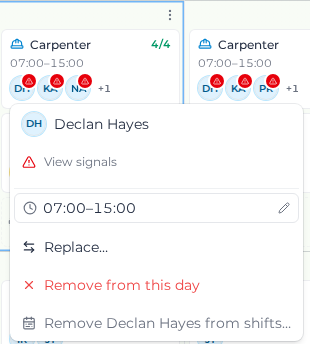
To move a shift to another day or order, drag the initials there.
After a drop, the message that appears has Undo. It puts back exactly what that drop changed, as long as nothing on the board has changed since.
If the worker has already filed a timesheet for the shift, you're asked first. Moving it doesn't change the timesheet, which stays recorded on its date. Replacing or removing them keeps the timesheet but unlinks it from the shift: "Remove a shift with a filed timesheet?" explains this before you confirm.
Warnings you see when you place someone
The board warns rather than blocks. A red marker on someone's initials means one of these:
- Double-booked this day: they hold another shift that overlaps this one. Select View signals to see where. Overlap takes the times into account, so two shifts on one day that don't overlap aren't a clash. Two pairs sharing a machine or a worker on the same line and day aren't a clash either, whatever their times; the same machine on another order or line at overlapping times is. A night shift that runs past midnight into the next morning's shift is a clash, and both days are marked; View signals shows the other shift with its day.
- A missing or lapsed competency the role requires, such as an expired ticket.
- A fatigue rule the shift breaks. If the board already knows the placement would break a rule, it asks before placing; otherwise the shift saves straight away and a warning with Undo appears if the check finds a breach. See Fatigue checks when you place a worker.
A count in red, such as 3/2, means the role has more people than it needs that day. When a shift's times no longer match the role's times, for example after the role was retimed, the shift shows both, such as "Shift 06:30–14:30 — planned 07:00–15:00", with Update to to move it to the planned times.
When you remove a role from the order and save, its shifts from today on are cancelled as part of the same save. You're asked first: "Cancel upcoming scheduled allocations?" names the people and counts the shifts, and Cancel keeps everything as it was. Past shifts stay on the board as a record of the work. If the save can't check which shifts the change affects, nothing is saved and you can try again.
A shift still booked on a role removed some other way sits in the No role lane with a marker reading "Resource removed — still booked, no longer scheduled", so you can reassign or remove it.
A shift for someone who has since left, or a machine that's been archived, stays on the board so you can deal with it, for example "Jack Mitchell no longer works here — still booked, but can't work or see this shift".