

Automate with workflows
Send emails, notifications and webhooks, assign and tag submissions, and raise follow-up forms automatically when a form is submitted or updated, and keep the API keys your webhooks need as secrets.
A workflow runs a list of steps every time one of a form's submissions is created or updated: email the supervisor, notify people in Pay, send the answers to another system, assign the submission, or raise a follow-up form. Workflows belong to one form and run in the background a few moments after the submission is saved.
Create a workflow
- Open the form from the Builder tab and select Automation → Workflows. A form that has never been saved shows Save the form to create workflows.
- Select Create Workflow.
- Give it a Name and, if you like, a Description (optional).
- Choose the Trigger:
- When a submission is created: someone submits the form, or submits a draft, on the web or in the mobile app. Saving a draft doesn't run it.
- When a submission is updated: someone saves a change to a submission on the web.
- When a submission is created or updated: either of these.
- Select Add Step and choose what the workflow does. Add as many steps as you need, and drag them into the order they should run in.
- Leave Enable workflow on, and select Save.
The workflow runs from the next submission onwards. It doesn't run on submissions that already exist.
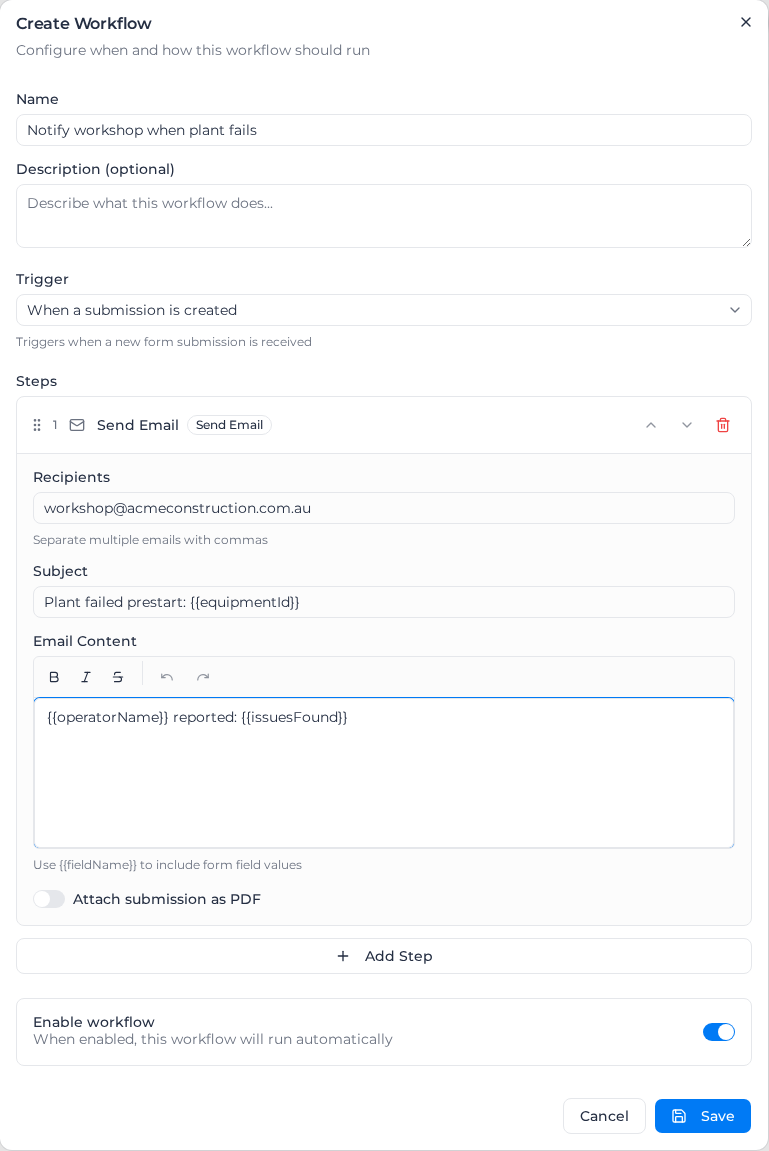
Steps run in order, from the top. If a step fails, the steps after it still run, and the run is marked as failed in its history.
Steps you can add
| Step | What it does |
|---|---|
| Send Email | Emails the addresses you list |
| Notify | Sends a notification in Pay to the people you choose, and a push to their phone if it asks them to act. See Notify people |
| Send Webhook | Sends the submission to another system's web address |
| Conditional | Continues or stops the workflow depending on the answers |
| Assign to User | Assigns the submission to a team member, with optional notes |
| Assign Tags | Adds tags to the submission. Tick Replace existing tags (instead of adding) to replace the tags it has |
| Create Submission | Creates a submission on another form, copies answers into it and assigns it. See Link forms together |
Send an email
- Recipients: email addresses, separated by commas.
- Subject and Email Content: type
{{fieldName}}to put an answer in, using the field's name from the builder, for examplePrestart failed on {{equipmentId}}. For a Resource field,{{fieldName}}gives the record's name and{{fieldName.property}}one of its details.{{submissionId}},{{formId}}and{{timestamp}}(when the email was sent) are also available. A placeholder that matches no field is sent as written. Recipients, a subject and content are all required; the dialog lists what's missing, such as Email step "Send Email": Recipients are required, and Save stays unavailable until they're filled in. - Attach submission as PDF: attach the submission, with its tables, photos and signatures, in the form's print layout: its uploaded Word template if it has one, otherwise its designed template, otherwise the standard layout. If the form is set to an uploaded template but none is active, the standard layout is attached. Dates in an uploaded template are in your organization's timezone: the one set under Settings → Localization, otherwise the timezone of the address under Settings → Company details, then your region's, then UTC. See Set the timezone your days run on. Photos are shrunk to print size so the PDF stays a few megabytes; the originals on the submission are unchanged. If the PDF can't be made, the email still goes out with a note saying the attachment is missing and why, and the run is marked as failed.
Stop the workflow unless the answers match
A Conditional step checks the submission and decides whether the steps after it run.
- Under Workflow should, choose Continue or Stop.
- Under When the field, choose a field, then Any value or Specific value and the value it must equal. Advanced lets you combine several conditions, as for conditional fields.
With Continue, the steps after the Conditional step run only when the field matches; with Stop, they run only when it doesn't. Steps above it have already run either way. In Run history, the skipped steps say Skipped: a condition before this step wasn't met.
For example: Continue when Fit for Service equals No, followed by a Send Email step to the workshop.
Send a webhook
A webhook sends the submission to another system's web address when the workflow runs.
- Webhook URL and HTTP Method (GET and DELETE send no body).
- Custom Headers (optional): one per line, as
Header-Name: value. - Payload:
- Full payload (the default) sends the submission ID, form ID, account ID, every answer and a timestamp.
- Select fields sends only the fields you pick. You can rename each one to suit the receiving system, include it only when a condition matches, and choose which of the IDs and the timestamp to include.
- Custom template sends JSON you write, with
{{fieldName}}placeholders and system variables:{{_submissionId}},{{_formId}},{{_accountId}},{{_timestamp}},{{_formTitle}},{{_submissionVersion}},{{_submittedBy}}and{{_triggerEvent}}. Select Insert variable to pick one. A placeholder inside quotes becomes text; one on its own keeps its type, so numbers stay numbers and lists stay lists. A placeholder with no value becomesnull. The editor checks that the template is valid JSON.
- Preview payload shows what would be sent, built from the form's latest submission (or sample values when it has none). Secrets are never filled in on the preview. Send test sends a real request to the address, with secrets filled in and signing applied.
- Sign payload (HMAC SHA-256): pick a secret to sign each request with. Requests then carry
X-Webhook-Timestamp(the send time in milliseconds) andX-Webhook-Signature(sha256=followed by an HMAC-SHA256, in hex, of the timestamp, a dot and the body, keyed with that secret). The receiving system works the signature out again with the same secret and compares; the timestamp guards against replayed requests. - Templates: Save current as template… keeps the webhook's settings to reuse in any workflow in your organization. Templates keep secret names, never their values. Presets offers ready-made calls, including calls to the Assignar API when Assignar Operations is connected.
To put an API key in the address or a header, store it as a secret and write its name in double braces, such as Authorization: Bearer {{WEBHOOK_API_KEY}}. Use the key button beside the address to insert one.
Assign the submission
An Assign to User step assigns the submission to the person you choose, in place of whoever had it. It leaves the submission alone while it's sent back for changes, and while it's back with the person who asked for them (marked Resubmitted as V2), so a workflow never takes it from either of them (see Send a submission back for changes). The run still counts as completed, and Run history says why under the step: Not assigned: this submission is with someone for requested changes. or Not assigned: this submission is back with the person who asked for changes.
Notify people
A Notify step sends a notification to people in your organization. It shows in their notifications on the web and in Pay Mobile, and opens the submission when they tap it.
- Title and Message (optional): type
{{fieldName}}to put an answer in, and{{fieldName.property}}for one of a Resource field's details, as in an email. A placeholder that matches no field is shown as written. A long answer is shortened to fit, ending in "…": the title to 200 characters, the message to 500. - Who to notify: any of The person who submitted it, The person an Assign step above assigned it to (put the Notify step after that Assign to User step; the step warns you when there isn't one above it), Specific people, and Everyone with a role (Owner, Admin, Manager or Field). A title and at least one choice are required. Someone who has left your organization no longer shows under Specific people, is never notified, and is taken off the step the next time you save the workflow.
- Ask them to act: on, it sends a push to Pay Mobile and adds a badge to their notifications. The badge stays until each person opens the notification, marks it read or dismisses it. Dealing with the submission doesn't clear it, so turn this on only when the message asks for something. Off, the notification shows with no badge and no push.
Only people who can open the submission are notified. Customers and suppliers never are. A Field user is notified only about a submission they submitted (or filled in first, when a workflow created it), one assigned to them, or one waiting in an open pool for their role or tag that nobody has claimed yet. A submission on a permit to work goes only to people who can see that permit. If nobody you chose can open it, Run history says Nobody notified: nobody chosen can open this submission, or no Assign step above assigned it.
A Notify step tells each person once for each version of a submission. Run history also explains these skips:
- Nobody notified again: everyone chosen was already notified about this version of the submission. The run was retried, and everyone had already been notified the first time.
- Nobody notified: the title was empty once the answers were filled in. Every
{{fieldName}}in the title matched an answer that was left blank. Add some fixed words to the title, or use a field that is always answered. - Nobody notified: this Notify step's settings are incomplete. Open the workflow, check the step and save it again.
Keep API keys as secrets
Secrets hold API keys and tokens for webhooks, so the values never appear in the workflow itself or in its run history.
- Open the form and select Automation → Secrets.
- Select Add Secret.
- Enter the Secret Name in capitals, numbers and underscores only, such as
WEBHOOK_API_KEY, and the Secret Value. - Choose the Scope: This form only, or All forms (global) to use it in every form's workflows.
- Turn on Write-only value for a key you can reissue from its provider: once saved, the value can be replaced but never viewed again, even by admins. It shows a Write-only badge, and webhooks still use it normally.
- Select Create.
To change a secret, select it and enter a New value; the name and scope can't be changed. When a form secret and a global secret share a name, the form's own secret is used; integration secrets come last.
When Assignar Operations is connected, Integration Secrets (auto-detected) lists secrets you can use without storing anything, such as {{ASSIGNAR_TOKEN}} for a fresh sign-in token, {{ASSIGNAR_API_URL}} for the API address in your region, {{ASSIGNAR_REGION}} (au or na) and {{ASSIGNAR_TENANT_ID}}. For example, URL {{ASSIGNAR_API_URL}}/timesheets with the header Authorization: Bearer {{ASSIGNAR_TOKEN}}. Tokens are renewed automatically and never logged. Test resolution checks they work. If you use them after disconnecting Assignar Operations, the step warns that it will fail. See Connect Assignar Operations.
Manage workflows
The Workflows list shows each workflow with a switch to turn it on or off; a turned-off workflow shows Disabled, doesn't run, and keeps its steps for when you turn it back on. Its menu has:
- Edit (or the pencil icon): change the trigger or steps. Changes apply from the next submission.
- View runs: the Run history. It lists recent runs with when each ran, what triggered it, how long it took and whether it completed or failed. Select a run to see each step's result and error; a webhook step also shows the HTTP status, how long the request took, the response, and which secrets were filled in (never their values).
- Delete: remove the workflow.
To check a new workflow, submit a test response and open Run history. To check a webhook before that, use Preview payload and Send test.
When a workflow doesn't do what you expect
- It didn't run: check that it's on, and check its trigger. When a submission is updated runs for changes saved on the web, not for new submissions. Steps marked Skipped: a condition before this step wasn't met. were stopped by a Conditional step above them.
- An email didn't arrive: open the run in Run history. No valid email recipients specified means the step's Recipients is empty; any other error under the step is why the email couldn't be sent.
- A notification didn't arrive: open the run in Run history. Nobody notified: nobody chosen can open this submission, or no Assign step above assigned it. means none of the people you chose can open the submission (a Field user who neither submitted it nor has it assigned, for example), or the Assign to User step you relied on didn't assign it. A push reaches a phone only when Ask them to act is on and the person is signed in to Pay Mobile with notifications allowed.
- A webhook failed: the HTTP status and response in Run history say what the other system refused. Use Send test to try again without submitting the form.