

Complete required forms on a shift
See which forms each shift needs in My Shifts or Pay Mobile, fill them in in any order, and check in once the forms due before start are done. What supervisors and crews see when one form counts for everyone.
When your office links forms to the work you do (see Set up required forms), each shift in My Shifts lists the forms it needs, when each is due and whether it's done. You can fill them in in any order. (New to My Shifts? See Use My Shifts.) The steps below are for My Shifts on the web; the Pay Mobile app is covered in On Pay Mobile.
See a shift's forms
Open My Shifts and go to the day. Each shift card shows its forms in groups:
- Before you check in: forms due before the shift starts. The heading shows your progress, for example "0 of 1 done · any order". On a shift you don't check in to (for example when check-in is off, or your supervisor files your time), this group is called Before you start.
- Later in this shift: forms due after you start or before you finish, and optional forms.
- Still to do: once you've checked in, everything that isn't done yet. Forms you've finished fold away behind "1 more form done". Select Show to see them.
A shift card that isn't open shows a one-line summary instead, such as "1 form before you can check in" or "1 form to do". Select Show to expand it.
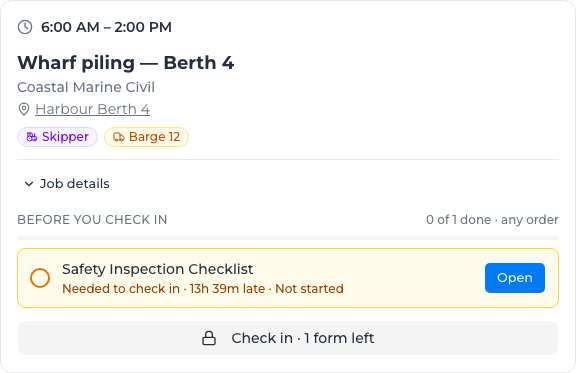
Each form has a line that says what it needs:
- Needed to check in: you can't check in until it's done.
- Due before start · not needed to check in: do it before you start, but it won't stop you checking in.
- Within 30 min of start, Before finish, Due by 7:30 AM: when it's due.
- 13h 23m late: it's past its due time.
- Let in by the office: the office let you check in without it. It still needs doing.
And a status:
- Not started, Draft started, or Done by you with the time.
- Done by someone else, with the time: a crew mate or your supervisor did it, and it counts for you.
- Started by someone else: they have a draft of a crew form open.
- Your supervisor fills this in: nothing for you to do.
- No supervisor assigned: the form is the supervisor's, but nobody on the order is a supervisor that day. Let your office know.
- You can't open this form. Ask your office to give you access.: the form's access settings leave you out.
Fill in a form
- Select Open on the form (Resume if you've already started it, View once it's done).
- Fill it in and submit it.
- Go back to My Shifts. The form shows as done.
The form opens linked to that shift, so the office sees it against the right day and order.
Check in
The Check in button shows how many forms are stopping you, for example Check in · 1 form left, with a lock. Only forms due before start and set to Block stop you; the rest are reminders.
If you select it before those forms are done, you see "Complete these forms before you check in": "These forms must be done before this shift starts. Open the first one, then check in again." Select Open form (or Open first form when there are several), fill it in and submit it, then select Check in again. A saved draft doesn't count: until the form is submitted, check-in still refuses.
If the forms left are reminders rather than blockers, you check in straight away and see "You're checked in. These forms are still to do", with "Do them before you start work."
Only check-ins to a rostered shift wait for forms. If you check in without a shift (an unscheduled check-in), nothing is checked.
If you can't do a form in time (no signal on site, a flat phone), call your office. Someone with permission can let you check in without it, and the form stays on your list. See Let a worker check in without the forms.
Crew and supervisor forms
Some forms only need one submission for the whole crew:
- A crew form is done when anyone on the order submits it that day. Once it's in, everyone else sees it as Done by that person.
- A supervisor's form is filled in by whoever is on the order in a supervisor role (a role with Supervisor ticked). If that's you, the form is marked Yours as Supervisor, and if it's due before start it can stop your check-in. Everyone else on the order sees Your supervisor fills this in, and their check-in never waits for it.
Forms for a machine
If you operate an asset that has its own forms, they appear on your shift too, such as a daily plant prestart. A once-a-day check is done by whoever operates the machine first that day; after that it shows as Done by them for everyone else.
On Pay Mobile
The forms are in the Pay Mobile app too, with the same rules.
See and fill in a shift's forms
- On Home, tap your shift to open Job detail.
- Under Forms, each form shows Required or Optional, its status, and when it's due: Before start, Before finish, Due 7:30 AM, or in red Overdue, was due 7:30 AM. Forms still to do are listed first.
- Tap a form to open it, already filled in with the shift's worker, client, project, order and machine. Tap your draft to carry on with it, or a form you've done to see your submission. From there you can also submit a corrected version.
Pull down on Job detail to refresh the list. It can't refresh while you're offline.
If your shift's card on Home lists its forms, you can also work from there. The card groups them as on the web: Before you check in, with your progress ("0 of 1 done · any order"), then Later in this shift. Each form says what it needs, such as Needed to check in or Let in by the office, and has Open, Resume or View. The card's Check in button shows how many forms are stopping you, for example Check in · 1 form left. Once you've checked in, the done forms fold behind "1 more form done · Show". On a busy day, only your next shift's card is open, and the others fold to one line, such as "3 forms before you can check in".
Check in from the app
You check in from your shift on Home. If forms due before start are stopping you, you see Forms to complete first: "Complete these forms before you check in to this shift. The clock has not started.", with the forms listed. Tap Open to go to the first one, then check in again once it's submitted. A draft doesn't count.
If forms due before start are still to do but don't stop you, you're checked in and see Forms still due: "You're checked in. These forms are due before you start:". Tap Open or Later. A form the office let you past shows here too, rather than stopping you. Forms due later in the shift don't prompt you; they stay on your shift's list.
If you've just submitted the forms and they haven't reached the office yet, you see Forms still sending. Wait a moment and check in again, or open the Sync queue to see where they are.
Without signal
- The app keeps the forms for your upcoming shifts, so you can see and fill them in offline. If a shift's forms weren't saved before you lost signal, Job detail says "This shift's forms aren't available offline yet."
- A form you submit offline reads Submitted, waiting to sync until it's sent. Tap it to see it in the Sync queue. If it's refused, it reads "Submitted, but it didn't sync. Check the Sync queue.", and you can retry it from the Sync queue.
- Offline, Check in doesn't check your forms: you're checked in straight away, and the check-in is checked when it syncs. If forms were still missing, the check-in is undone, your shift shows Check in again, and Home shows "1 item needs attention". Tap it to open the Sync queue, which says "This check-in was not recorded: the shift has required forms to complete first. Fill them in from the shift, then tap Retry."
Machine forms
A form for a machine shows once for each machine on your shift, with the machine's name, and opens with that machine filled in. If the machine is taken off your shift before your form reaches the office, the shift tells you the form didn't count for it.
Supervisors
On a shift where you fill in the Daily Record, Job detail has a Crew forms section: one group per crew member on the order that day, with how many of their forms are done and how many are overdue. You can see their forms but not fill them in for them. If your card on Home has a line such as "Crew: 3 forms outstanding · 2 people", tap it to go straight there.
In the Daily Record, a crew member with forms still to do shows 1 form outstanding (or more) on their time row. Tap it to see which.