

Upload a Word template
Print a form's submissions from your own Word document: upload a .docx with merge tags, read the tag check, preview the PDF, and switch back to the in-app editor at any time.
If your company already has its reports as Word documents, you can print submissions from them instead of designing a template in Assignar Pay. You add merge tags such as {$site_location} to the document where the answers go, upload it, and each submission's PDF is filled in from its answers.
A form prints from one template at a time: the In-app editor (Customize print formatting) or an Uploaded merge template. Switching keeps the other one, so you can switch back without rebuilding or re-uploading it.
Upload the template
- Save the form first. Until it's saved, the upload says Save the form before uploading a merge template.
- Open the form, open the Form Builder menu and select Customize Print Formatting.
- Select the Uploaded merge template card.
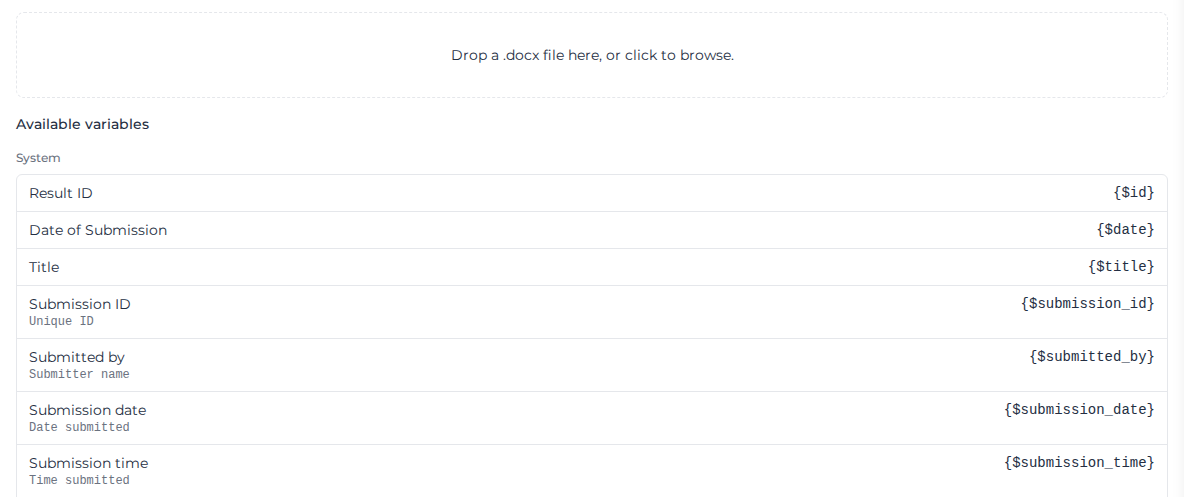
- Drop your
.docxfile on the upload area, or click it to choose the file. - Read the tag check that appears under the file (see below), fix the document if it needs it, and upload it again.
The file must be a Word .docx document of 25 MB or less. PDF, Excel, PowerPoint and HTML files aren't accepted, and fillable PDF forms need rebuilding as Word documents. Uploading a new file replaces the one in use.
If the form already has an in-app template, you're asked Switch print template? first. Switch changes over; the other template is kept.
Find the tags for this form
Available variables under the upload area lists every tag the form can fill:
- System: the submission's details, such as
{$id}(the submission ID),{$title}(the form's title),{$date},{$submitted_by}and{$version}, and the linked project, client and workpack, such as{$project_name}and{$client_name}. The linked ones are empty when the submission isn't linked to one. - Form fields: one tag per field, using the field's Name from the builder, such as
{$scope_notes}. A choice field (Select, Radio, Multi select, Toggle) shows the labels its tag prints, and a second tag,{$values.<name>}, for the value stored behind each label (see Compare a choice answer). A table shows one{foreach}tag for its rows, then a tag for each column; a sub-table is listed as a loop inside the row, and each hint names the loops the tag has to sit inside. - Linked records: more details of the records picked in the form's Resource fields (see Details of a linked record).
Click a tag to copy it, then paste it into the document. The full tag language, including conditions, repeating table rows and formatting, is in the Merge tag reference.
Tag with Milo reads your uploaded letterhead and suggests which of its existing spaces should get which tags. Nothing changes until you select Apply tags. Milo doesn't add new sections, and lists any fields it couldn't place under Unplaced fields.
Read the tag check
After each upload, when you open the template again, and after a preview, the app lists the tags it found and any problems with them. The check never stops the upload, the preview or a download. A tag with an error prints exactly as written.
These problems change what prints. The tag check lists each one with the tag it found:
| Problem | What it means | Fix |
|---|---|---|
MISSING_SIGIL | The tag has no $, so {site} prints as {site} | Write {$site} |
SMART_QUOTES | Word curled the quotes in a modifier setting, such as {$id|pad:5:”0”}. Curled quotes in an {if} condition are fine | Retype the quotes as straight " or ', and turn off smart quotes in Word |
UNKNOWN_MODIFIER | The tag uses a modifier that doesn't exist | Check the modifier list |
UNKNOWN_FOREACH_MODIFIER | A modifier on a {foreach} doesn't exist, so the loop prints nothing | Check the modifier after the list name |
UNBALANCED_BLOCK | An {if} or {foreach} has no matching close, a close or {else} has no opening, or a {foreach} can't be repeated where it sits: it ends inside rows or lines another loop repeats, or crosses the edge of a text box within one line | Add the missing tag, or move the loop's tags so both sit in the same place |
BAD_CONDITION | The condition in an {if}, {elseif} or {tableif} can't be read, so it always counts as false and the {else} text prints. The check says The condition could not be read, so it always counts as false | Put text in quotes ({if $q1 == "Yes"}), use == rather than =, start each field name with $, and leave modifiers out of the condition |
BAD_ARG | A modifier's setting can't be read, often because of a curled quote | Retype the setting |
UNPARSEABLE | The tag can't be read at all | Retype the tag |
IMAGE_WITHOUT_INSERT_IMAGE | The tag is for a signature, drawing or photo but has no insert_image, so it prints nothing | Write {$signature|insert_image:200:80}, or {$files.sitePhoto|insert_image:300:0} for a photo |
IMAGE_NOT_PLACED | The image can't go where the tag is, so the tag prints as written. An answer merged earlier on the same line that contains a { can cause this | Put the image tag on a line of its own. If nothing before it contains a {, move the tag into ordinary body text |
These are warnings only; the PDF is unaffected:
| Warning | What it means |
|---|---|
EMPTY_TAG | An empty {} was found. Delete it |
SPLIT_TAG_RESIDUE | Word stored the tag in pieces because parts of it are formatted differently. It may print in fragments; retype the whole tag in one style |
UNRESOLVED_PATH | A tag names something the submission doesn't have. It prints empty |
CHOICE_VALUE_MISMATCH | A condition compares a choice field with text that isn't one of its options, so it never matches: {if $q1 == "yes"} when the label is Yes. The message suggests the label to use, or {$values.q1} to compare the stored value. It's checked against the form as it is now |
When a form change breaks the template
Renaming a field, giving a table column a Name, editing the header a column's tag comes from, or removing a field or column can leave tags in your template that match nothing. When you save a change like that while the form prints from an uploaded template, a warning names those tags:
A tag in the uploaded template no longer prints Nothing in this form matches {$row.worker} anymore. Update the template, or undo the change.
The change is saved either way. Older submissions print under the new names too, so a template that still uses the old ones prints nothing for any submission. Update the tags in Word and upload the template again, or change the name back and save. For a column, you can also type the old tag into its Name (see Name a table column).
Changing an option's Value or label, or removing an option, can leave a condition in the template comparing with text no option has any more, so it's never true. The warning names those conditions too:
A condition in the uploaded template can no longer match The template still compares $values.status with "fail", and no option has that anymore. Update the template, or undo the change.
$values.status compares the option's Value, and $status its label. Update the condition in Word and upload the template again, or change the option back and save.
Preview the PDF
Select Preview PDF. The template is filled with sample answers made from the form (text fields get "Sample" and the label, numbers 42, dates today, tables two rows, choice fields their first option, signatures a sample signature) and the PDF opens beside it, with any problems listed under it. Preview fills the template exactly as a real download does, only with sample answers. Because every choice field is answered with its first option, a condition that checks for another option prints its {else} text in the preview. Page breaks and fonts can differ slightly from what Word shows, because the document is converted to PDF on Assignar Pay's servers.
Download the template
To keep a copy, or to change it in Word and upload it again, select Download next to Preview PDF. You get exactly the file that was uploaded, with its original name; after Tag with Milo has applied its tags, you get the tagged file. Downloading the template needs the form-management permission.
Print a submission
With the uploaded template in use, open a submission and select Download PDF, then Document Template (see Review submissions). The same applies when you download several submissions at once.
A broken or unknown tag never stops a download. Only a damaged file, or the conversion service failing, does.
Switch back to the in-app editor
Select the In-app editor card on Customize Print Formatting and confirm Switch. The uploaded file stays on the form; select Uploaded merge template again later to use the same file. You can only switch to Uploaded merge template once a file has been uploaded for the form.
When the PDF looks wrong
- A tag prints as written: read the tag check and fix the tag it names.
- A tag prints empty: the tag must use the field's Name, not its label. Copy it from Available variables.
- A table prints nothing: put
{foreach}in the first cell of the row and{/foreach}in the last, and use each column's tag as listed under Available variables: its Name, or for a column without one its header in lower case with underscores ({$row.used_for_whole_shift}, not{$row.Used for whole shift}). See Repeat a table row. - A column stopped printing after you changed its header: a column without a Name takes its tag from its header. Open the column's settings and type the old tag, the one your template uses, into Name. The column prints again for old and new submissions, and the header can change freely from then on.
- A condition always prints its
{else}text: if the tag check showsBAD_CONDITION, fix the condition as it says. For a choice field, compare the label exactly as the form shows it ({if $q1 == "N/A"}, not"na"), or compare the stored value with{if $values.q1 == "na"}. - A signature or photo prints nothing: use
{$signature|insert_image:200:80}instead of{$signature}, adjusting the width and height in pixels. For photos, see Photos and files. - A photo is squashed or stretched: the tag gives both a width and a height, which doesn't keep the photo's proportions. Set the height to
0, as in{$files.sitePhoto|insert_image:300:0}. See Size a picture. - The PDF still uses the in-app layout: the form is still on In-app editor. Select Uploaded merge template.