

Set up views
See a form's submissions as a sorted table, a calendar, a board by status, a timeline, a photo gallery or a map, and choose the view that opens first.
A view shows one form's submissions in the shape that suits the job: prestarts on a calendar, defects on a board by status, site photos in a gallery. Every form has a standard table view, and a map view for each Map field; you add your own on top.
Open views
- Responses → Views lists every form's views. Filter the list with All, Custom or Favorites (the views you have starred in this browser), and select a view to open it.
- Inside a form, Data → Views lists that form's views only.
Create a view
- Select Create View.
- Choose the Form (on Responses → Views only), type a View Name, and pick a View Type.
- Select Continue.
- Choose the fields the view uses (see below), then select Create View.
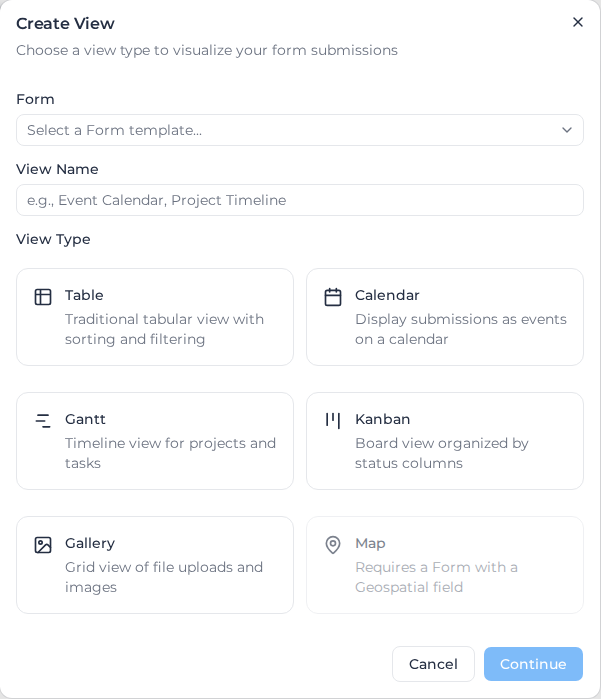
| View type | Shows submissions as | Fields you choose |
|---|---|---|
| Table | Rows you can sort | Default Sort Column and Sort Direction |
| Calendar | Events on a calendar | Date Field and Title Field; optionally a start time, an end date or duration, an all-day field, a Color Field and the Default View Mode (Day, Week or Month) |
| Gantt | Bars on a timeline | Start Date Field, End Date Field and Title Field |
| Kanban | Cards in columns | Status Field (a field with set options, such as a Select or Radio) and Title Field |
| Gallery | A grid of uploaded files and photos | File Upload Fields |
| Map | Every shape from a Map field, on one map | The Geospatial Field, and Additional columns for the table under the map. Offered only for forms with a Map field |
A calendar event with no end date or duration lasts the Default Duration (60 minutes unless you change it). Events at midnight count as all-day while Auto-detect all-day events is on.
A Kanban board has a column for each value of the status field that appears in the submissions. Select a card, a calendar event or a gallery image to open its submission.
A table view has Export CSV and Export Excel above it, which download the submissions the view shows, with its columns. A Gantt view switches between Daily, Monthly and Quarterly, and has zoom buttons.
Manage views
On a form's Data → Views list:
- Set as Default makes a view the one that opens first. It shows a Default badge.
- Delete removes a view. The submissions are not affected.
When a view is empty
Each view says what it's missing:
- Calendar: No submissions to display. Create form submissions with date fields to see them on the calendar.
- Gantt: No tasks found. Configure start and end date fields to display submissions on the Gantt chart.
- Kanban: No columns found. Make sure the status field has values.
- Gallery: No file uploads found in submissions. The gallery loads the newest submissions first; select Load more to look further back.