

Show or hide fields
Show a question, or a whole section, only when an earlier answer calls for it, with a simple one-question rule or an advanced rule that combines several answers.
A condition shows or hides a field depending on the answer to another question. Use it to ask for details only when they apply: "Describe the defect" appears only when "Fit for service?" is No. A hidden question is optional, so it never blocks the person from submitting.
Add a condition to a field
- Open the form in the builder, hover the field you want to show or hide, and select its settings button.
- Turn on Conditional Visibility.
- Under Should Display, choose Show or Hide.
- Under When the question, choose the question the field depends on.
- Choose Any value to act as soon as that question has an answer, or Specific value and pick or type the answer under Value equals.
- Select Save in the dialog, then Save in the builder.
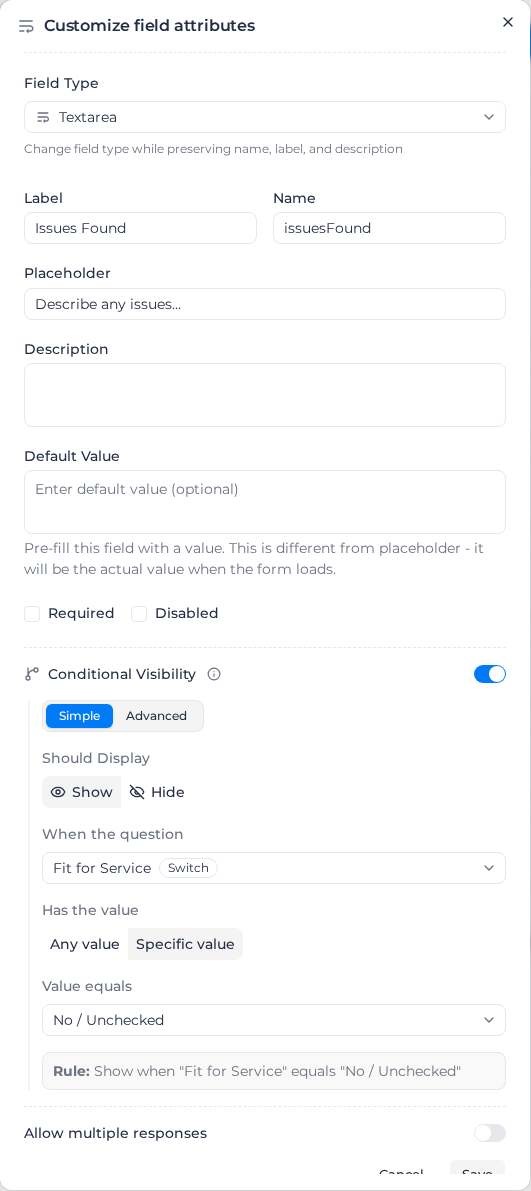
The rule appears in words under the settings, for example Rule: followed by a summary of the condition, and the field shows a condition badge on the form. Try it in the live preview before you publish.
If the form has no other questions yet, the section says No other questions available. Add more questions to the form to set up conditional logic.
Combine several answers
Select Advanced instead of Simple to build a rule from several conditions.
- Select Rule to add a condition: choose a question, a comparison and a value.
- Select Group to add a set of conditions that is checked together.
- Choose AND when every condition must match, or OR when any one is enough.
The comparisons offered depend on the question:
| Question type | Comparisons |
|---|---|
| Text answers (including Input fields set to Number) | equals, does not equal, contains, does not contain, begins with, ends with, has any value, is empty |
| Slider, Rating and Date Picker | equals, does not equal, greater than, greater than or equal, less than, less than or equal |
| Single choice (Select, Radio, Toggle, Resource) | equals, does not equal, is one of, is not one of, has any value, is empty |
| Multi select | includes, does not include, has any value, is empty |
| Checkbox and Switch | equals Yes / Checked or No / Unchecked |
| File upload and Signature | has any value, is empty |
| Quiz | compared on its result: Passed, Failed or Not scored |
A table column's condition can use a question from the form. For a Resource question that accepts repeated answers, an equality condition matches when any answer selects the chosen record, and an inequality condition matches only when none does. A Quiz question is compared on its passed, failed or unscored result.
Switching back to Simple clears a rule that has more than one condition, because a simple rule holds only one.
Show or hide a whole section
A section is every field between one Separator and the next. To show or hide them together:
- Open the separator's settings.
- Turn on Conditional Section and set up the rule the same way as for a field.
The questions inside the section aren't offered in its own rule, so a section can't depend on itself.
Use the weather as a condition
A Weather field offers four values from what it recorded: the condition (for example Rain or Thunderstorm), the temperature in °C, the rainfall in mm and the wind speed in km/h. Use it to show a wet-weather or heat-stress section only when the conditions call for it.
Examples
| You want | Set up |
|---|---|
| Ask for a description only when a defect is found | On Describe the defect: Show, when Defect found? has Specific value Yes |
| Skip the plant checks when no plant is on site | On the plant section's separator: Hide, when Plant on site? is No |
| Ask for a permit number on hot work or confined-space jobs | Advanced: Work type is one of Hot work, Confined space |