

Set up required forms
Choose which forms workers fill in on their shifts: for everyone, or for a role, client, project, order, asset or asset class. Set when each one is due, whether a missing form stops check-in, how often it's needed and who completes it.
Required forms are the forms that go with the work: a prestart before every shift, a safety checklist on one client's sites, a plant check on every excavator. You link a form to the work it belongs to, and it shows up on each matching shift in My Shifts, with when it's due and whether the worker has done it. The office follows up from the Outstanding tab (see Chase outstanding forms).
Owners, Admins and Managers see these lists. To add, change or remove a link you also need the Set required forms permission, which they have by default. Without it, you see the list but no Add form button.
Where you link a form
Each of these places has a Required forms list with an Add form button. A link applies to every shift that falls under it.
| Where | How to get there | What it covers |
|---|---|---|
| The whole account | Settings → Operations → Required forms | Every worker, wherever they work |
| A role | Resources → Roles, open a role, Required forms section | Workers in that role, on every shift |
| A client | Open the client, Required forms tab | Shifts on that client's projects and orders |
| A project | Open the project, Required forms tab | Shifts on that project's orders |
| An order | Open an existing order to edit it, Required forms tab | Shifts on that order |
| An asset class | Resources → Assets, Asset Classes tab, edit the class, Required forms section | Shifts where an asset in that class is used |
| An asset | Open the asset, Required forms tab | Shifts where that asset is used |
An order you are still creating has no Required forms tab. It gets the forms that reach it from further up, and you can change them once it's saved.
In the role editor, the order editor and the asset class editor, each change to required forms saves as you make it. The page says "Changes here save as you make them. The buttons below don't apply to them." The buttons at the bottom don't save or undo a required-forms change.
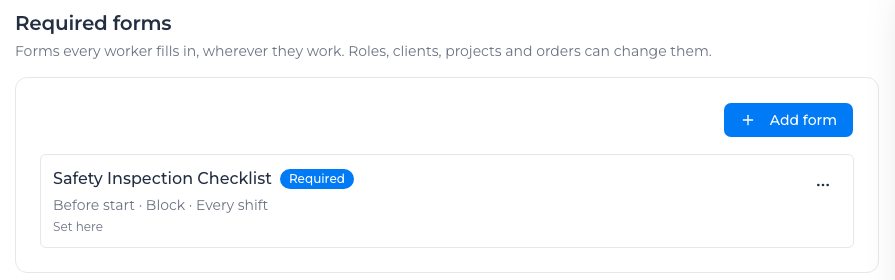
Add a required form
- Go to the place the form belongs to (see the table above) and select Add form.
- Under Form, pick the form. The account's default timesheet and docket forms aren't listed, because workers already fill them in on every shift.
- Under Applies to, leave All roles, or choose the roles the form is for. (A role's own list has no Applies to: its forms are for that role.)
- Fill in the rest of the dialog (each setting is explained below).
- Check the line at the bottom, for example "This affects 3,317 upcoming shifts on 55 orders.", then select Save.
You see a confirmation such as "Saved Plant Pre-start.", and the form is added to the list.
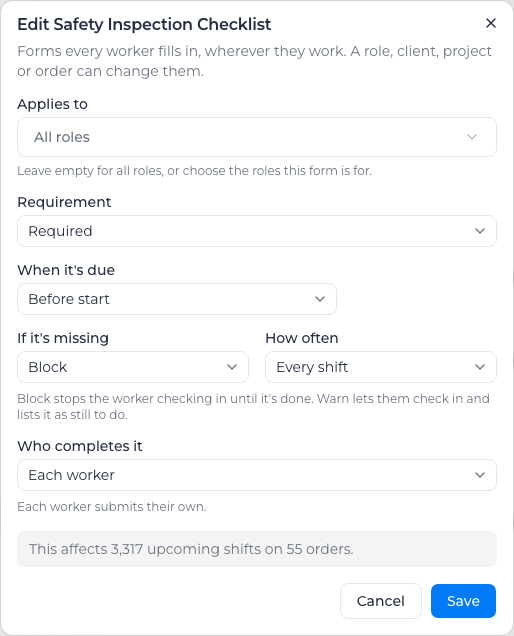
Requirement
- Required: the worker has to fill it in on the shift.
- Optional: it is listed on the shift, but nothing chases it. It never stops check-in, is never late, and isn't on the Outstanding tab, so the dialog doesn't ask If it's missing.
When it's due
- Before start: before the worker checks in. This is only offered when your account uses check-in. While check-in is off, the dialog says "Before start needs check-in, which is off for this account."
- Within a set time after start: enter the Minutes after start (30 by default).
- Before finish: any time before the shift ends.
If it's missing
- Warn: the worker can check in, and the form is listed on their shift as still to do.
- Block: the worker can't check in until the form is done. Only a form due Before start can block. For any other due time the dialog says "Only forms due before start can stop a worker. This one is listed on their shift as still to do."
When a worker needs to start before a blocking form is done, someone in the office can let them check in anyway. See Let a worker check in without the forms.
How often
- Every shift: on each shift.
- Once a day: once per worker per day. A submission on any of their shifts that day counts.
- Once per project: once on the project. A submission on any of its shifts counts. If the order has no project, it is due once per order.
- Once per order: once on the order. A submission on any of its shifts counts.
Who completes it
- Each worker: every worker submits their own.
- One for the crew: one submission counts for everyone on the same order that day (or on the order or project, if you chose Once per order or Once per project).
- The supervisor: a supervisor submits it, and that counts for everyone on the same order that day (or on the order or project, as above). If no supervisor is on the order that day, the form shows as waiting for one.
Every shift isn't offered for One for the crew or The supervisor: the dialog moves it to Once a day.
Use instead of
When this place already gets forms from further up (for example from the account), Use instead of lists them. Pick one to swap it for the form you're adding. The form you pick stops being required here and below, for the roles you chose, unless a more specific link sets it itself. Use instead of isn't offered when you Change here. Leave Nothing (add it alongside) to keep both.
Apply to new orders only
On a client or project, when the change would reach existing orders and the form is for All roles, you can tick Apply to new orders only. Existing orders keep the forms they have now. Their rows then name the client or project, for example "Kept as it was: the change on Harbour Works applies to new orders only".
The option is greyed out when the same form is also linked to a role, an asset or an asset class, because keeping existing orders as they are would override that link.
Forms for assets
On an asset or an asset class, the form is filled in for the machine on the shifts it's used. The dialog has no Who completes it, and How often offers two choices:
- Once a day: one check per asset per day, by whoever operates it first.
- Every shift: each operator checks it at the start of their shift.
A new asset or asset-class link starts as Within a set time after start, 30 minutes, Warn, Once a day.
A shift's machines are all the machines the worker is booked with: the one on their shift, any machine paired with their shift, and the attachments fitted to those machines (an asset's Attached to, under Linked assets). A form linked to any of them, or to its asset class, is due once for each machine it reaches, and shows on the shift with that machine's name.
What a shift gets when several links apply
A shift gets every form linked to its account, the worker's role, its client, project and order, and the assets on it. When the same form is linked in more than one of those places, the most specific link decides all of its settings:
Order → asset → asset class → project → client → role → account
So a form the account requires Before start with Block can be relaxed to Warn on one client, and switched off entirely on one order. In the same place, a link for chosen roles beats a link for all roles.
Each row in a list says where it comes from:
- Set here: the link was made in this place.
- From the account, From client …, From project …, From role …, From asset …, From asset class …: it reaches this place from further up.
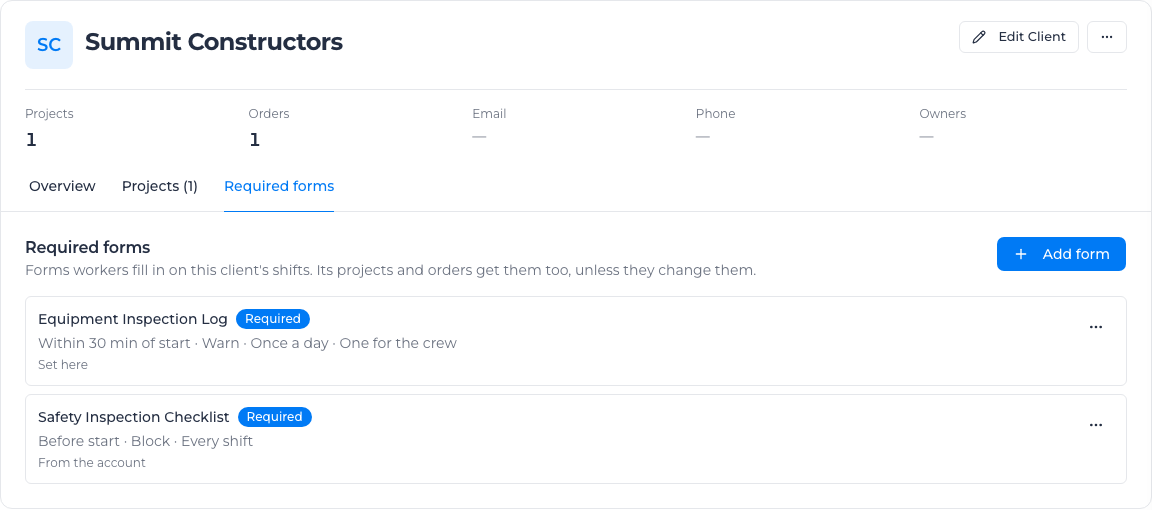
Change or remove a form here
Select ⋯ on a row.
For a form set in this place:
- Edit opens the same dialog.
- Remove deletes the link. Shifts below go back to whatever they would get without it.
For a form that comes from further up:
- Change here opens a dialog titled with the form's name, for example "Change Plant Pre-start here". Your settings apply here and below; the place it comes from is unchanged.
- Don't require here stops it on this client, project, order, role or asset. The row is struck through and marked Not required. Select ⋯ → Require again to undo it.
A form you changed here has Reset to inherited instead of Remove. It drops your change and takes the settings from further up again.
A form that is Not required further up has Require here, which turns it back on in this place.
Remove, Don't require here, Require again and Reset to inherited ask you to confirm and show how many upcoming shifts it affects, or "No upcoming shifts are affected."
The account's default timesheet and docket forms can only be left out. If one reaches this place through an existing link, its row reads Already filed every shift, and its menu has no Edit or Change here: only Remove (or Reset to inherited) where it was set, and Don't require here where it comes from further up.
When field workers can't open the form
If the form's access settings leave out field workers, the row warns "Field workers can't submit this form": they would see it on their shift but couldn't fill it in. Select Allow field workers to add them to the form's access list. If you can't manage forms, the warning asks you to get someone who can. See Control form access.
Related
- Complete required forms on a shift: what workers and supervisors see.
- Chase outstanding forms: follow up missing forms and let workers check in.
- Roles and permissions reference