

Chase outstanding forms
Use the Outstanding tab to see every required form that hasn't been done for a day or a week, find the ones that need the office, and let a worker check in when a blocking form can't be done in time.
The Outstanding tab lists every required form that's still to do on your shifts, so the office can see who to chase before work starts and what's still missing at the end of the day. It is the office's side of Set up required forms.
You find it under Work → Field, on the Outstanding tab. Owners, Admins and Managers who can view orders see it. No other role does.
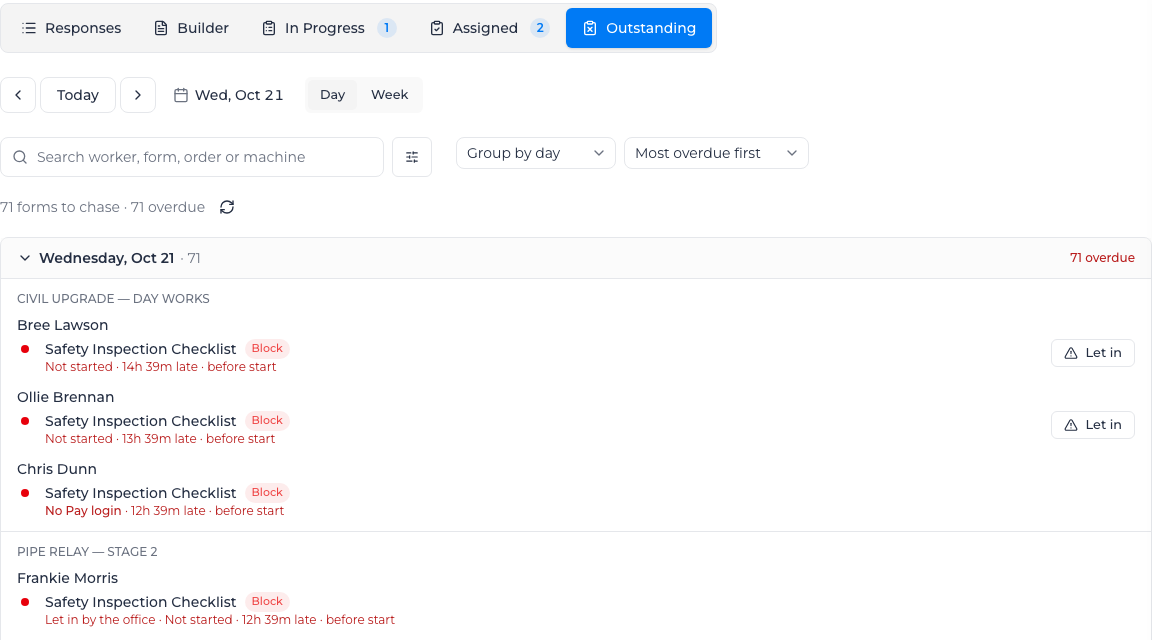
Read the list
The line above the list counts what's left, for example "71 forms to chase · 71 overdue". Select the refresh button next to it to load the latest.
Under each order, every worker who still has a form to do is listed with:
- The form. One that stops the worker checking in is tagged Block.
- Its progress: Not started or Started.
- How late it is, for example 12h 21m late, and when it was due: before start, after start or before finish. Due times follow the rostered start and finish, not when the worker checked in.
Some rows need the office rather than the worker:
- No Pay login: the worker has no login yet, so they can't fill in anything until they accept an invite.
- Worker can't open this form: the form's access settings leave them out. It doesn't stop them checking in, but they can't do it until you fix the access. See Control form access.
- Supervisor's form, but no supervisor is on this order: nobody on the order that day is in a supervisor role. Add one, or change who completes the form.
- The machine's name and no operator assigned, for example "Excavator 12: no operator assigned": a machine form is due, but nobody is operating the machine.
- Let in by the office: someone let the worker check in without the form. It still counts as missing.
A crew form is listed once for the order, as "Crew form, anyone on the crew" with the number of shifts it covers, rather than once per worker.
When everything is done you see "Every required form on this day is done." (or "this week").
Choose the day and the view
- Select Day or Week, then use the arrows, Today (This week in Week view), or the date to move. If your browser is in another time zone, the zone the times follow is shown next to the date.
- Group by day, Group by form or Group by worker changes how the list is grouped. Collapse all and Expand all fold the groups.
- Sort by Most overdue first, Due time or Name.
- Search by worker, form, order or machine.
Filter the list
Select the filter button next to the search box to open Filters:
| Filter | Options |
|---|---|
| When | Overdue, Due today, Upcoming |
| If it's missing | Block, Warn, Track |
| Needs the office | Worker has no Pay login, Worker can't open the form, Machine with no operator |
| Progress | Not started, Started |
| Due | At the site gate, Before start, After start, Before finish, After finish |
| Project, Client, Order, Form, Role, Crew | Pick one or more |
Turn on Hide ones let in by the office to leave out forms you've already dealt with. If nothing is left, the list says "Nothing matches these filters."
A very busy day or week shows the first 4,000 shifts and says so. Filters only search what's loaded, so in Week, switch to Day to see each day in full.
Let a worker check in without the forms
When a worker can't do a blocking form before their shift (no signal on site, a phone that's gone flat), you can let them check in anyway. You need the Let workers check in without required forms permission. Owners, Admins and Managers have it by default.
- Do one of these:
- On the Outstanding tab, select Let in on the worker's row. The button appears on a worker's row for a form tagged Block that is due before start, that they can open and haven't already been let in on. That includes a supervisor's own form and a machine form for the machine they operate. Crew-form rows, and machine rows with no operator, have no button.
- In Work → Scheduling, select the worker's shift (today or later) and choose Let check in without forms….
- The dialog "Let them check in without required forms" lists the forms that are stopping them.
- Enter a Reason (required, up to 500 characters). Your name, the time and this reason are recorded against the shift.
- Select Let them check in.
You see a confirmation such as "Riley Moana can now check in to this shift." The worker can check in straight away. Their forms still count as missing, and the row on the Outstanding tab now reads Let in by the office, so you can keep chasing them.
This covers the forms stopping them now. A blocking form added to the shift afterwards stops them again.
What else you might see (with your worker's name in place of Riley Moana):
- "Riley Moana can check in to this shift. The forms still to do before start are set to Warn…": nothing is stopping them, so there's nothing to let past.
- "No required form is stopping Riley Moana from checking in to this shift."
- "Riley Moana has already been let in on this shift."
- "Nothing is blocking this check-in any more. The forms may have just been done.": the forms were done while you had the dialog open.
- "You can't let yourself check in without required forms. Complete the forms, or ask someone else.": you can't do this for your own shift.