

Build a form
Create a form, add, find and arrange its fields, split it into sections or steps and move questions between them, preview it, save and publish it, and restore an earlier version.
You build forms in the form builder: a list of field types on the left, your form in the middle, and a live preview on the right. Building a form needs the form-management permission, which Owners, Admins and Managers have by default.
Create a form
- Go to Work → Field and open the Builder tab.
- Select Create New Form. The builder opens with a form called Untitled Form.
- Select the title and type a name, such as "Excavator Prestart".
- Add fields (see below), then select Save.
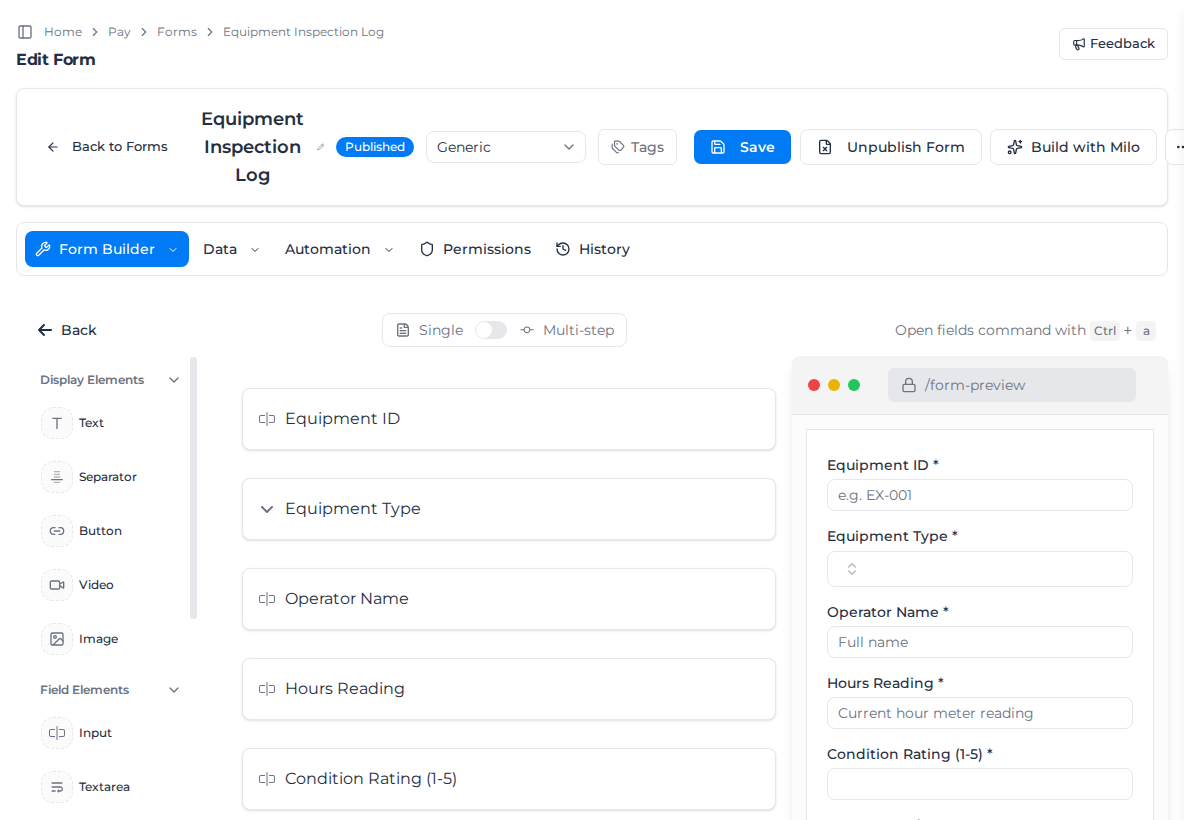
Nothing you build is kept until you select Save at the top of the builder; a message confirms each save. The first save creates the form as a draft, and nobody can submit it until you publish it.
Until its first save, a new form is kept in this browser, so refreshing the page doesn't lose it. Create New Form always starts a blank one. If you leave a saved form with changes you haven't saved, Unsaved Changes asks whether to Save Changes or Continue Without Saving.
Saving checks three things first. The app says Please provide a Form title while the title is still "Untitled Form", Please add at least one Form element when the form is empty, and A Form named "…" already exists. Please choose a different name. when another form has the same title.
Add fields
The list on the left groups the field types under Display Elements (text, dividers, buttons, video, images), Field Elements (the questions), Internal Resources and Time & Material Tracking. Field types describes each one.
- Select a field type to add it to the end of the form, or drag it to where you want it.
- Press Ctrl + A (⌘ + A on a Mac) to search the field types by name.
- Hover between two fields and select Add field to insert one there.
- Drag a field to move it. Hover a field to see its buttons: settings, duplicate and delete. Delete takes effect at once; select Save only when you are happy with the result.
- Remove All, below the last field, clears the form.
Find a question in a long form
Type in Find a question by label or type, above the form, to list the questions that match. It searches every step, and fields inside rows. Each match shows its field type and, on a multi-step form, its step. Select a match, or press Enter on it, to scroll to that question; it is outlined for a moment. Escape closes the list.
Set up a field
Hover the field and select its settings button. Customize field attributes opens.
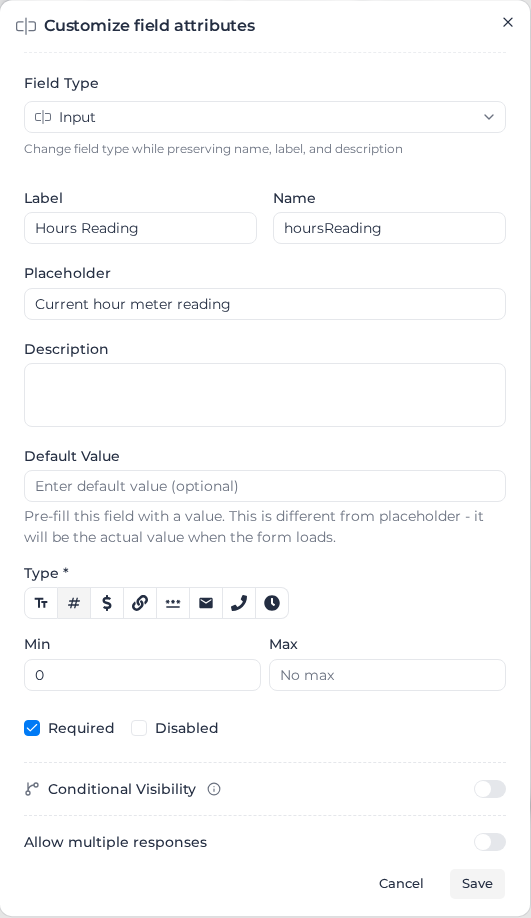
Most fields have these settings:
- Field Type: change the field to another type. The name, label and description carry over.
- Label: the question the person filling in the form sees.
- Name: the field's identifier. Calculated fields, print templates, workflows and linked forms refer to the field by this name, so settle on it before you build on it.
- Placeholder and Description: hint text inside the field, and help text under it.
- Default Value: an answer filled in when the form opens.
- Required: the form can't be submitted without an answer.
- Disabled: the field shows but can't be changed.
- Conditional Visibility: show or hide the field depending on another answer. See Show or hide fields.
- Allow multiple responses: let the person add the same question more than once, up to the Maximum responses you set (2 to 10). When the field is required, only the first answer is.
- Clear when copied: leave this answer blank when someone copies a submission, for an answer that has to be given fresh each time, such as a date or a signature. See Copy a submission.
Select Save in the dialog to apply the changes, then Save at the top of the builder to keep them. Cancel closes the dialog; if you changed anything, Unsaved Changes asks whether to Save Changes or Continue Without Saving. A change you put back the way it was doesn't count.
Duplicating a field gives the copy its own Name.
Split a form into sections or steps
A Separator starts a section: every field below it, down to the next separator, belongs to it. In the separator's settings you can:
- Give the section a Label.
- Limit who can fill in the section with Authorized Roles and Authorized Users. Leave both empty to let everyone fill it in. If you set both, a person needs to match either one.
- Turn on Conditional Section to show or hide the whole section.
For a long form, open the Settings tab and switch Single to Multi-step, then select Save. The person filling it in then works through it one step at a time.
Move questions to another step
Dragging a question past every field in between is slow on a long form. Move it from its menu instead:
- Hover the question and select Move to step.
- Choose the step. Each step is listed with its first question, so you can tell them apart.
The question goes to the end of that step, with its name, settings and conditions unchanged. To move several at once, tick the box beside each question or row, then select Move to step in the bar that appears. They keep their order. Clear selection unticks them.
A Separator moves with the questions under it, so the section keeps its roles, users and condition. On a separator the button reads Move section to step.
A question that lands under a different section follows that section's Authorized Roles, Authorized Users and Conditional Section. When that changes who sees it, a message says the question "is now under a different section". Check the section, or move the question again. A move is kept once you select Save.
Let people move ahead on a multi-step form
Each step of a multi-step form has Require fields before continuing, which is on by default. Leave it on when a step has to be finished before Next. Turn it off when people need to fill in a later step first: Next then moves on with required fields on that step still empty. Previous and Save draft always work.
Submit still checks every required field the person can see. If one is empty, the form opens the first step that has one, highlights the field, and says "Can't submit — please check the highlighted fields before submitting.", or "Can't save — please fix:" followed by the fields when it can name them.
A required field that is hidden, by a condition or because it's in a section the person can't fill in, never blocks Next or Submit.
Make the form a docket
On the Settings tab, turn on Create a Docket when each submission of this form should create a docket, priced from your schedule of rates and sent to the client for sign-off. A new blank form starts with it off, and a form created from a template keeps the template's setting. The change applies once you select Save.
A docket is built from the workers recorded on the form, so it needs a Worker Time field. Without one, the switch stays off and a message says "Add a Worker Time element that creates timesheets before marking this form as a Docket." Add the field, then turn it on. Turning it off always works.
If you remove the Worker Time field from a published docket, saving says "A published Docket form needs a Worker Time element that creates timesheets." Put the field back, or turn Create a Docket off. Publishing a docket without the field, or restoring an earlier version that doesn't have it, shows the same message.
A published docket that has never had the field can still be saved, but nobody can submit it. Add a Worker Time field, or turn Create a Docket off.
When the form is your default docket form, turning the switch off asks Turn off Docket? first. Select Turn off to go ahead. Create Docket then stops opening it automatically until you choose another default.
One form for timesheets and dockets
A form with Create a Docket on creates both records from each submission, so a crew enters its shift once instead of filling in a timesheet form and a docket form for the same day. While the switch is on, the Settings tab says "Each submission files the workers' timesheets for payroll and a Docket for billing."
- Timesheets. The Worker Time field files a timesheet for each worker, with their hours, breaks and equipment, as it does on any form. They appear on Timesheets and are paid through your pay rates.
- The docket. The same submission creates one docket on the job, listing the same workers and hours. The form's other answers, such as quantities, notes and the client's signature, go on the docket and not on the timesheets.
- Editing. Saving the submission again updates its timesheets and its docket together. It never adds a second docket or duplicate timesheets.
- Locks. The submission can't be edited once a worker's timesheet is approved, an equipment timesheet is approved and priced, a timesheet is invoiced or has its pay rate in review, or the docket is on an invoice, even a draft one. That way the two records can't drift apart. Pricing the equipment doesn't lock the submission on its own: the edit prices that equipment again. See Edit a submission.
- Billing. Workers' hours are billed once, through the docket. Equipment on the timesheets is priced on its own from your schedule of rates: with Auto-process Schedule of Rates on, once you approve its timesheet (see Price transactions automatically).
What the switch does when the form is submitted
Create a Docket, not the person's role, decides whether a submission creates a docket. For organizations using Daily Records:
- A worker's own timesheet on a form with Create a Docket on creates one docket for that submission. Saving it again, or a phone sending it again after being offline, updates the same docket rather than adding another.
- A supervisor's Daily Record opens your default Daily Record form (or your default timesheet form, if you haven't chosen one). With Create a Docket on that form, it creates one docket for the crew, as before. With it off, the Daily Record still files the crew's timesheets, but creates no docket.
- Any other form with Create a Docket on creates one docket per submission.
A docket needs a client. If the job has none, the timesheets are still saved, but no docket is created. Needs a client then shows beside the worker on Timesheets, and the submission says "Needs a client to create a Docket." Add a client to the job, then save the submission again to create it. Until you do, the badge reads Save again and the submission says "Save this submission again to create its Docket."
When a supervisor pulls a worker's timesheet into their Daily Record, the timesheet moves off the worker's docket and onto the crew's; it is never on both. A worker's docket left with nothing on it is voided, and comes back if the supervisor removes the timesheet again. A timesheet whose docket has already been sent can't be pulled: the crew list shows "On a sent Docket". If the Daily Record form has Create a Docket off, the crew list warns that pulling takes the timesheet off its docket.
Stop people copying submissions
Copying a submission saves filling in the same answers again, but some forms, such as an inspection or a sign-off, should be filled in fresh every time.
- Open the form's Settings tab.
- Under Responses, turn off Allow responses to be copied. It's on for every form until you turn it off.
- Select Save.
Duplicate then no longer appears in the menu on the form's submissions, and copying a submission of this form in the mobile app is refused. If someone tries to copy one anyway, for example from a list they opened before you saved, they see "Copying responses is turned off for this form".
To copy submissions but leave certain answers blank, keep the setting on and turn on Clear when copied for those fields instead (see Set up a field). Those fields are left blank on every copy, whichever way this setting is.
Choose your default timesheet and docket forms
Your organization has one default timesheet form and one default docket form. Workers open the default timesheet form from Create Timesheet in My Shifts and when they check in. Create Docket and paper uploads preselect the default docket form.
To make a form a default:
- Save and publish the form. A default timesheet form needs a Worker Time field; a default docket form needs Create a Docket on.
- Open its Settings tab.
- Under Default forms, turn on Default Timesheet or Default Docket form. Default Docket form is listed only when Create a Docket is on.
- Select Make default to confirm. The change applies straight away, without Save.
The form that was the default stops being it. You can't turn the switch off on the form that holds the default: turn it on in another form instead. Below each switch, the page names the current default, or says why this form can't be one yet, for example "Publish this form to make it a default."
Only people who can manage settings can change the defaults. Everyone else sees the switches but can't use them.
If you unpublish a default form, or save it without its Worker Time field, Assignar asks first. The default then moves back: the timesheet default to the form Assignar created when you switched on Scheduling, and the docket default to none. If that form isn't published either, Field workers can't start timesheets from My Shifts until a published form is the default; the confirmation for the default timesheet form says so.
Field workers can only start timesheets while the default timesheet form is published and not archived. If it isn't, people who can manage forms see "Your default timesheet form isn't published" or "Your default timesheet form is archived" at the top of Forms, with Open the form to go to it.
If the form Assignar created when you switched on Scheduling isn't published either, the message says Field workers can't start timesheets until your form is published (an archived form: restored, and published if it isn't), "or another published form is the default." Select Open the form to do that, or make another published form the default.
If the form Assignar created is published, the message says the default "still points at" your form. For an unpublished form, it says to publish it so Field workers can use it, "or archive it to move the default back to the Assignar Default."
For an archived form that is still published, restoring it "lets them use it again, and it stays the default." For an archived form that isn't published, restoring it "moves the default back to the Assignar Default": publishing it afterwards doesn't make it the default again, so turn on Default Timesheet in its Settings tab if you want it back.
Preview the form
The preview on the right updates as you build. Fill it in to try your required fields and conditions; Submit and Reset in the preview don't save anything.
On a multi-step form, Next in the preview always moves on, even with required fields empty, so you can look through every step without answering them. Require fields before continuing still applies when people fill in the form. Submit in the preview still checks every required field you can see.
Publish the form
- Select Save.
- Select Publish Form, then confirm. The form is now open for submissions on the web and in the mobile app.
Publish from a saved form: with changes you haven't saved, Publish Form says "Save your changes before publishing." With unsaved changes on the Permissions tab, it says "You have unsaved permission changes. Save them on the Permissions tab before publishing." Select Save Permissions there, then publish.
To stop new submissions, select Unpublish Form. Existing submissions are kept. Please save the Form first means the form has never been saved.
Changes to a published form apply to new submissions once you select Save. Existing submissions keep the answers they were given.
Find and manage your forms
The Builder tab lists every form. Search by title, filter by status (Published, Draft, Archived) and by forms or templates, or show only your Favorites. Export CSV downloads the list.
A Docket label marks the forms that are dockets, and a Timesheet label marks the forms with a Worker Time field. A published docket normally has both. Default timesheet and Default docket form mark your default forms.
Select a form's title to open it. The Actions menu on each row has:
- Edit: open the form in the builder.
- Duplicate: copy the form. Give the copy a New Title, or leave it empty to use "Copy" plus the original title.
- Save as Template: make a reusable copy. Templates can't be published or filled in; open a template's Actions menu and select Create Form from Template to start a new form from it.
- Convert to Template: turn a draft form with no submissions into a template.
- Archive: hide the form. Unpublish it first: a published form shows Set Form to draft before archiving. Archived forms appear under the Archived status filter, where Restore brings them back. If the form is still your default timesheet form, the confirmation asks "Archive the default timesheet form?". If the form Assignar created when you switched on Scheduling is published, it says "Archiving it moves the default timesheet form back to the Assignar Default, so they can start timesheets again." If it isn't, it says Field workers "can't start timesheets until a published form is the default."
In the builder, the … menu has Mark as Favorite and Reset Form.
Restore an earlier version
Every save creates a new version of the form, and each submission records the version it was filled in on.
- Open the form and select History.
- Select View details on a version to see what it contained.
- Select Restore, then Confirm Restore.
Restoring creates a new version with the old version's content. The current version stays in the history, so you can go back to it.
Download a form's QR code
For a saved form with visitors access enabled, open More actions and select QR Code.
- In QR Code Generator, choose the Size.
- Use Show Organization Logo and Show Form Title to choose what appears above and below the code. The logo switch appears when your organization has a logo.
- Select Download to save a PNG containing the displayed logo, title and scan instructions, or select Print to print the preview.
If you see QR code downloaded without a logo because the logo could not be loaded., the PNG still contains the QR code and the selected title. Turn off Show Organization Logo to download without the logo, or use Print when the logo is visible in the preview.