

Control form access
Choose which roles, people and worker tags can see and fill in a form, optionally split who may submit from who may read responses, limit who can fill in a section, and understand which submissions each role can see.
Who can do what with forms comes from two places: the permissions of each person's role, and the access settings on each form.
What each role can do
- Build and manage forms: Owners, Admins and Managers, through the form-management permission. They see the Builder tab and can set up views, workflows, secrets and access.
- Open Field and fill in forms: every role, including Field workers and the portal roles (Customer, Supplier, Visitor), as long as the form's access settings let them in.
- Assign submissions: Owners, Admins and Managers.
Field workers and Visitors only see the submissions they created, the ones assigned to them, and (for Field workers) the forms on workpacks they're allocated to. Naming a Field worker as someone who may read responses does not show them anyone else's answers.
Owners, Admins and Managers see the responses on forms they can open, unless you set a custom list for who may read responses. Then only the people on that list (and the form's creator) can open submitted responses.
Each person's role is set when you invite them; see Manage your team and Roles and permissions.
Limit who can use a form
- Open the form from the Builder tab and select Permissions.
- Under Authorized Roles, pick the roles that may use the form.
- Under Authorized Users, search for and pick people who may use it whatever their role.
- Under Authorized Tags, pick worker tags. A person can use the form when their worker profile holds one of those tags.
- Under Who may submit and Who may read responses, leave Use form access and the three lists above decide both. Choose Custom list on one side to replace those lists for that side only, using the same roles, people and worker tags. The people who read responses do not have to be the people who fill the form in.
- Select Save Permissions.
Permissions are saved separately from the rest of the form. Until you select Save Permissions, Publish Form says "You have unsaved permission changes. Save them on the Permissions tab before publishing.", and leaving the form asks whether to Save Changes or Continue Without Saving.
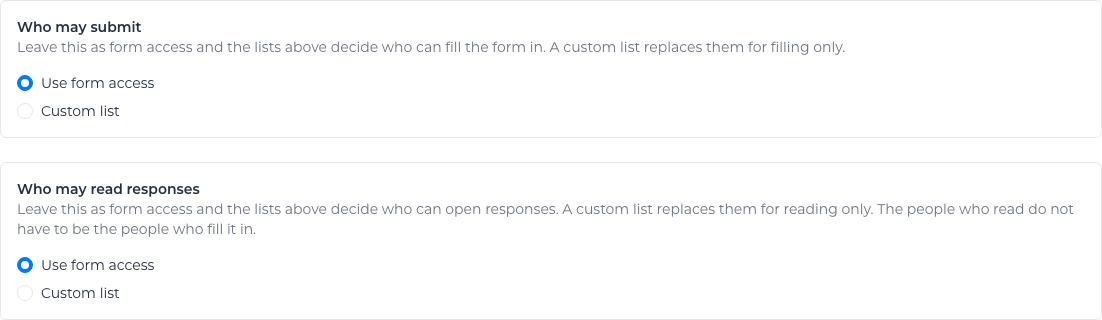
How the settings work:
- With all three lists empty, Owners, Admins and Managers can use the form. Field workers can start the account's default timesheet form and forms linked to their assigned workpacks. To open another published form to Field workers or external users, add a matching role, user or worker tag.
- Once any list has an entry, a person needs to match a listed role, be a listed user, or hold a listed worker tag. This applies to people who manage forms too.
- A worker tag follows that person's worker profile. Add or remove them from the tag later and their access changes with it. A worker who has not accepted their invite yet has no login, so the tag does not let them in until they do.
- The person who created the form always has access, including both sides when you set a custom list.
- You see the form when you may fill it in or you may read its responses. Otherwise it stays off your list.
- A custom list that you leave empty opens that side to every internal member. Choose Use form access when you want the lists above to apply.
- After someone submits, only people who may read responses can open that response, including the person who filled it in. They can still open their own draft while they are filling it in.
- To ask someone to change a submitted response, give them access to both submit and read responses. Duplicating a response also requires both.
If a saved worker tag has been deleted, it appears as Unavailable worker tag. Open Authorized Tags, deselect it, then select Save Permissions.
Limit who can fill in a section
A section runs from one Separator to the next. To let only some people fill it in, such as a supervisor sign-off at the end of a prestart:
- Open the separator's settings.
- Pick the roles under Authorized Roles and the people under Authorized Users who may fill in the fields below it.
- Select Save in the dialog, then Save in the builder.
Leave both empty to let everyone fill in the section. If you set both, a person needs to match either one.
Control a form's availability
- A form in Draft can't be filled in. Publish it to open it for submissions, and unpublish it to stop new ones. See Build a form.
- Archive a form you no longer use; it's hidden from the lists but kept.