

Link forms together
Copy answers from another form's submission, or details from an order, project, shift or other record, into a form as it's filled in, and raise a pre-filled, assigned follow-up form automatically when a form is submitted.
Linked forms save your crew typing the same details twice. There are two ways to link them:
- Pull-through: while someone fills in a form, they pick a submission of another form, or a record such as an order, and its details are copied in. A Remediation Request can pull the equipment ID, site and fault from the Equipment Inspection it follows up.
- Follow-up forms: when a form is submitted, a workflow creates a submission on another form, fills in what it can, and assigns it. A failed inspection can raise a work order for the mechanics.
Copy answers from another submission
Set this up on the form that receives the answers.
- Open that form in the builder and add a Resource field.
- In its settings, set Resource Type to Forms and choose the form to copy from.
- Under Pull-Through Mappings, select Add mapping for each answer to copy. Choose the field on the other form under From (selected item) and the field on this form under Into (this Form field).
- Select Save in the dialog, save the form, and publish it.
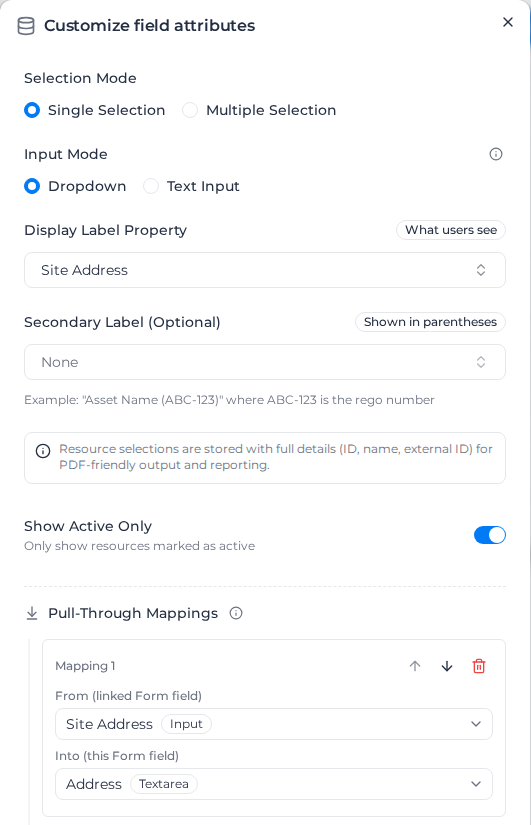
Fields that can't take the other field's answer show as Incompatible and can't be picked. For example, a free-text answer can't go into a drop-down, and nothing can go into a Calculated, Signature, Draw on image, Map or Table field.
When someone fills in the form:
- They pick a submission from the Resource field, and its answers are copied into the mapped fields.
- The mapped fields can't be edited and show Filled automatically from another field's selection.
- Clearing the Resource field clears the copied answers.
- The answers are copied at that moment. Changing the other submission later doesn't change them.
- A required mapped field that comes across empty doesn't stop the form being submitted.
If a mapped field is later removed from the other form, the mapping shows "…" is no longer available from this source. Update or remove this mapping. and that answer is left empty until you fix it.
Copy details from an order, project or other record
Every Resource Type has Pull-Through Mappings, with the selected record's details as the source: Orders, Projects, Clients, Shifts, Users, Workers, Assets and the rest. Add one Order field and map the order's number and title into your form's fields: the person picks the order once and the rest fills in.
For Orders and Assets, From (selected item) also lists your custom fields for them, under the names you gave them. A drop-down custom field copies the option's name, as it shows on the order or asset.
A record's details and custom fields copy into text fields, and other fields show Incompatible. A shift's date and times can also go into date and time fields, and its order, project, client, role, worker and paired asset into a Resource field of the same type. Pay rates are never offered, so they can't be copied into a form.
If a custom field is archived, its mapping shows the same no longer available warning and copies nothing until you remove it.
If your custom fields can't be loaded, the mappings section says so and offers Try again. Mappings to custom fields are kept and aren't flagged until the custom fields load.
Raise a follow-up form automatically
- Open the form that starts the chain, such as the inspection, and go to Automation → Workflows.
- Select Create Workflow, give it a name, and set the Trigger to When a submission is created.
- Select Add Step and choose Create Submission.
- Choose the Target form, the form to create a submission on.
- Choose the Creation mode:
- Draft (the default) creates an unsubmitted draft for the assignee to finish. It waits in their Assigned tab, badged Draft, and doesn't appear in Responses until they submit it. Whoever submits it shows as its author.
- Completed submits it straight away, so it appears in Responses as a finished submission.
- Under Value mappings, select Add mapping and pick a Source field on this form and a Target field on the other. Fields that can't take the answer show as Incompatible, as they do for pull-through.
- To give the new submission to someone, turn on Assign the new submission (see below).
- Select Save.
The new submission remembers which submission it came from. If the target form has a Resource field pointing back at this form, it is filled in with the submission that raised it.
To raise the follow-up only sometimes, put a Conditional step before the Create Submission step. For example: continue when Condition Rating is less than 3, then create a Maintenance Work Order. See Automate with workflows for how conditional steps work.
Choose who gets the follow-up
Under Assign to, choose one of:
- A specific user: one person.
- A role: everyone with that role (Owner, Admin, Manager or Field) sees it, and the first to select Claim takes it. Field workers find it on Field > Forms > Assigned.
- A user tag group: everyone carrying that user tag sees it and can claim it.
- A field on the submission: the person named in a field on the submission that started the workflow.
A user tag group only reaches people who have accepted an invite and can sign in. If nobody in the tag can, the step warns: No one in this tag has a dashboard login, so the assignment won't reach anyone. The submission is still created, but nobody sees it.
Everyone it's assigned to gets a notification in the bell, the same as when you assign a submission by hand; for a role or tag, the whole pool is notified. If a notification can't be delivered, the assignment still stands. The assignment then waits in their Assigned tab (see Work through your assignments).
See how submissions are linked
Open a submission and select the Linked Forms tab. It shows the submission this one was created from, the follow-ups created from it, and the submissions it copied answers from. You only see links to submissions you can open.