

Build a form with Milo
Describe the form you need, or upload a photo, PDF, Word or Excel copy of an existing one, and let Milo, the Assignar Pay assistant, draft its fields and a matching print layout.
Milo, the assistant built into Assignar Pay, can draft a new form or propose changes to one you already have. Describe what you need, review the result and save the form as usual.
Change an existing form
- Open the form in the builder and select Build with Milo.
- Describe the change without attaching a file, for example: "Make the site field required, remove the old notes field and add an operator signature at the end."
- Select Propose changes. Your form stays as it is while Milo prepares the proposal. Stop cancels the request.
- Under Review proposed changes, check the fields marked Added, Changed, Removed and Reordered. Changed settings show their previous and proposed values.
- Select Accept to apply the changes, or Decline to leave your form unchanged.
- Select Save.
Prompt-only edits keep your existing steps, unrelated field settings and print layout. Attaching a file starts a full rebuild instead, as described below.
If you edit the form while Milo prepares a proposal, or while you review it, Accept becomes unavailable. Select Decline and request the changes again so Milo uses your latest version.
Draft a form
- Open a new or empty form in the builder (see Build a form).
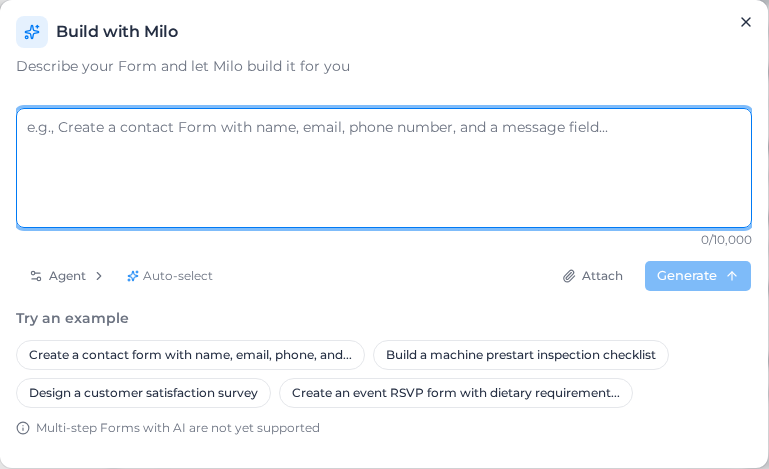
- Select Build with Milo.
- Describe the form, for example: "A daily excavator prestart with operator name, hours reading, fluid levels, a fit-for-service check and the operator's signature." Say who fills it in and what each part needs. For a multi-step form, describe the step order and which fields belong in each step. Try an example offers starting points.
- Leave Agent on Auto-select, or pick the specialist that fits (see below).
- Select Generate. The fields appear in the builder as Milo writes them; Stop ends it early.
- Check the draft in the builder, then select Accept to keep it or Decline to go back to what you had.
- Select Save.
Rebuild an existing form from a file
- In Build with Milo, select Attach and choose the file: a photo of the form (JPEG, PNG, GIF or WebP, up to 10 MB), or a PDF, Word or Excel document (up to 15 MB). You can attach up to three documents.
- Add a note if it helps, such as "keep the section order". To create a multi-step form, describe the steps and the fields for each one.
- Select Generate. If your form already has fields, confirm Replace and Generate. A rebuild replaces every existing field.
- Check the generated fields and steps. Select Accept to keep them or Decline to restore the form you had before the rebuild.
If your current form has multiple steps and the draft has a single step, Accept asks Replace your multi-step form? Select Replace steps and accept to keep the single-step draft. Select Cancel to keep reviewing, or Decline to restore your original steps and fields.
Clear, typed documents give the best results. Scanned or handwritten forms come across less reliably, so check every field.
When you rebuild from a document, Milo also drafts a print layout that looks like the original, with its headings, bordered tables and columns. Select Accept template to use it as the form's print layout, or Skip template to keep your current one. You can edit it later under Customize Print Formatting (see Customize print formatting). If only the fields could be made, Milo says so, and you can build the layout yourself.
Choose an agent
Each agent specializes in one kind of form. Auto-select reads your description and picks one for you.
| Agent | Suits |
|---|---|
| Safety & Inspection Agent | Prestarts, inspections, hazard and incident reports |
| HR & Employee Agent | Onboarding, leave requests, policy acknowledgements |
| Survey & Feedback Agent | Client and crew feedback, satisfaction surveys |
| Booking & Reservation Agent | Equipment and room bookings |
| Contact & Communication Agent | Enquiry and contact details forms |
| General Form Agent | Anything else |
When generation fails
Changes could not be prepared: your existing form stays unchanged. Select Decline, then open Build with Milo and try a more specific request. If the message says you have reached the rate limit, wait before trying again.
Please enter a Form description or upload an image or document: the description box is empty and nothing is attached.
Rate limit exceeded. Please try again later.: too many requests in a short time. Wait a few minutes.
Unsupported file, File too large (max 10MB), Document too large (max 15MB) or You can upload at most 3 documents per Form.: change the file you attach.
Failed to generate Form: try again with a shorter description, or contact Assignar support if it keeps failing. If Milo cannot use the draft, your original form returns and Accept is unavailable. If generation stops part-way but the draft is usable, you can review it and select Accept or Decline.