

Add a calculated field
Work out totals, tax, durations and pass or fail labels from other answers with a Calculated field, including sums over a table.
A Calculated field doesn't ask a question. It works out its value from answers already given on the form and updates as the person types, so nobody reaches for a calculator on site. Typical uses:
- A line total:
{quantity} * {unitPrice} - Tax on a subtotal:
ROUND({subtotal} * 0.1, 2) - Hours on site:
{endTime} - {startTime} - A label:
IF({conditionRating} >= 3, "Fit for service", "Needs repair") - A total over a table:
SUM({materials.cost})
When the form is submitted, Assignar Pay works the value out again from the submitted answers and stores that, so the saved value always matches the formula.
Add the field
- Open the form in the builder and add a Calculated field from Field Elements.
- Open its settings. Give it a Label and a Name; other formulas refer to it by its name.
- Choose the Output format (see below).
- Build the formula under Editor mode (see below).
- Check the Preview, which shows the result using sample values for each field the formula uses.
- Select Save in the dialog, then Save in the builder.
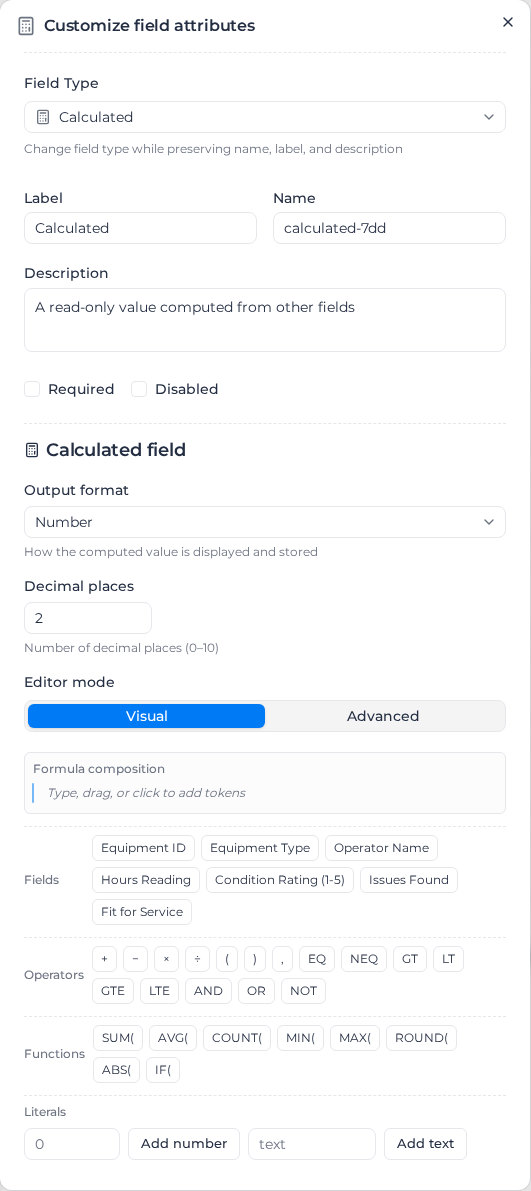
Build the formula
Editor mode has two ways to write the same formula, and you can switch between them at any time:
- Visual: build the formula from buttons. Pick from Fields, Operators (+, −, ×, ÷, brackets, and EQ, NEQ, GT, LT, GTE, LTE, AND, OR, NOT for comparisons), Functions and Literals (Add number, Add text). Drag the pieces to reorder them.
- Advanced: type the formula. Type
{to pick a field name from a list. On a phone, the editor opens in Advanced mode.
If a formula uses something the visual editor can't show, it says This formula uses advanced syntax — switch to Advanced to edit.
Write only the right-hand side: {qty} * {price}, not total = {qty} * {price}. Refer to a field by its Name in braces, such as {startTime}, not by its label. In Advanced mode the comparisons are written ==, !=, >, >=, <, <=, and AND, OR and NOT are &&, || and !.
A formula can't use Signature, Draw on image, File upload or Map fields, or the Calculated field itself. It can use other Calculated fields: {subtotal} then {tax} then {total} works in any order on the form.
Choose the output format
| Output format | Use it for | Example result |
|---|---|---|
| Number | Quantities and measurements. Set Decimal places (0 to 10) | 42.50 |
| Currency | Money. Set the Currency symbol and Symbol position | $1,099.00 |
| Duration (seconds) | Time between two times or dates | 8h 30m |
| Text | A label from IF, such as "Pass" or "Fail" | Pass |
| Yes / No | The result of a comparison. A result of 1 also shows Yes, and 0 No | Yes |
Text is the only format that can show words, and only IF produces them; there's no way to join text from other fields.
Changing the output format of a published form can break workflows and templates that use the value, because it now arrives in a different shape, for example 1099 instead of $1,099.00.
For Duration (seconds), times and dates on the form are counted in hours, so {endTime} - {startTime} gives the hours between them and shows as 8h 30m. A negative result shows as 0s; check the order of the subtraction.
Functions
| Function | What it does | Example |
|---|---|---|
SUM | Adds numbers | SUM({materials.cost}) |
AVG | Averages numbers | AVG({checks.score}) |
COUNT | Counts the numbers that have a value | COUNT({materials.quantity}) |
MIN, MAX | Smallest and largest value | MAX({readings.value}) |
ROUND(x, places) | Rounds to a number of decimal places | ROUND({subtotal} * 0.1, 2) |
ABS | Drops the minus sign | ABS({variance}) |
IF(condition, then, else) | Picks one of two results | IF({hours} > 8, "Overtime", "Ordinary") |
SUM, AVG, COUNT, MIN and MAX take a list of values, SUM(1, 2, 3), a table column (see below), or both: SUM({materials.qty}, 5). With nothing to work on, SUM and COUNT give 0, and AVG, MIN and MAX show -.
Add up a table column
To use a column of a Table, Material Transaction or Equipment Time field, write the table's name, a dot and the column's name: {materials.cost}. Wrap it in a function to get one number: SUM({materials.cost}).
You can't multiply two columns row by row inside the formula; SUM({materials.qty} * {materials.rate}) doesn't work. Add a cost column to the table and total that instead. Rows hidden by a condition are left out of the total.
When a value is missing
- A field with no answer, or one hidden by a condition, has no value. Arithmetic with it gives no result, and the Calculated field shows
-. Functions such asSUMskip it. - Dividing by zero shows
-too. To show 0 instead, writeIF({count} > 0, {total} / {count}, 0). - A Calculated field hidden by a condition still works out its value, so workflows and other formulas can use it.
When the form won't save
The builder checks every formula when you select Save, and lists the problems under Can't save — fix these calculated fields first:. The usual causes:
- The formula names a field that doesn't exist, often because the field was renamed. Pick the field again, or correct the name.
- Two Calculated fields depend on each other, such as a total that uses the tax and a tax that uses the total. The error shows the chain, such as
total → tax → total.
Changing a formula doesn't change submissions already made. Each keeps the value it was saved with.