

Review submissions
Find, sort and open submissions, edit, copy and assign them, send them back for changes, tag and archive them, download or email them as PDFs, and work through the drafts and assignments waiting for you.
Every completed form is a submission. You can review them across all forms on the Responses tab, or one form at a time from inside the form.
Find a submission
Go to Work → Field. The Responses tab opens on the Feed: every submission from every form, with the most recently updated at the top. A submission someone edited today is on the first page, however long ago it was first submitted.
- Search by form, submitter or assignee in the search box.
- Form narrows the list to the forms you tick. Type in its list to find a form.
- Submitted by narrows it to submissions from the people you tick. It appears only if you have the form-management permission.
- Tags narrows it to submissions carrying the tags you tick. It appears only when your organization has submission tags.
- Client and Project narrow it to submissions that name the clients or projects you tick in a client or project question, including one inside a table. They follow each submission's latest version, so a submission edited to another client moves with it. They appear only if you have the form-management permission.
- All Assignees shows only the submissions assigned to one person. It appears only if you have the form-management permission.
- The Created date filter (All Dates until you choose) narrows the list by the date each submission was created: Today, Last 7 days up to Last 180 days, or a Custom Date Range. Days follow your organization's time zone, the Timezone setting under Localization.
- Column Configurator chooses which columns show, pins them and sets their order. Show all and Hide all switch every column on or off at once, and Reset to Default puts them back.
Where a filter lets you tick several choices, a submission matches if it has any of them. Different filters work together: a submission must match all the filters you've set. If you can only see your own submissions, you see Search, Form, Tags and Created, and the list still holds only your own.
When any filter is set, Clear filters appears beside them. Select it to remove them all and see the full list again. It keeps your sort order.
Sort the list
Click a column heading to sort by it. Last Updated and Created start with the newest, Version with the highest, and Submitted By, Assigned To and Form Template from A. Click the heading again to reverse the order; an arrow shows the sorted column and direction. The sort covers every page, and changing it takes you back to the first page.
- Submissions with nothing to show in the sorted column, such as Automation under Submitted By or an unassigned one under Assigned To, stay at the bottom either way.
- Form Template sorts only the Feed of all forms. The ID, the tags and the form's own questions don't sort.
- On a very large list, a sort other than Last Updated or Created can take too long, and the list says Sorting by this column takes too long for this many submissions. Sort by another column, or narrow the list with a filter first. Narrow it with a filter, such as Form or Created, or open a single form's submissions, then sort again.
The sort, every filter, the Created date range, the page you're on and whether you're looking at the Table or the Map are part of the page address, so they survive a reload and a link you share opens the same list. Switching between Feed and Views keeps them. Opening a form's submissions, or going Back to Feed, starts again from the most recently updated, with no filters.
See where submissions were made
Select Map at the right end of the filter bar to see the submissions that match your filters as points on a map, and Table to go back to the list. Nearby points group into clusters; zoom in to separate them.
- A submission is plotted where it was captured, using the location of the device that sent it. A submission with no location isn't plotted.
- A note above the map says how many matching submissions are on it, such as 12 of 15 matching submissions have a location. If none of them has one, the map says so instead.
- A map shows at most the newest 2,000 located submissions. When more match, the note adds Showing the newest 2,000. Narrow the filters to see the rest.
- Select a point to open that submission, the same as selecting a row in the table.
The map follows the same search and filters as the table. Clear filters doesn't switch you back to Table, and Column Configurator is hidden while you're on the map.
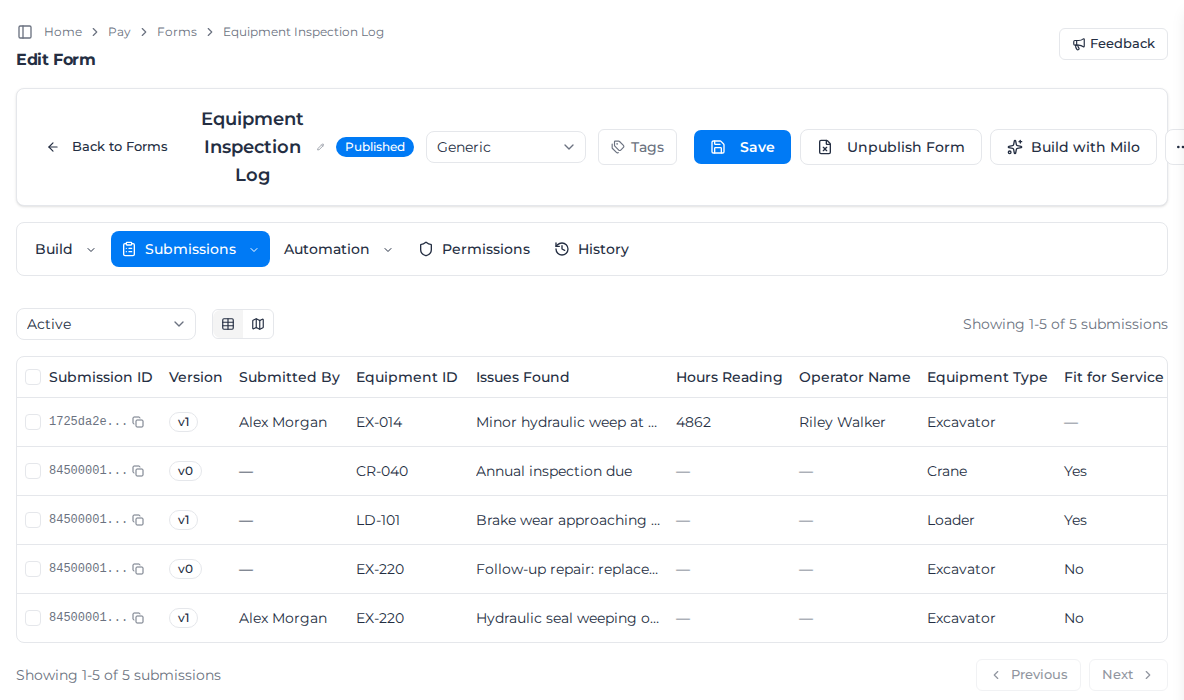
To see one form's submissions with a column for each answer, open the form from the Builder tab and select Data → Submissions. Here you can:
- Show Active, Archived or All Submissions.
- Switch between the table and a map of where each submission was made.
- Tick submissions and select Export selected as PDFs to download them as one combined PDF or as separate PDFs in a ZIP (see Download several submissions at once). You can do the same on the Feed, across forms.
Open a submission
Select … on a row, then View/Edit Response (on the Feed) or View Details (inside a form). Submission Details opens with three tabs:
- Response Data: the answers, with the version, when it was created and who by.
- Version History: every saved version. Select one to see it as it was; View Current goes back to the latest.
- Linked Forms: submissions this one came from or led to (see Link forms together).
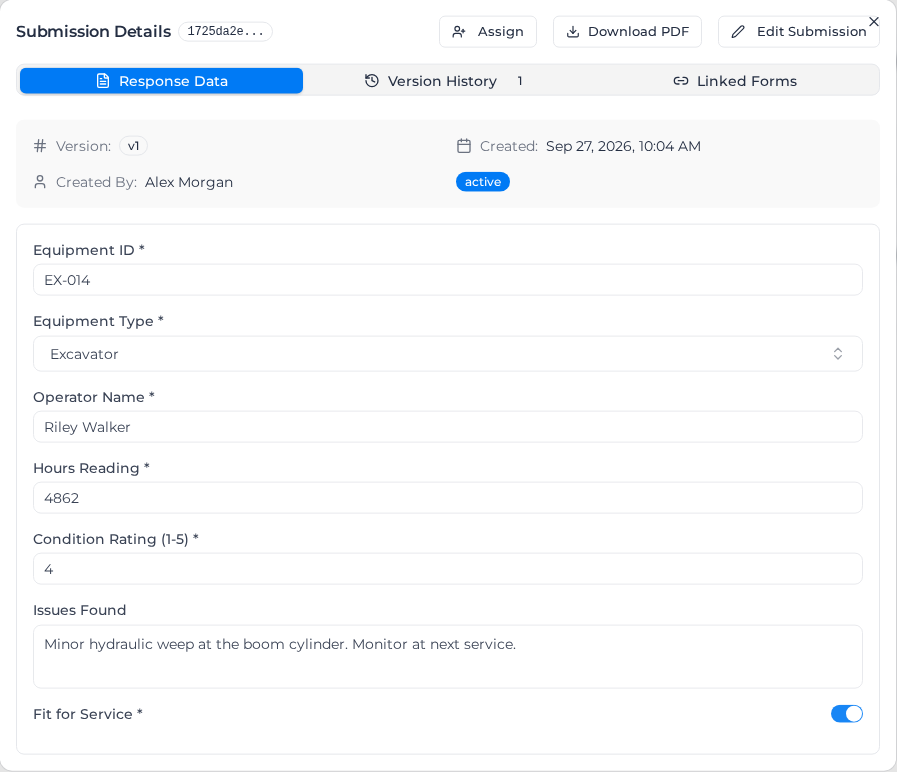
Submissions a workflow created show Automation as the author until a person submits them.
Review attached photos and files
Attached photos appear directly under their question, including attachments in table rows and repeated answers. Each card shows the photo, its filename and its size. Select the filename to open a larger preview, then select Download to save the file.
If the question has a download file name, its attachments show that name in the submission, the form's Data → Submissions list and the preview. The downloaded file uses the same name.
Other files, such as PDFs and spreadsheets, appear by filename. Select the filename to open the preview and download options.
CSV files open as a table. Commas, quotation marks and line breaks inside a quoted value stay in that cell.
If a photo cannot load, its card says Photo preview unavailable. Open the attachment to view or download it. Use the filename to open the attachment. HEIC support depends on your browser; download the original to open it in an app that supports HEIC.
Add a submission from the office
Select Submit a Response on the Responses tab and pick a published form. The form opens for you to fill in. You can also open a form and select Data → Enter Data.
Select Save draft to finish it later, or Submit when it's done. Drafts wait in your In Progress tab.
If this tab reloads while you are filling the form, the answers you entered come back, including a photo that finished uploading. After you select Submit, a reload starts a blank form. Save draft keeps the form under In Progress when you leave and come back later.
Edit a submission
- Open the submission and select Edit Submission.
- Change the answers.
- Select Save Changes. The edit is saved as a new version, and the earlier version stays under Version History.
Exit Edit Mode leaves without saving. Under Version History, View Response Data on a version shows its answers, with who saved it and when.
You can't edit a submission once a worker's timesheet it created is approved, an equipment timesheet it created is approved and priced, a timesheet it created is invoiced or has its pay rate in review, or a material transaction it created is invoiced. Pricing the work does not lock the submission on its own. Editing Not Available opens and says which, for example This submission cannot be edited because one or more of its timesheets have been approved. Please contact your administrator if changes are needed. Ask someone who can move the timesheet back first; see Review timesheets.
If someone else saved it while you were editing
Your save is refused, so it can't overwrite their work. You see This response has changed, with who saved the newer version and when. Your changes stay on screen until you choose:
- Keep my changes: opens the newer version with the answers you changed put back on top, and a message names them. Answers you didn't change show the newer version. An answer you changed is kept whole: a table you edited comes back as you left it, without rows the other person added. Check the form, then select Save Changes.
- Reload latest: discards your changes and shows the newer version. Select Edit Submission to start again from it.
Finishing a saved draft works the same way. If someone else submitted it after you opened it, Submit is refused with This response has changed, and your answers aren't submitted. Reload latest discards the answers on screen and opens the form again.
Assign a submission
Owners, Admins and Managers can assign a submission to someone for review or action.
- Select Assign to in the submission's row, or Assign in Submission Details, or Assign Submission in the row's … menu.
- Choose the person under Assign to and add Notes if they need them.
- Select Assign.
The person gets a notification in the bell, and the submission appears in their Assigned tab with your note. To take an assignment off, open the same dialog and select Unassign.
Send a submission back for changes
If a submission needs fixing, send it back to the person who should fix it rather than editing it yourself. Request changes appears on a submission assigned to you, and on other submitted responses if you have the form-management permission. Without that permission it doesn't appear on a submission whose latest version you saved yourself: you can't review your own work.
- Open the submission, or find its row in your Assigned tab.
- Select Request changes.
- Under Who should make the changes, keep the person who submitted it, or choose someone else.
- Under What needs to change, say what to fix. The note is required.
- Select Request changes.
It moves to their Assigned tab, marked Changes requested with your note, and they get a notification. Until they resubmit it, the submission shows who you sent it back to, with your note. When they resubmit, it comes back to your Assigned tab marked with the version they saved, such as Resubmitted as V2. Open it to check their changes, then select Mark done on its row, or send it back again.
Request changes doesn't appear on a draft, or on a submission that can no longer be edited (see Edit a submission). Where it does appear on one that can't be sent back, such as on its row in your Assigned tab, selecting it tells you why before you write anything: the reason it can't be edited, or Someone has already asked for changes on this submission. It can't be sent back again until that request is resubmitted or cancelled. Select Close to go back.
If the request is refused with That person can't edit this form. Choose someone who can., the form is limited to certain roles or people and the person you chose isn't one of them. Give them access first (see Control form access), or choose someone else. The already asked for changes message can also come up here, when someone sent it back while you were writing.
Cancel a change request
Open the submission from the Responses tab and select Cancel request. It goes back to the Assigned tab of the person who asked for the changes. You can cancel a request you made, and anyone with the form-management permission can cancel any request.
Make the changes you were asked for
When someone sends a submission back to you, it's in your Assigned tab marked Changes requested, with their note.
- Open it. It opens ready to edit, with their note at the top.
- Make the changes.
- Select Resubmit as V2. The number is the version you're about to save.
Resubmit as V2 stays unavailable until you change something. If nothing needs changing, ask the person who sent it back to cancel the request. Once you resubmit, the submission goes back to them and leaves your list; a change request has no Mark done.
Tag a submission
Select Add tags in the submission's row and pick a tag, or type a new name and select Create new tag. A new tag can then be used on any submission. Select the x on a tag to remove it from that submission only.
Archive a submission
Select Archive Submission in the row's … menu and confirm. The submission leaves the Feed and the form's active list. To bring it back, open the form's Data → Submissions, show Archived, and select Restore Submission in the row's menu.
Copy a submission
When a new submission would have mostly the same answers as an earlier one, copy the earlier one instead of filling the form in again.
- Open the form from the Builder tab and select Data → Submissions.
- Select … on the submission's row, then Duplicate.
The copy is added to the list as a new submitted submission with the same answers. A Copy label next to its version marks it; hover over the label to see Copied from another response.
Fields set to Clear when copied in the form builder are left blank on the copy, including any text typed for a choice field's Other option. The copy is still saved as submitted, so a required field set this way stays empty until someone fills it in: open the copy and select Edit Submission (see Edit a submission).
If Duplicate isn't in the menu, the form has copying turned off; see Stop people copying submissions.
Download a submission as a PDF
- Open the submission and select Download PDF.
- Under Export as, choose Form View for the standard layout with every field, or Document Template for the layout you designed for the form.
The PDF downloads as soon as it's ready. The layout comes from the form's print settings; see Customize print formatting or, for a Word template, Upload a Word template.
Download several submissions at once
- Tick the submissions, either in the Table on the Responses tab's Feed or in a form's Data → Submissions. The box in the heading row ticks every submission on the page.
- Select Export selected as PDFs. It appears beside the number you've ticked, such as 5 selected.
- Under Form View or Document Template, choose how to receive them:
- One combined PDF puts every selected submission in a single file, oldest submission first, whatever order you ticked them in. Each submission starts on a new page and keeps its own page sizes, and a Form View export keeps its attachment appendix. The file is named after the form and the number of submissions in it, such as
site-diary-5-responses.pdf. When they come from more than one form, it's named after the number alone, such as12-responses.pdf. - Separate PDFs (ZIP) downloads a ZIP file with one PDF for each submission.
- One combined PDF puts every selected submission in a single file, oldest submission first, whatever order you ticked them in. Each submission starts on a new page and keeps its own page sizes, and a Form View export keeps its attachment appendix. The file is named after the form and the number of submissions in it, such as
On the Feed you can tick submissions from different forms, and Document Template prints each one with its own form's template. Your ticks on the Feed stay as you move between pages, and changing a filter or the search clears them. Clear selection unticks everything.
You can export up to 100 submissions at a time. With more ticked, the menu says You can export up to 100 responses at a time. and its options are unavailable. Untick some, or export them in smaller groups.
They are prepared in the background and download while you stay on the page. If you leave, the download link appears under Background tasks in the notification bell when it's ready. If you tick only one submission, it downloads as its own PDF whichever you choose.
If a submission can't be exported, the others still are, and the notification says how many succeeded and how many failed. A combined PDF is limited to 2,000 pages and 75 MiB. A larger export downloads as the ZIP of separate PDFs instead, and the notification says it was too large to combine.
Include attachments in the standard PDF
Choose Form View to include an attachment appendix after the normal form pages. Photos print on separate pages with their filenames and question labels. Attachments from tables also show their row and column, including nested rows; photos attached to map features are included too.
Each attached PDF starts with a page naming the file and its question, followed by the PDF's original pages in order. HEIC photos are converted for printing. Document Template exports keep the layout defined by that template.
The appendix has these limits:
- 25 MiB per attachment.
- 100 MiB of attachment data per export.
- 200 appendix pages, including photos, attached PDF pages, file title pages and notices.
An unsupported, missing, unreadable or inaccessible file gets an Attachment preview unavailable page with its filename and a reason. The same notice explains when a file exceeds a limit; when the appendix reaches its page limit, a final notice states how many attachments remain. Open the original submission to view or download those files.
Choose the time zone on the standard PDF
The standard Form View PDF prints times in UTC, labelled UTC, for example 2026-09-30 21:30 UTC, so a time reads the same wherever the work happened. To print them in your account's own time instead, such as 1 Oct 2026, 7:30 am AEST (you need permission to manage account settings; without it, Field isn't on your Settings page):
- Open Settings.
- In the index on the side, open Operations and select Field.
- Under Document time, choose Account local time.
- Select Save document time. Document time updated appears.
Account local time uses your account's time zone: the Timezone setting under Localization, or, until one is chosen, the zone of the address under Company details, or else your region's zone (Sydney for an Australian account). Work done in another time zone still shows the account's time, not the site's. To go back, choose UTC and save.
A form that prints from a designed template or an uploaded Word template keeps that template's own times; Document time doesn't change them.
Email yourself a copy
You can have the PDF of any submission you can open emailed to you, such as one you submitted or one assigned to you. It prints the way the form is set up to print: with its uploaded Word template or designed template when it has one, otherwise in the standard layout. You need the permission to view forms; without it, the button isn't shown.
- Select Email me a copy. It's on the Submission Complete! screen straight after you submit, at the top of an open submission, and in the ⋯ menu on each row of the Responses tab. A draft doesn't have it: submit the form first.
- A message shows the address the copy is going to. The email with the PDF attached arrives shortly after.
The copy always goes to the email address you sign in with; you can't send it to anyone else. If the PDF can't reach you, you still get an email that says so:
- We couldn't make your copy: the PDF couldn't be generated. Ask for it again later. When the email says the form's print template couldn't be used, ask the office to check the template first.
- We couldn't email your copy: the PDF was made but was too large to email, usually because of a lot of photos. Ask the office for a copy.
When Email me a copy doesn't send:
- You've asked for a lot of copies in the last hour: you can get three copies of the same submission, and 20 in total, in an hour. The message says how many minutes to wait.
- Your account has no email address to send the copy to: you sign in without an email address. Use Download PDF instead.
Work through your assignments and drafts
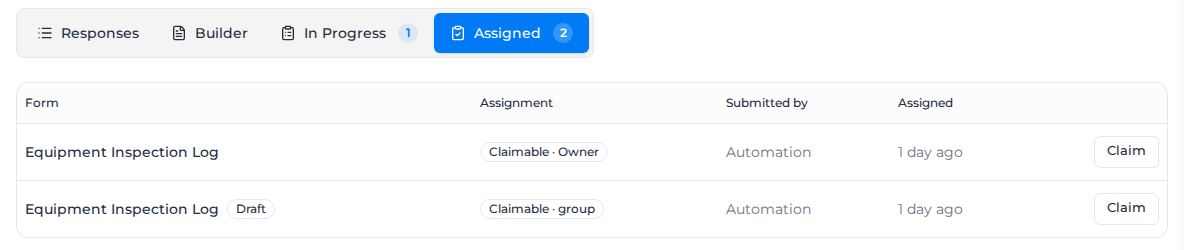
Assigned lists what's waiting for you:
- Assigned to you: given to you directly.
- Claimable · role or Claimable · group: offered to everyone in a role or user tag. Select Claim to take it; it's then assigned to you alone.
Each row shows any note from whoever assigned it. Changes requested marks a submission sent back for you to change (see Make the changes you were asked for), and Resubmitted as V2 one that came back after you asked for changes.
Select Open to work on it. Saving your changes marks your assignment done and takes it off the list. Mark done clears an assignment you dealt with elsewhere. A draft (badged Draft) has no Mark done: open it and submit it, or open it and archive it to remove it. When a draft is submitted, on the web or in the mobile app, every task to fill it in clears, whoever submitted it. Completing a claimable task clears it for everyone in the pool. A change request has no Mark done either: it clears when you resubmit.
In Progress lists the drafts you've saved, on the web or in the mobile app. People who can manage forms (Owners, Admins and Managers by default) can switch from Mine to All to see every draft in the organization, and filter them by form, worker, project, workpack and age.