

Capture map data
Add a Map field so crews can drop points and draw lines and areas on a map, answer questions about each one, and see every submission's shapes on one map.
The Map field lets the person filling in a form mark things on a map: a point for a located service or a defect, a line along a pipe run or a fence, an area around a compound or an exclusion zone. Each shape (a "feature") gets a name, a colour and the answers to questions you set up, such as a depth, a photo or a severity.
Set up the field
- Open the form in the builder and add a Map field from Field Elements.
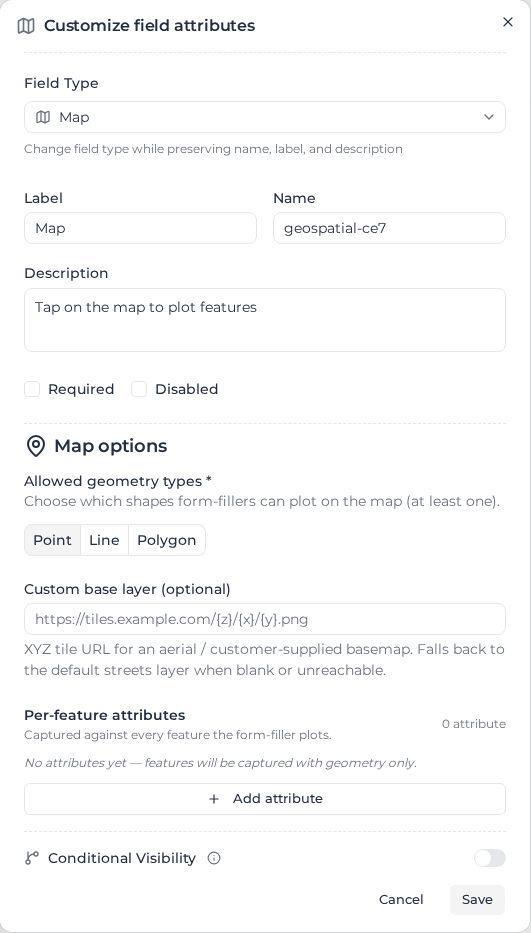
- Open its settings. Under Map options, tick the Allowed geometry types the crew may draw: Point, Line and Polygon (an area). At least one is required.
- To show an aerial photo or site plan instead of the street map, enter its tile address in Custom base layer (optional). The address must contain
{z},{x}and{y}, for examplehttps://tiles.example.com/{z}/{x}/{y}.png. If the layer can't be loaded, the street map shows instead. - Under Per-feature attributes, select Add attribute for each question to ask about every shape. Give it a Label, choose its Type and tick Required if every shape must have an answer.
- Select Save in the dialog, then Save in the builder.
The attribute types are Single-line text, Multi-line text, Number, Select (one of), Multi-select, Date / time, Checkbox, Switch (on/off) and Photo.
A service-locating form, for example, might allow points and lines and ask for the utility type (Select (one of): gas, comms, power, water), the depth (Number, required) and a Photo.
Fill in the field
The map has a toolbar in its top-left corner. It only shows the tools for the shapes the form allows.
| Tool | What it does |
|---|---|
| Select & edit features | Pick a shape, drag a point, or move the corners of a line or area |
| Draw point | Tap the map to drop a point |
| Draw line | Tap each point along the line, then tap the last point again to finish |
| Draw polygon | Tap each corner, then tap the first corner again to close the area |
| Use my current location | Drop a point where the device is, using its GPS. Shown only when points are allowed |
| Delete selected feature | Remove the selected shape |
Pinch or scroll to zoom. The full-screen button in the top-right corner gives more room on a phone. Tapping the map with Select & edit features chosen doesn't draw anything: pick a drawing tool first.
When a shape is finished, its panel opens (beside the map on a computer, below it on a phone). Give it a Name in place of the default "Feature 1", such as "Hydrant near gate", pick a Color (one of eight, or + for any colour by colour wheel or hex code; blue until you change it), and answer its questions. Required questions are marked; the form can't be submitted until every shape has them. Select another shape to switch to its panel.
Use my current location asks for location permission the first time. If it can't get a position, the toolbar says why:
- Location permission denied. Enable it in your browser settings to use your current position.
- Your device couldn't determine your location. Try again or place the point on the map.
- Getting your location took too long. Try again or place the point on the map.
Select Dismiss, then try again or tap the map instead. If permission was denied before, allow location for the site again in the browser's settings.
A photo attribute takes an image file up to 10 MB; other files are refused. If a photo fails to upload, the submission still saves with its shapes, without that photo. The map and its shapes are saved with the rest of the form when the person selects Submit.
If the map stays blank or keeps loading, the map images may be slow to arrive on a weak connection, or blocked by a company firewall; try another network. A custom base layer that can't be loaded falls back to the street map.
See what was captured
Open the submission (see Review submissions). The map shows every shape in its colour and with its name, zoomed to fit. Select a shape to read its answers and open its photos. In a form's submissions table, the map column shows how many shapes each submission has, such as "14 features".
To see the shapes from every submission on one map, open Responses → Views and select the form's Geospatial Map View, or create a Map view of your own (see Set up views).
Anyone who can open a submission can see its map. The Map field has no permissions of its own.