

Customize print formatting
Design the PDF a form's submissions print as, with the built-in editor: place answers with ${field} placeholders, show labels and colours depending on the answers, and control page breaks.
Every submission can be downloaded as a PDF in the standard Form View layout, which lists every field. To print it in your own layout, such as your company's inspection report, design a template for the form. The PDF then offers Document Template as well.
A form prints from one of two templates:
- In-app editor: design the page in Assignar Pay. This page covers it.
- Uploaded merge template: upload a Word document with merge tags. See Upload a Word template.
Design the template
- Open the form from the Builder tab.
- Open the Form Builder menu and select Customize Print Formatting.
- Select the In-app editor card.
- Type and format the page: headings, text, tables, lists, images and colours, with the toolbar above the page.
- To put an answer on the page, click where it goes, then select the field under Available variables. It's inserted as a placeholder such as
${inspector_name}. - Select Preview to see the page with sample answers, and Edit to go back.
- Select Save at the top of the builder.
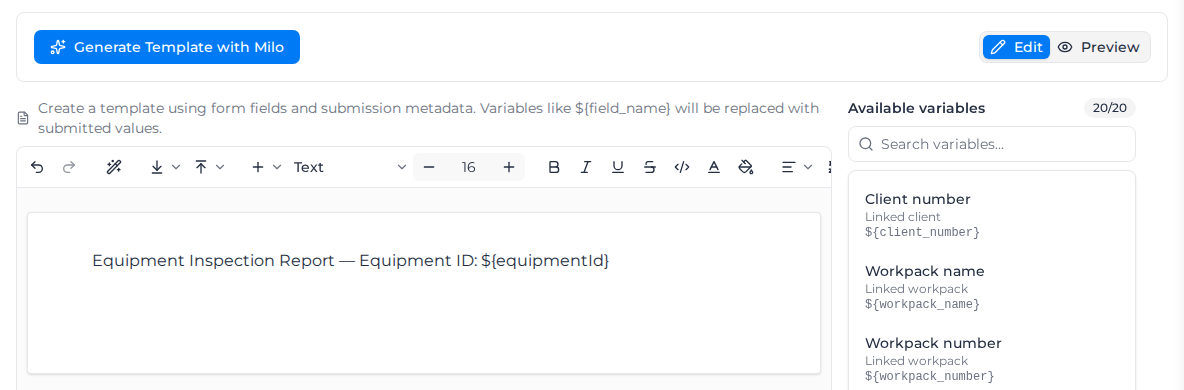
Generate Template with Milo drafts a template from the form's fields for you to edit. While you write, Ask AI (Ctrl + J, or ⌘ + J on a Mac) and the suggestions that appear as you type know the form's fields and insert the right placeholders.
Available variables lists two groups; search it to find a field quickly.
- Submission metadata:
${submission_id},${submitted_by},${submission_date},${submission_time},${submission_datetime},${version},${form_title}, and the linked${project_name},${project_number},${client_name},${client_number},${workpack_name}and${workpack_number}. - Form fields: one placeholder per field, using the field's Name from the builder.
A Table field placeholder prints the whole table, one row per row the person filled in.
Show text depending on the answer
A placeholder can print different text depending on the answer. The text choices go in quotes, single or double.
| To print | Write | Result |
|---|---|---|
| One text when there's an answer, another when there isn't | ${comments ? "See below" : "None"} | "See below" when there are comments |
| The opposite | ${!permit_number ? "No permit" : "Permit attached"} | "No permit" when it's empty |
| One text when the answer equals a value | ${result === "Pass" ? "PASSED" : "FAILED"} | "PASSED" when the answer is Pass |
| One text when it doesn't | ${risk !== "Low" ? "Review required" : "OK"} | "Review required" for Medium or High |
== and != work the same as === and !==. An answer counts as empty when it's blank, false, no, No or 0. Field names are case-sensitive, and compared values must match exactly, capitals included.
Colour the result
Add | and a colour after either text choice:
PPE worn: ${ppe_worn ? "Yes|green" : "No|red"}
Result: ${result === "Pass" ? "PASSED|pass" : "FAILED|fail"}
The colour is optional on each side, so you can colour only one of the two texts. The colours are red, green, blue, yellow, orange, purple, pink, gray, black and white, plus success, ok and pass (green), error, danger and fail (red), warning (yellow) and info (blue). A hex code such as #22c55e or an rgb(34, 197, 94) value works too. The colour shows in the preview and in the PDF.
Lay out the pages
- Insert a page break to start the next part on a new page, such as a sign-off block or a photo log. It shows as PAGE BREAK in the editor.
- Every page gets a footer automatically: the page number in the middle and powered by AssignarPay · Generated [date] on the right. The standard Form View layout also carries your organization's logo in the top-right corner.
Print a submission with the template
Open the submission, select Download PDF, and choose Document Template under Export as. See Review submissions.
When a placeholder prints as written
A placeholder whose field has no answer, or whose name doesn't match a field, prints exactly as typed, such as ${inspector_name}. Check the spelling against the field's Name; insert it from Available variables to be sure. If the field was renamed, insert it again.