

Language and region
Choose the language Assignar Pay is shown in, and set your organization's region, units and timezone.
Your language is a personal choice: it changes the words on screen for you alone. Your organization's region, units and timezone are shared: they set currency, measurements and the calendar day for everyone in the organization.
Choose your language
Assignar Pay is available in three languages:
| Language | Code |
|---|---|
| English (US) | en |
| English (Australia), with Australian spelling such as organisation and colour | en-AU |
| Spanish | es |
The first time you open Assignar Pay, it uses your browser's language if it matches one of these. A browser set to Spanish opens in Spanish, and a browser set to Australian or British English opens in English (Australia). Anything else opens in English (US).
To switch language:
- In your browser's address bar, add the code straight after the site address, before
/home. For example, change.../home/your-team/timesheetsto.../es/home/your-team/timesheets. - Press Enter. The page reloads in that language.
Assignar Pay remembers your choice in this browser, so it stays in that language until you switch again. To go back to English (US), add /en before /home the same way.
Change the language from the address bar, as above. The Language setting on your profile page doesn't change it.
In Spanish, some words stay in English, including the names Assignar Pay uses for clients, projects and cost codes.
Set your organization's region
Your region sets the currency Assignar Pay uses for amounts, and the units it defaults to.
- In the sidebar, select Settings, then General.
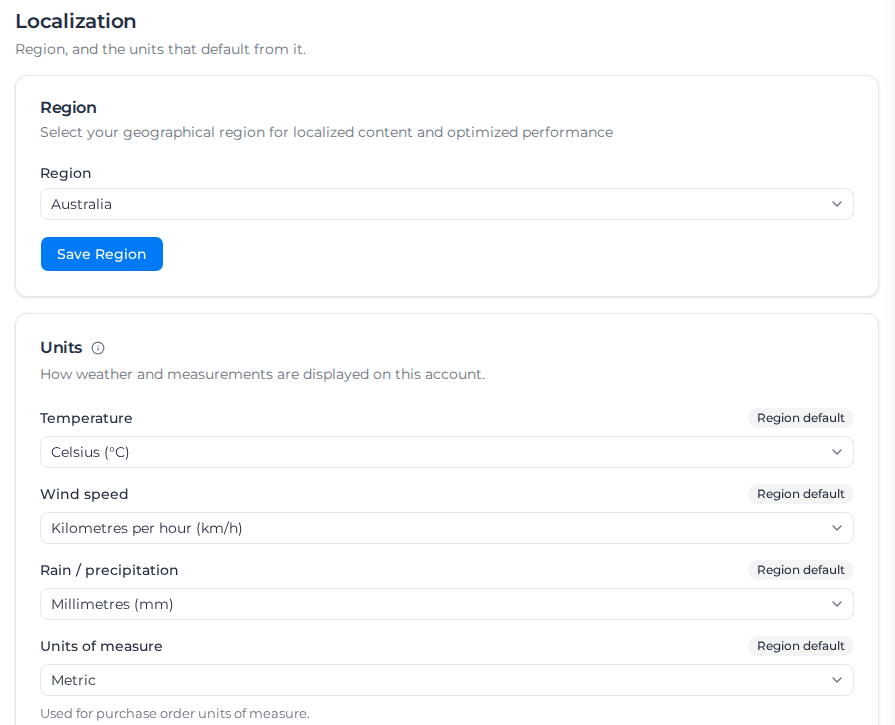
- Under Localization, choose your Region: United States, Canada, Australia, New Zealand or Europe.
- Select Save Region.
Name your dockets
A docket is the record of rate based work: a submission to a form marked as a docket creates Schedule of Rates transactions, so the work can be invoiced. Your region decides what Assignar Pay calls it until you choose your own name:
| Region | Default name |
|---|---|
| Australia, New Zealand, Europe, or no region set | Docket, Dockets, Docketed |
| United States, Canada | Field Ticket, Field Tickets, Ticketed |
The name shows everywhere dockets appear, in Assignar Pay and in the mobile app: the Schedule of Rates tab, invoices, billable units, reports and the form builder's switch that marks a form as a docket.
To use your own name:
- In Settings, open Terminology.
- Fill in Docket (singular, rate based work), Dockets (plural, rate based work) and Docketed (time recorded on a docket). A blank field shows your region's name as its placeholder, and the note under the fields says which name a blank field uses. Select the info button beside Docket or Dockets for a reminder of what a docket is.
- Select Save Terminology.
A name you type stays as you set it, even if the region changes. Clear the field to go back to your region's name.
The Daily Record fields on the same card name a different record, not dockets.
Change the units Assignar Pay shows
Units control how weather and measurements are displayed: on the dashboard's Site weather widget, in the Weather field on forms, and in the units offered on purchase order lines. A form's weather answers show in your units too: on the Responses tab, in the form's submissions, in table views and their Export CSV and Export Excel files, and in PDFs.
In Settings, go to Localization, then Units.
Choose each unit you want to change:
Setting Choices Temperature °C or °F Wind speed km/h or mph Rain / precipitation mm or in Units of measure Metric or Imperial Select Save.
A unit marked Region default follows your region. United States accounts default to °F, mph, inches and Imperial; every other region defaults to °C, km/h, mm and Metric. When you choose a different unit, it stays as you set it even if the region changes later. To make it follow the region again, select Use region default beside it, then Save.
Assignar Pay always stores weather readings in metric. Changing Temperature, Wind speed or Rain / precipitation only changes how readings are shown. When you type a reading in your chosen unit, Assignar Pay converts it for you.
Units of measure works differently. It decides which units you can pick on a purchase order line: metric units such as metres, square metres and tonnes, or imperial units such as feet, square feet and tons. Each line keeps the unit it was saved with, so changing this setting does not change existing purchase orders.
Set the timezone your days run on
Your organization's timezone decides which calendar day it is for your team: what counts as today on the schedule, when something is due, and when it becomes overdue. It doesn't change the time anything happened.
Until you choose one, Assignar Pay works it out from your company address, then from your region, and uses UTC if neither is set. The Timezone card says which it is using, for example "Derived from your company address (Australia/Perth). It follows the address until you choose a timezone."
When the timezone comes only from your region, or from UTC, it is a guess: your region's reference timezone can be hours away from your crews (a United States organization runs on New York time). The card then asks you to choose your timezone so that today, due dates and the schedule match your crews' day.
To set it:
- In Settings, go to Localization, then Timezone.
- Search for and choose your timezone.
- Select Save Timezone.
Your team's days now follow that timezone. To go back to the worked-out timezone, select Use the derived timezone.
If you work in a different timezone from your organization, pages where a day or a clock time follows the organization's timezone show a small globe with the organization's current time, for example "Chicago · 8:56 pm Tue 6 Oct". It appears on the scheduler, in its time editors, on My Shifts, and on forms with date and time fields. Point to it to read which times it covers. While the timezone is only a guess from your region, the tip says so and asks you to set the Timezone. People in the same timezone as the organization don't see it.
Timesheets, dockets and equipment time filed from a form or a check-in land on the organization's day and clock, not the clock of the worker's phone or browser. Fatigue checks, the default period on Timesheets, a supplier's response expiry and the dates an offering is valid also use the organization's day.
You need permission to manage your organization's settings to change the region, units or timezone.