

Use My Shifts
How your workers see the shifts you schedule, file a timesheet for each one with the hours they actually worked, and record work nobody scheduled.
My Shifts is your workers' side of scheduling. It shows each worker their own shifts, day by day, and they file a timesheet for each shift from there. It works on a phone as well as a computer.
Field workers find it in their sidebar as My Shifts. Owners, Admins and Managers who are also on the schedule find it under Work, then My Shifts. Each person sees only their own shifts and timesheets.
Before your workers can use it, see Set up scheduling.
See your shifts
My Shifts opens on today, your organization's day. If your phone or browser is in another timezone, the organization's current time shows beside the date. Use the arrows either side of the date to move a day at a time, and select the date to come back to today.
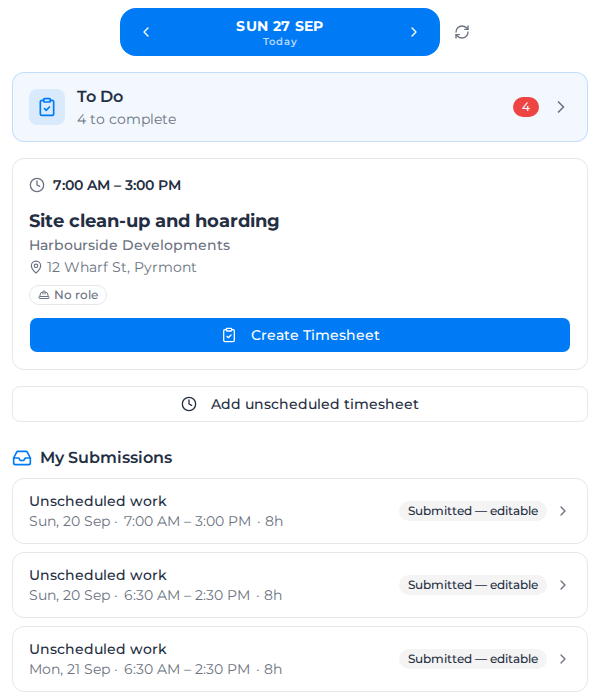
- Each shift shows its times, the order, the client, the site and the role, or No role. An operator's shift shows the machine they need. When the order gives the role a description, such as Deliver 3rd load 550 CW, it shows under the role. Select the site address to open it in maps.
- To Do counts the shifts still to file, such as 4 to complete. Select it to see them and jump to one.
- My Submissions lists the timesheets already filed with their status. Show all lists every one.
To see more about the job, such as its description, who to call on site or its documents, select Job details on the shift. It opens under the shift and shows what your organization has chosen to show you; see Choose what workers see about a job. Under Your other days on this job, select a day to go to it. "No more details for this shift." means there's nothing more to show. If you see "Couldn't load the job details.", select Retry.
When documents are shown, Documents lists each file as This shift, Order document or Project document (not specific to this order). Select the file name to open it. See Share files with workers.
A shift on a future day can be looked at but not filed, because a timesheet records work that has happened. You can go back a limited number of days; further back, the page says to contact an admin.
File a timesheet for a shift
- On the shift, select Create Timesheet. The timesheet opens with the shift's details and times filled in.
- Under Activities and Breaks, choose the Activity you did and change Start and End if the day ran differently. Real times always win over the plan.
- Select Activity to add another activity, or Break for each break.
- Add any Equipment, Allowances and Materials you used, and Comments.
- Sign, then select Submit. Save draft keeps it to finish later.
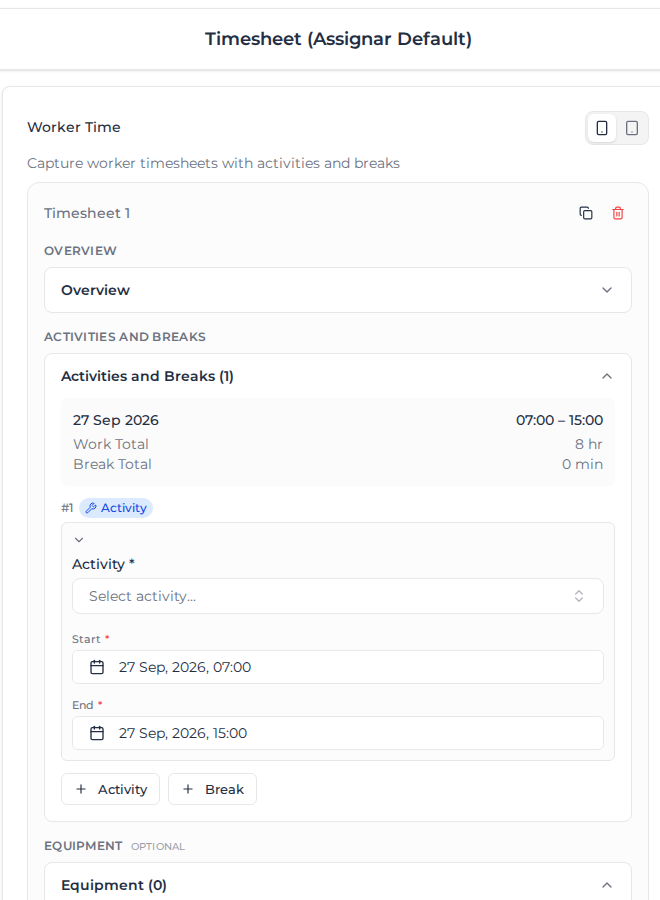
Each shift takes one timesheet. Once filed, the shift shows Submitted with the filed times and offers Edit instead. Breaks don't count as paid time. A shift that runs past midnight can be filed as one timesheet. If the hours overlap another of your timesheets, you see "These hours overlap another of your timesheets" and it can't be submitted until you change them.
If you work through a supplier and your organization lets workers choose, the timesheet's Worker & Job section shows Purchase Order line, listing your supplier's open purchase order lines for that job. Leave it on Default line and Assignar Pay picks the line for you.
If your organization has supervisors submit timesheets, the shift says "Your supervisor submits the timesheet for this shift." instead.
Capture a paper docket in the mobile app
If your organization and the project have paper dockets turned on, anyone on the shift can upload a photo of the paper from the mobile app. Your office sets this up; see Let workers capture paper dockets.
- In the mobile app's My Shifts, tap Capture paper Docket on your shift.
- If there's more than one template, choose the one the paper should fill under Docket template.
- Tap Take photo, Choose photo or Choose PDF. Include the whole sheet, and keep the file to 25 MB or less.
- Tap Upload for office review. Uploaded for office review confirms the office can now review it on the web.
You need an internet connection to upload. If the upload fails, your photo stays in the capture sheet: reconnect and tap Retry upload. If you see "Paper docket capture is no longer available for this shift. Check with your office.", ask your office to check that you're still on the shift and that paper capture is still on for the project.
Record work nobody scheduled
Select Add unscheduled timesheet. Choose your Role and, if you know them, the Client, Project and Order, then fill in and submit the timesheet as above. It's listed as Unscheduled work. Nothing stops you filing work that wasn't planned; the record matters more than the plan.
Change a timesheet you filed
| Status | Means |
|---|---|
| Submitted — editable | You can still change it. Open it and select Edit. |
| Processed — locked | Payroll has processed it. Ask your admin to change it. |
| Needs review | Payroll couldn't process it. Ask your admin. |
| Held: over purchase order limit | The time goes over the purchase order it's booked to, so it's held until the purchase order is increased. Then it's approved. |
Every change is kept in the timesheet's history.