

Set up a schedule of rates
Build the rates you charge a client, from an uploaded schedule or from scratch, and price timesheets and dockets against them.
A schedule of rates is the price list you charge a client: an hourly rate for each role or machine, day and night and weekend rates, allowances, fees and minimum charges. Assignar Pay turns each schedule into charge rules and prices your timesheets and dockets with them, ready to invoice.
You find schedules in the sidebar under Revenue, then Schedule of Rates. The page has a Schedule of Rates Transactions tab, where work is priced, and a Schedule of Rates Documents tab, where you keep the schedules themselves. Owners, Admins and Managers can create, edit and delete schedules.
Add a schedule
- Open Schedule of Rates Documents and select Add New.
- Choose Upload a document to start from your client's schedule as a PDF, or Author rules manually to type the rates in yourself.
- Enter a Name, for example "Harbourside Developments Rates 2026".
- Choose the Scope: Global for everyone, or Client, Project or Tag to limit it. See Choose who a schedule applies to. To record what a supplier charges you instead, choose Supplier rate card: see Set up a supplier rate card.
- Set the Effective Date, the day the rates start. If you already know the last day they apply, set it as the End date (optional); otherwise leave it empty (see Stop using a schedule from a date).
- Leave Status as Draft. A schedule becomes Active only when you activate its charge rules.
- Select Continue to upload the PDF and then Upload File, or select Create & author rules.
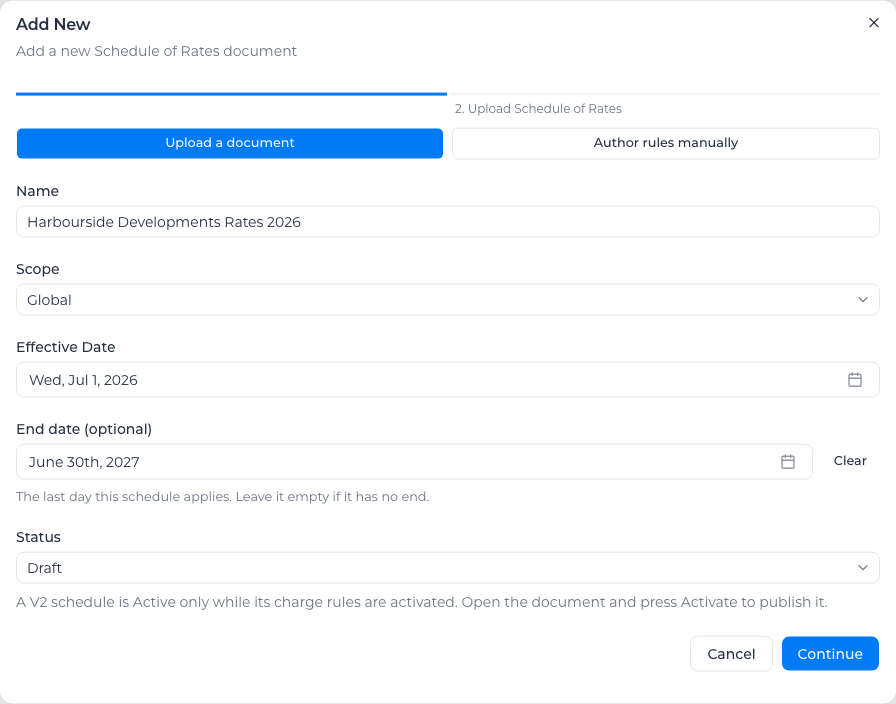
From an uploaded PDF, Assignar Pay compiles the charge rules for you. You then review them against the document before you activate them.
When you review extracted rates in a table, a divider separates each item from the next. All the rates beneath an item name belong to that item, so you can check its tiers together.
Each schedule's ... menu has Edit, Duplicate, Charge rules (V2), Preview rate sheet, Upload document and Delete. Duplicate makes a Copy of the schedule, with its dates, charge rules, items and role links, that stays in Draft until you activate it.
Review and activate the charge rules
Select Charge rules (V2) on a schedule to open its rules.
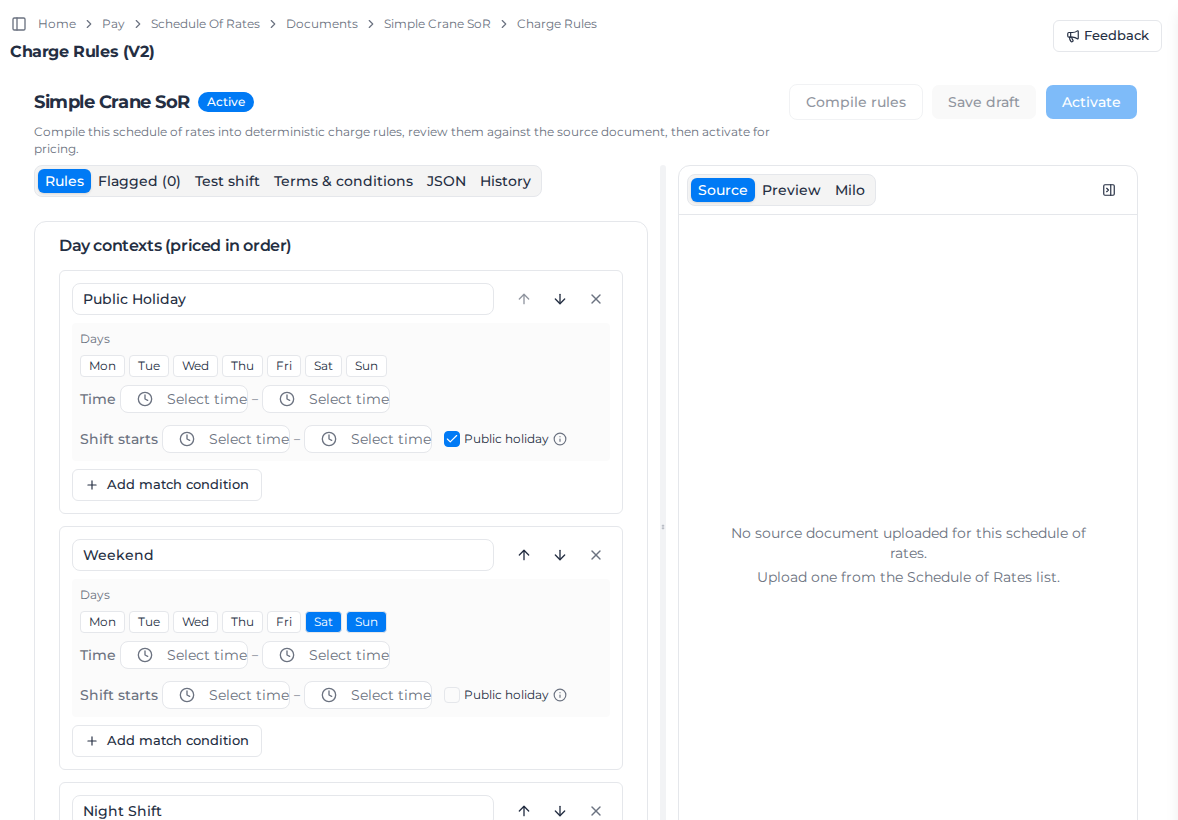
- Compile rules reads the uploaded document and builds the rules. Re-compile discards every manual change and starts again, so Assignar Pay asks first.
- On the Rules tab, Day contexts set which rate applies when, for example weekday day shift, night shift, weekend and public holiday. They're checked top to bottom and the first match wins, with a Catch-all last.
- Below them is each charge item with its unit and rates. Use Add item, Add allowance, Add fee, Add minimum charge and Add rounding rule for anything the document missed.
- Give each item a cost code, so every timesheet resolves to the same item every time.
- Flagged lists what needs your attention, and Test shift lets you try a shift and see how it would be charged.
- Save draft keeps your changes without using them. Activate makes them the rates that price work.
Hour bands on a day split by breaks
An item's hour bands count the hours worked in the whole shift. For example, 0–8 hours at the ordinary rate and overtime after that. A timesheet split into activities by a break, such as work, an unpaid break, then work again, is one shift. The bands run across its activities in the order they were worked, so 4.5 hours before the break and 6 hours after it bill 8 hours at the ordinary rate and 2.5 hours at overtime. Unpaid breaks don't count toward a band.
Each activity is still its own line on the charge, and its day or night rate follows its own times. The timesheet's allowances and fees apply once: a percentage fee is calculated on every activity's lines, and an allowance that starts after a number of hours counts the whole day. A minimum charge also applies once, to the whole day, and a percentage fee includes it. A switch to a day rate (see Switch from an hourly rate to a day rate) counts the whole day's hours, and the day rate replaces every activity's hourly lines.
Timesheets priced before this change keep their old amounts until you price them again. Select Process with Force recalculation.
Charge a percentage of travel hours
A percentage fee is calculated on the priced lines and leaves travel out, unless you tick Include travel hours on that fee.
- With no items or sections selected, the percentage is of the travel charge only. The travel rate stays what you set, and the percentage is its own line.
- Select items or sections as well, and the percentage covers those lines plus the travel charge.
- A fee set to a fixed amount ignores Include travel hours.
Travel is still billed on its own line. It is not added to a minimum-hours top-up.
Set a minimum quantity
Add minimum charge starts as a minimum number of Hours, which tops a short shift up to that many hours. Choose Quantity when the minimum is an amount of material, such as a tip docket that must bill at least a set quantity at the same unit rate.
- A docket quantity above zero and below the minimum bills the minimum. A quantity at or above the minimum is unchanged. A docket with no quantity, or a quantity of zero, is left as it is.
- Leave no items or sections selected and the minimum applies to every material line. Select items or sections to limit it.
- Quantity does not reprice an hourly rate, a scoop price, or a price that depends on which quantity bucket was picked. Those lines keep their own price.
When you change an active schedule, your edits go into a pending version. The active version keeps pricing work until you select Activate, or you can discard the pending version.
When you activate a schedule that isn't active yet and an active schedule with the same scope covers some of the same dates, Activate first asks Activate with an overlapping schedule? and lists those schedules with their dates. Tick End schedule name on date to end an earlier one the day before this schedule starts, then select Activate. The checkbox appears only when ending the earlier schedule leaves no gap: see Stop using a schedule from a date. With nothing ticked, both stay active (see Which schedule prices the work).
Find your way around a long list of items
Each charge item starts open inside its group: Labour, Equipment or Material, or Items if the schedule doesn't split them by type. Collapse all, next to the search box, closes every group. Collapse items, at the top of a group, closes only that group's items so you can read their names and open the ones you're editing; Expand items opens them again. Items you closed stay closed if you close and reopen the group.
Charge by role or asset class
Some clients bill equipment by the role a job was booked under rather than by the machine that was sent: a 25 tonne crane sent to an "80–90t Rough Terrain" booking still bills at the 80–90t rate.
On the charge item you want to bill at:
- Use Link role to pick the roles that charge at this item's rates. You can link several roles to one item.
- Use Link asset class to do the same for a whole class of machines.
- Leave the item's cost code set to the code you export to your accounting system. The links decide which item prices the shift; the cost code stays your accounting code.
Above the charge items, Suggested role links and Suggested asset class links list matches from the item's name and cost code. Each match is marked High, Medium or Low. Select Accept on a row, Accept all high confidence for the strong matches, or Accept all shown to take every row on the list. Accept all shown asks first, and it includes the weaker matches. An asset class still links to only one item, so when several items match one class only the strongest is accepted. Select Refresh suggestions to match again. Copy role links to… and Copy asset class links to… copy the saved links onto other schedules and leave links those schedules already have where they are. Save the draft before you copy.
- An asset class can be linked to only one charge item. If another item already has it, the picker says which, and linking it here moves it.
- A role can be linked to several charge items. That's how crew rates work (see below).
- A link wins over matching by name or cost code, so charging by role overrides what the allocated machine would have suggested.
- A rate set for one specific machine still wins over a class or role link.
- Changing links is a change to the charge rules: on an active schedule it waits in the pending version until you select Activate.
Charge a crew rate
Some clients price a crew rather than each worker in it: a "1-Flagger", "2-Flagger" and "3-Flagger Traffic Control Crew", for example. Set Crew size included in this rate on each of those items, and link the crew roles to all of them. A docket then bills one crew charge for the workers who worked together, at the item for the crew's size.
- Where the crew size comes from. If the docket form asks how many workers were in the crew, map that question to Crew size (family rate) in Map Docket fields. Otherwise Assignar Pay counts the workers whose shifts overlap.
- Which workers count. A worker joins the crew through the role recorded on the docket. Workers linked through different roles are still one crew when those roles charge at the same crew items.
- Dockets that record no role. If the docket's Workers group records only who worked and when, and the rate schedule has one set of crew items, those workers are charged at that crew. If it has more than one set, Assignar Pay can't tell which crew they were, so the docket is flagged for review. Add a Task field to the Workers group to fix it.
- A role missing on some workers. If some workers on a docket have a role and others don't, the ones without a role aren't added to the crew. The docket is flagged for review so someone can record their Task.
- A crew size nothing could use. If the docket declares a crew size but no worker matched a crew item, the docket is flagged for review rather than billed without a crew charge.
- Crew items that aren't linked. Crew items are only one crew when a shared role or cost code links them. If they aren't linked, Assignar Pay doesn't treat them as one crew, and the docket is flagged for review with a note saying so. Link the crew roles to all of them to fix it.
Copy a charge item
On an item, allowance, fee or minimum charge, use Duplicate item, Duplicate allowance, Duplicate fee or Duplicate minimum charge. The copy is named Copy of … and is inserted after the original, so you can change its rates, links or hour threshold without touching the source.
Copy a fee, allowance or minimum charge to other schedules
When several schedules need the same fee, allowance or minimum charge, set it up once and copy it to the rest. You need permission to update schedules of rates.
- Select Save draft if you have unsaved changes. The copy is taken from the saved schedule.
- On the fee, allowance or minimum charge, select Copy to other documents… (the icon next to the duplicate icon).
- Pick the schedules to copy to. Narrow the list with Search documents, Scope and Status, then tick them one by one or select Select all shown. The schedule you're copying from, archived schedules and schedules generated from a quote aren't listed.
- Under If a document already has … with this name, choose Skip that document (the default) or Add it as a copy, which names it Copy of ….
- Tick Make the copy live on active documents if the copy should start pricing straight away.
- Select Copy to N documents.
Results lists each schedule as Copied, Skipped or Failed, with the reason for anything not copied. A copy that went live is marked Live.
The items and day contexts the rule applies to are matched by name in each schedule. If a schedule has no item or day context with that name, or more than one, it's skipped rather than given a rule that applies more widely. The reason says what was missing, for example No item named "Excavator 20t", or how many matched. Add or rename the item in that schedule, then copy again.
When the copy goes live:
- Draft schedules get the copy straight away.
- Active schedules get it as unpublished changes, unless you ticked Make the copy live on active documents. These show Not live yet — review and activate with an Open charge rules link. Check the copy there and select Activate.
- Active schedules that already had other unpublished changes are never made live by the copy, even with the box ticked, because activating would also publish someone else's unfinished edits. They show Has other unpublished changes — review and activate. Review all the changes on that schedule before you select Activate.
Switch from an hourly rate to a day rate
On an hourly item, turn on Switch to a day rate above an hour threshold and enter the threshold.
- When the boundary is inclusive, the day rate applies at that many hours and above.
- When the boundary is exclusive, the day rate applies only above the threshold; exactly that many hours still bills hourly.
Use this when a client pays hourly up to a point, for example 8 hours, and then a flat daily amount.
Price equipment by activity
A dry hire charge carries an activity as well as the machine's cost code: on-hire time, a mobilisation, a de-mobilisation or a stand-down. An equipment item can price each activity differently.
On the equipment item, add a rate and select Price an activity on it. Pick the activity, then choose Per day (or the item's own unit) to charge for the time the charge covers, or Once per charge for a flat fee. Then enter the amount. To charge nothing on purpose, tick No charge: the charge goes on the invoice marked no charge. A new rate starts at $0, and a $0 rate without No charge ticked is treated as not priced yet, so its charges are flagged for review.
- A per-day rate bills whole days, rounded up, with a minimum of one day, the same way the base rate does. A per-week rate rounds up to whole weeks, even when the item has a Part weeks setting: that setting applies to the item's own weekly rate. A per-hour rate bills the hours.
- On-hire time is priced by the rate for your On hire activity when the item has one, and by the item's base rate when it doesn't. Because on-hire time is billed in stretches, a rate for it must be charged per day (or the item's unit), not once per charge.
- The item's base rate prices on-hire time, so it can't also be an activity rate.
- An activity can have only one rate on each item.
- A mobilisation, de-mobilisation or stand-down whose activity has no rate on the item is flagged for review rather than priced.
- An activity rate bills on its own. If the item also has allowances, fees, a minimum charge or rates that change by time of day, those aren't added to it, and the charge carries a note saying so.
Which activity each part of a hire carries is set in Settings. See Bill a dry hire.
Bill a part week on a weekly rate
An equipment item priced Week at a Flat rate rounds a part week up to a whole week: nine days is two weeks. To bill it another way, choose a Part weeks option next to the item's unit:
- Round up is the default: whole weeks only.
- Pro-rata (÷7) bills days ÷ 7 weeks, counting every calendar day. Nine days at $3,050 a week is 9 ÷ 7 = 1.29 weeks, $3,921.43. The invoice line reads 1.29 × $3,050.00 = $3,921.43: the amount comes from the exact days, so it can differ by a few dollars from the rounded weeks times the rate.
- Extra days at bills the whole weeks at the weekly rate, then the leftover days at a day rate you pick, never more than one more week. Nine days at $3,050 a week and $600 a day is 1 week plus 2 days, $4,250. The invoice shows a weeks line and a days line.
- Pro-rata (÷5): a full week costs the weekly rate, and each extra day costs a fifth (20%) of it, weekends included. Five or more extra days cost one more week. Nine days at $3,050 a week is $3,050 plus 2 × $610, $4,270.
For Extra days at, the day rate is another rate on the same item. Add it with Add rate, as a dollar amount or derived from the weekly rate (for example × 0.2). It can't be the weekly rate itself or a rate that prices an activity. If you delete it, or change the item's unit or pricing, the item goes back to rounding up.
Which to choose depends on your hire terms. Many Australian and UK hire companies charge extra days at a fifth or a seventh of the weekly rate. US rental terms usually charge extra days at the day rate, up to the weekly rate.
The days count the same way as a day rate: a part day is a whole day. A charge that's already priced keeps its amount until it's processed again.
Each charge counts its own days. With Extra days at or Pro-rata (÷5), a hire billed as 4 days and then 5 days is priced as two short hires, not as 1 week and 2 days. So bill these hires to whole weeks from the on-hire time, or use Pro-rata (÷7), which gives the same total however the hire is split, as long as each bill ends at the on-hire time of day. A bill that ends at another time rounds its part day up, so the next bill counts that day again.
Choose who a schedule applies to
- Global schedules apply to all work. Set these up first as your standard rates.
- Client schedules apply to one client's work, for negotiated rates.
- Project schedules apply to one project, for jobs with their own pricing.
- Tag schedules apply to work whose client, project or order carries a tag you choose.
Tag-based schedules
Use a Tag scope when the same rates apply across many clients or projects that share something, such as a zone ("Metro", "Remote") or the kind of job.
- Choose one or more client tags, project tags or order tags. The schedule applies when the work's client, project or order carries any of them; one match is enough.
- A tag schedule with no tags chosen matches nothing. You can save it that way while you set it up, but it prices nothing until you add a tag.
- Tags are read when the work is priced, so keep the tags on your clients, projects and orders up to date.
Supplier rate cards
A Supplier rate card holds the other side of the price: the rates a supplier charges you for their consultants and agency workers. Assignar Pay uses it to work out what each hour of their workers' time costs against your purchase order. It never prices what you charge a client, and it's never picked for a timesheet, docket, quote or invoice. See Set up a supplier rate card.
Which schedule prices the work
When more than one schedule could price the same timesheet or docket, Assignar Pay picks the most specific one that applies:
- Project
- Client
- Tag
- Global, when nothing more specific applies
A schedule only counts if it applies to that work: a project schedule for a different project, or a tag schedule whose tags the work doesn't carry, is not used. So a tag schedule never overrides a client's or project's own schedule.
A schedule also only prices work dated from its Effective Date to its end date, both days included. Pricing work from an earlier period again, for example with Force recalculation, still uses a schedule that has since ended for the dates it was in force.
When two schedules are equally specific, the one with the later Effective Date wins. That includes two tag schedules matching on different kinds of tag: a client-tag schedule effective in June beats a project-tag schedule effective in May. To make one win, give it the later effective date.
This order is a ranking, not a hard block. The best match is what Assignar Pay normally picks, but a lower-ranked schedule can still be used when it's the only one that fits the work recorded on the transaction. To see which schedule priced a transaction, select View in its row menu on the Schedule of Rates Transactions tab.
Set up a supplier rate card
When a supplier's consultants or agency workers book time to your purchase orders, a supplier rate card prices what that time costs you. The workers must be linked to the supplier first: see Pay a worker through a supplier.
- Open Schedule of Rates Documents and select Add New.
- Choose Upload a document to start from the supplier's rates as a PDF, or Author rules manually.
- Under Scope, choose Supplier rate card.
- Pick the Supplier. Marketplace suppliers are listed with the others, marked Marketplace. If these rates were agreed for one purchase order only, pick it under Purchase Order (optional). Leave All work for this supplier to use the card for all of the supplier's work. PO-scoped pricing applies to time booked to that purchase order.
- Set the Effective Date, and an end date if you know it, then continue as for any schedule. Review the charge rules and select Activate: a supplier rate card prices nothing until its rules are active.
How a supplier worker's time is costed:
- Time booked to a purchase order uses that purchase order's rate card first, then the supplier's card for all their work. A card for another of the supplier's purchase orders is never used.
- A purchase order line awarded through the supplier marketplace already carries the rate you agreed. When the purchase order has no rate card of its own, time booked to that line costs the awarded rate: its hours times the line's price for a line in hours, or one day per timesheet for a line in days. Lines in other units, and timesheets with no hours recorded, use the supplier's card for all their work.
- The card must be active and in force on the day the time was worked. When two cards apply at the same level, the one with the later Effective Date wins.
- If a purchase order's card has no rate for the worker's role, the supplier's card for all their work is tried next.
- A rate of $0, such as a price on application or an at-cost rate, doesn't cost the time.
- When no card has a rate for the time, it isn't costed at $0. It's marked No supplier rate on the timesheet (see Review timesheets) and can't be counted against a value-based purchase order until it's priced.
- The same timesheet keeps its charge from your client's schedule of rates. The supplier rate card only adds what the time costs.
Time is costed a few minutes after it's submitted or changed. Linking a worker to a supplier costs their time that isn't approved yet; approved time from before the link isn't costed afterwards. Activating, ending or changing a supplier rate card costs that supplier's time again, except time that's already approved, which keeps the cost it was approved at, even if it's edited later.
A supplier rate card stays one: you can't change its scope to Global, Client, Project or Tag, or turn another schedule into one. You can change its supplier and purchase order with the settings button beside its scope in the list, which shows it as Supplier: the supplier's name, followed by the purchase order number when it has one.
Stop using a schedule from a date
When a schedule's rates stop on a known day, for example because a client's new rates take over, give it an end date. Don't archive it: an archived schedule is never picked automatically, for any dates, even when work from earlier periods is priced again. Selecting Archived under Status in Edit reminds you of this.
- Open the schedule's ... menu and select Edit.
- Under End date (optional), pick the last day the rates apply. Days before the Effective Date can't be picked.
- Select Save.
To remove the end date, select Clear beside it and save. If you move the Effective Date past the end date, the field shows The end date can't be before the effective date. Change one of the two dates. On the rate sheet from Preview rate sheet, a schedule with an end date shows its Effective Date as Effective from and its end date as Valid until. Without an end date, the sheet shows the dates read from the uploaded document's terms, or the Effective Date when the document gave none.
While a schedule is Active, the Edit dialog warns about other active schedules with the same scope whose dates overlap its own:
- For a schedule that started earlier, tick End schedule name on date to end it the day before this one starts. It ends once you save.
- For a schedule that starts later, select End this schedule on date to end this one the day before that one starts.
- For a schedule that starts on the same day, change one of the dates so only one applies.
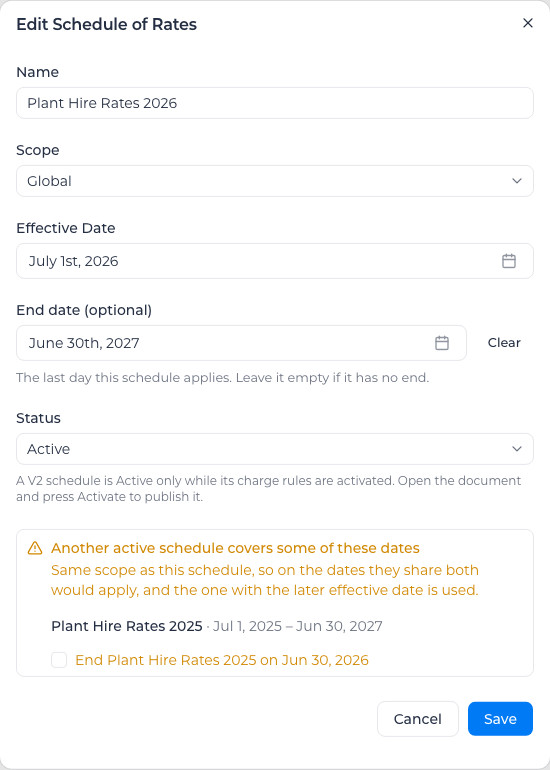
The checkbox to end an earlier schedule appears only when ending it leaves no gap after this one: this schedule has no end date, or the earlier one already ends on or before this one's end. Otherwise the dialog says ending it would leave no schedule after this one ends, so the two simply overlap, and the later start wins while both apply.
If you see Couldn't end followed by a schedule's name, open that schedule with Edit and give it an end date yourself.
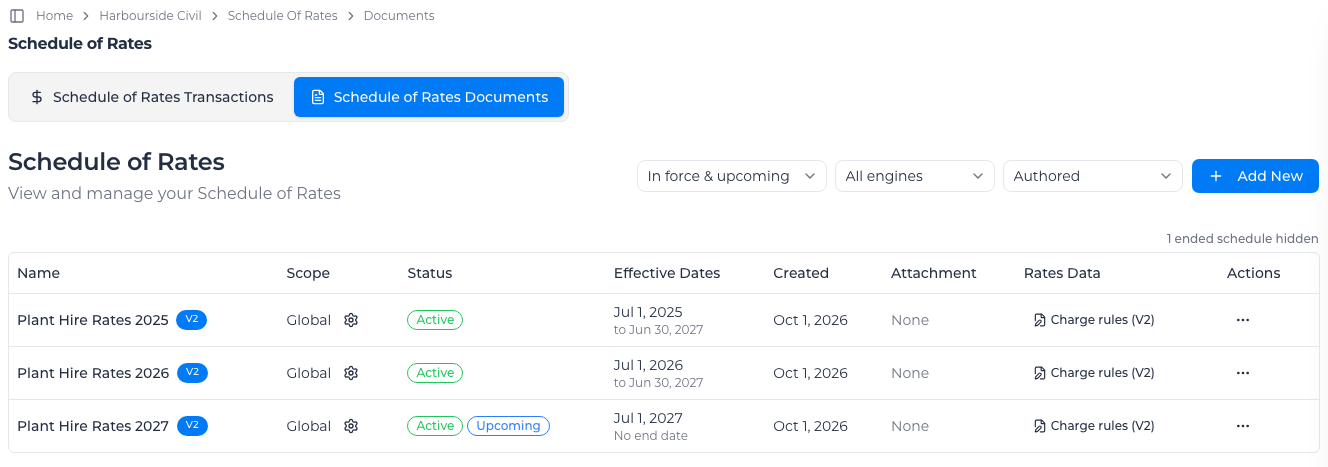
The Effective Dates column on Schedule of Rates Documents shows each schedule's first day and, underneath, to its last day or No end date. In the Status column, Ended marks a schedule whose end date has passed, and Upcoming one whose effective date hasn't come yet. Both follow your organization's day, in the timezone set under Settings → Localization. The list opens on In force & upcoming, which leaves out ended schedules and counts them beside the filter, for example 1 ended schedule hidden. Select that count, or choose Ended or All in the filter, to see them.
Price timesheets and dockets
Open Schedule of Rates Transactions. The tiles at the top show the billable total for the period, split into labour, equipment and material, and how many transactions are unprocessed.
Narrow the list with the date button, or tick the transactions you want.
Select Process (N Transactions).
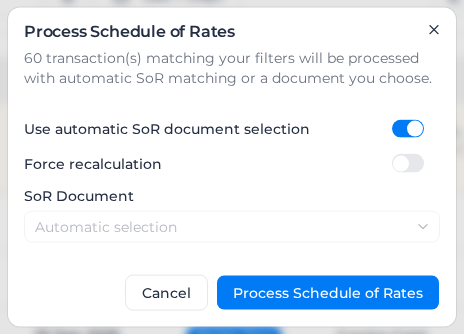
Leave Use automatic SoR document selection on to let Assignar Pay pick the schedule for each transaction, or turn it off and choose the SoR Document yourself. Turn on Force recalculation to price again transactions that already have a price.
Select Process Schedule of Rates.
Processing runs in the background. Each transaction's SoR Status shows the result.
Import material and equipment transactions from a CSV file
On Schedule of Rates Transactions, select Import Transactions, then Import CSV, and choose Import Material Transactions or Import Equipment Transactions. Import Transactions is greyed out until Assignar Operations is connected.
If your account limits access by location, a row for a project or order outside your locations isn't imported, and nor is a row whose new project the import would have to create when your access doesn't include your account's default location. On an equipment import, a row whose new asset would sit outside your access isn't imported either. These rows are counted under Errors and the rest are imported. Ask someone with access to those locations to import them.
Price transactions automatically
Turn on Auto-process Schedule of Rates to price transactions without selecting Process. It's under Settings, General, then Payroll, in the Rate calculation card. Only people who can manage settings can change it. New organizations start with it on.
With it on, a material transaction is priced in the background as soon as it reaches Schedule of Rates Transactions, whether it came from Assignar Ops, a CSV import or a form. A labour or equipment timesheet from those same places waits until you approve it, then it is priced the same way. You can still select Process and price that timesheet before you approve it. An edit that can change the price, such as the date, hours, quantity, client, project, order, task or cost code, prices the transaction again. A timesheet is priced again only after you approve it. The schedule is the one Use automatic SoR document selection would pick (see Which schedule prices the work), so the charges match a manual run.
While a transaction waits to be priced, its SoR Status shows Processing. The list checks for results by itself for up to 10 minutes; if a transaction still shows Processing after that, reload the page. It isn't counted as unprocessed in the summary meanwhile. If you Process it yourself before then, your result stands and it isn't priced again in the background. If pricing fails, the status shows Error: tick the transaction and select Process (N Transactions) to price it. A labour timesheet whose equipment time can't be set up, for example because your organization has no default category, shows Error too: fix the cause, then Process it.
A transaction with no matching schedule shows No SoR and keeps it through later Assignar Ops syncs, until something that sets its price changes. Each automatic change is recorded in the audit log, marked Priced by Auto-process SoR.
Automatic pricing never changes:
- A transaction marked Reviewed, or whose charges were set manually.
- A transaction billed on an invoice that isn't a draft, or on a progress claim whose period is locked. Transactions on a draft invoice are priced like any other.
Each automatic run replaces the charges an earlier run calculated. Changing a schedule's rates, dates, status or who it applies to doesn't price anything again, and nor does changing the tags on a client, project or order. To apply new rates, select the transactions and Process them. Turning the setting on doesn't price the transactions you already have, and turning it off keeps the charges already calculated. Dockets aren't priced automatically.
Dockets have their own tab here once you show them; see Review dockets.