

Close out a workpack
Sign the statement of compliance, get the closeout PDF, print the plan or progress along the way, read the audit trail, hand over ownership, and archive or delete.
Closing out is the last step for an ITP. It locks the workpack against further sign-off and compiles the signed closeout PDF for the project record. Closing out needs Manage workpacks. The Close out card is on the workpack page, below the activities.
Close it out
The Close out workpack button works only when the workpack is Active and:
- every row is Signed off, Accepted as-is or N/A, and
- no defect is still open.
Until then the button is disabled and the card says what is left, for example "Can't close out yet — 4 activities still need to be signed off, accepted as-is, or marked N/A: #1 Formwork and reinforcement inspection before pour, …" or "Can't close out yet — 2 open defects must be dispositioned first." Deal with those rows on the execution screen; see Sign off on site.
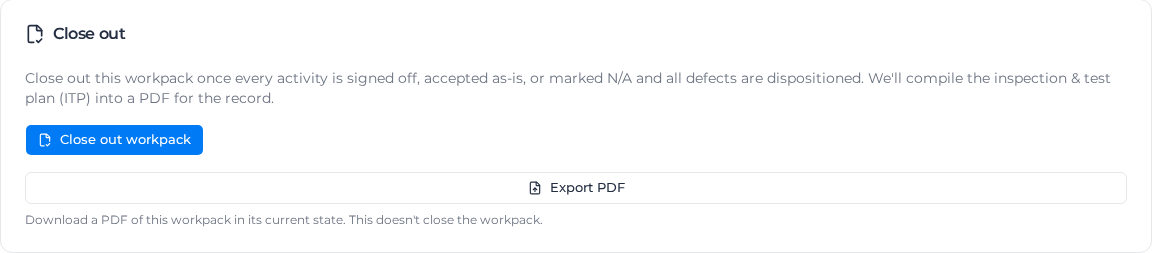
- Click Close out workpack.
- Read the warning: closing out locks the workpack from further sign-off and can't be undone.
- Sign the statement of compliance. By signing, you certify that the plan has been completed and complies.
- Click Close out.
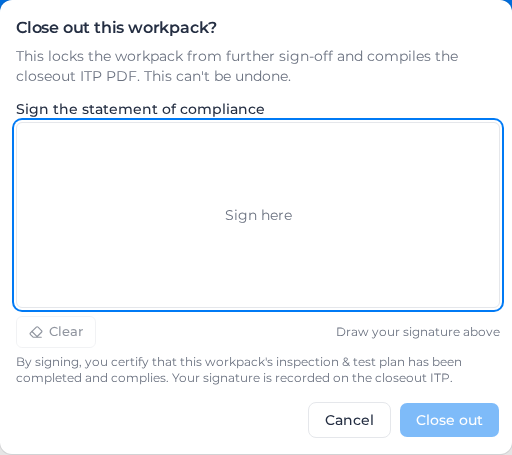
The workpack becomes Closed and Pay starts compiling the closeout PDF. The card shows its progress; you can leave the page and come back, or Cancel it. When it is done, "Closeout PDF is ready." appears with Download ITP PDF. Anyone who can view the workpack can download it, including after it is archived.
If the compile can't be started, you see "Workpack closed, but the document generation could not be started. Please retry." If it fails part way, the card shows Closeout PDF generation failed with Regenerate ITP PDF, which recompiles with the signature already given. You can also regenerate later to pick up changed header or footer details. If the workpack is closed but no closeout card appears, contact Assignar support.
What the closeout PDF contains
- The full plan with every sign-off, and the signed statement of compliance on one page.
- For rows with record requirements, each captured value: numbers with their unit, a tick for signatures and attestations, note text, and file names. A required record that was never captured prints as "required — not captured".
- Who marked each N/A row, when, and why.
- The audit trail.
- Every form completed on the workpack, as an appendix titled Appendix [reference]: [form name] with who submitted it. Landscape forms stay landscape. Each form prints the way it prints on its own: with its uploaded Word template or document template when it has one, otherwise as it looks on screen. If a form's uploaded template isn't active or can't be used, that form prints as it looks on screen and its title bar says "Document template unavailable — rendered as form view."
To print it on your letterhead, see Use your own print layout.
PDFs before closeout
The Close out card also offers:
- Generate for approval while the workpack is Draft, Submitted or awaiting re-approval: a plan for reviewers to read or mark up, then Download plan PDF. It doesn't change the status and needs no signature.
- Export PDF while it is Active: the workpack as it stands, with the sign-offs, N/A rows and evidence so far. It starts with a notice page so it can't be mistaken for the closeout record, and it doesn't close anything.
Both buttons are offered only to members of your own team who can view the workpack. Field users, client users, suppliers and visitors don't see them, because these PDFs name every reviewer and carry their signatures. A client reviewer prints the package they're reviewing with Print package on Workpacks → Assigned to you while their decision is pending.
Read the audit trail
Audit trail, at the bottom of the workpack, lists every recorded event, newest first: status changes, approvals and rejections (including outside reviewers'), sign-offs, defects, N/A reasons, ownership transfers and status overrides. Click its heading to open it; the badge shows how many events there are.
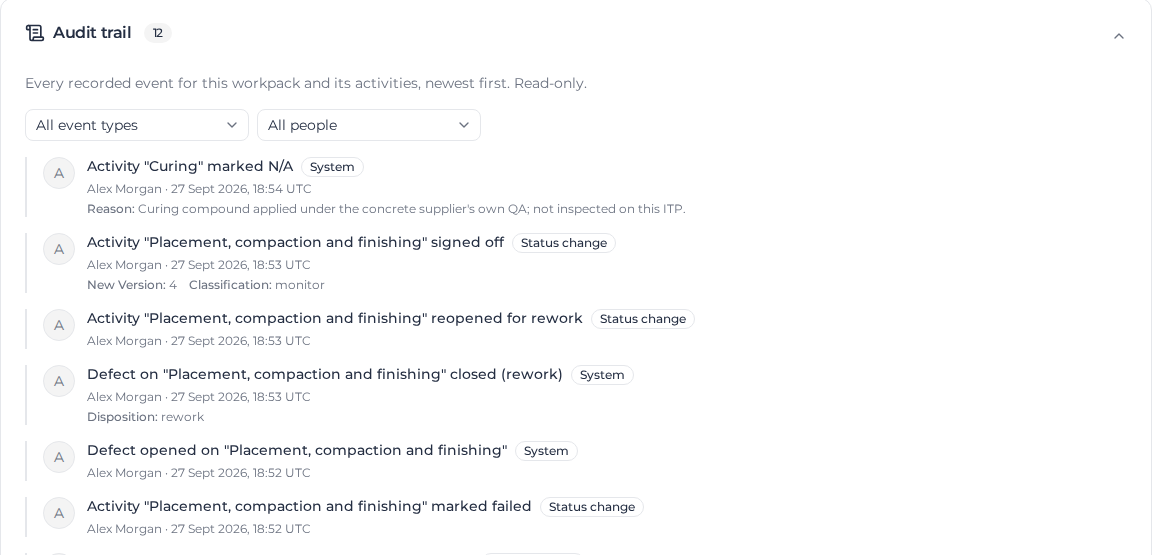
Each entry shows who did it (or System), when, and a label. External marks an outside reviewer's action and Manual override a forced status. Narrow the list with All event types and All people. Nothing in the trail can be edited or deleted.
Hand the workpack to someone else
- In the ⋯ menu, choose Transfer ownership.
- Choose the New owner. Only members who can view workpacks are listed.
- Enter a Reason of at least 10 characters.
- Click Transfer ownership.
The new owner takes over straight away and gets a notification that the workpack is theirs. The current owner or anyone with Manage workpacks can do this. The reason goes into the audit trail.
Archive, delete or restore
Both are in the ⋯ menu and need Manage workpacks.
- Archive (any workpack that isn't a draft): the workpack leaves the Active tab but keeps its content, PDFs and history. Confirm with Archive permanently. You can still open it and download its PDFs.
- Delete (drafts only): the draft, its rows, approvers and reference documents are archived for 30 days and then deleted for good. Confirm with Delete draft.
To bring one back, open the Archived tab of Project workpacks and click Restore. Archived drafts show how many days are left before they are deleted.