

Get a workpack approved
Set up the approver chain, submit a workpack, approve or reject it, record a decision signed on paper, and revise and resubmit after a rejection or once it is active.
Before site work starts, a workpack usually goes to the people who have to accept the plan, in order: your own project engineer, then the principal contractor or client. Once the last approver approves, the workpack becomes Active and the crew can sign it off. A workpack with no approvers approves itself when you submit it.
Setting up the chain and submitting need Manage workpacks.
Set up the approver chain
- Open the draft workpack and find Approver chain.
- Click Add approver.
- Choose Internal user and pick the person, or choose External email and enter their address. The person picker also offers Invite client user….
- Optionally enter a role, for example "Client QA".
- Add more steps as needed, and use the arrows to put them in order. Approvers decide one at a time, top to bottom.
- Click Save approvers.
Every step needs a person or an email, or the chain won't save: "Each approver needs an internal user or an email."
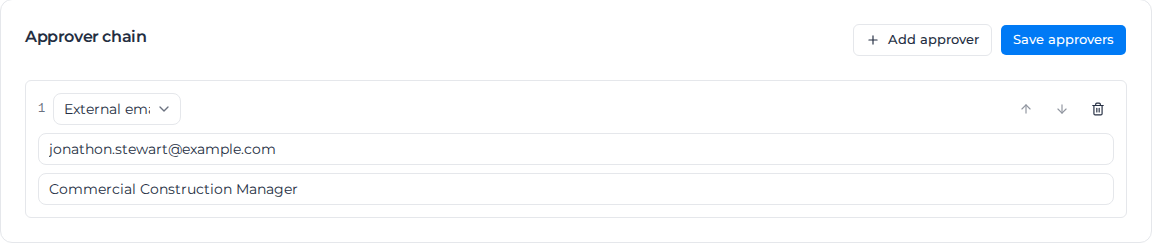
An external approver is invited when you submit; see Invite outside reviewers.
Submit it
- Click Submit for approval at the top of the workpack.
- Choose the External reviewer visibility:
- Approval decision only: outside reviewers see the workpack's detail only while their decision is pending.
- Full ongoing progress: outside reviewers keep seeing it as it is worked on site.
- Click Submit.
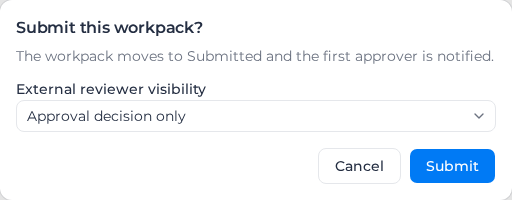
The workpack moves to Submitted and the first approver is notified. With no approvers, the dialog says "With no approvers, the workpack is self-approved and goes straight to Active." Its PDFs then show the submitter's name in the approval block.
Before or during approval, Generate for approval in the Close out card makes a PDF of the plan for reviewers to read or mark up. See Close out a workpack.
Approve or reject
When it is your turn, the workpack shows Review & decide at the top, and you are notified.
- Click Review & decide. The page lists every activity so you can check the plan.
- To approve, stay on Approve, sign in the signature box, add comments if you like, and click Approve workpack.
- To reject, choose Reject, enter a Reason for rejection of at least 10 characters, and click Reject workpack.
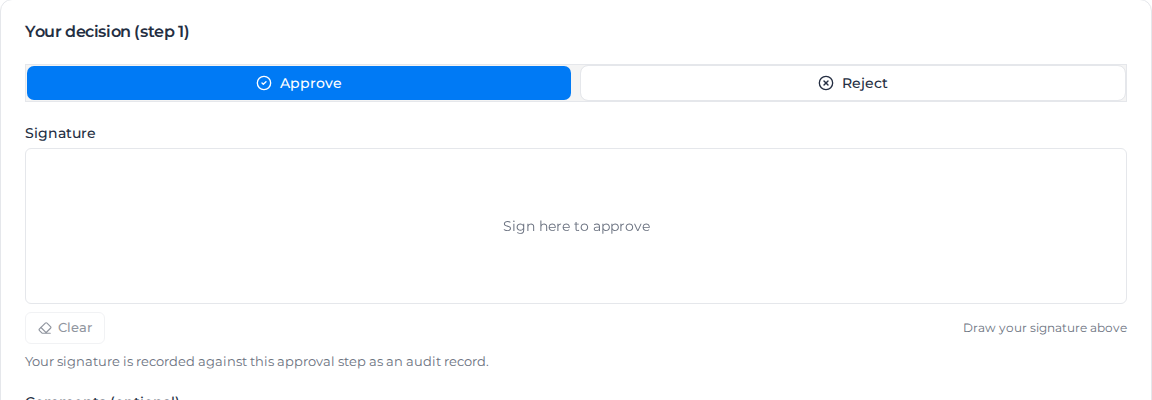
An approval passes the workpack to the next approver, or makes it Active if you were the last. A rejection sets it to Rejected, skips everyone after you, and returns it to the owner with your comments. The owner gets a notification, on the web and in Pay Mobile, that opens the workpack.
Only the current approver can open the decision, or the person covering for them while they are away. When the current step is an outside reviewer, your own team sees a note instead of the form.
When an approver is away
If an approver is on leave, they or someone with Manage members can name a cover in Approval cover in your organization's settings. While they are away, their pending step in Approver chain shows "Away · covered by [name] until [date]", and the person covering can approve or reject it on their behalf. See Cover approvals while someone is away.

Swap an approver who hasn't decided
After you submit, the chain is locked, but a step still Pending has Replace:
- Click Replace on the step.
- Choose the replacement (Internal user or External email), and adjust the role if needed.
- Enter the Reason for replacement.
- Click Replace approver.
An internal replacement is notified that the workpack is waiting for their decision. The original stays in the audit trail. Steps already approved or rejected can't be changed.
Record a decision signed on paper
When an outside approver signs a printed copy, record it for them in Record an offline decision, which appears while a step is pending:
- Choose Record approval or Record rejection.
- Enter the Approver name (required), and optionally their Title and Organisation.
- Under Signed PDF, click Select PDF and attach the signed document (required).
- For a rejection, enter the Reason for rejection (at least 10 characters).
- Click Record offline approval or Record offline rejection.
It counts exactly like a decision made in the app, and the signed PDF stays on the workpack.
Revise and resubmit after a rejection
The rejection comments show at the top of the workpack.
- Click Revise & re-submit.
- The dialog names the new revision number. Click Start revision.
- The workpack returns to Draft with a fresh, pending approver chain. Change the rows and approvers, then submit again.
The rejected revision is kept as history.
Changes after approval
Editing an Active workpack in a way that changes the plan, such as changing a row's acceptance criteria or record requirements, sends it back for approval: its status becomes Re-approval pending until the chain approves again. While it is Re-approval pending, its rows can't be signed off on site until the approvers decide; see Sign off on site. A workpack with no approvers stays Active, and the change is still recorded in the audit trail.
Revise an active workpack
Some changes can't be made to an Active workpack: you can't remove a row, and the approver chain can only be changed on a draft. Removing a row there fails with "Rows can only be removed while the workpack is a draft. Use Revise to return it to draft as a new revision." To make those changes, start a new revision:
- Open the workpack and click Revise. It is offered on an Active or Re-approval pending workpack, to people with Manage workpacks. On a Re-approval pending workpack, revising cancels the re-approval in progress.
- The dialog names the new revision number. Click Start revision.
- The workpack returns to Draft. Change the rows and approvers, then submit it again. The approvers decide again; with no approvers it goes straight back to Active.
Until it is Active again, nobody can sign it off on site; see Sign off on site. Rows already signed off stay signed off and can't be removed. On a safety document, changing what workers signed marks their signatures Invalidated, and they sign again once it is active; see Run a SWMS or toolbox talk. The previous revision is kept as history.
Revision history on the workpack keeps a copy of the activities each time the workpack goes for approval. Choose any two to see what was added, removed or changed, field by field. Outside reviewers don't see this card.
Force a status
Override status, in the ⋯ menu, moves a workpack to any status outside the normal steps, for example to free one that is stuck. It needs Override workpack status. Choose the New status, enter a Reason of at least 10 characters and click Override status; the change is recorded against you in the audit trail.
Overriding to Closed does not create a closeout PDF. To get one, close the workpack out normally. RFIs don't have this option.