

Build a template
Author a reusable workpack template, set up its inspection points or job steps, import an existing ITP, SWMS, JSA or toolbox talk with AI, and publish, revise or archive it.
A template is the master copy of a document, such as your standard concrete-pour ITP. You write its inspection points once and publish it, and every project starts its workpacks from it. Changing a template never changes the workpacks already made from it.
Creating and editing templates needs Manage workpacks.
Create a template
- Go to Work → Workpacks → Templates and click New template.
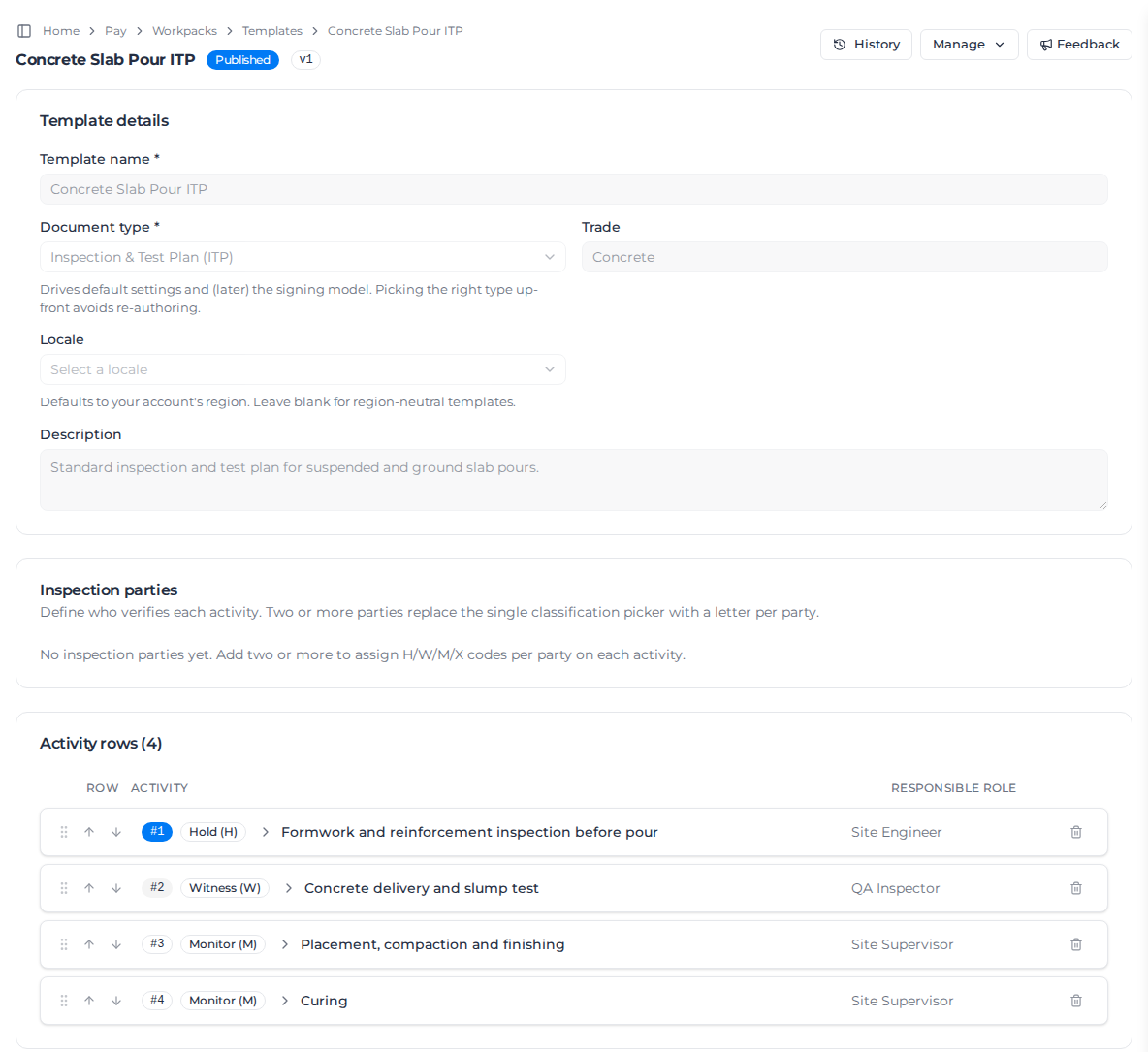
- Fill in the Template details:
- Template name (required), for example "Concrete Slab Pour ITP".
- Document type (required). You can author an Inspection & Test Plan (ITP), Submittal, Job Safety Analysis (JSA), Safe Work Method Statement (SWMS) or Toolbox Talk. Types marked (coming soon) can't be picked yet.
- Trade, for example "Concrete".
- Locale: the region whose reference standards are suggested as you type. Leave it blank for a template that is not tied to one region.
- Description: a short note that people see when they pick a template.
- Click Create template.
The template opens as a Draft marked Unpublished. Only published templates can be used on a project.
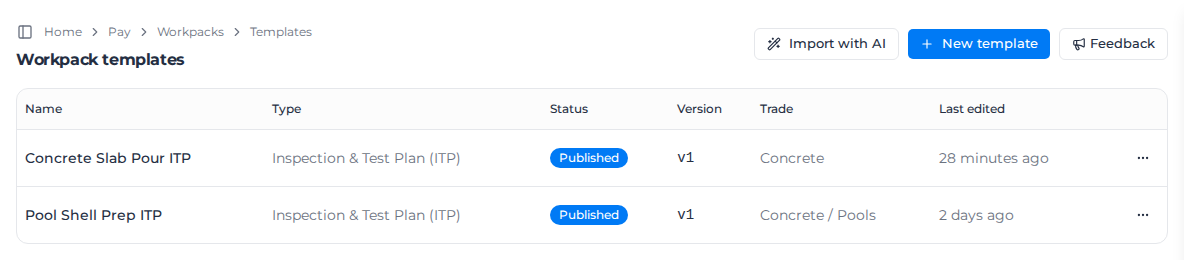
Your organization's region may have ready-made templates to start from instead. See Start from a starter template.
Add inspection points
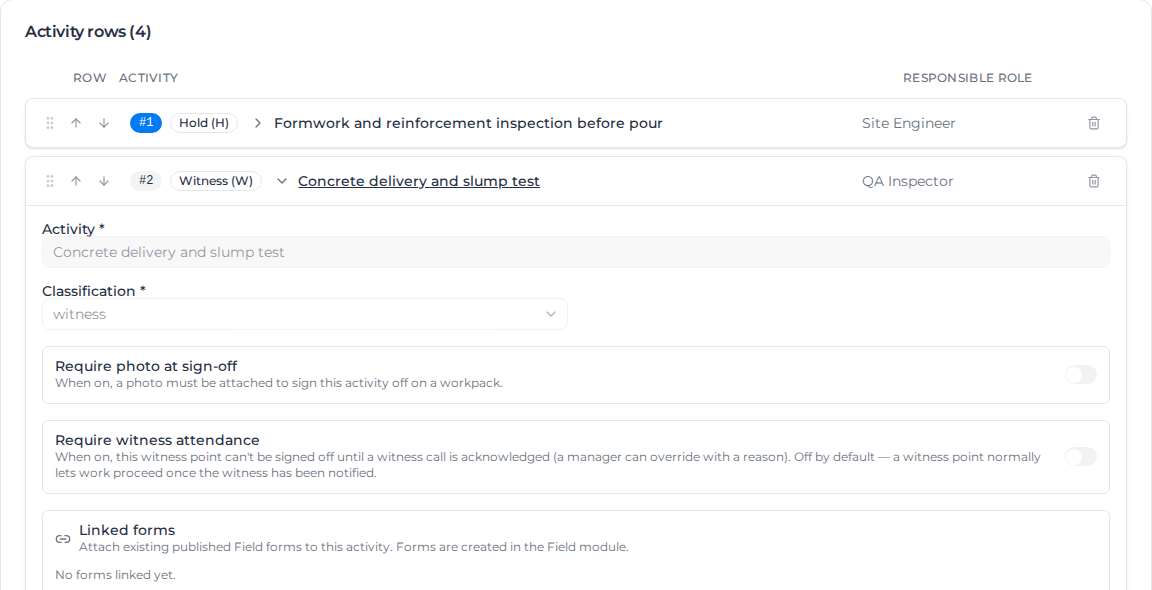
Each row in Activity rows is one inspection point.
- Click Add row. The new row opens so you can fill it in.
- Enter the Activity, for example "Formwork and reinforcement inspection before pour".
- Choose the Classification:
- Hold (H): work stops here. Every later row stays blocked until this one is signed off or marked N/A.
- Witness (W): someone is called to witness the point, but work can carry on while you wait.
- Monitor (M): a check that is recorded but never holds up work.
- Fill in whichever of the other fields you need: Work package (rows with the same work package are grouped under one heading on site), Method, Acceptance criteria, Responsible role, Frequency, Reference standards and Notes.
- Click Save activities. A banner reminds you while rows are unsaved.
Drag the handle, or use the up and down arrows, to reorder rows; they renumber themselves. The bin icon removes a row. Click a saved row to open it again.
Reference standards is a tag field: type a code such as "AS 3600" and press Enter or a comma. A row takes up to 20.
Write job steps or agenda items
A SWMS, JSA or toolbox talk has no inspection points. Its rows are called Job steps on a SWMS or JSA and Agenda items on a toolbox talk, and each row asks only for what that document prints:
| Document | Fields on each row |
|---|---|
| SWMS | Task / job step, Work package, Hazards & risks, Risk before controls, Control measures (& how implemented and monitored), Risk after controls, Equipment / plant / tools required, Records & reporting required, Competency, permit & licence and Responsible role |
| JSA | Job step, Work package, Potential hazards, Control measures and Responsible |
| Toolbox talk | Topic, Discussion notes, Hazards / issues raised by crew, Actions arising and Responsible for actions |
Rows have no Hold, Witness or Monitor and no photo switch, because every worker signs them instead. Record requirements and Linked forms work as on an ITP. Save with Save job steps or Save agenda items.
Anything a row already held in a field the document doesn't print, such as an acceptance criterion typed before the template's type was changed, stays saved but is not shown.
Decide what sign-off needs
Each row has switches for what the crew must provide when they sign it off:
- Require photo at sign-off: a photo must be attached. It is on by default for Hold points and off for Witness and Monitor points.
- Require witness attendance (Witness points only): the point can't be signed off until the witness acknowledges the call. A user with Override workpacks can still sign off with a reason. Off by default.
Ask for typed records
Record requirements turns "record the slump and attach the docket" into fields the crew must fill in at sign-off.
- In the row, click Add record and pick a record type: Temperature, Measurement, Quantity, Photo, Document upload, Signature, Text note or Checkbox attestation.
- Give it a Label, for example "Slump".
- For a number, set a Unit (such as mm) and an optional Min and Max. For a document upload, list the Accepted file types, or leave it blank to accept any file.
- Tick Required at sign-off if the row can't be signed off without it.
Older templates may show Legacy notes under the list: text from before typed records existed. Replace it with typed records when you next revise the template.
Attach forms to a row
Linked forms puts a published form from your Field forms on the row, so the crew fills it in on the spot. Build the form first; see Build a form.
- In the row, click Add linked form and pick the Form.
- Choose its Purpose: Defect / NCR, Complete during execution, Witness record or Ad-hoc.
- Choose when it Opens: Manually, When the row is marked failed, When the row is signed off or When the row is marked N/A. Each purpose picks a sensible default.
- Turn on Must be completed before sign-off if the row can't be signed off until the form is submitted.
Let more than one party inspect a row
When the contractor and the client each record their own H, W or M on a row, use Inspection parties. The card is not shown on a SWMS, JSA or toolbox talk.
- On the template, click Add typical parties, or enter a Key and Label and click Add party.
- Add at least two parties, then click Save parties.
- Each row now shows Party codes instead of one classification: H (hold), W (witness), M (monitor) or X (other or self-inspection) per party. Leave a party empty when it has no part in that row.
The codes print as one column per party on the ITP.
Import a document you already have
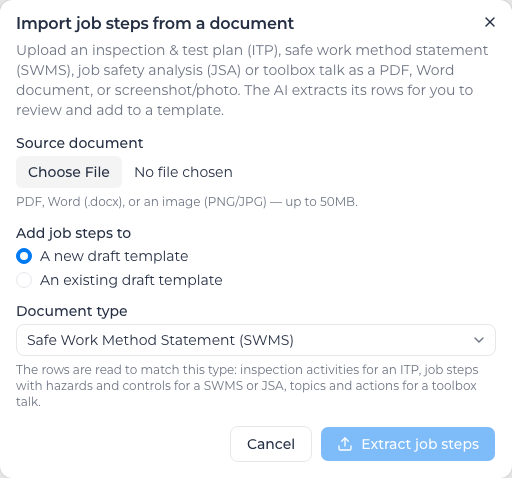
If your ITP, SWMS, JSA or toolbox talk exists as a PDF, Word document or photo, AI can read its rows for you: inspection points from an ITP, job steps with their hazards and controls from a SWMS or JSA, and topics with the hazards raised and actions arising from a toolbox talk.
- On Templates, click Import with AI.
- Choose the file: a PDF, Word document (.docx), or PNG or JPG image, up to 50 MB. Old Word .doc files are refused with "Legacy Word (.doc) files are not supported. Open the file in Word, save it as .docx or PDF, and try again."
- Choose where the rows go:
- A new draft template: pick its Document type: Inspection & Test Plan (ITP), Job Safety Analysis (JSA), Safe Work Method Statement (SWMS) or Toolbox Talk. Pick the type of the document you uploaded; the rows are read to match it.
- An existing draft template: pick the draft. Each draft is listed with its type, and the rows are read as that type. Submittal drafts are not listed.
- Click Extract activities, Extract job steps or Extract topics; the button names the rows of the type you chose.
A review screen shows progress while the document is read; you can Cancel it. When it finishes, the extracted rows are on the left, each with a confidence mark, and the document is on the right. Low-confidence rows are flagged. Each row shows the fields its type has, as in the template editor. Edit any row and untick the ones you don't want.
Click Add to template to create the new draft: give it a New template name and click Create and add. For an existing draft, click Append to template. Only the ticked rows are saved, and you land in the template to finish it.
If the document can't be read, the screen shows Extraction failed with the reason, for example "We couldn't extract job steps from this document. Check that it is a readable safe work method statement (SWMS) with its job steps listed." Check you picked the right type, or click Author a template manually instead.
If the draft's document type was changed while the import ran, adding the rows is refused with "This template's document type changed after the import ran, so the extracted rows no longer fit it. Import the document again." Run Import with AI again on the draft.
Publish, revise and retire a template
Everything else is under Manage at the top of the template:
| The template is… | You can… |
|---|---|
| Draft | Publish template (the button beside Manage), or Delete template. Deleting removes the draft and its rows for good; nothing depends on a draft. |
| Published | Clone it into a new draft, Start new revision, or Archive it. |
| Archived | Restore from archive. |
A published template can't be edited directly. Start new revision puts it back to Draft; when you publish again, the version goes up (v1, v2…). Workpacks already started keep the version they were made from.
Archive hides a template from the list and from the template picker, but keeps its content and history.
History opens the template's lifecycle events and edits, newest first.
Start from a starter template
Go to Workpacks → Settings → Starter templates and click Seed starter templates. The dialog says how many drafts it will create; click Create drafts. Review each draft and publish it when it suits you.
- Organizations in Australia and New Zealand get five ITPs (in-situ concrete, structural steel, earthworks and subgrade, masonry, drainage and civils) and a toolbox talk.
- Organizations in Europe get four ITPs.
- The US and Canada have no starter set yet; the card says "There is no starter catalogue for your account's region yet."
You only get starters for document types your library has no template for yet.
Related pages
- Start a workpack: use a published template on a project.
- Use your own print layout: print workpacks from your own Word template.
- Run a SWMS or toolbox talk: how safety documents are signed on site.