

Start a workpack
Start a live workpack on a project from a published template or from blank, tailor its rows, and find it again in Project workpacks.
A workpack is the working copy of a template for one job. Starting one copies the template's inspection points so you can tailor them for this project before it goes for approval. Starting and editing workpacks needs Manage workpacks; without it the New workpack button doesn't appear.
Start a workpack
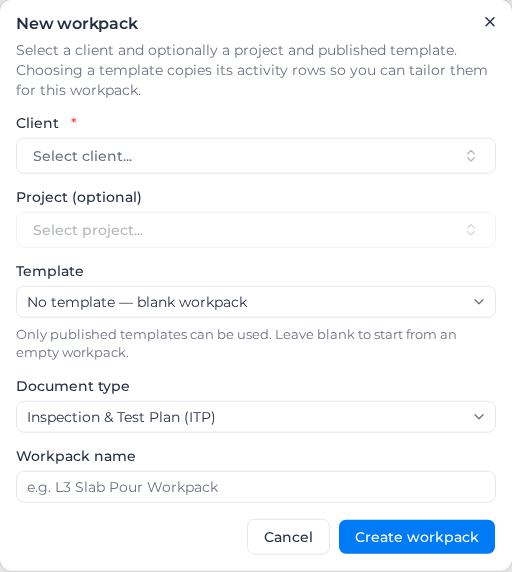
- Go to Work → Workpacks → Project workpacks and click New workpack.
- Choose the Client. The Project list then shows that client's projects.
- Choose the Project. It is optional for ITPs. For a Submittal or an RFI the field reads Project (required for this document type), because their numbers are counted per project.
- Choose a Template. Each one is listed with its version, for example "Concrete Slab Pour ITP (v1)". Only published templates are listed. Leave it on No template — blank workpack to start empty.
- If you start blank, choose the Document type: Inspection & Test Plan (ITP), Submittal or Request for Information (RFI). Safety documents can only be started from a template. With a template, the type comes from the template and this field is hidden.
- Enter the Workpack name, for example "Level 3 Slab Pour ITP".
- Click Create workpack.
The new workpack opens as a Draft.
To raise an RFI or send a submittal, see Raise an RFI or Send a submittal.
Tailor it before approval
The workpack copies the template's rows with their classifications, sign-off switches, record requirements, linked forms and reference standards, plus the template's trade and locale. It does not copy approvers, history or sign-offs.
While the workpack is a Draft, change anything in Activities: edit rows, Add row, reorder or delete them, then click Save activities. On a SWMS or JSA the card is Job steps and the button Save job steps; on a toolbox talk they are Agenda items and Save agenda items. Rows can only be deleted while the workpack is a draft. Each row can also take:
- Responsible party: People & tags who sign the row off, or a linked Organisation (see Delegate to subcontractors). Add up to 25 people and user tags: any one of them, or anyone holding one of the tags, can open and sign off the row. Remove one with the × on its name.
- Order (optional): the order the row belongs to, so the crew can filter to their order on site.
- Reference documents: drawings or specifications the crew can open from the row.
To give several rows the same people and tags, tick the rows (or Select all), choose People & tags under Assign, pick them, and click Apply to selected. This replaces the people and tags each selected row had. Then click Save activities.
To add a second copy of a standard section, click Add from template, choose a published template and click Add activities. Its rows are added at the end as unsaved rows; click Save activities to keep them. They arrive without responsible parties, orders or sign-offs.
The cards around the rows set up the rest of the workpack:
- Workpack details: name, project and description. Click Edit to change them.
- Default defect form: a form that opens whenever a row is marked failed. Saving adds it to every row that has no on-fail form yet.
- PDF appearance: a Primary colour (hex), Header strapline and Footer text for this workpack's PDFs. Your account logo is always used.
- Approver chain: who approves it. See Get a workpack approved.
- Reference documents: files for the whole workpack, such as the drawing set.
When it is ready, click Submit for approval.
Find a workpack
Project workpacks lists every workpack you can see, on two tabs: Active and Archived. Filter by Project, Document type, Status, Ball in court and Response, or search by name or number.
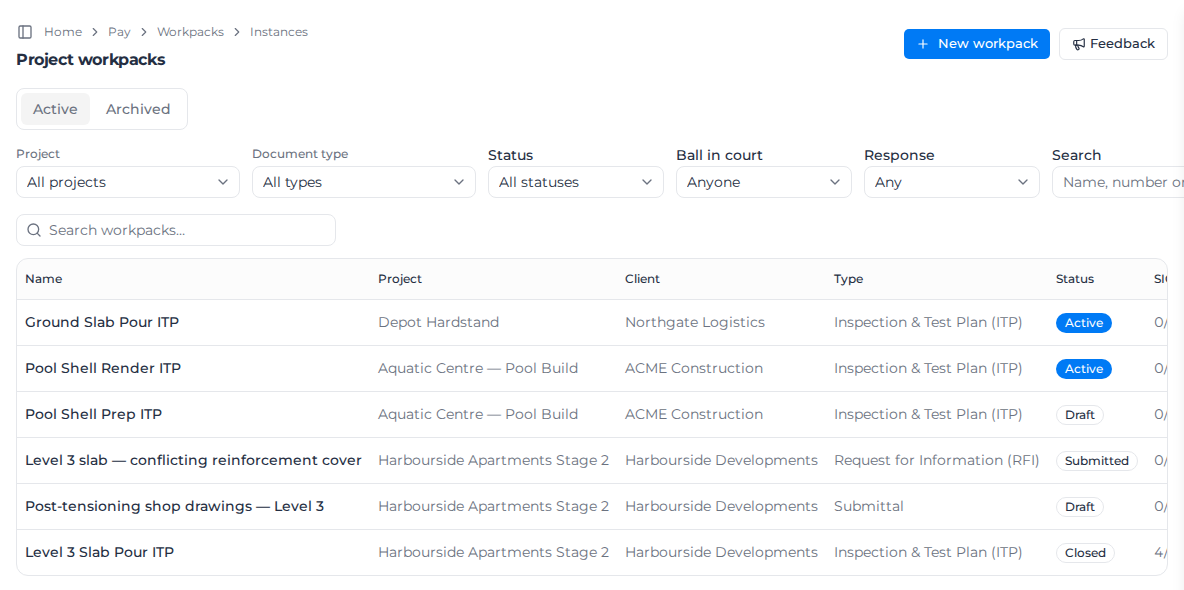
Each row shows the project, client, type and Status: Draft, Submitted, Active, Re-approval pending, Rejected, Closed or Archived. Active means the workpack is approved and in use on site. Signed off counts the rows done, Ball in court names who has to act next, and Time in court how long it has been with them. Filtering to RFIs or submittals switches the list to a register with Register no. and the other register columns.
Click a name to open the workpack.
Copy a workpack
To reuse a workpack you have already tailored:
- Open it and click the ⋯ menu at the top.
- Choose Clone.
- Edit the New workpack name; it defaults to the original name with "(copy)".
- Click Clone workpack.
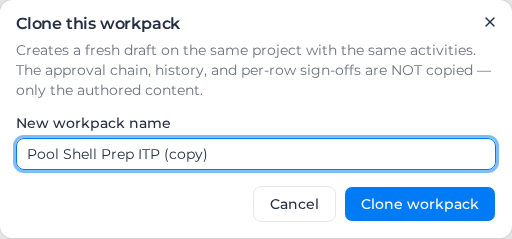
The copy is a new Draft on the same project with the same activities. The approver chain, history and sign-offs are not copied.
To turn a workpack into a template for other projects, choose Save as template in the same menu, enter a Template name and click Create template. It becomes a draft template; named people, tags and orders are left out. RFIs don't offer this.
Related pages
- Build a template
- Get a workpack approved
- Close out a workpack: archive, delete and transfer ownership.