

Send a submittal
Package shop drawings, product data or samples as a numbered submittal, send it to reviewers, and record their Approved, Approved as noted or Revise and resubmit response.
A submittal is a package you send to the designer or client for a formal response before you build: shop drawings, product data, samples, certificates. Each one gets a register number per project and specification section, and closes when the reviewers have responded. Creating and sending submittals needs Manage workpacks.
Set up submittal types
The Submittal type list is yours to define. Go to Workpacks → Settings → Tenant submittal types:
- Click Seed standard types to add the standard CSI set (Product Data, Shop Drawing and others). It never changes a type you have renamed or deactivated.
- To add your own, enter a Label and a Key and click Add type.
- Deactivate hides a type from the pickers without changing submittals that already use it; Reactivate brings it back. A type nobody uses can be deleted.
You can rename a type at any time; existing submittals follow the new name.
Create a submittal
- Go to Workpacks → Project workpacks and click New workpack.
- Choose the Client and the Project; a submittal must have a project.
- Choose a submittal template, or leave No template — blank workpack and pick Submittal as the Document type.
- Enter the Workpack name, for example "Post-tensioning shop drawings — Level 3", and click Create workpack.
A submittal template can carry a Default submittal type, a review period and Standard package files (cover sheets, standard certificates) that every submittal made from it starts with. See Build a template.
Fill in the register details
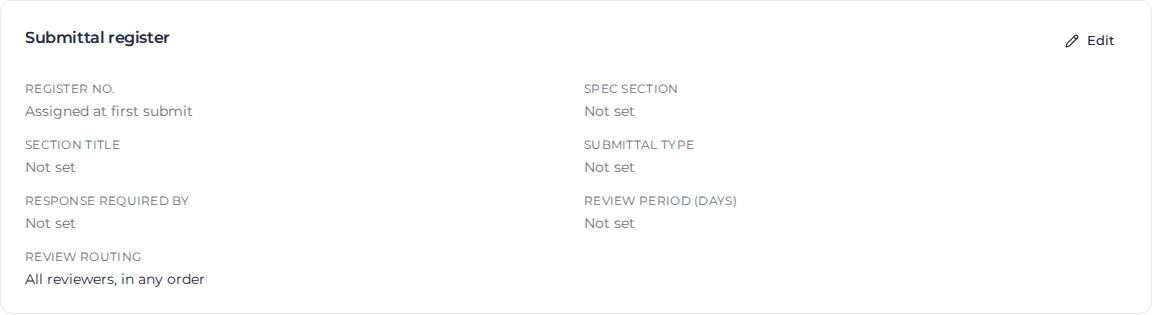
In Submittal register, click Edit and fill in:
- Spec section (required): the six-digit CSI MasterFormat section, for example 03 30 00. Spaces don't matter.
- Section title, for example "Cast-in-Place Concrete".
- Submittal type (required).
- Response required by: the date printed on the transmittal. The submittal is flagged overdue on the register after it.
- Review period (days): how long reviewers have to respond, from 1 to 365.
- Review routing:
- All reviewers, in any order (the default): everyone reviews at once, and the submittal closes when all have approved.
- Any one reviewer: the first approval releases it and the others are skipped. Any reviewer can still reject it.
- One reviewer at a time, in order: each reviewer sees it once the one before has approved.
Click Save. The Register no. reads Assigned at first submit: the number, such as 033000-001, is given when you first submit, and revisions keep it. The spec section is locked from then on.
Build the package
In Submittal package, add each file: enter an Item title, choose the Item type, add a Description if needed, set its Order in the package index, choose the file and click Upload.
Send it for review
Add reviewers in Approver chain, your own people or outside reviewers by email, then click Submit for approval. It works as for an ITP; see Get a workpack approved and Invite outside reviewers.
Generate for approval in the Close out card makes a PDF of the submittal to circulate. It is also offered on a rejected submittal, so you can send out the rejection package before you revise.
Respond as a reviewer
On Review & decide, a submittal shows its register number, spec section, type, revision and the package files to open. Choose the Review response:
| Response | What happens |
|---|---|
| Approved | Accepted as submitted. The submittal closes. |
| Approved as noted | Accepted with your markups. Your comment is required; it is what the originator works from. |
| For record only | Receipt is recorded without implying design approval. |
| Revise and resubmit | Returned for a new revision. Say what must change. |
| Rejected | Not acceptable. Say why. |
Approved, Approved as noted and For record only count as approvals, so the submittal closes under its review routing. Revise and resubmit and Rejected return it to the originator, who clicks Revise & re-submit to start the next revision under the same number.
Related pages
- Start a workpack: the register view of Project workpacks.
- Use your own print layout: print submittals on your letterhead.