

Run a SWMS or toolbox talk
Run a Safe Work Method Statement, Job Safety Analysis or toolbox talk as a workpack: collect every worker's signature on each item and fill in the details that print on the PDF.
A Safe Work Method Statement (SWMS), Job Safety Analysis (JSA) or toolbox talk is a workpack that every worker signs, instead of one person signing each point. Its items have no Hold, Witness or Monitor, and each item collects as many signatures as there are people doing the work.
Start one
Safety documents are always started from a template:
- Build a template with the Document type set to Safe Work Method Statement (SWMS), Job Safety Analysis (JSA) or Toolbox Talk, add a job step (or, on a toolbox talk, an agenda item) per step or topic, and publish it. See Write job steps or agenda items. If you already have the document as a PDF, Word file or photo, import it with AI instead of typing it. Organizations in Australia and New Zealand can seed a ready-made Toolbox talk / prestart template from Workpacks → Settings → Starter templates.
- Start a workpack from it on the project. See Start a workpack.
- Fill in the details card (below), then click Submit for approval. With no approvers it goes straight to Active.
Fill in the details that print
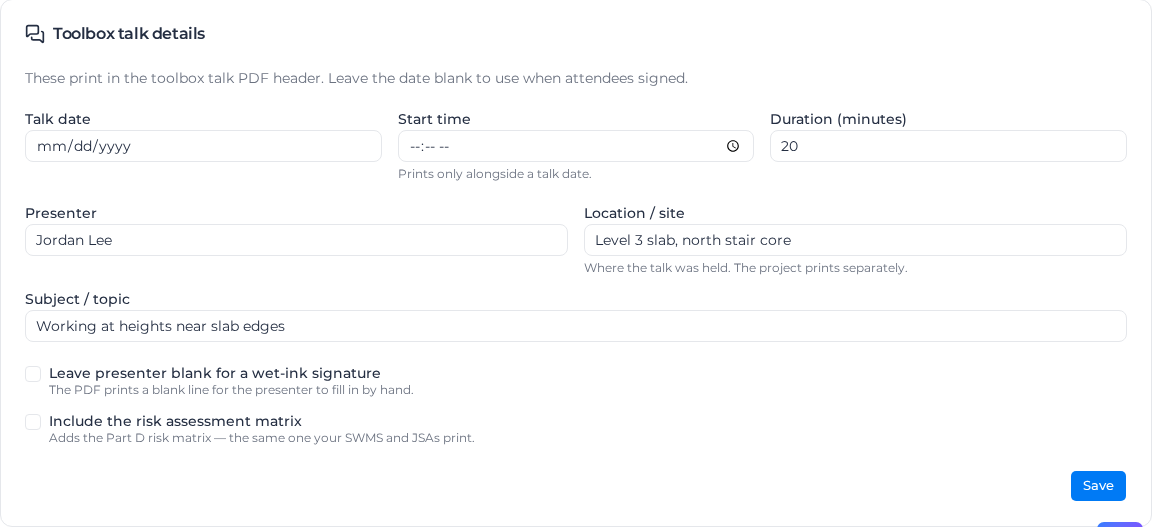
A toolbox talk has a Toolbox talk details card:
- Talk date and Start time. The time prints only with a date. Leave the date blank to use when attendees signed.
- Duration (minutes), from 1 to 1440.
- Presenter. Tick Leave presenter blank for a wet-ink signature to print a blank line for the presenter to sign by hand.
- Location / site. The project prints separately.
- Subject / topic.
- Include the risk assessment matrix adds the same risk matrix your SWMS and JSAs print.
Click Save. The project, its code, the client and your company print automatically. Changes apply to the next PDF you compile.
A SWMS has a SWMS details card instead, in sections: Document, Company and PCBU, Authoring, review and approval, Compliance and high-risk work, Mandatory PPE and Equipment and plant register. Tick the High-risk construction work categories the statement covers, list the PPE, and add each item of plant with its safety checks. Leave a field blank to leave it off the PDF.
Only people with Manage workpacks see these cards.
Collect signatures on site
- Click Open execution on the active workpack.
- On an item, click Add signature.
- Under Signer identity, choose Team member and pick the person, or Type a name for someone without an account.
- The worker signs in the Signature box.
- Click Add signature.
Repeat for every worker on every item. An item shows Signed off after its first signature and keeps taking more; the count shows under its name.
Each person signs an item once. A second signature from the same team member, or the same typed name, is refused with "This person has already signed this activity. Each person signs once." Typed names match whatever their capitals or spacing, so "Jane Doe" and "JANE DOE" are the same person. Once a person's signature is invalidated, they can sign again.
Each worker can also sign on from their own phone. In Pay Mobile, open the workpack, tap an item and tap Sign on, then sign. The item then shows "You signed on" with the time, and lists everyone under Attendees with the date and time they signed.
To collect several people on one device, tap Collect attendee signatures on the item. Each attendee types their name in Attendee full name, signs, and taps Add attendee. The form clears for the next person; tap Done when everyone has signed.
Workers can sign the items in any order. If the document started as an ITP, its hold points, witness points, photo requirements and inspection parties don't apply here. An item with a linked form set to Must be completed before sign-off still waits until that form is submitted.
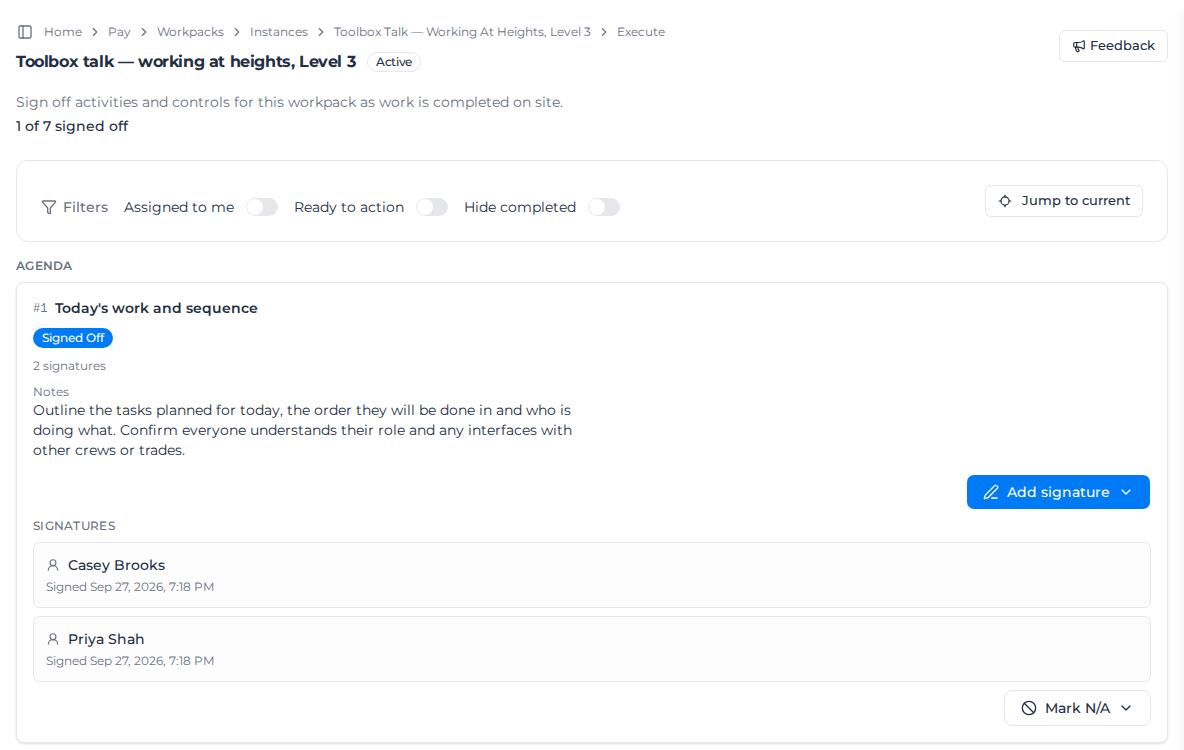
If an item changes in a way that affects what people signed, its signatures are marked Invalidated and the item says "Signatures were invalidated — every worker must re-sign this activity."
When a worker can't comply with an item, click Cannot comply and confirm with Raise an issue. It opens a defect that must be closed before the workpack can be closed out; see Handle failed inspections.
Finish it
Close it out and download the PDF as for any workpack; see Close out a workpack.
On a toolbox talk PDF, the attendance register lists every attendee with the date and time they signed. The person who closes the talk out signs as the supervisor: their name, signature, and the date and time they closed it print under the register.
Related pages
- Use your own print layout: print on your own SWMS or toolbox talk layout.