

Sign off on site
Work through an approved workpack: sign off inspection points with photos and records, call witnesses, remind people to finish their rows, and see why a row is blocked.
Once a workpack is Active, the crew works through it point by point on the execution screen. Signing off rows needs Sign off workpacks; Owners, Admins, Managers and Field users have it by default. Field users can act only on the rows assigned to them. Anyone else who can view the workpack sees the screen read-only.
Open the execution screen
Open the workpack and click Open execution.
The top shows how many rows are done, for example "1 of 4 signed off". Rows are grouped under their work package and listed in order.
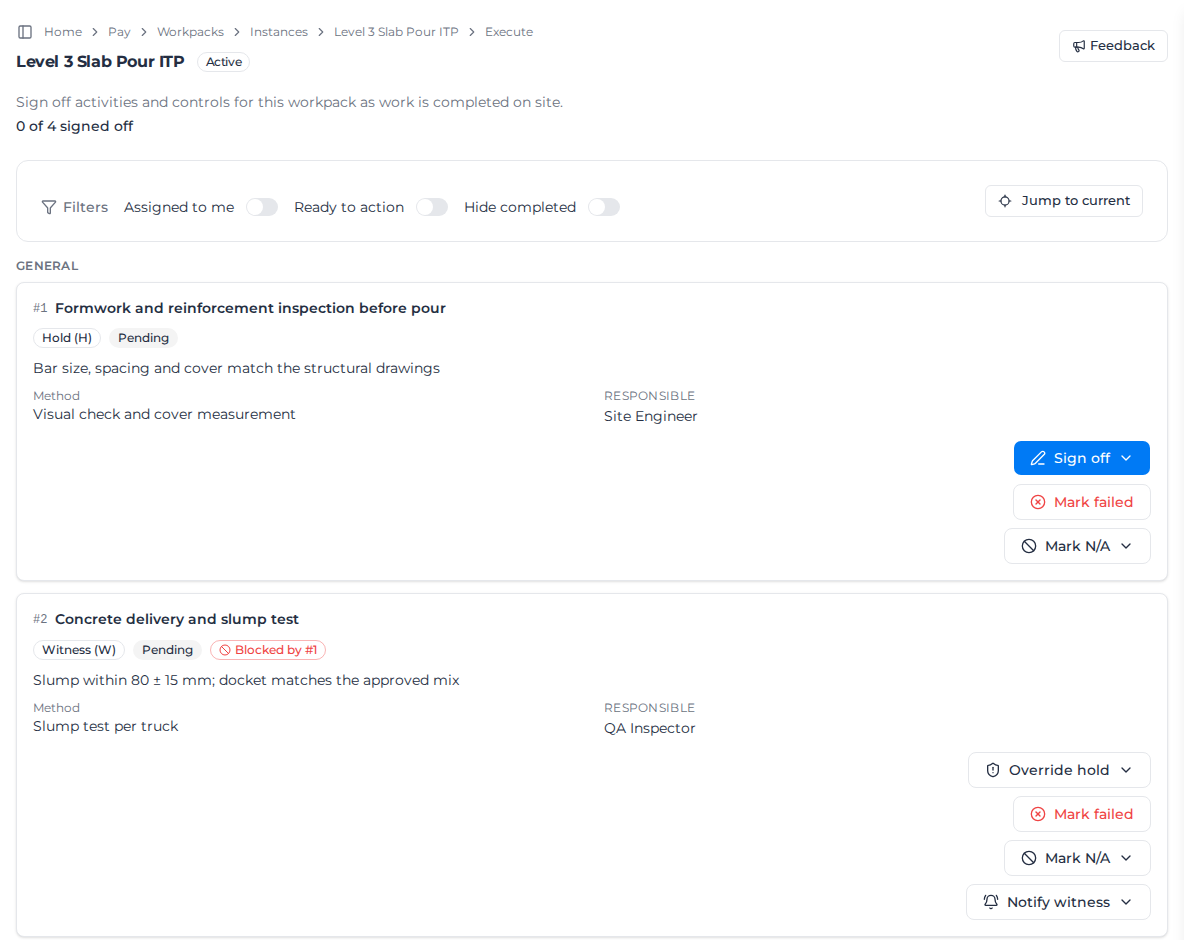
To narrow a long list, use the Filters:
- Assigned to me: rows you are a responsible party for: you are one of the row's people, or you hold one of its tags.
- Ready to action: hide rows that are still blocked.
- Hide completed: hide rows already done.
- Order: rows on one order, shown when the rows are split across orders.
Jump to current scrolls to the first row that still needs doing.
Not open for sign-off
Only an Active workpack can be worked on site. While a workpack is anything else, for example revised back to Draft or waiting in Re-approval pending, the execution screen says "Not open for sign-off". Its rows can't be signed off, marked N/A or reopened, and no witness can be called. A workpack that is Re-approval pending stays closed for sign-off until its approvers decide. A manager can still Revoke link on a witness call that hasn't been acknowledged. Once it is Active again, the screen opens for sign-off.
Read a row
Each row shows its classification (Hold (H), Witness (W) or Monitor (M)) and its status:
| Status | Meaning |
|---|---|
| Pending | Not started. |
| In progress | Reopened after a failed inspection, waiting to be inspected again. |
| Witness called | A witness has been notified. |
| Failed | Marked failed; a defect is open. |
| Signed off | Done. |
| Accepted as-is | A failed row accepted by signed concession. |
| N/A | Doesn't apply to this job. |
Signed off, Accepted as-is and N/A count as done.
A Hold point blocks every row after it: those rows show Blocked by #1 until the hold is done. For most people a blocked row's button reads Blocked and does nothing. People with Override workpacks see Override hold instead, which signs the row off early and asks for an Override reason.
Sign off a row
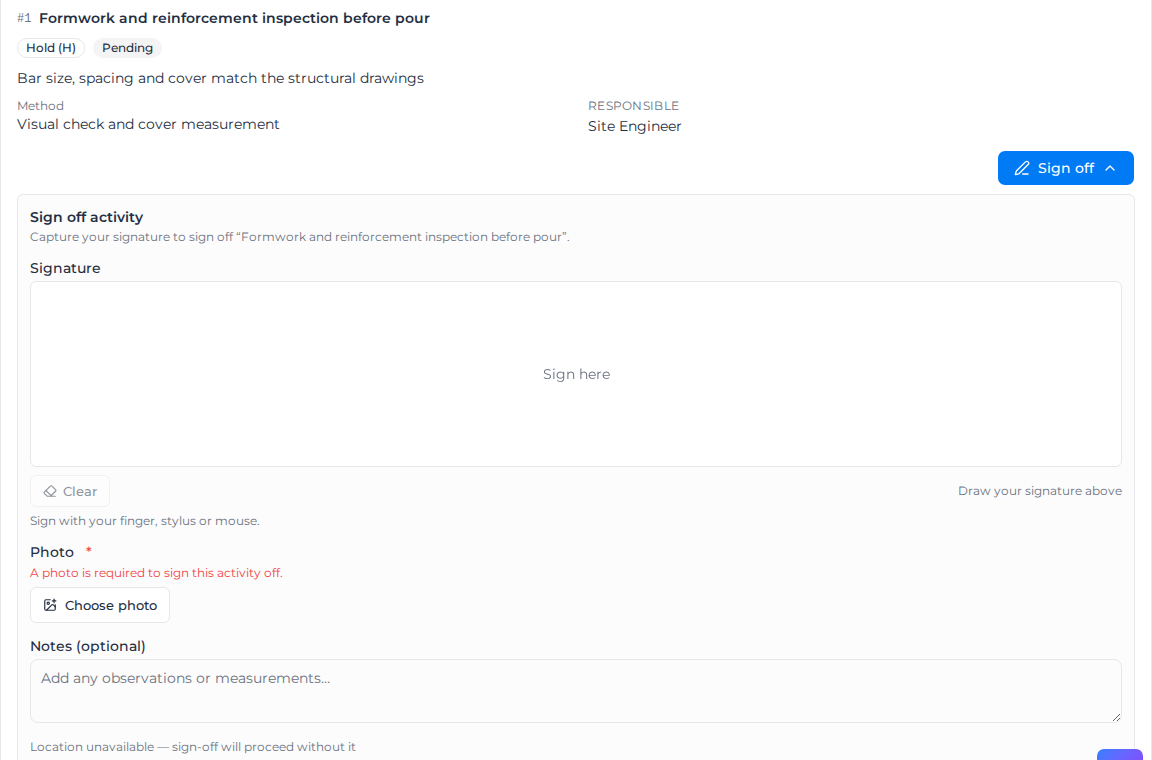
- Click Sign off on the row. The panel opens under it.
- Sign in the Signature box.
- If the row asks for a Photo, click Choose photo and take or pick one. A required photo is marked with an asterisk; otherwise it is optional.
- Fill in any Required records, for example a slump in mm. Required ones are marked with an asterisk.
- Add Notes (optional) if you like.
- Click Sign off.
The row shows Signed off with who signed it and when, and any photos as thumbnails you can open. Rows it was blocking unblock.
If your device shares its location, it is saved with the sign-off. When it can't, the panel says "Location unavailable — sign-off will proceed without it" and you can still sign off.
The Sign off button stays disabled until every required record has a value. A row whose required linked form isn't submitted shows Complete required forms first and can't be signed off at all, not even with an override. Open the form on the row, fill it in and submit it first.
Call a witness
On a Witness point:
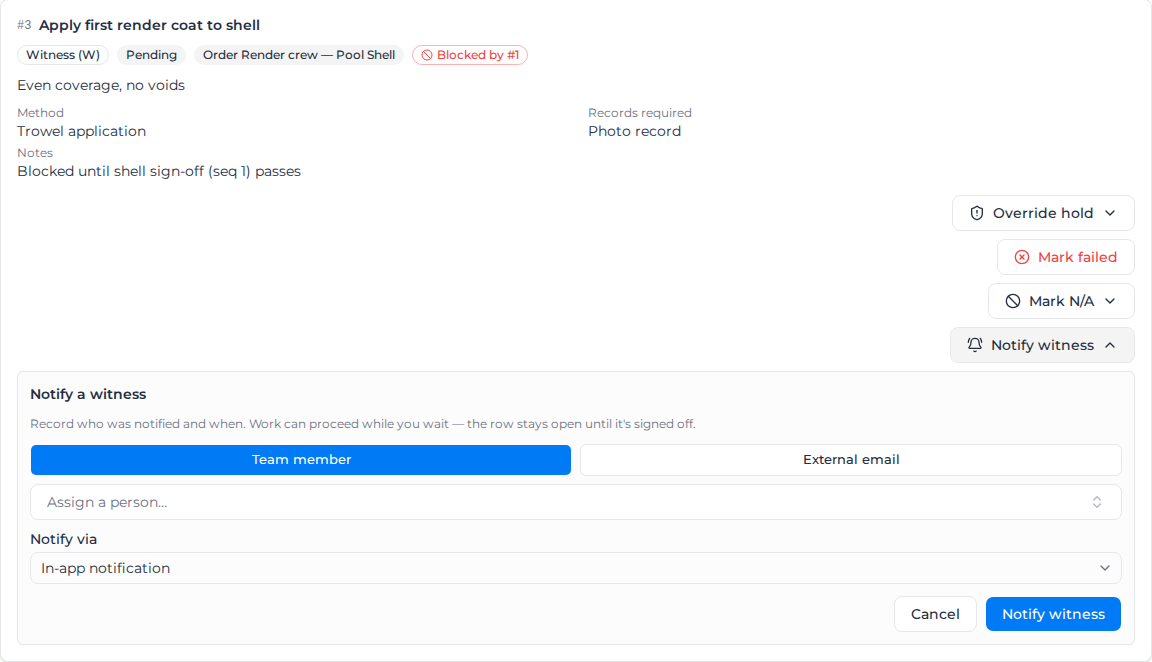
- Click Notify witness.
- Choose Team member and pick the person, or External email and enter their address.
- Under Notify via, choose In-app notification, Email, or In-app + email.
- Click Notify witness.
What the witness gets:
- In-app: a notification in your organization's notification bell, on the web and in Pay Mobile, that opens the execution screen. A witness who belongs to several organizations sees it once they switch to yours.
- Email to a team member: a link to the execution screen. They sign in to acknowledge the call there.
- Email to an outside witness: a link to a page that confirms the call without an Assignar Pay account. The link expires 14 days after it is sent.
If the call is saved but the notification or email can't be sent, a warning names what didn't go out, for example "Witness call recorded, but the email could not be sent. Let the witness know another way."
The row shows Witness called with the time. A team member who was called gets Acknowledge witness call on the row. A manager can Revoke link on a call that hasn't been acknowledged, and Notify witness again sends a new call.
Work can carry on while you wait, unless the row has Require witness attendance switched on. Then its button reads Awaiting witness until the witness acknowledges; someone with Override workpacks can still sign off with a reason.
Remind someone to finish a row
When a row is waiting on someone, send them a reminder. It works on any row that still has something left to do, and it doesn't change the row or call a witness. You need Manage workpacks, and the workpack must be Active.
- Click Send reminder on the row.
- The Send a reminder dialog lists who will be reminded: the people the row is assigned to, everyone with one of its tags, or, for a row delegated to a subcontractor, that organization's members who can sign it off (marked Linked organisation).
- Optionally add a Note (optional), for example "the inspector is on site at 2pm".
- Click Send reminder.
Each person gets one notification and one email, which open the row on the execution screen (or, for a subcontractor's staff, their view of the delegated work).
To remind people about several rows at once, select the rows in the activity list on the workpack page and click Send reminder with the count, for example Send reminder (3). Each person gets a single notification and email listing all their rows. Save any changes to the list first; until then the button is disabled and says "Save your changes to send reminders."
The dialog also shows who won't be reminded, and why:
- Reminded in the last hour: a person can be reminded about a row once an hour. The dialog says when they can be reminded again.
- Not reminded: the row is already complete, or nobody is assigned to it. Assign people, tags or an organization first.
If nobody can be reminded, Send reminder stays disabled. Every reminder goes in the workpack's audit trail with your note. If someone didn't get the notification or the email, you see "Reminder sent, but 1 person didn't get every notification or email. Let them know another way." Someone who got neither is shown as not delivered in the audit trail, and you can remind them again straight away.
Mark a row not applicable
When a row doesn't apply to this job (needs Manage workpacks):
- Click Mark N/A on the row.
- Enter the Reason.
- Click Mark N/A.
The row counts as done and unblocks the rows after it. The reason, who marked it and when are printed on the PDFs. To undo it, click Reopen on the row.
When a point fails
Click Mark failed on the row and confirm. A defect opens on the row, and it must be closed before the workpack can be closed out. See Handle failed inspections.
Related pages
- Delegate to subcontractors: let another organization's crew sign off some rows.
- Close out a workpack: finish the workpack once every row is done.
- Run a SWMS or toolbox talk: where every worker signs each item.