

Invite outside reviewers
Add a client or principal contractor to a workpack's approver chain by email, and, as a reviewer, find, approve and share the workpacks sent to you.
A principal contractor or client often has to approve your ITP before work starts. Add them to the approver chain by email. They join your organization as a client user who can open only the workpacks they are asked to review, and nothing else of yours.
Add an outside reviewer
- Open the draft workpack. In Approver chain, click Add approver.
- Choose External email and enter the reviewer's address.
- Optionally enter their role, for example "Principal Contractor".
- Put the step in order with the arrows and click Save approvers.
- Click Submit for approval and choose the External reviewer visibility:
- Approval decision only: they see the workpack's activities, attachments and progress only while their decision is pending. Afterwards they keep its summary, the approver chain, and the document they signed.
- Full ongoing progress: they keep seeing the workpack as it is worked on site.
- Click Submit.
Nobody is contacted until you submit. Then:
- Someone who is already a client user of your organization gets the workpack straight away.
- Anyone else gets an invitation email naming the workpack. They accept it and sign in, or create an account, with that email address.
If you entered the wrong address, click Replace on the pending step; see Get a workpack approved. When a reviewer signs a paper copy instead, record it yourself with Record an offline decision on the workpack.
As a reviewer: approve a workpack
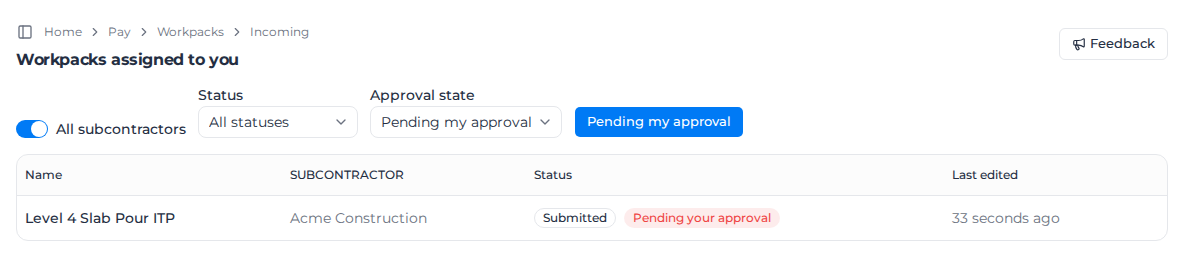
- Open the organization that sent you the workpack and go to Workpacks → Assigned to you.
- The list shows each workpack with the organization that sent it (Subcontractor) and your state, for example Pending your approval. Filter by Status and Approval state.
- Click the workpack's name, then Review & decide.
- Read the activities, then approve with your signature, or reject with a reason of at least 10 characters. See Get a workpack approved.
After you decide on an Approval decision only workpack, it shows "Detail hidden after your decision" in place of the activities, with Download the workpack you signed. If it is revised and sent to you again, the detail comes back while your new decision is pending.
See every review in one place
If you review for several organizations, My reviews in your personal account gathers every workpack and RFI waiting on you. Switch to your personal account with the switcher at the top of the sidebar, then choose My reviews. Filter by Status and Approval state, and click Respond or the workpack's name to act on it.
Share your reviews with your organization
When several people at a principal contractor review for different subcontractors, each can let their colleagues see what they are reviewing:
- In My reviews, find Share with your organisation. It lists each subcontractor you review for, next to each organization you belong to.
- Click Share on the pair you want. The row then shows Shared.
People in that organization who can view workpacks then see those workpacks and their status on Workpacks → Assigned to us. They see the summary, not the workpack itself; only you can open it. Stop sharing ends it. Both are recorded in the workpack's audit trail.
Until you have a review to share, the card says "You are not reviewing workpacks for any subcontractor yet, so there is nothing to share."
Reviewers and RFI assignees
People outside your team also answer RFIs. They are different from reviewers:
| Outside reviewer | RFI assignee | |
|---|---|---|
| Added by | Email, as a step in the approver chain | Name, from the people who already have access to your organization or a linked subcontractor |
| Invited | By email, when you submit | No invitation; they use their existing account |
| Does | Approves or rejects, with a signature | Writes an answer, with any cost or schedule impact |
| Finds it in | Assigned to you and My reviews | My reviews, and Assigned to you for client users |
See Raise an RFI.
Related pages
- Get a workpack approved
- Customer role: what client users can see.