

Use your own print layout
Print workpacks on your own letterhead and layout from a Word template, for one template or for a whole document type.
Every workpack prints from Pay's built-in layout for its document type. When a client or principal contractor expects your own letterhead and layout, upload a Word (.docx) print template with merge tags such as {$project.name} where the workpack's details go. Managing print templates needs Manage workpacks. RFIs don't print, so they have none.
Choose where the print template applies
A workpack prints with the first of these that is in use:
- The template's own print template. Open the template and find the Print template card below Attachments / standard inserts. It applies to every workpack started from that template.
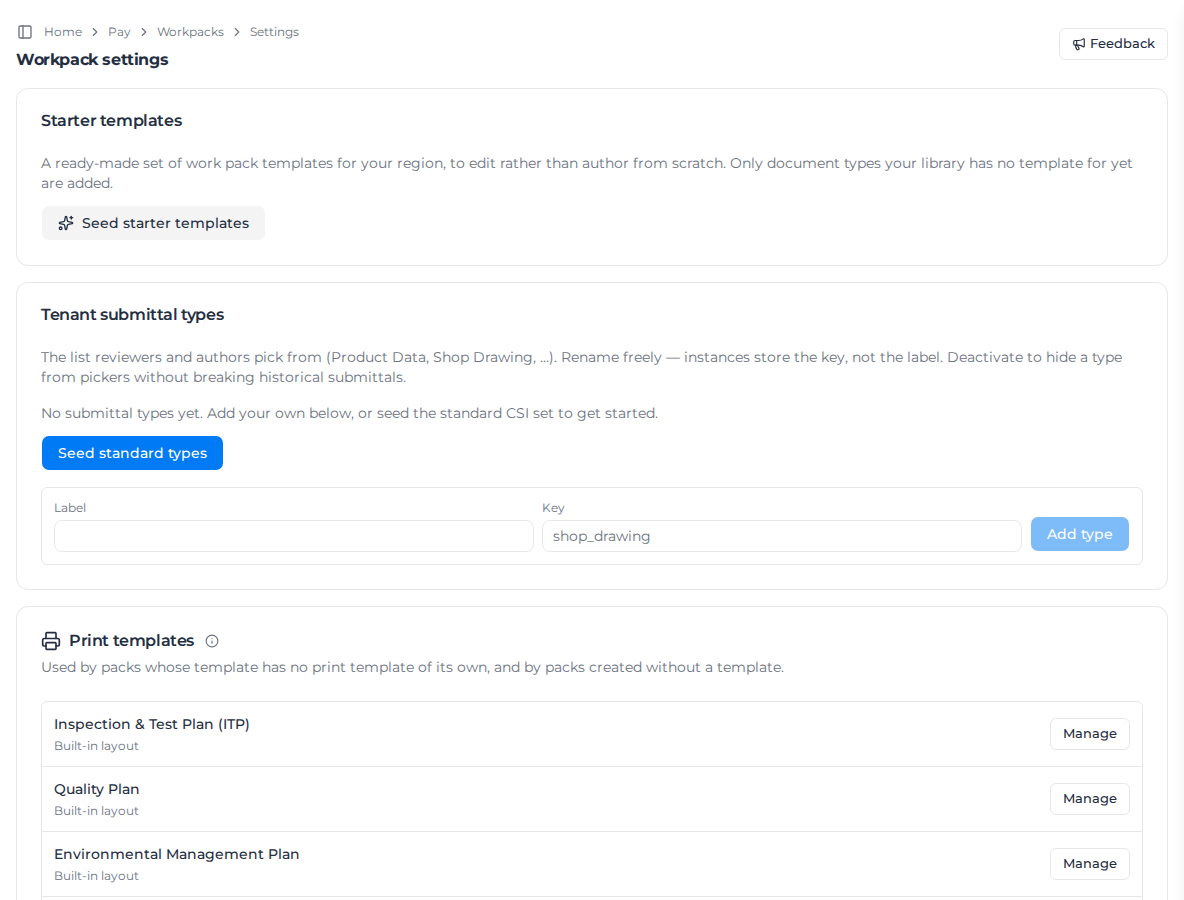
- The document type's default. Go to Workpacks → Settings → Print templates and click Manage on the document type. It applies to workpacks whose template has no print template in use, and to workpacks started without a template.
- The built-in layout, when neither is in use.
A print template is presentation, not content, so you can change it on a Draft or Published template without starting a new revision. On an Archived template you can view it but not change it.
The line under the card's heading tells you what workpacks from that template print with now: its own file, the document type's default, or the built-in layout.
Upload a print template
- Drop a .docx file on the card, or click it to browse. Files can be up to 4 MB; if yours is larger, compress or remove large images in Word.
- Pay checks the tags as it uploads and lists any problems under the file. The checks are the same as for forms: see Read the tag check. A tag problem never blocks the upload.
- The uploaded file is in use straight away.
The card has two options, Built-in layout and Uploaded template. Choosing Built-in layout stops using your file but keeps it, so you can switch back without uploading again. Uploading a new file replaces the old one.
To keep a copy, or to change the file in Word and upload it again, click Download on the card. It saves the latest uploaded file with its original name, whether it shows In use or Not in use, and works on an archived template too. If you can only view workpacks, a document type's row opens with View and its card has no Download.
Find the tags you can use
The card lists every tag for its document type, grouped as the document is: Document, Company, Project, Client, Activities, Defects, Approvers, Attachments, Closeout and more. SWMS, JSA, toolbox talk and submittal templates add their own group. Open a group and click a tag to copy it, then paste it into your Word document.
Once a file is uploaded, Preview fills it with sample data for that document type and lists any problems the render found.
Write the template
The tag syntax (conditions, modifiers and what happens to a broken tag) is in the Merge tag reference. Four things are specific to workpacks:
- Repeat blocks go in a table row. Put
{foreach $activities as $row}in the row's first cell and{/foreach}in its last; see Repeat a table row. Each activity carries its section in{$row.section}, so one table can print every section. - Images need
insert_image. Signatures and the logo are images: write{$company.logo|insert_image:200:0}or{$row.signature|insert_image:160:60}(width and height in pixels), each in its own table cell or paragraph. A0keeps the picture's proportions, while two numbers print exactly that size even if the picture is stretched; see Size a picture. An image tag withoutinsert_imageprints nothing. - Yes-or-empty values work in conditions. For example
{if $document.is_progress_snapshot}NOT FOR CONSTRUCTION{/if}. - The print for approval is the plan. Sign-offs, sign-off dates, defects, attendance and the closeout signature are empty on it.
Your template replaces only the body. Closeout form appendices, standard inserts and attachments (including SWMS images and SWMS or submittal PDFs) still follow it, and a progress PDF still starts with its notice page.
When a print fails
A broken tag never fails a print: it prints as written, or blank if the value doesn't exist. If the file can't be rendered at all, the PDF fails with a message naming your uploaded print template; it does not fall back to the built-in layout. Preview the template to find the problem, then upload a fixed file or switch to Built-in layout.
Related pages
- Build a template
- Close out a workpack: the PDFs a workpack produces.
- Upload a Word template: the same feature for forms.