

Raise an RFI
Raise a numbered Request for Information on a project, send it to the people who can answer, record their answers and close it.
A Request for Information (RFI) is a formal question on a project, such as a drawing that conflicts with the specification. It gets a project number, goes to the people who owe you an answer, and keeps what each of them said and when. An RFI has no inspection points and no approver chain.
Raising, issuing and closing RFIs needs Manage workpacks; reading them needs View workpacks. Answering needs no permission at all: being asked is what lets someone answer.
Raise an RFI
- Go to Workpacks → Project workpacks and click New workpack.
- Choose the Client and the Project. An RFI must have a project.
- Leave Template on No template — blank workpack and choose Request for Information (RFI) as the Document type.
- Enter the Workpack name, a short summary of the question, and click Create workpack.
- In the Request for Information card, fill in:
- Question: what you need answered. It is required before you can issue.
- Location, for example "Level 3, grid C4–D6".
- Cost code (reference): a cost code to file it under, as text.
- Response due: the date you need the answer by. It drives the overdue flag on the register.
- Predicted impact: tick Cost impact or Schedule impact and add Impact notes if you expect either.
- Under Who is being asked, click Add assignee, pick a person and leave Required ticked if their answer is mandatory. Repeat for each person.
- Attach any drawings or photos in Reference documents. Everyone asked can open them once the RFI is issued.
- Click Save draft to keep working on it, or Save and issue to send it.
A draft is private to your team: the people on the list can't see it until you issue it.
Who you can ask
- Members of your own team.
- Client users and suppliers who have access to your organization.
- Members of a subcontractor organization linked to yours.
Field users and visitors can't be asked and aren't in the list. Each person can be on the list once.
Required people must answer before the RFI can be closed. An optional person can answer until it is closed, but you can close it without them. An issued RFI always keeps at least one required person.
Issue it
Save and issue saves your changes and then:
- gives the RFI the project's next number, RFI-1, RFI-2 and so on;
- sets it to Awaiting response;
- notifies everyone asked, in the app.
If something is missing, nothing is sent and no number is used: the RFI needs a project, a question and at least one required person.
Once issued, the question, location, cost code, due date and predicted impact are locked, because people have already read them. You can still change who is asked: edit the list and click Save assignees. Newly added people are notified; removing someone who already answered keeps their answer.
Answer an RFI
When you are asked, you get a notification that links to the RFI. You also find it in My reviews in your personal account, marked Awaiting your response (or Response optional) with a Respond button. Client users also see it under Workpacks → Assigned to you, and members of the asking team can answer on the RFI itself.
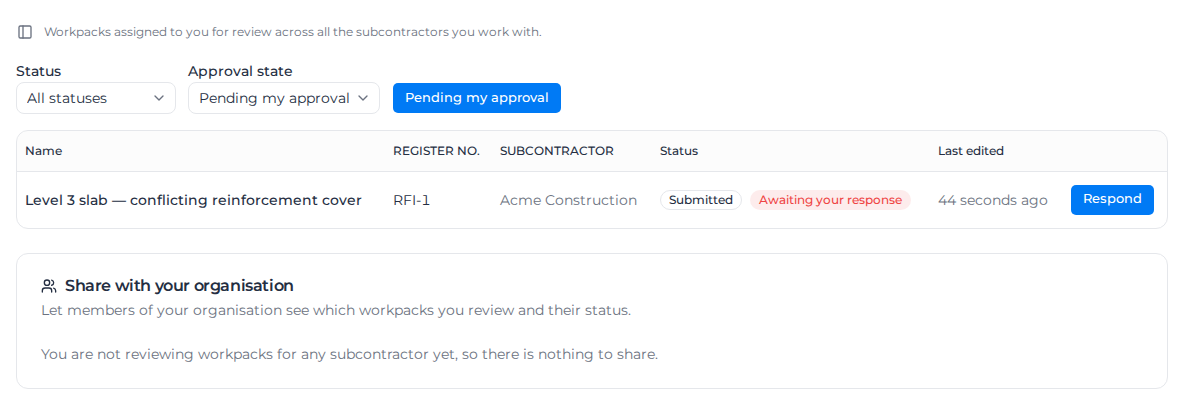
- Click Respond. The page shows the question, its details, the reference documents and who else was asked.
- Type your answer in Your response. It can't be empty.
- Tick Cost impact or Schedule impact if your answer carries either.
- Click Submit response.
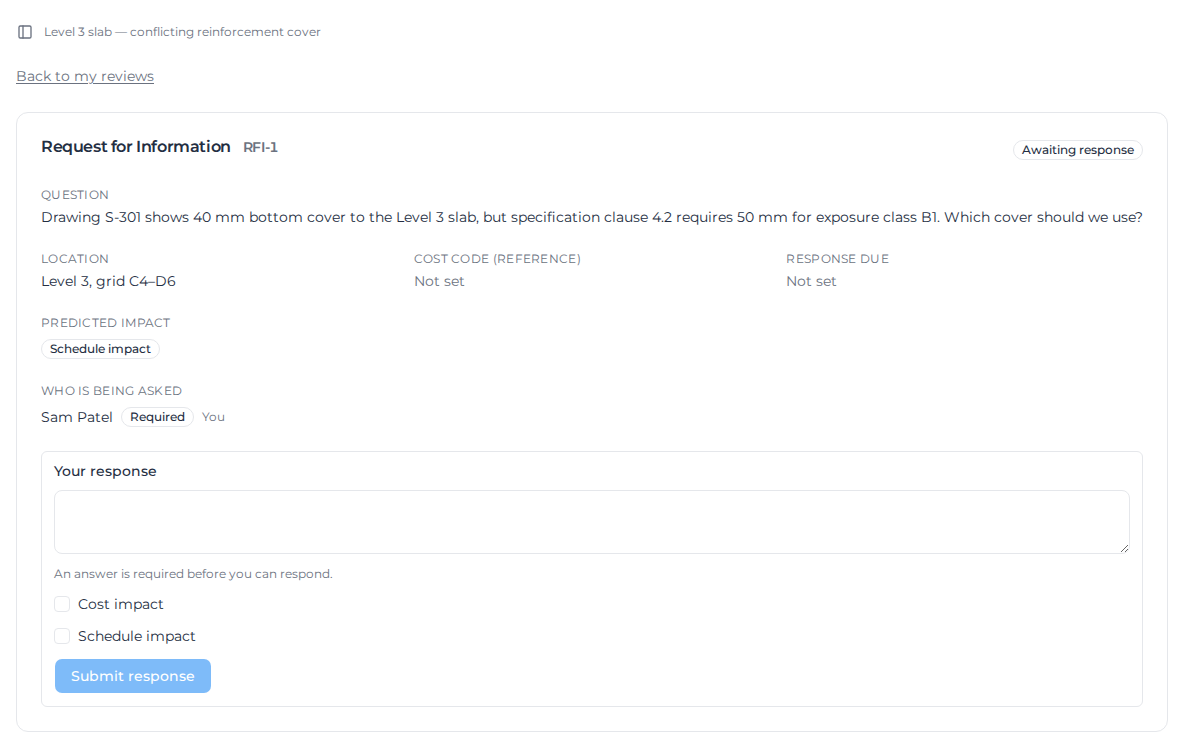
An answer can't be edited or withdrawn. If you need to correct it, ask for a new RFI. You keep access to the RFI and your answer after it is closed.
Everyone who can see the RFI sees who was asked. Answers are more private: your team sees every answer, but one outside party can't read another's.
Close it
When every required person has answered, the RFI shows Responded and Close RFI appears. Pay never closes an RFI by itself.
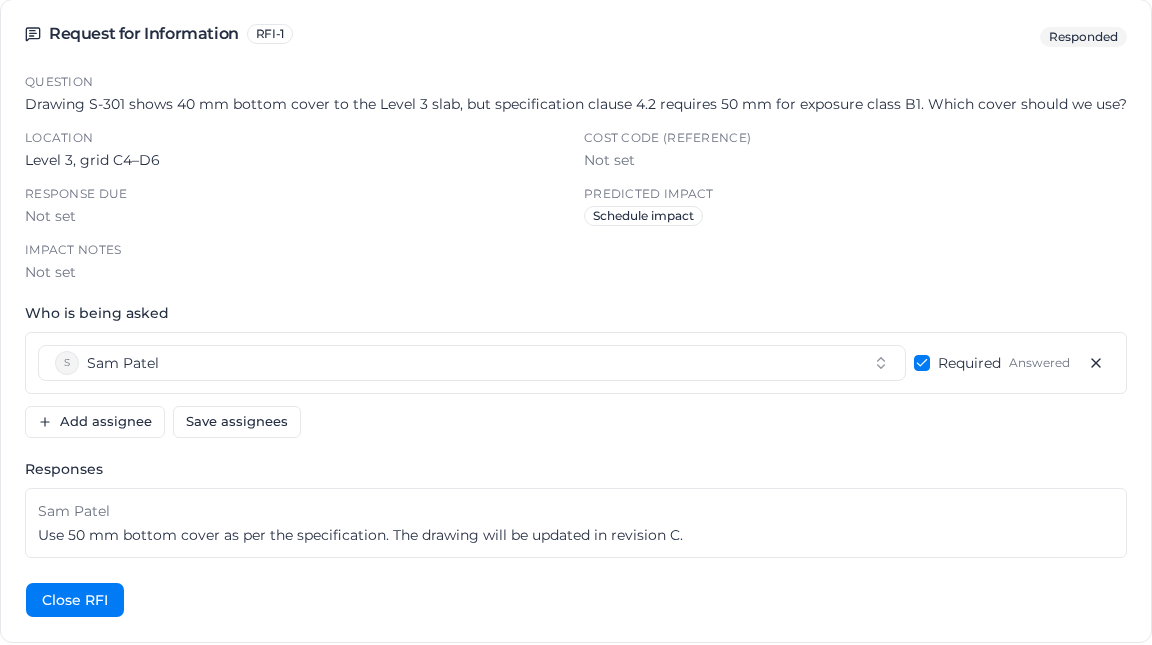
If a required person can't answer, make them optional or remove them, then close. A closed RFI can't be reopened; raise a new one instead.
Find RFIs on the register
Set Document type to Request for Information (RFI) on Project workpacks to see the register, with Register no., Ball in court (the people asked while answers are outstanding, then you) and Response due, flagged when overdue. The Status column shows Submitted for an issued RFI; open it to see Awaiting response or Responded. You can search for an RFI by its number.
Numbers are not zero-padded, so sort the register by date rather than by number.
Reuse, archive or delete
- Clone a similar RFI from the ⋯ menu. The copy is a new draft with the question, details and people to ask, but no number, due date or answers. RFIs can't be saved as templates.
- Archive a closed RFI to take it off the active list; the people asked keep access. An issued RFI must be closed first. Restore returns it to Closed, or to Draft if it was never issued.
- Delete is only possible while nobody has answered.
RFIs don't print, and issuing and answering notify in the app only, not by email. There is no status override for an RFI.
Related pages
- Start a workpack: the create dialog and the list.
- Invite outside reviewers: people who approve rather than answer.