

Connect your AI assistant
Connect an AI assistant such as Claude to Assignar Pay with the Pay MCP, so it can read and update your organization's data as you, within your own permissions.
The Pay MCP lets an AI assistant such as Claude work in Assignar Pay for you. You connect it once with your own Assignar Pay sign-in. After that you can ask it to look things up or make changes, for example "List the pay rate documents in our account" or "Add these five workers to the Civil Labourer rate", and it does the work in Assignar Pay as you.
The assistant can only do what you can do in Assignar Pay. It sees the same accounts, follows the same permissions and hides the same financial figures.
Before you start
- Your role. You need to be an Owner, Admin or Manager of the account. Field, Customer, Supplier and Visitor members can't use the Pay MCP.
- Your permission. Owners, Admins and Managers have Use the Pay MCP unless someone has taken it away, or their access preset leaves it out. See Choose who can use it.
- Your AI assistant. It must let you add a custom connector, also called a remote MCP server, that signs in with OAuth. Claude and Claude Code both do.
You'll need this server address:
https://pay.assignar.com/api/mcp
Connect Claude
In Claude, select Customize in the sidebar, then the Connectors tab.
Select Add, then Add custom connector.
Under Or add a custom connector by URL, enter Assignar Pay in Name and paste the server address into MCP server URL, then select Continue.
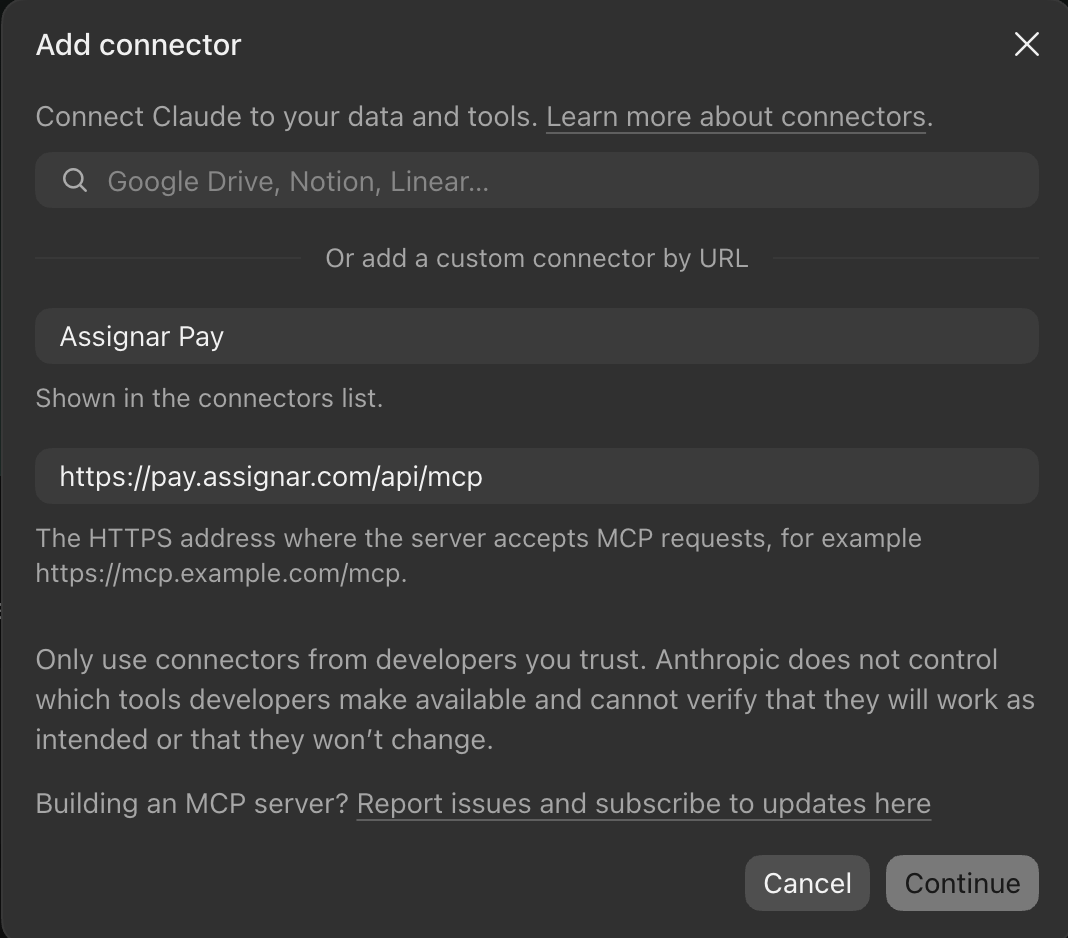
Leave Sign in now and Register automatically selected, and select Add.
Claude shows You're not connected to Assignar Pay yet. Select Connect.
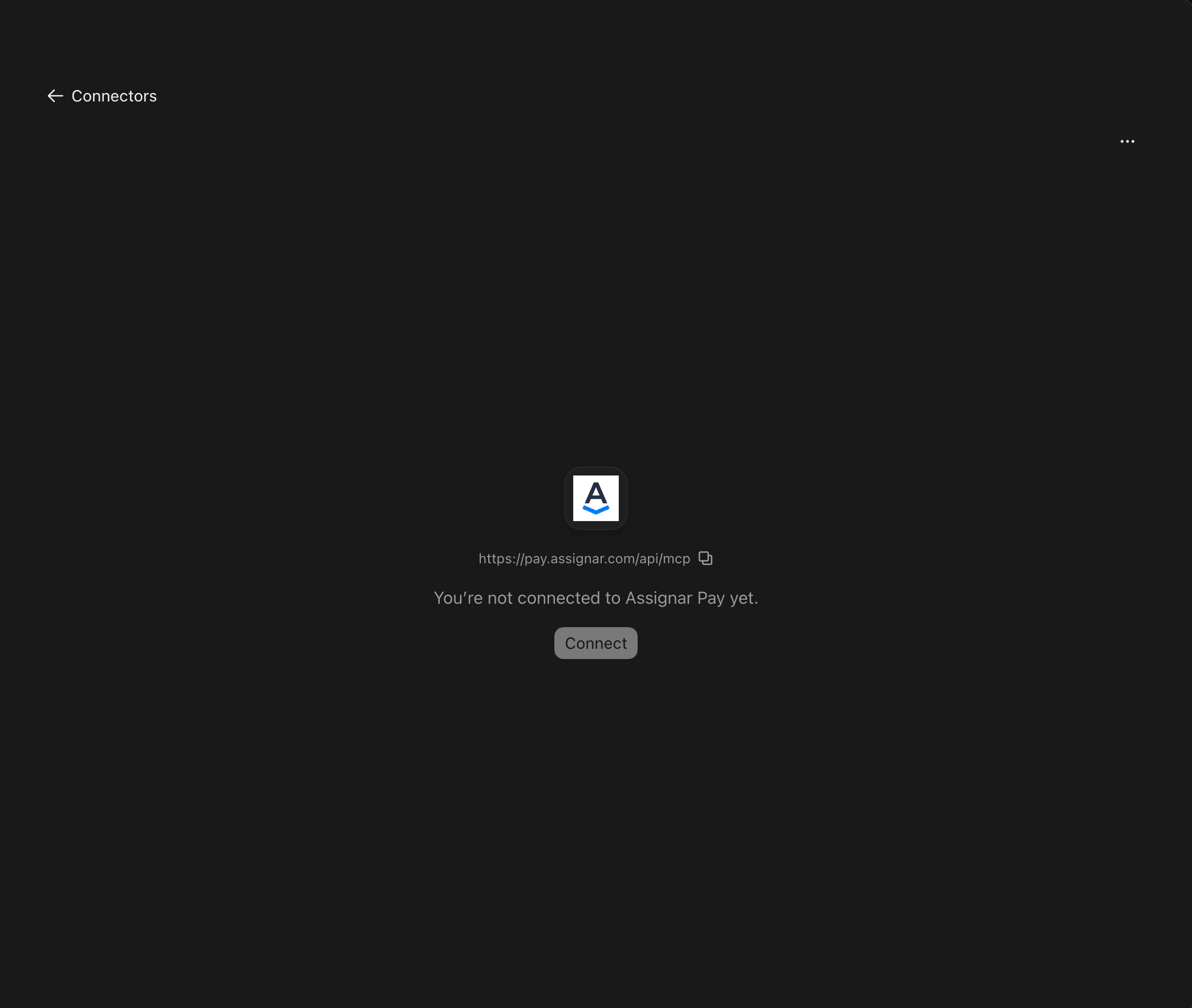
Your browser opens on Assignar Pay. In the Claude desktop app, your browser first asks Finish connecting a connector?: select Continue connecting.
Sign in to Assignar Pay if you aren't already, then approve the connection. See Approve the connection.
Claude shows Connected to Assignar Pay. and lists the tools it can now use.
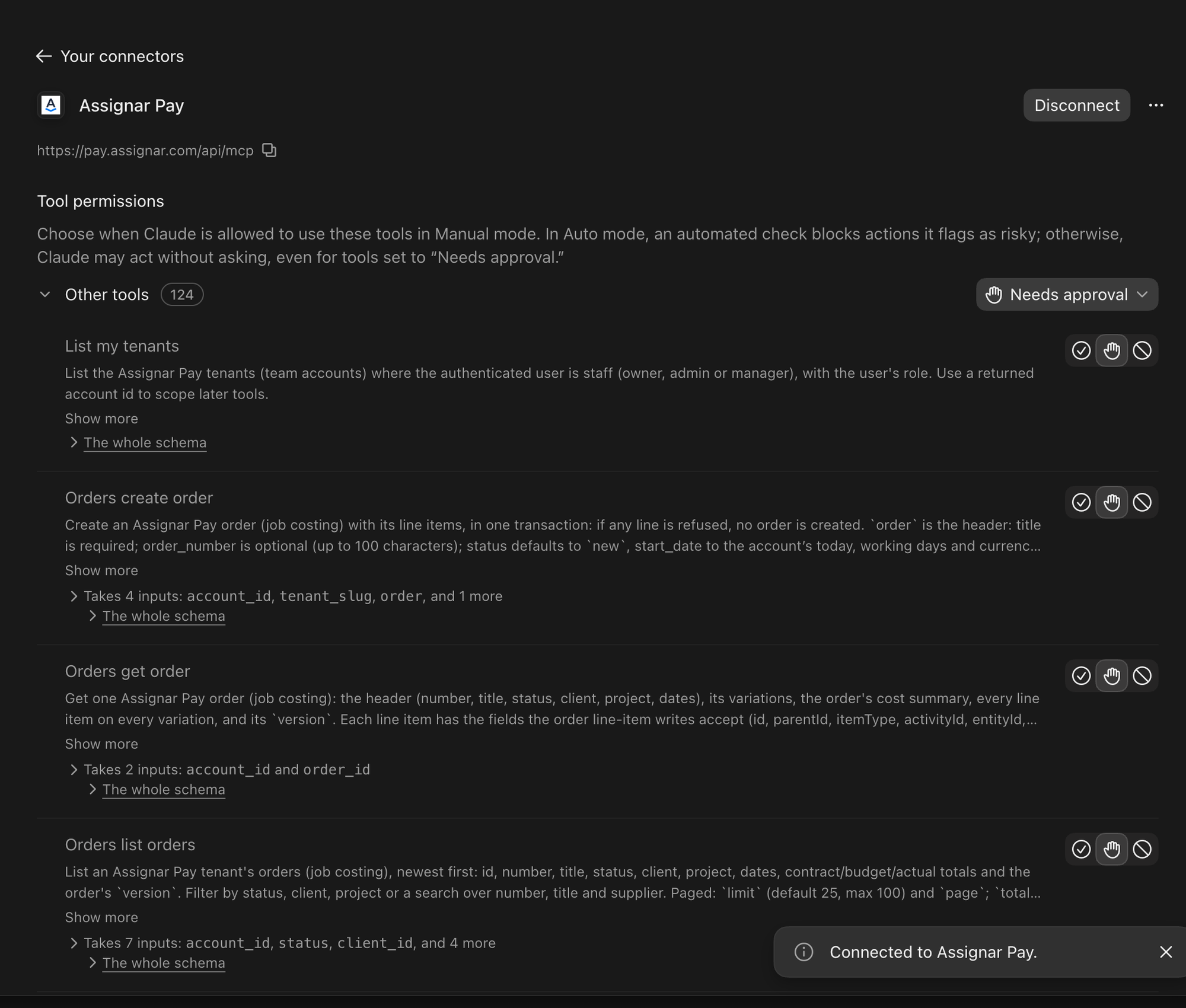
The same connector works in Claude on the web and in the Claude desktop app.
Connect Claude Code
In a terminal, run:
claude mcp add --transport http assignar-pay https://pay.assignar.com/api/mcp
Start Claude Code, type
/mcp, choose assignar-pay and select Authenticate. A browser window opens on Assignar Pay.Sign in to Assignar Pay if you aren't already, then approve the connection. Claude Code shows Authentication successful when you're done.
Connect another assistant
Other assistants, ChatGPT among them, connect the same way if they let you add a custom connector that signs in with OAuth. Add the server address as a new connector or remote MCP server, then sign in to Assignar Pay and approve the connection when the browser opens. The menu names differ from one assistant to the next; check your assistant's help for where custom connectors are.
Approve the connection
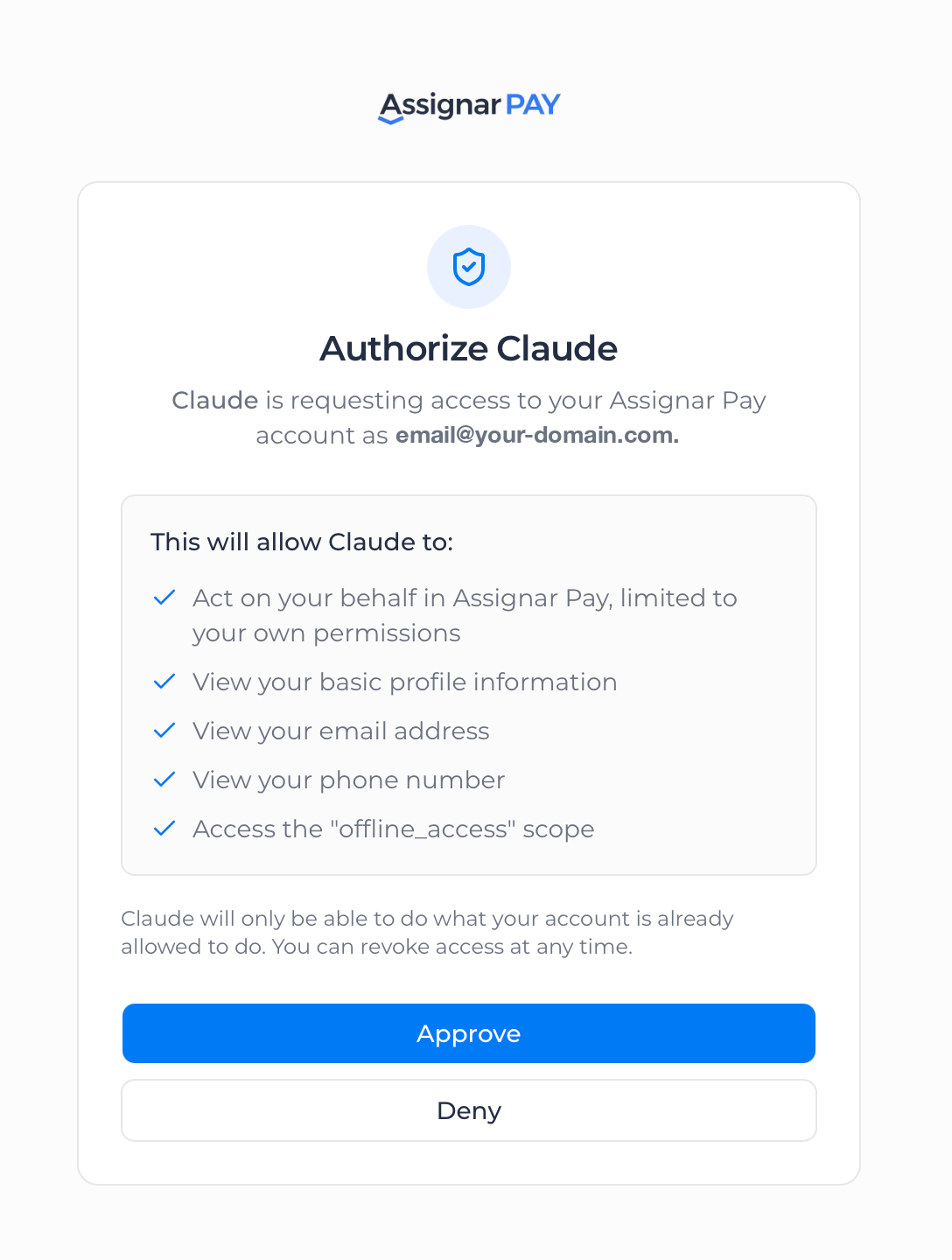
After you sign in, Assignar Pay shows Authorize followed by the assistant's name, and the email you signed in with. It lists what the assistant will be able to do. The first item is the one that matters: it acts on your behalf in Assignar Pay, limited to your own permissions. The rest let it read your name, email and phone number, and stay signed in between conversations. If you've connected this assistant before, Assignar Pay may skip this screen and send you straight back.
If you've set up two-factor sign-in (MFA), Assignar Pay asks for your code first, unless you've already entered it in this browser. See Set up MFA.
Select Approve. The browser hands you back to your assistant, and you're connected. Deny stops the connection.
To check it worked, ask your assistant "Which Assignar Pay accounts can you see?" It lists every account where you're an Owner, Admin or Manager, including any where you can't use the Pay MCP.
What your assistant can do
Your assistant can read and change:
- pay rate documents: their rates, rules, allowances and leave, and which workers they apply to
- orders and quotes, with their line items
- cost codes, and the resources they price: roles, equipment, activities and materials
- workers' roles and leave classifications
It can also read your clients, projects, workers, employment types, tags and tax jurisdictions, and the calculated pay for your timesheets.
It can read your schedule, too: the orders on the scheduler for up to 31 days at a time, each day's shifts, and the workers, equipment and crews booked on them. Ask it for tomorrow's roster or the week's run sheet, laid out the way you want. It can't book or move anyone.
Everything it does runs as you. A change it makes is recorded under your name, the same as a change you make on screen. Before it changes anything, it has to name the account the change is for, so a change can't land in the wrong account.
Stay connected
You stay connected until one of these happens:
- You use MFA and 30 days have passed since you connected. Your assistant asks you to sign in again. Connect again the same way.
- You sign out of Assignar Pay while online, on the web or in Pay Mobile. Signing out ends every session you have, including your assistant's connection. Your assistant asks you to sign in again the next time you use it.
- You turn on MFA after connecting. Your assistant can no longer see your accounts. In your assistant, disconnect and connect again, and enter your code when asked.
Disconnect your assistant
Remove the Assignar Pay connector in your assistant's settings. In Claude, open the connector under Customize → Connectors and select Disconnect. In Claude Code, run claude mcp remove assignar-pay.
Disconnecting removes the connection from your assistant. To end it on the Assignar Pay side as well, sign out of Assignar Pay (see Stay connected).
Choose who can use it
The Pay MCP is on for your account unless Assignar support has switched it off (see the end of this section). Owners, Admins and Managers have Use the Pay MCP unless their access preset leaves it out. An Owner or Admin can take it away:
- For one person, clear Use the Pay MCP in their access. You can change people below your own role only. See Adjust someone's access.
- For everyone on a preset, clear it on the preset. See Set up access presets.
Use the Pay MCP is in the Workspace Admin group. The change applies to the person's next request, without them reconnecting.
To switch the Pay MCP off for your whole account, contact Assignar support.
If something goes wrong
Your assistant usually reads these messages back to you in its own words.
| Message | What to do |
|---|---|
| You don't have permission to use the Pay MCP in this account. Ask an account admin to give you "Use the Pay MCP". | Someone has taken the permission away from you, or your access preset leaves it out. Ask an Owner or Admin to give it to you. |
| The Pay MCP isn't enabled for this account. Ask Assignar support to switch it on. | The Pay MCP is switched off for that account. Contact Assignar support. |
| The Pay MCP is for an account's staff. Customer, supplier, field and visitor members cannot use it. | Your role on that account is Customer, Supplier, Field or Visitor. Ask an Owner or Admin whether you should have a different role. |
| You are not a member of that account (or it does not exist). | Your assistant used an account you don't belong to. Ask it to list your Assignar Pay accounts and try again with one of those. |
| Rate limit exceeded for (tool name). Try again in (number)s., for example Rate limit exceeded for orders_update_order. Try again in 12s. | Your assistant sent too many requests in a short time. Wait the number of seconds shown, then try again. |
| Approve this connection again while connecting | Assignar Pay needs you to approve this assistant on its own screen. Start the connection again from your assistant, then select Approve. If you see it again for the same assistant, contact support. |
| This connection was not approved in Assignar Pay, or the approval expired. | Your assistant took more than two minutes to finish connecting after you approved, or the connection was approved somewhere other than Assignar Pay. Start the connection again from your assistant and select Approve. |
| Invalid authorization request while connecting | The connection request expired, or your browser is holding an old Assignar Pay sign-in. Start the connection again from your assistant. If it happens again, use a private window, or sign out of Assignar Pay in your browser first. |
If your assistant connects but can't see any accounts, you aren't an Owner, Admin or Manager on any account, or you turned on MFA after connecting (see Stay connected).
Where your data goes
Anything your assistant reads from Assignar Pay is sent to the company that runs the assistant, for example Anthropic for Claude, and handled under that company's terms. Check that your business is comfortable with that before you connect. To stop someone using the Pay MCP, an Owner or Admin takes away their Use the Pay MCP permission (see Choose who can use it).