Customer quick start
A short path for a client contact to accept their portal invite and find invoices, workpacks and forms.
A contractor has invited you to their Assignar Pay portal. Accept the invitation, then open the invoices, workpacks and forms they shared with you.
Accept your invitation
- Open the invitation email from the contractor and select the link.
- On You've been invited to join, select Continue. Assignar Pay signs you in with that email address and creates your login if you don't have one yet. See Accept an invitation.
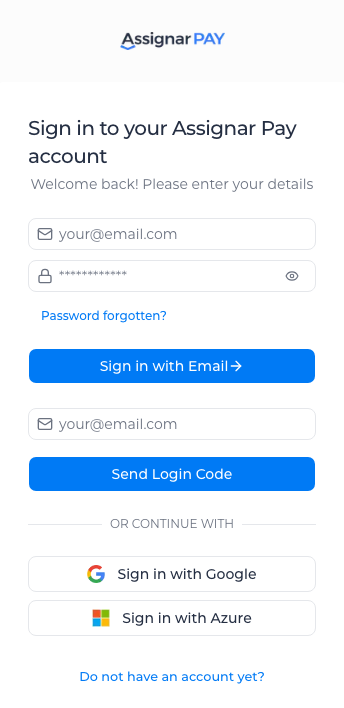
- The next time, sign in. See Sign in to Assignar Pay.
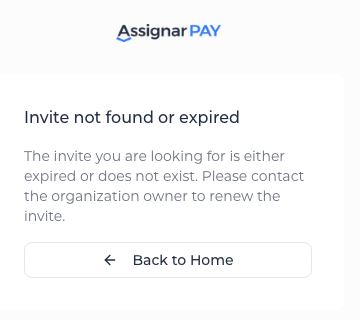
If the link has expired, you see Invite not found or expired. Ask the contractor to renew the invite. See Fix sign-in problems.
Your contractor gives you access. The steps for their office are in Customer role and Manage clients and projects.
Find your work
You see only the client or project they gave you.
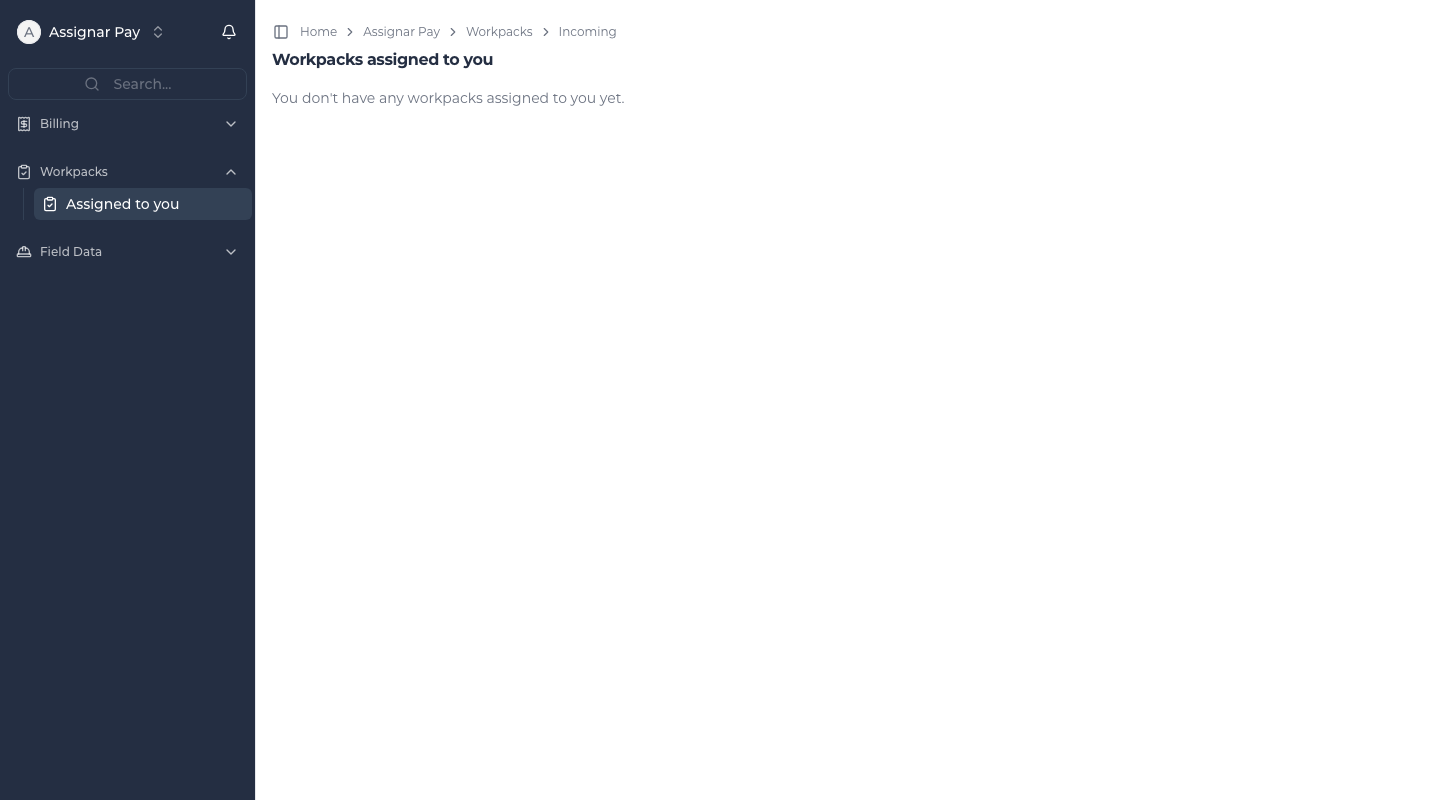
You land on Workpacks → Assigned to you: the workpacks they asked you to review. See As a reviewer: approve a workpack.
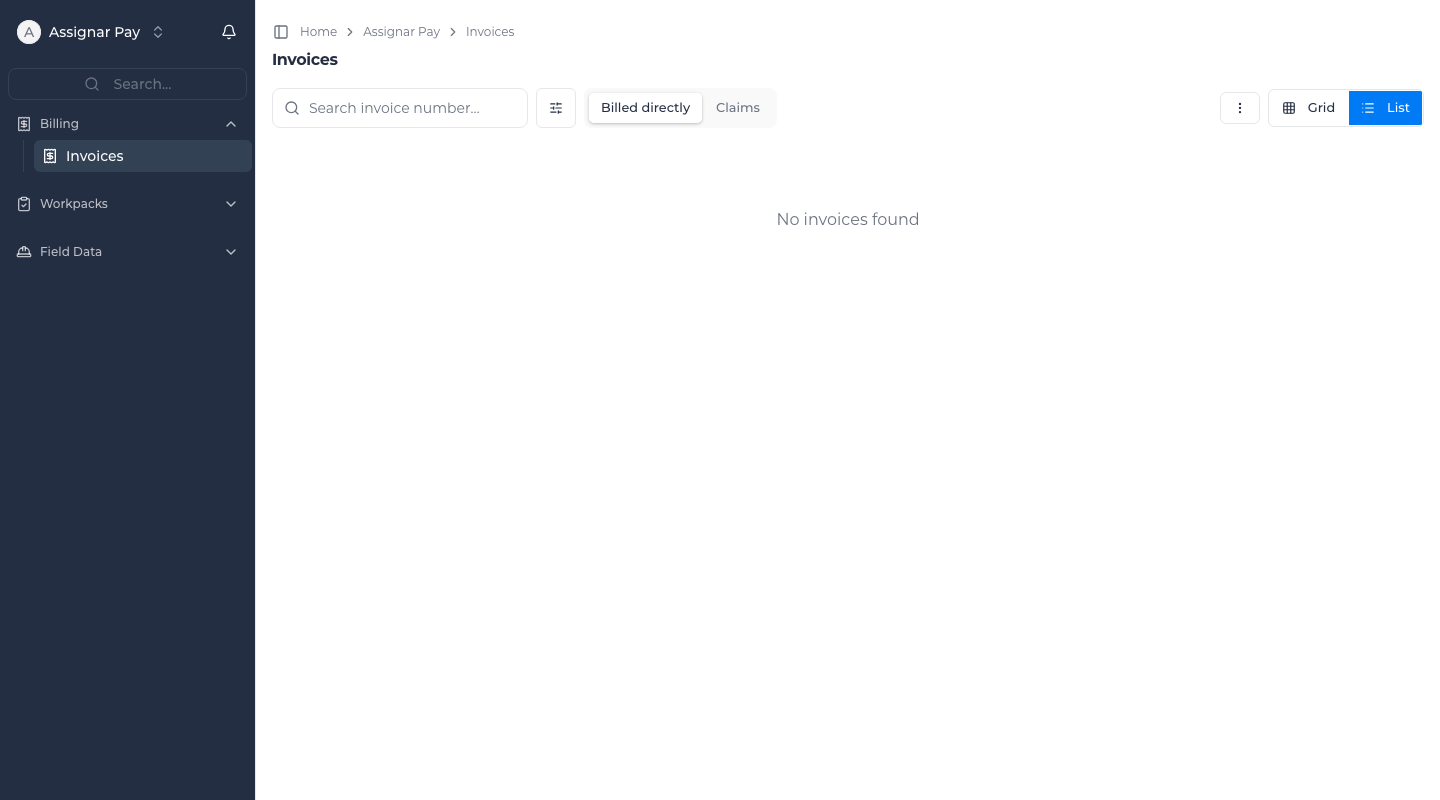
Billing → Invoices shows invoices once they are issued, and any credit notes against them. See Let a client contact see the evidence.
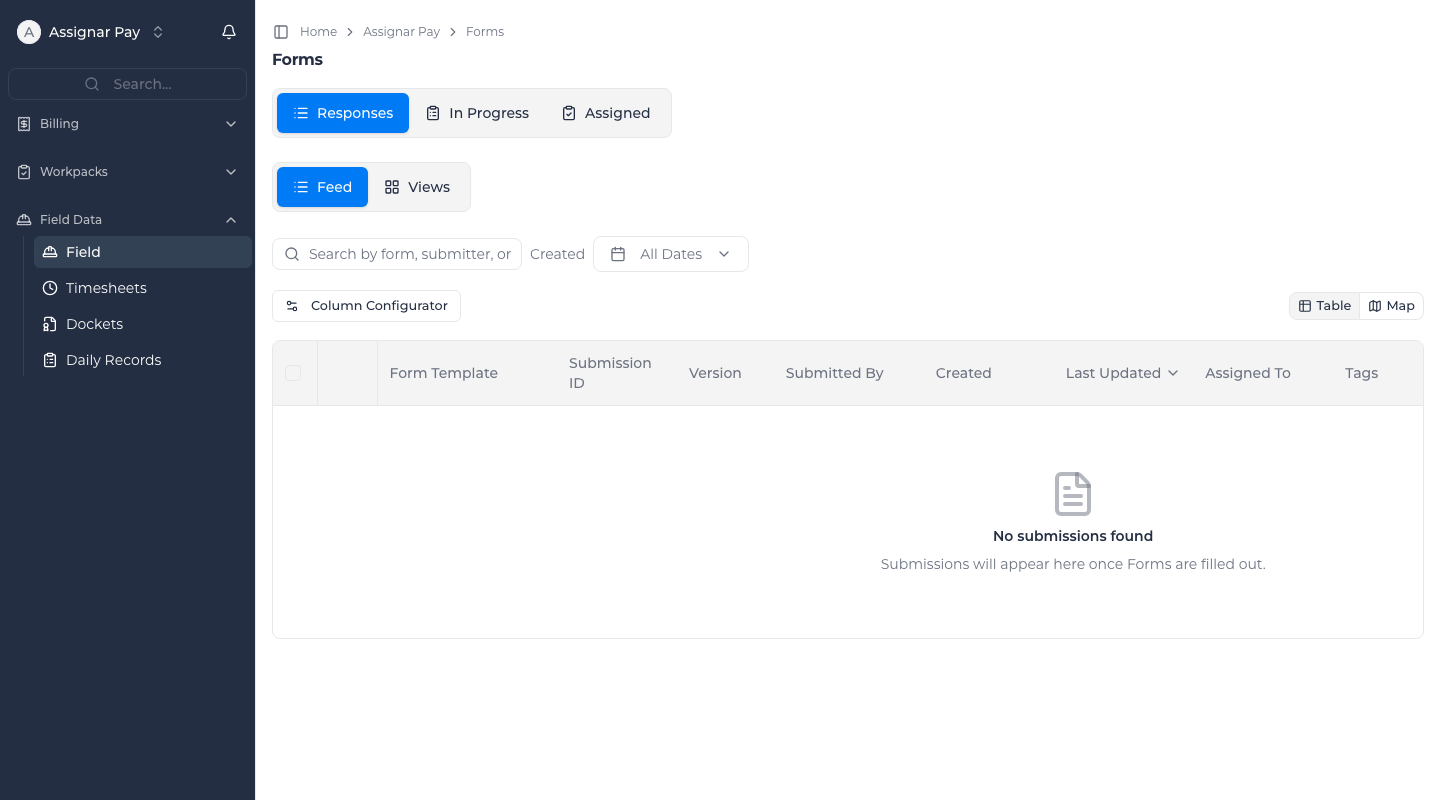
Field Data → Field opens Forms, the forms open to customers.
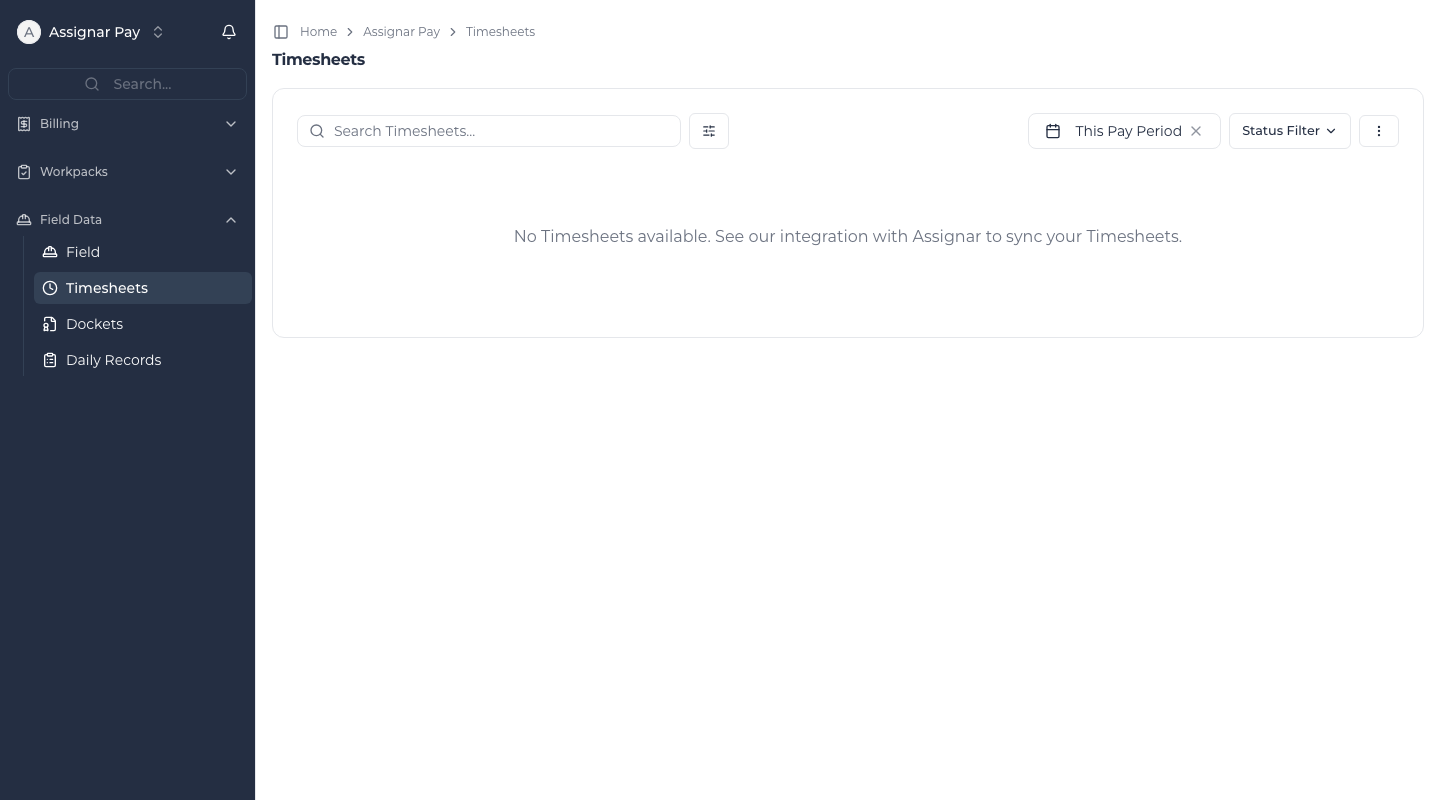
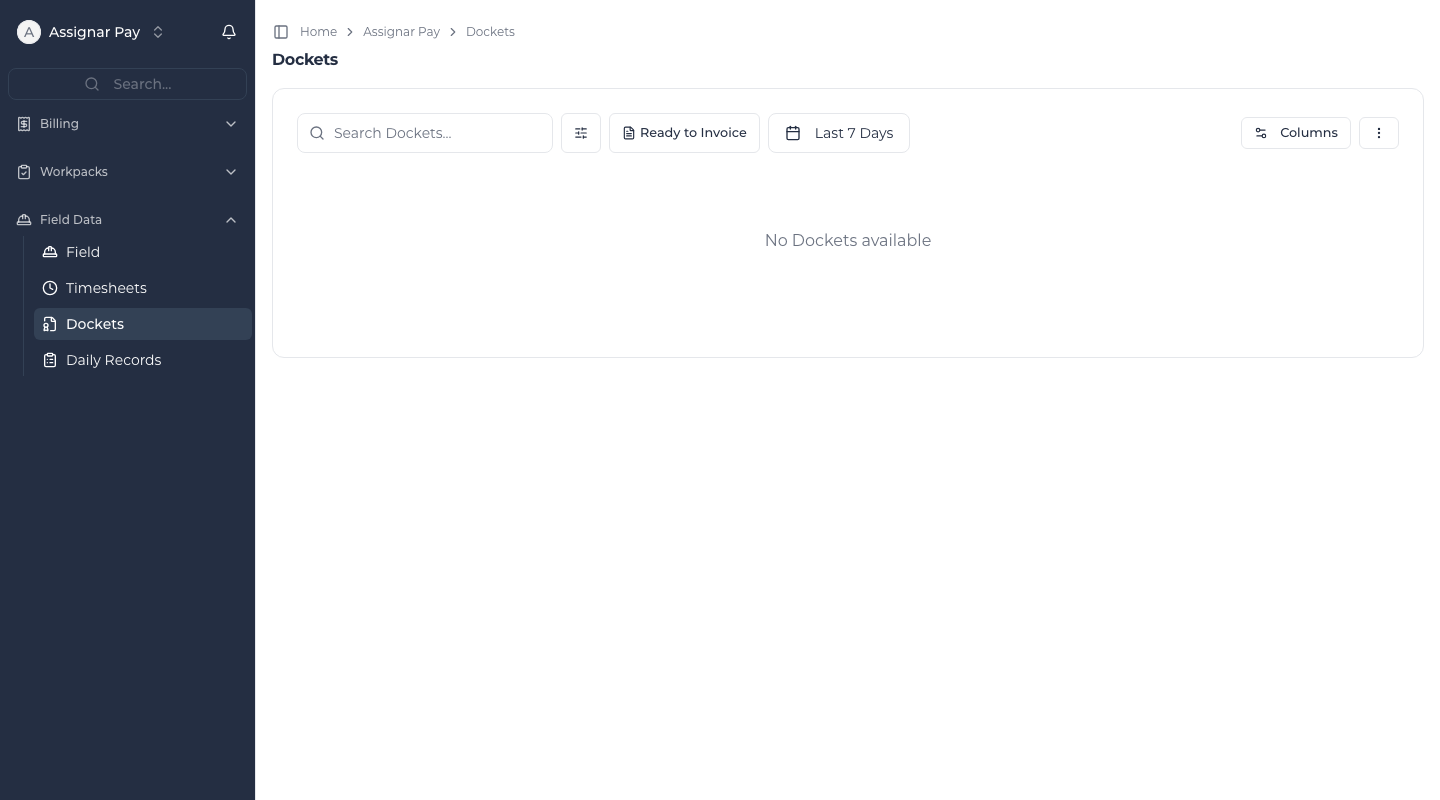
Field Data → Timesheets and Dockets shows the timesheets and dockets of your client or project. United States and Canadian accounts see Field Tickets instead of Dockets.
What you can open is set out in Customer role.
What you can't do
You can change only the forms and reviews you are asked for. You don't see the rest of the contractor's organization.
Get help
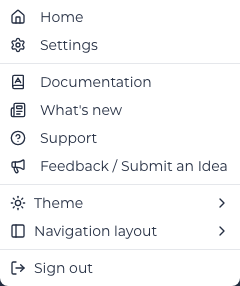
Select your name in the navigation and choose Support, or email support@assignar.com. See Get help.